




Ultima Markets
Ultima Markets is an online broker providing access to global financial markets through professional trading platforms.
About Ultima Markets
Ultima Markets provides traders with access to a range of global financial markets, including Forex, precious metals, indices, commodities and CFDs. Traders can use supported trading platforms, account options and trading tools based on their trading needs. The Traders' Cave provides broker information and support to help traders better understand the available services before opening an account.
Available Services
Key Highlights
How to Register with Ultima Markets
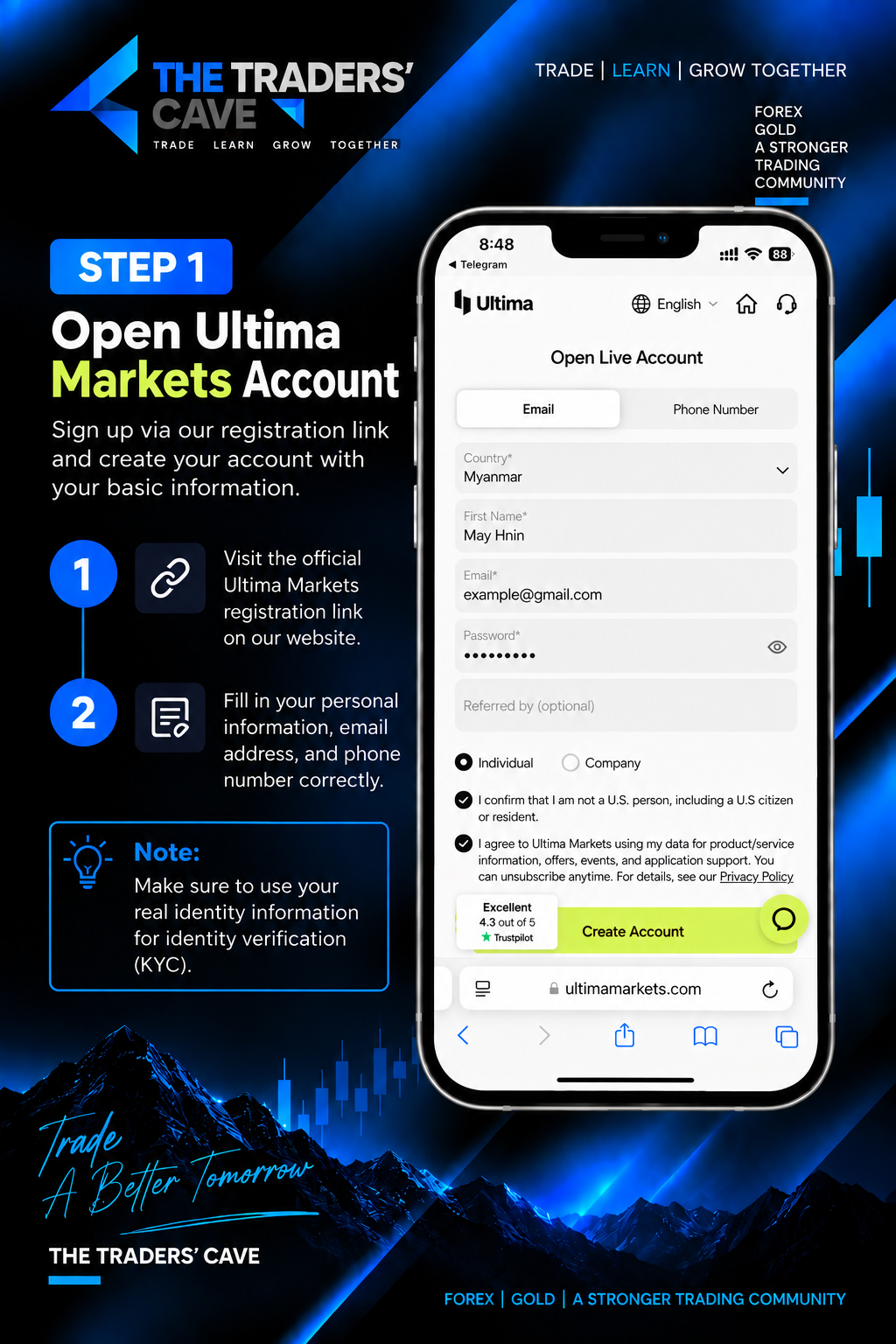
Open The Traders’ Cave official Ultima Markets registration link and create your account using your basic information.
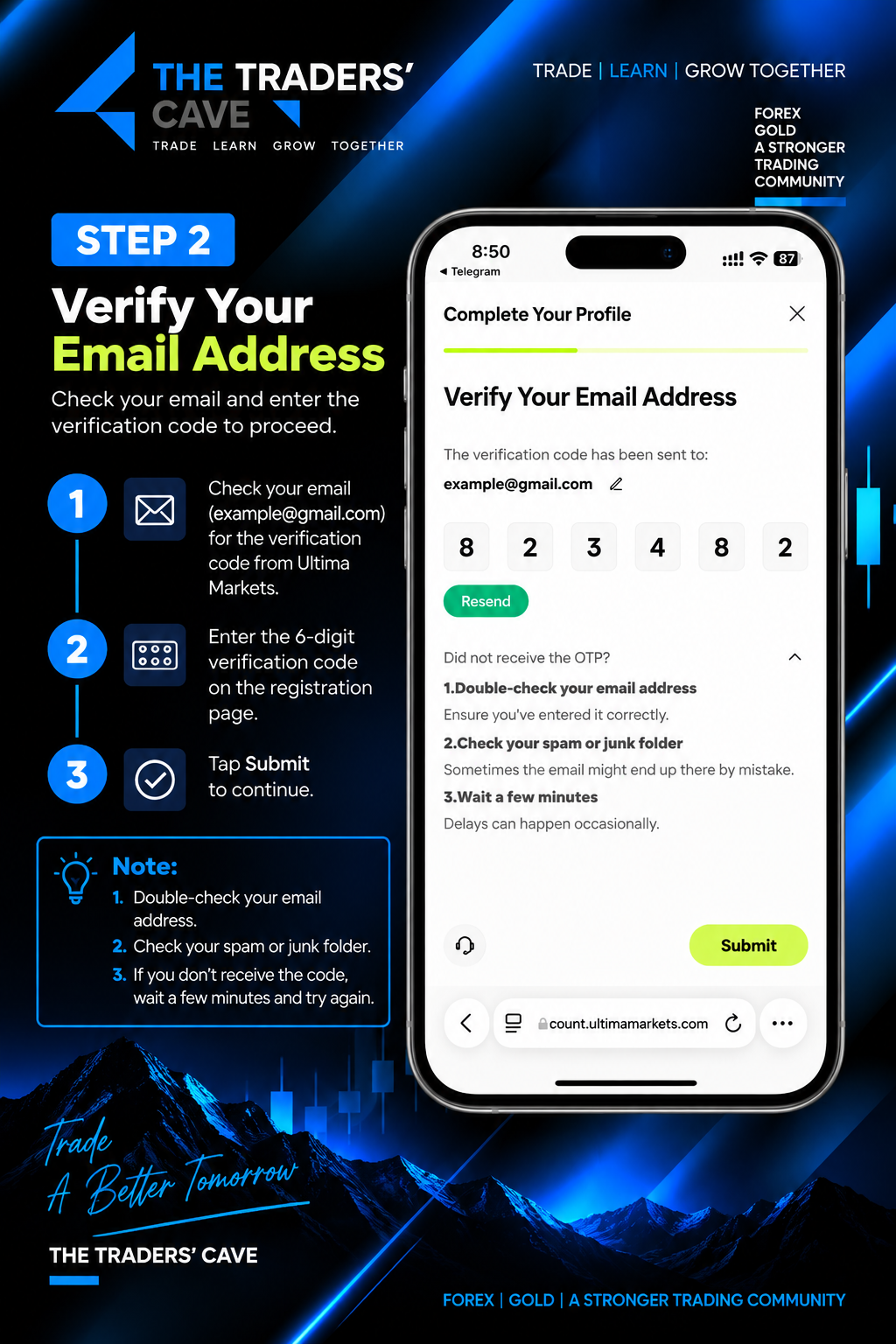
Check your email for the verification code, enter the 6-digit code on the registration page, and tap Submit.
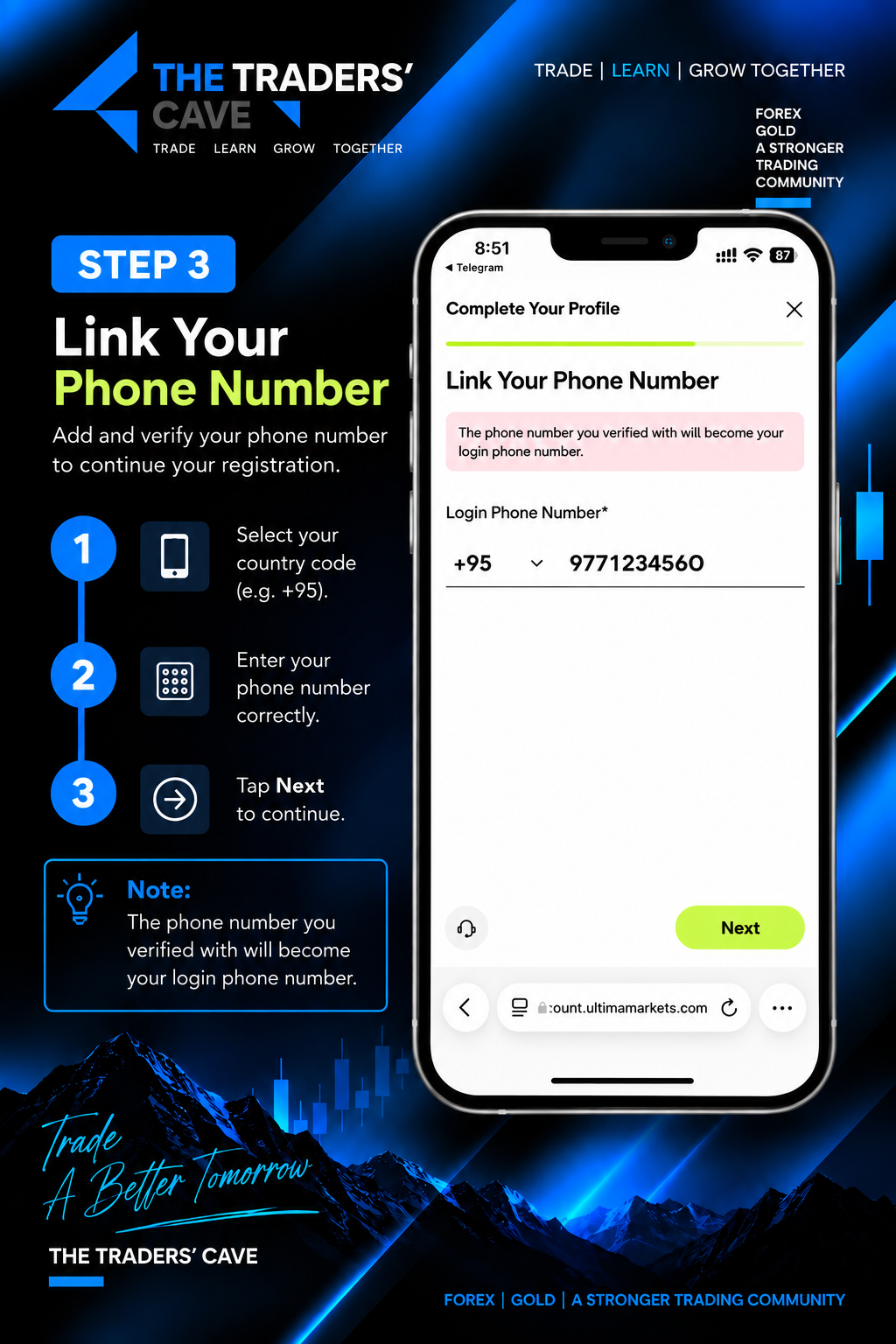
Select your country code, enter your phone number correctly, and tap Next to continue.
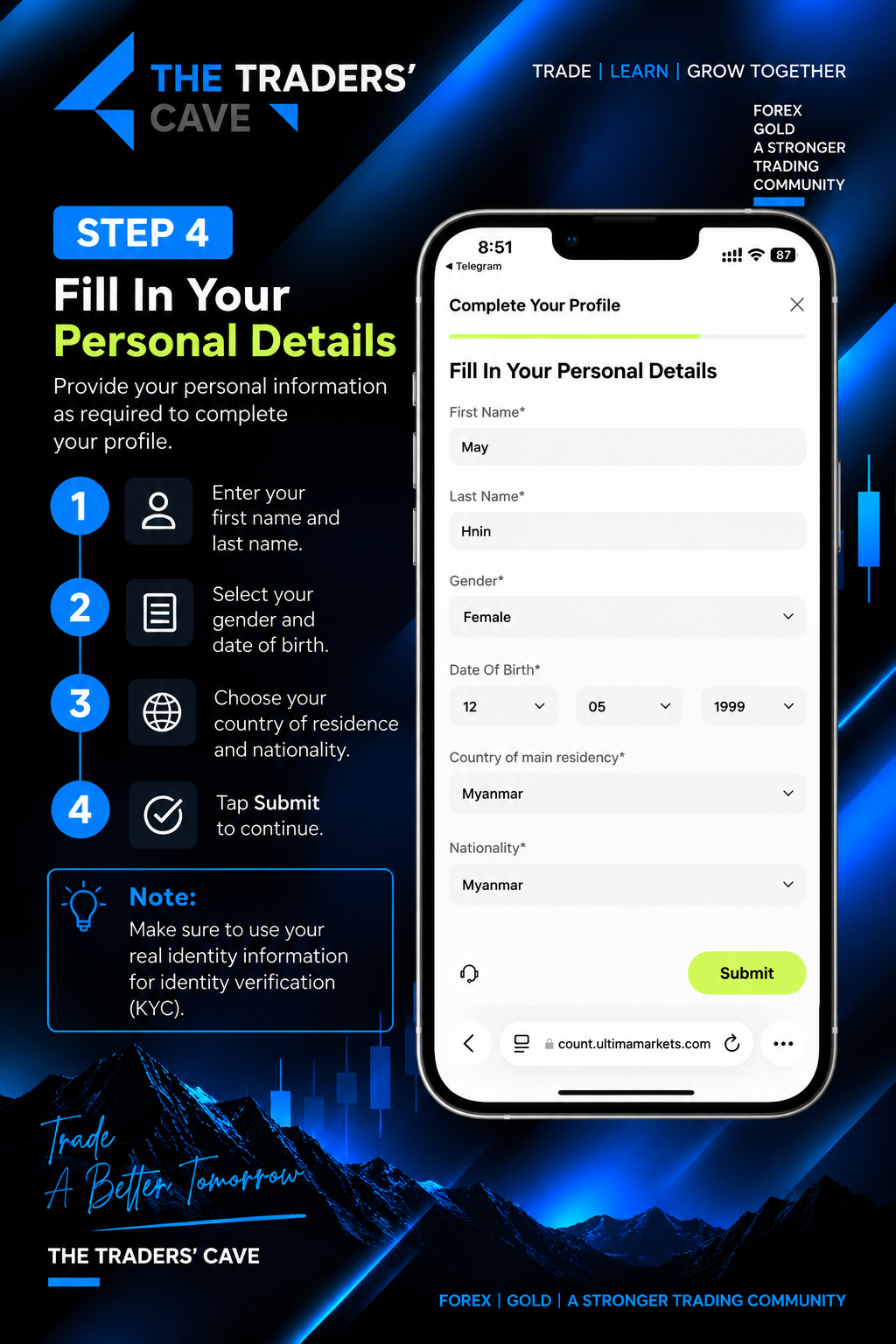
Enter your personal details including your first name, last name, gender, date of birth, country of residence, and nationality, then tap Submit.
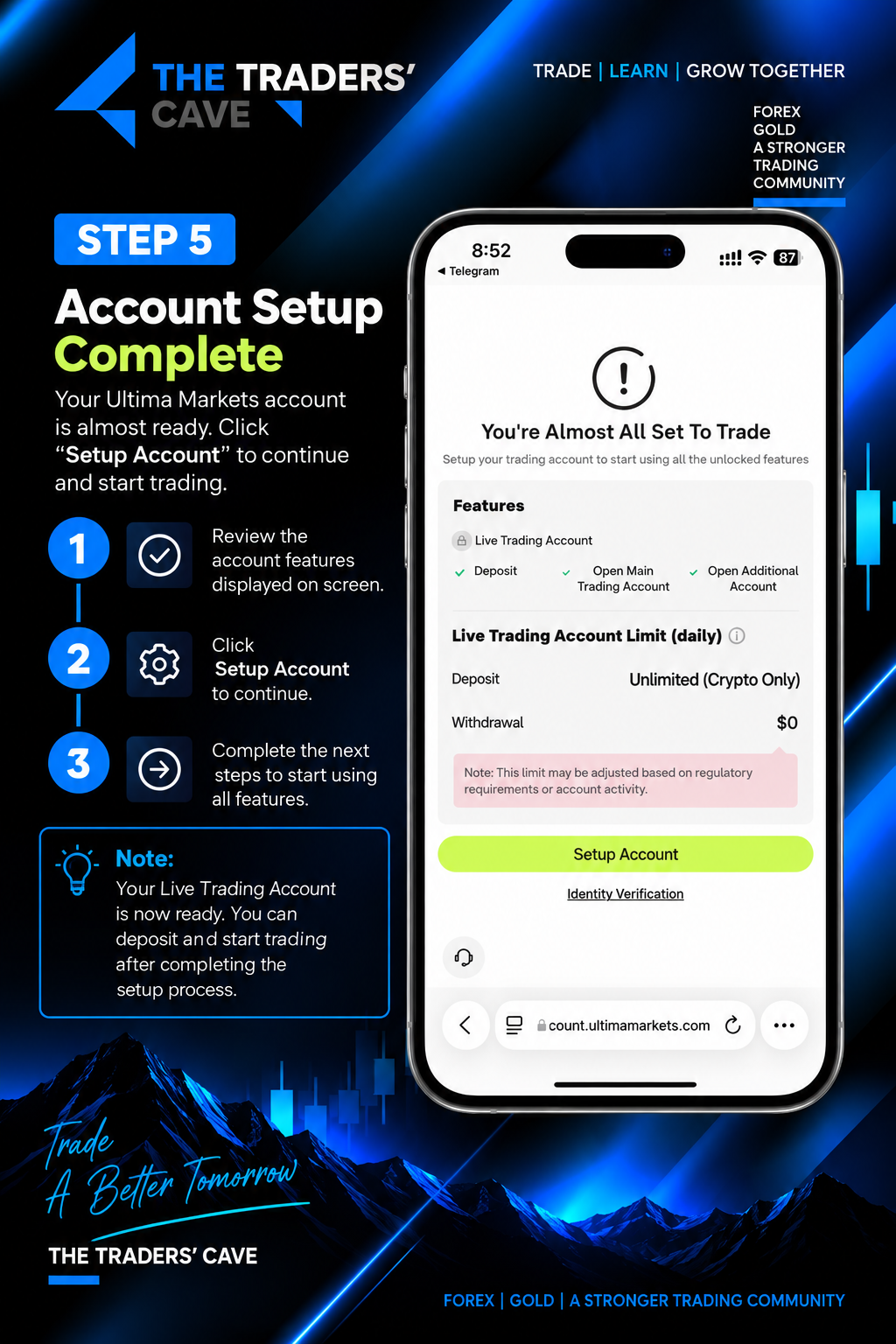
Review the account setup information and tap Setup Account to continue setting up your Live Trading Account.
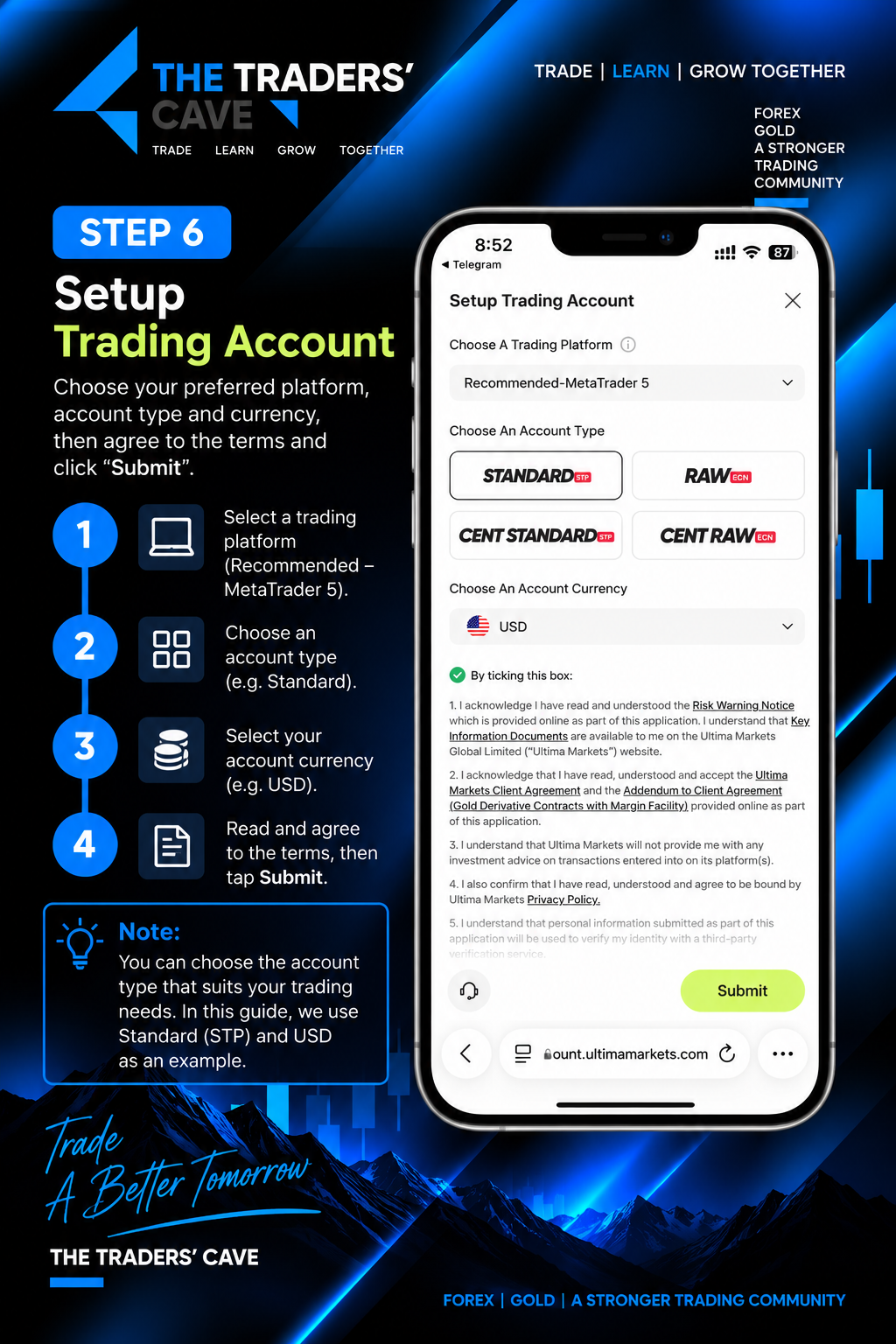
Select your trading platform, account type, and account currency. Read and agree to the required terms, then tap Submit.
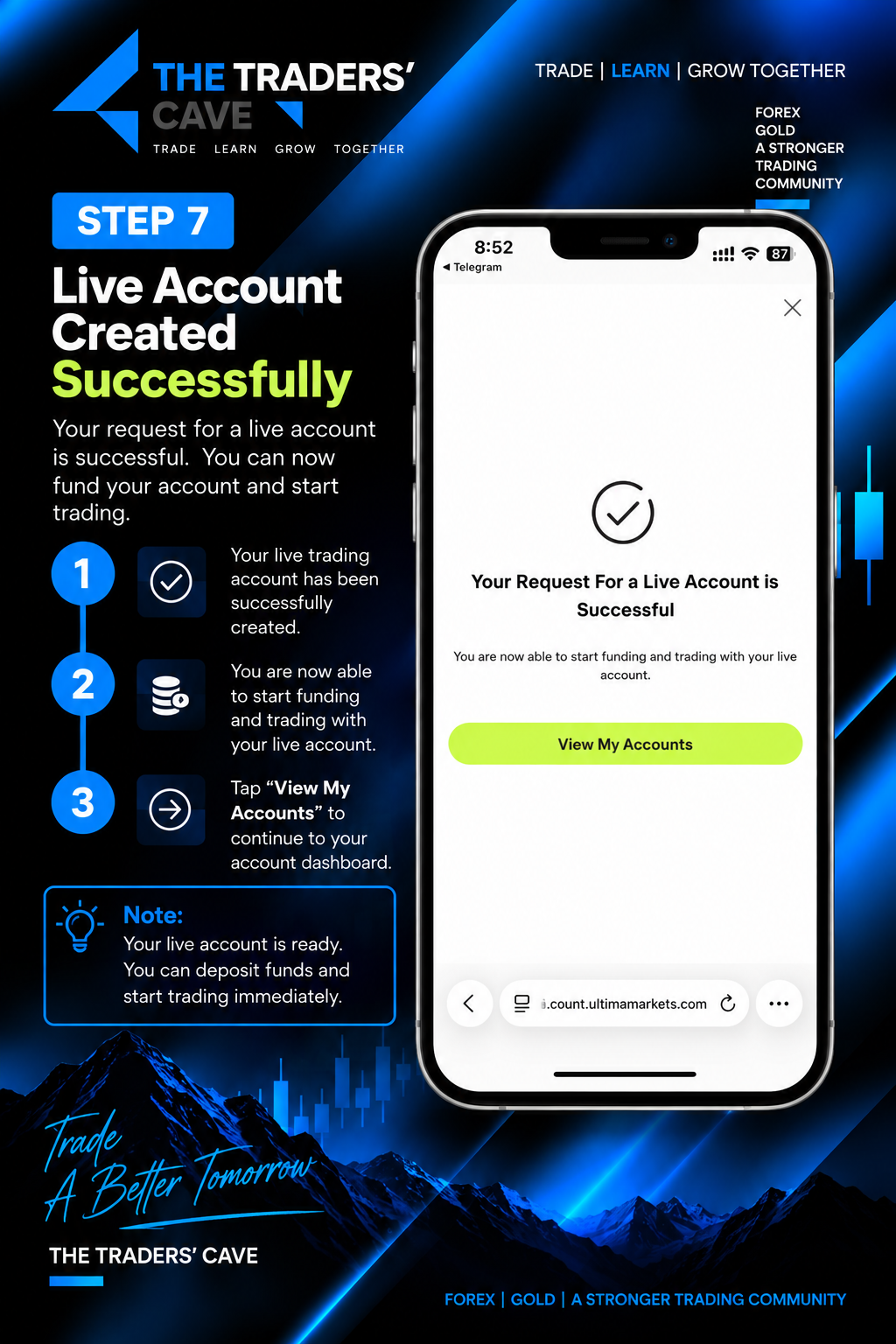
Your Live Trading Account has been created successfully. Tap View My Accounts to continue to your account dashboard.
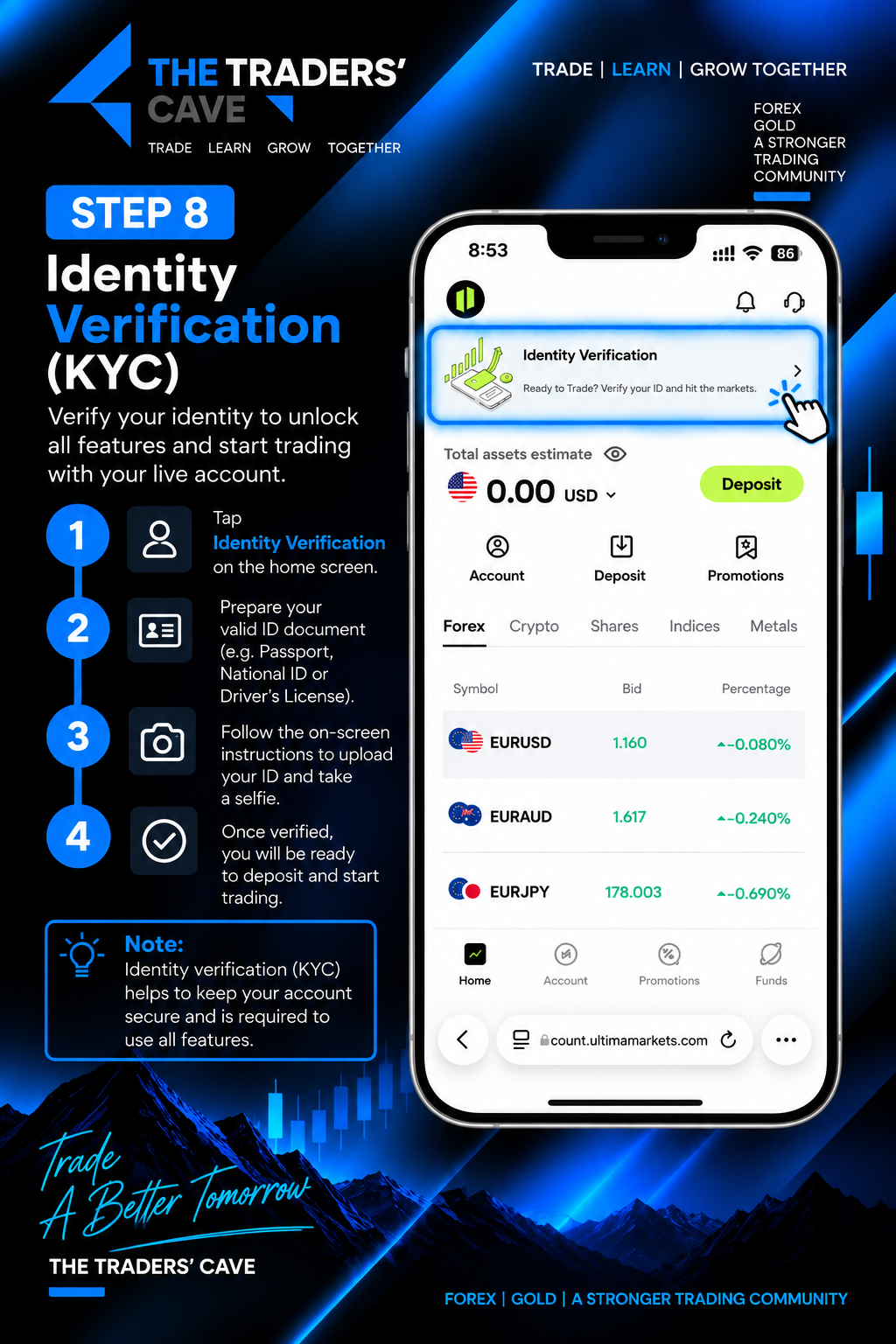
Tap Identity Verification and prepare a valid identity document to begin the KYC verification process.
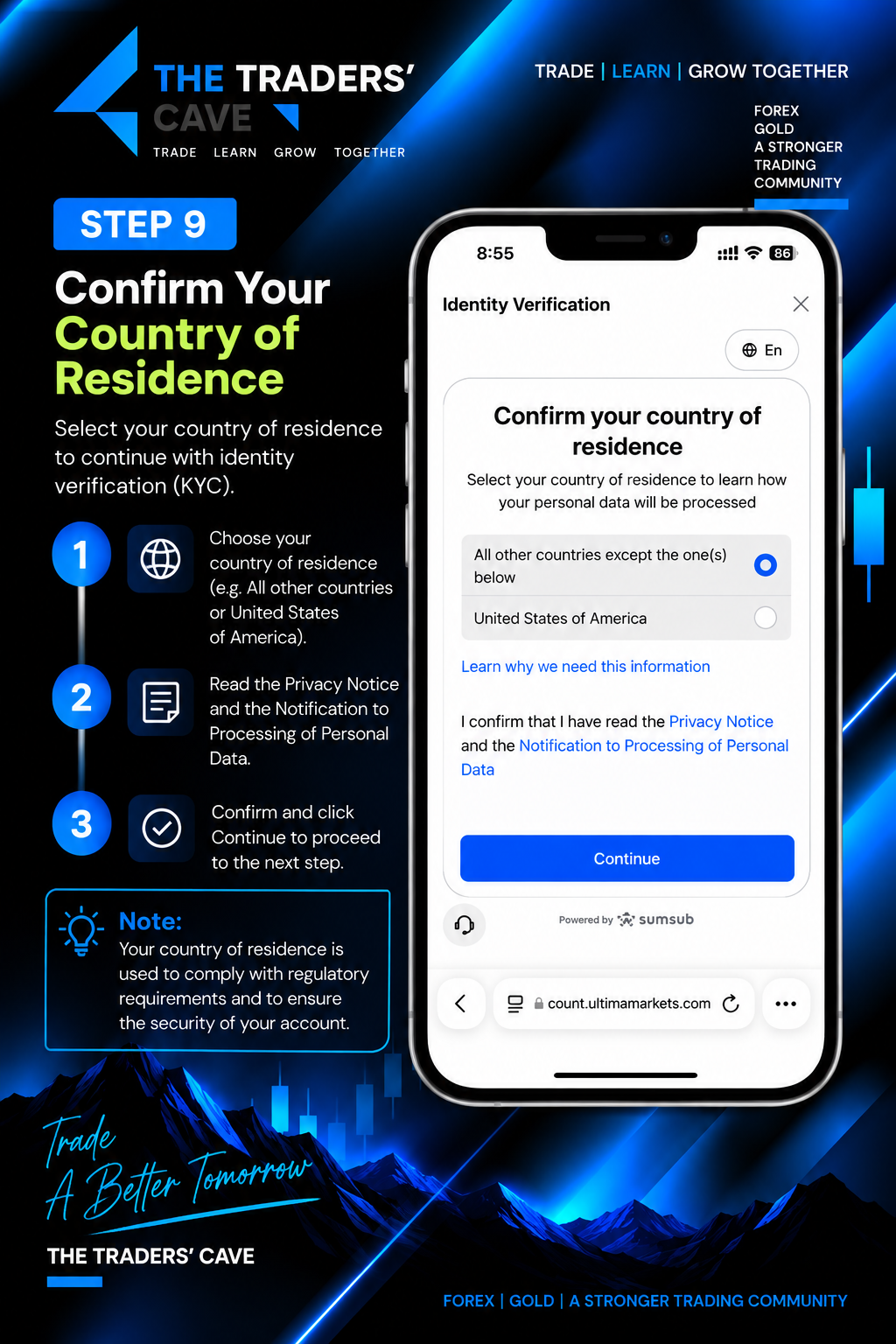
Confirm your country of residence, read the Privacy Notice and personal data processing information, then tap Continue.
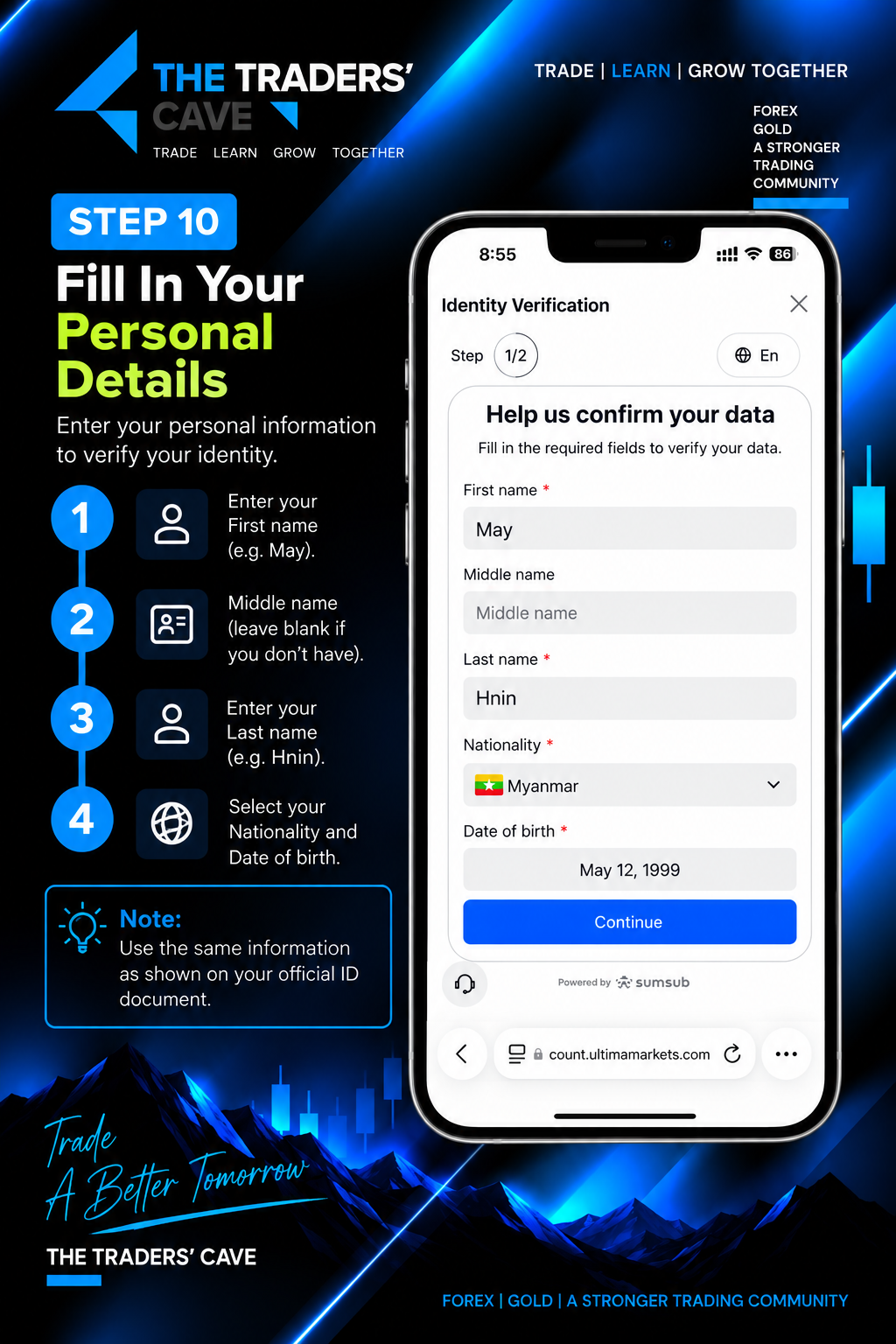
Enter your personal details exactly as shown on your official identity document, including your name, nationality, and date of birth, then tap Continue.
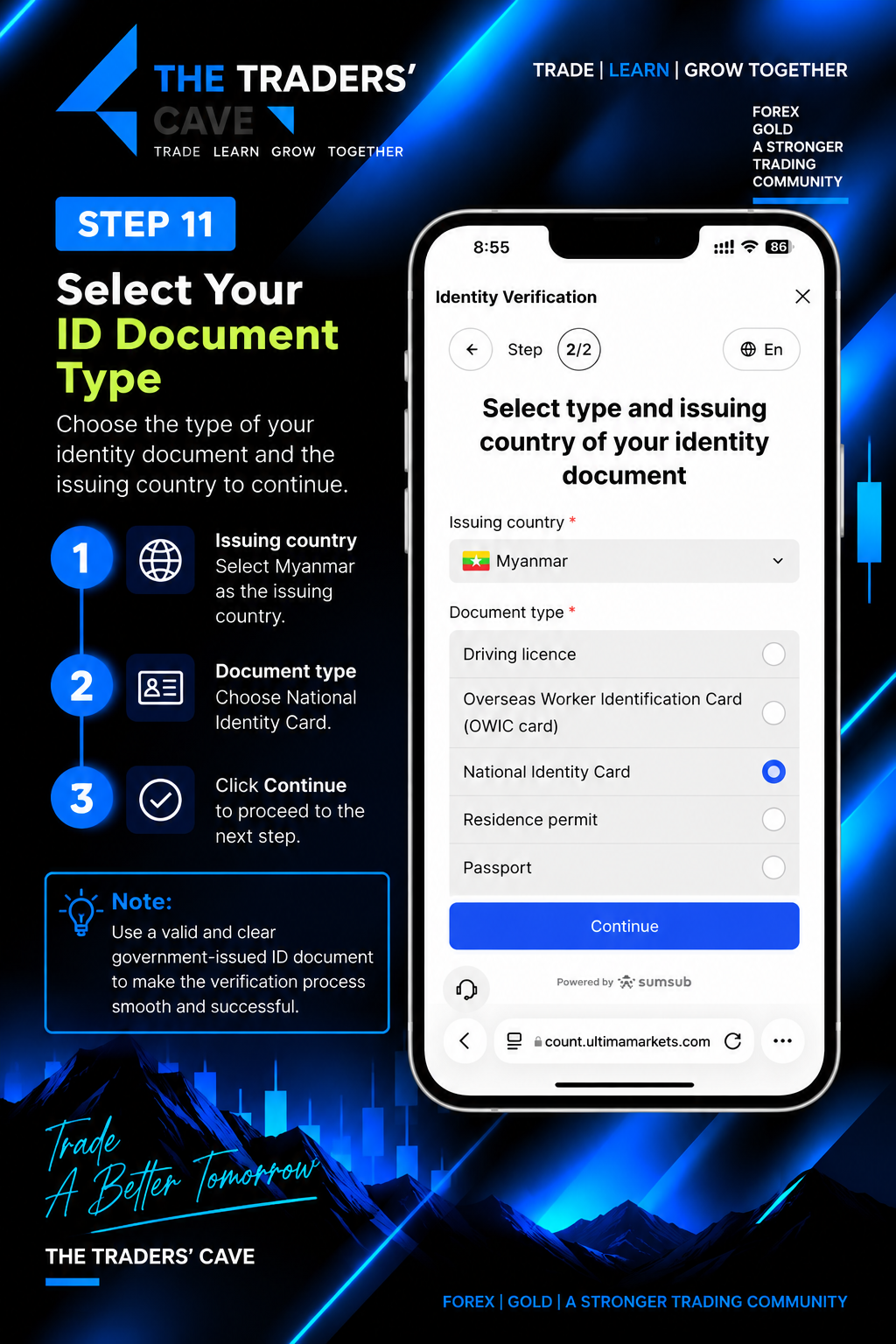
Select the issuing country and choose the type of identity document you will use for verification, then tap Continue.
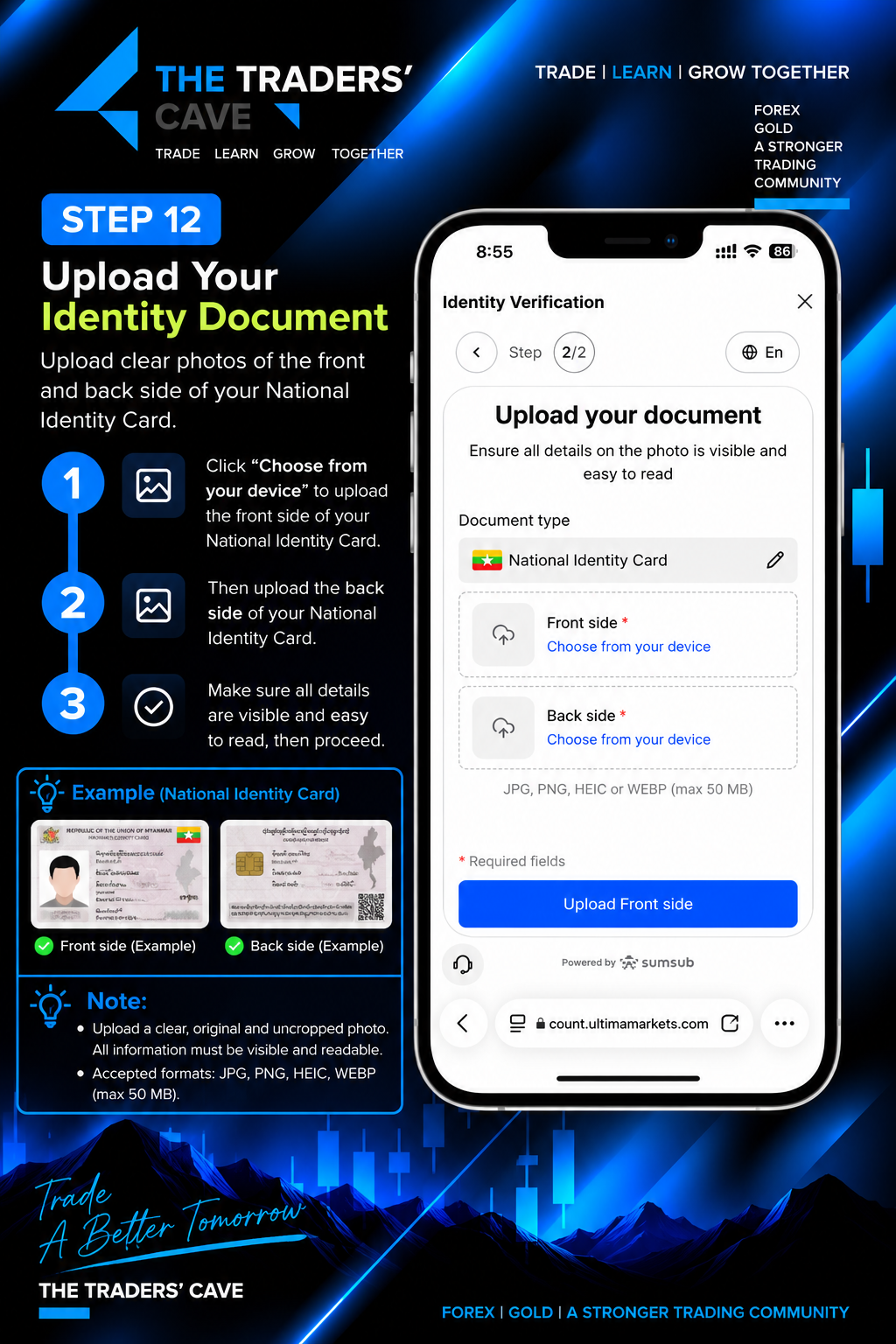
Upload clear photos of the front and back of your identity document. Make sure all information is visible and readable before proceeding.
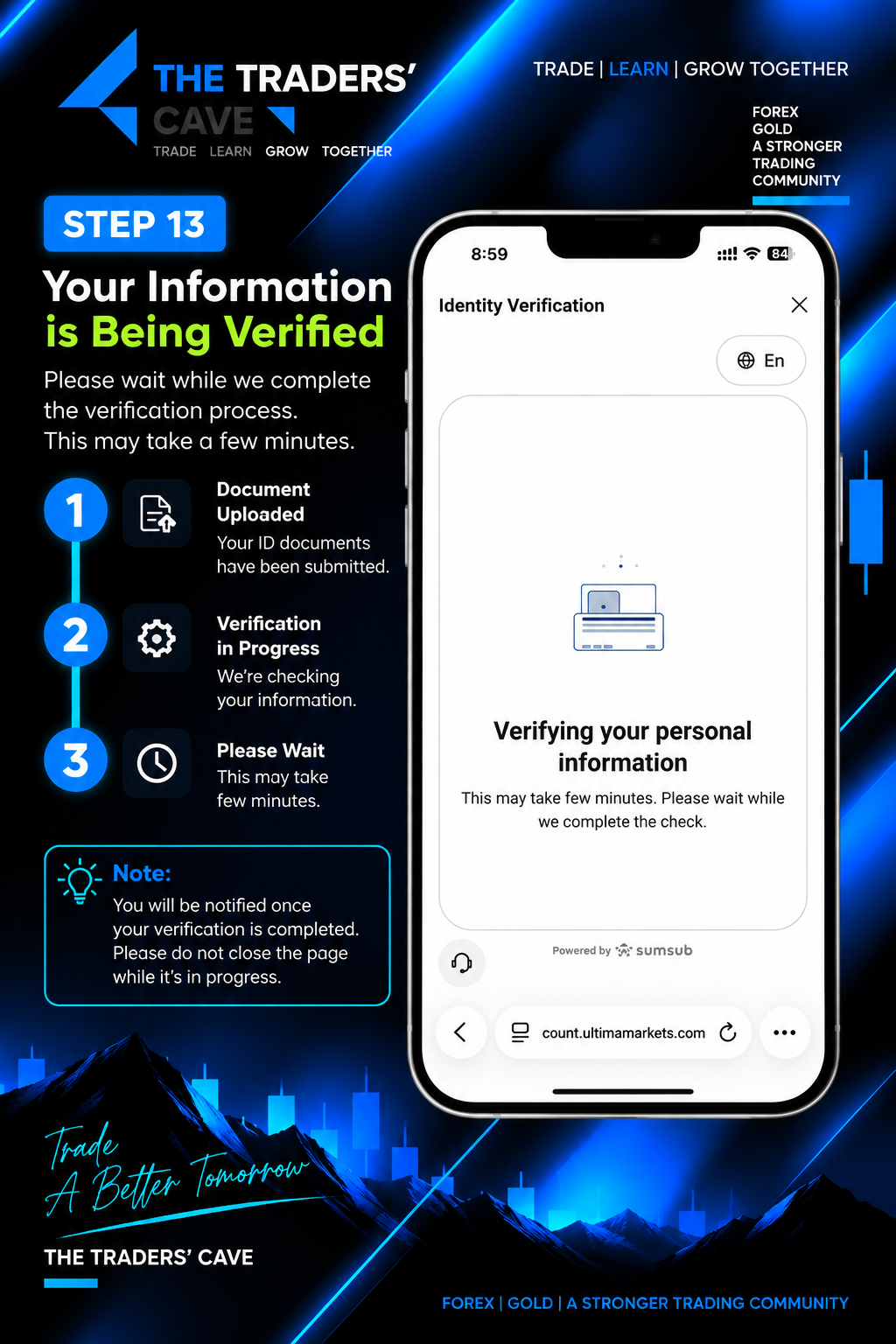
Your identity information has been submitted and is being verified. Please wait while the verification process is completed.
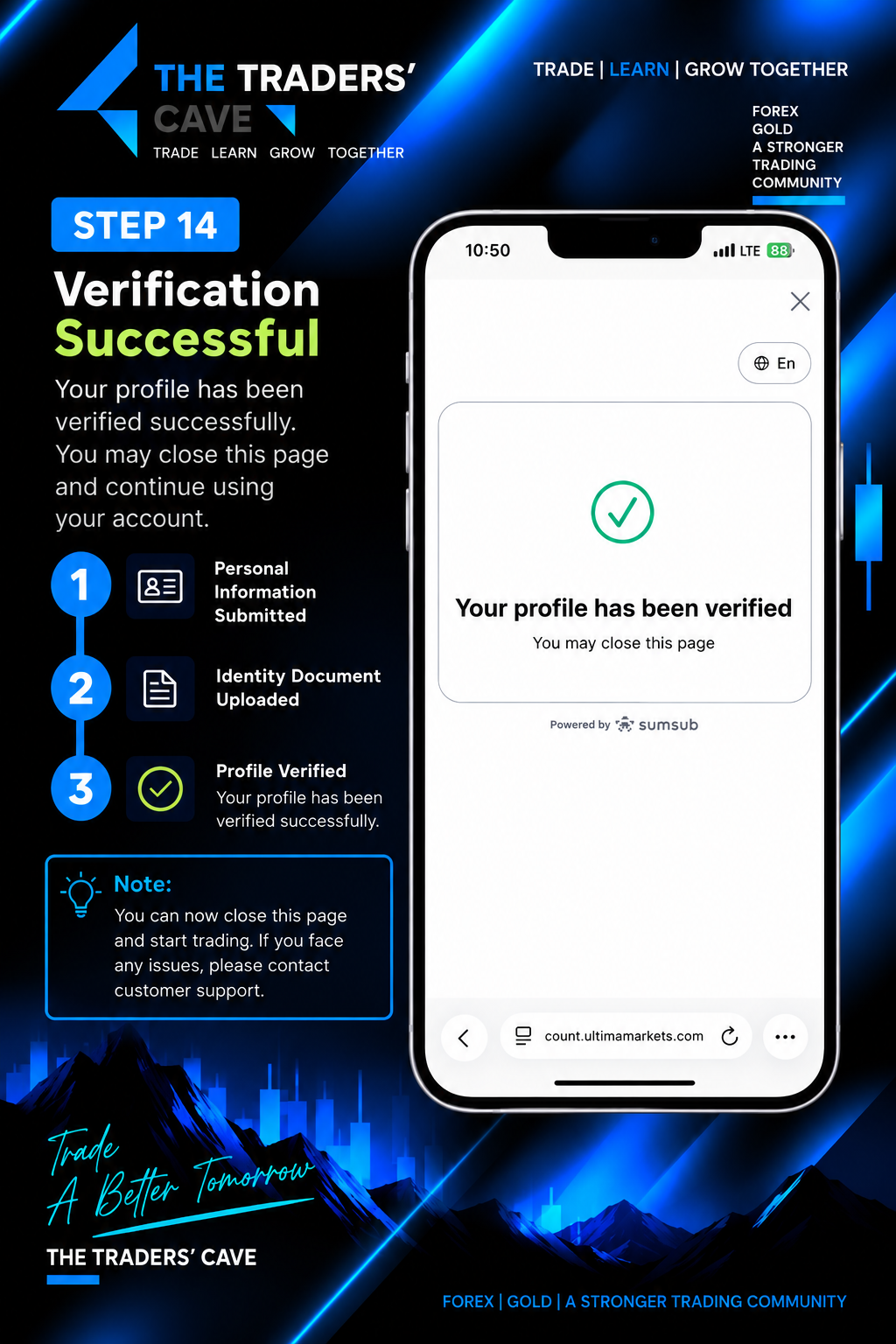
Your profile has been verified successfully. Close the verification page and return to your Ultima Markets account.
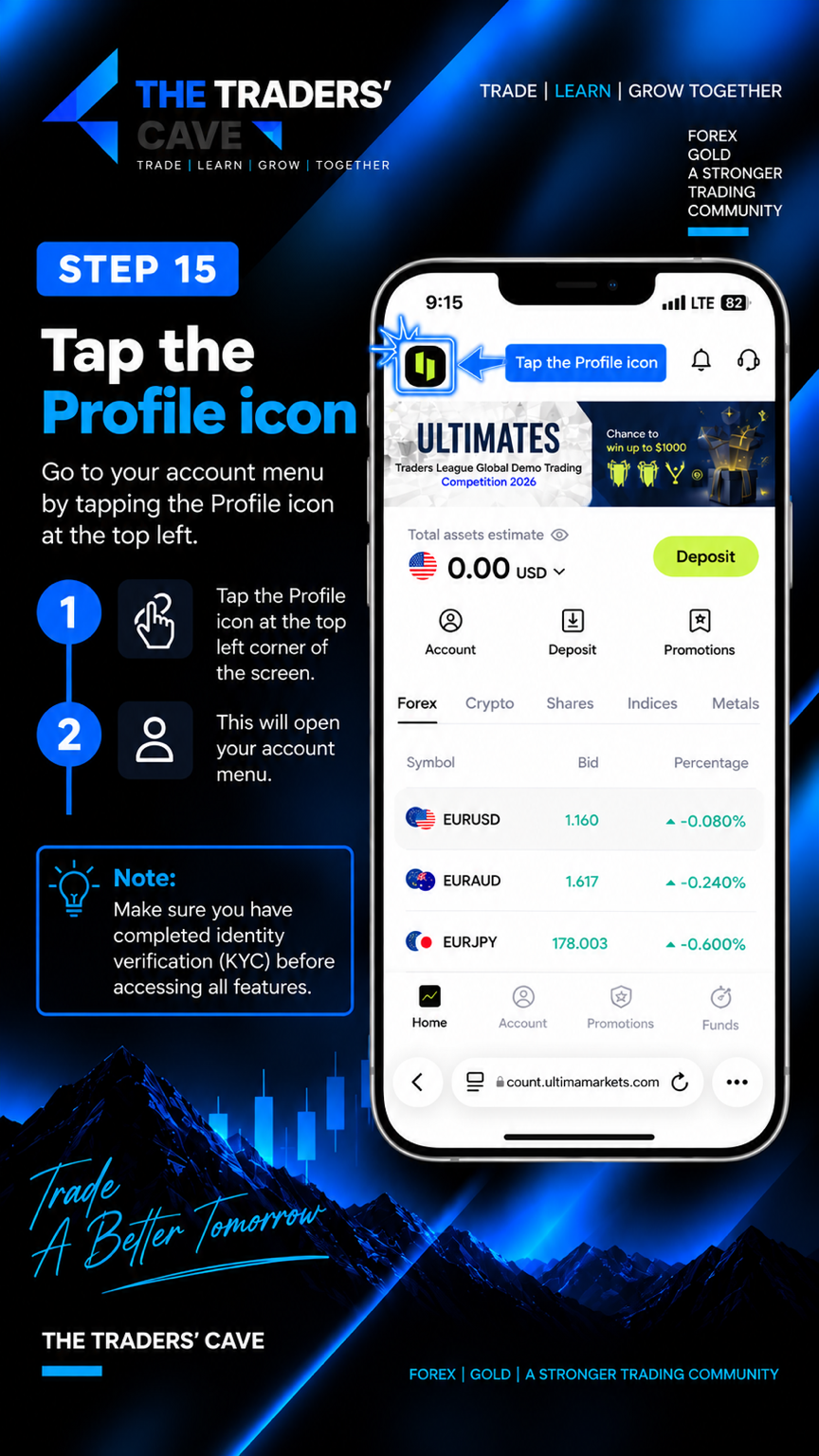
From the Ultima Markets home screen, tap the Profile icon at the top-left corner to open your account menu.
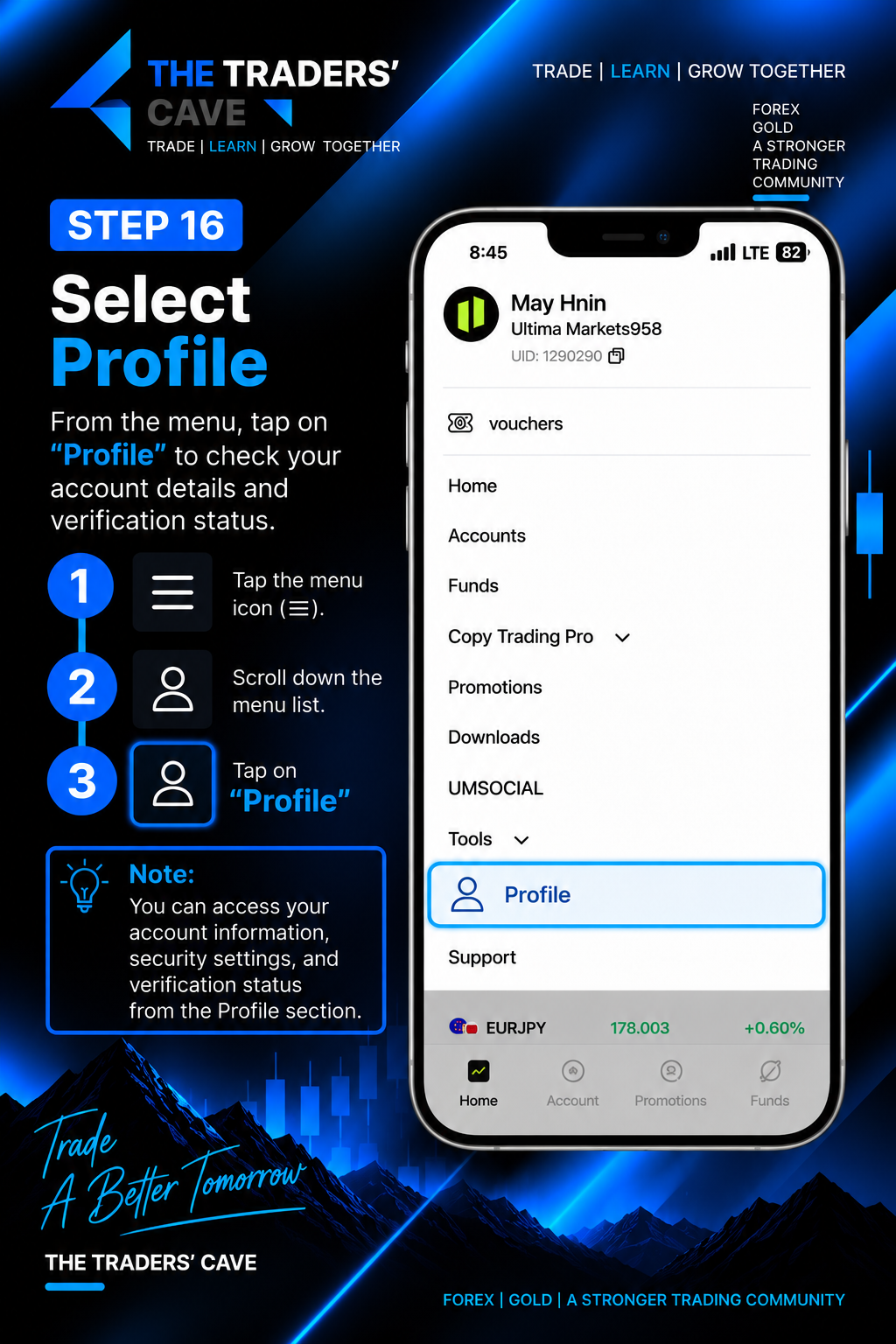
From the account menu, select Profile to view your account information, security settings, and verification status.
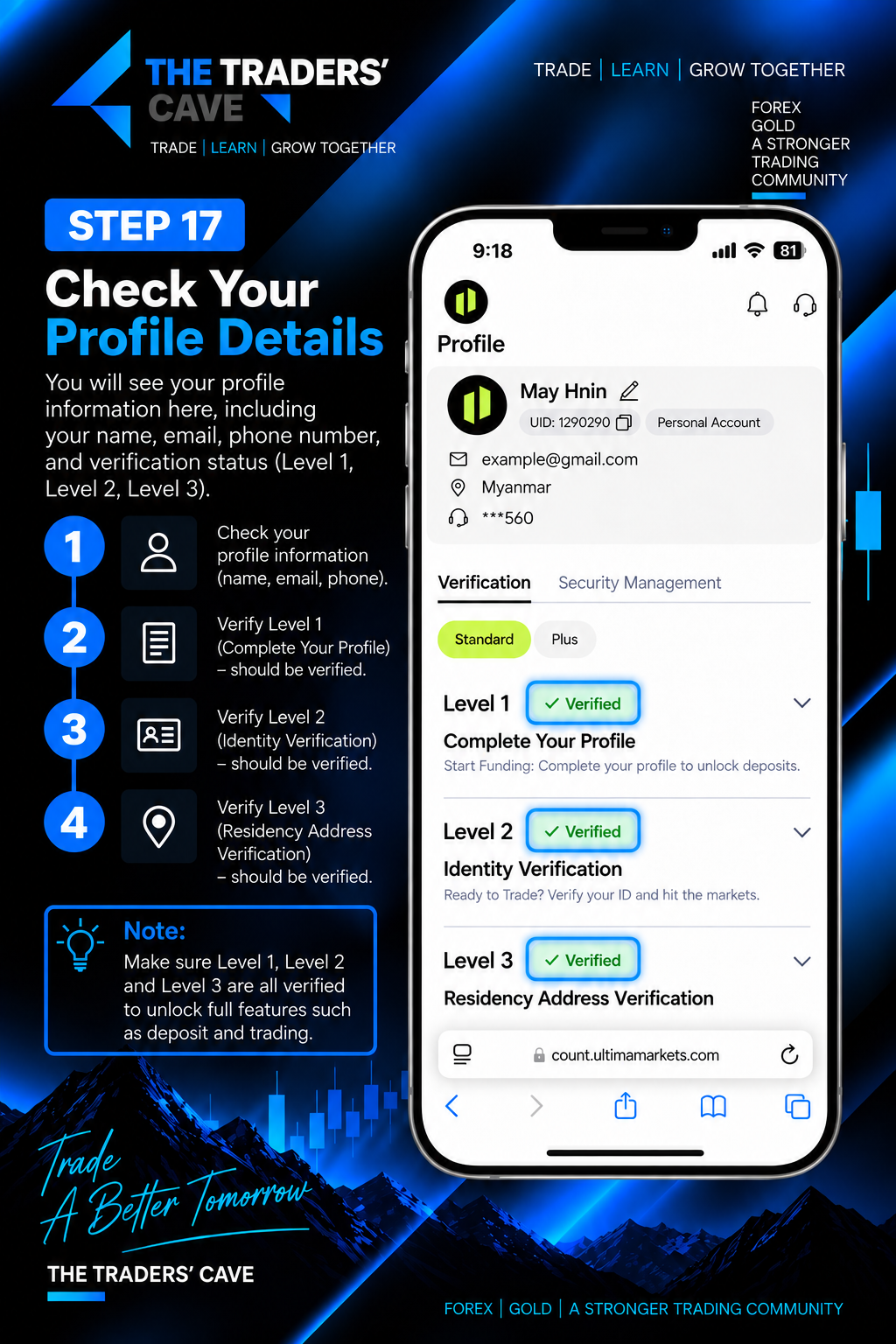
Check your profile details and verification status. Make sure the required verification levels are completed.
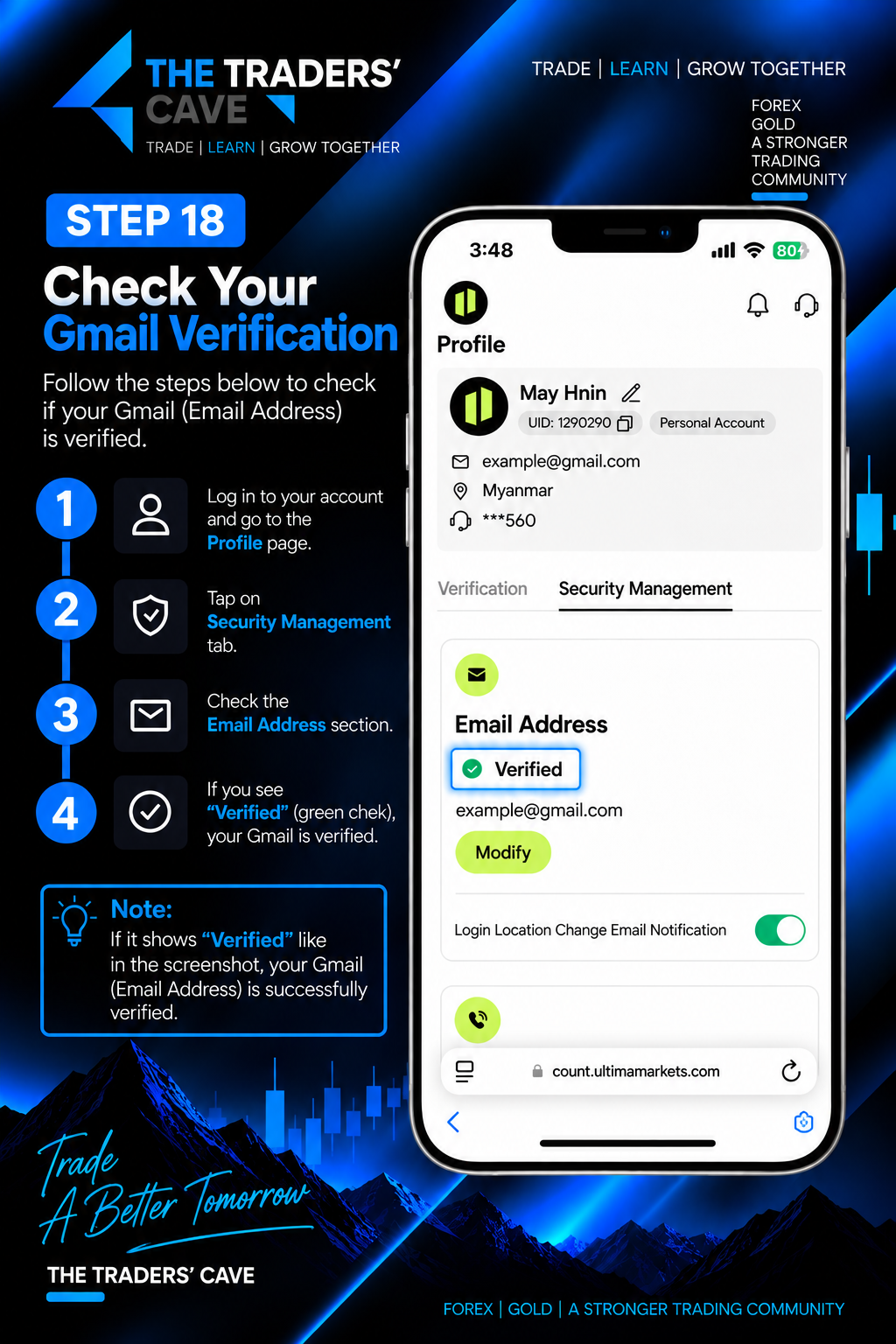
Open the Security Management tab and check the Email Address section. Make sure your email address shows Verified.
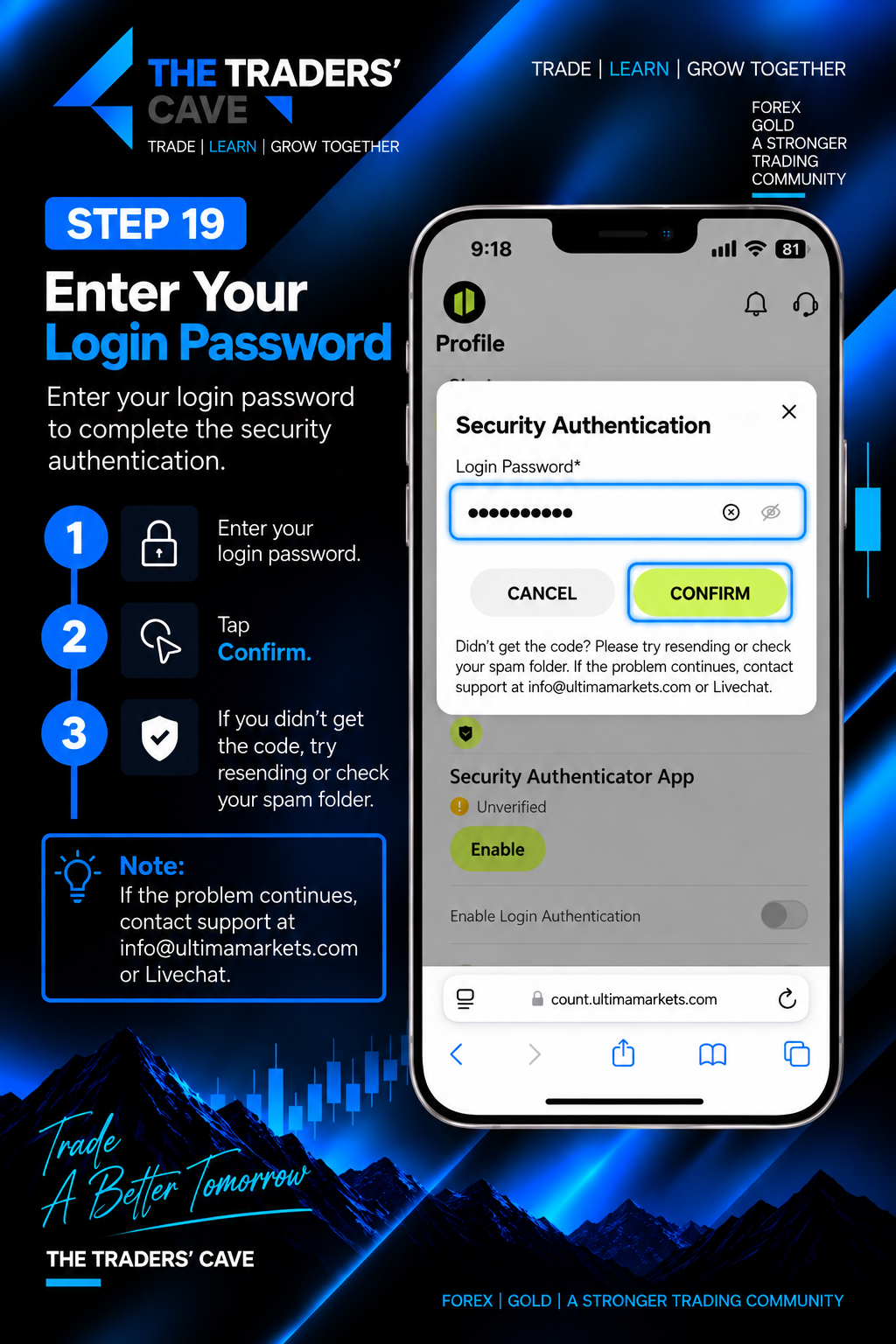
Enter your login password in the Security Authentication window and tap Confirm to continue setting up the Authenticator App.
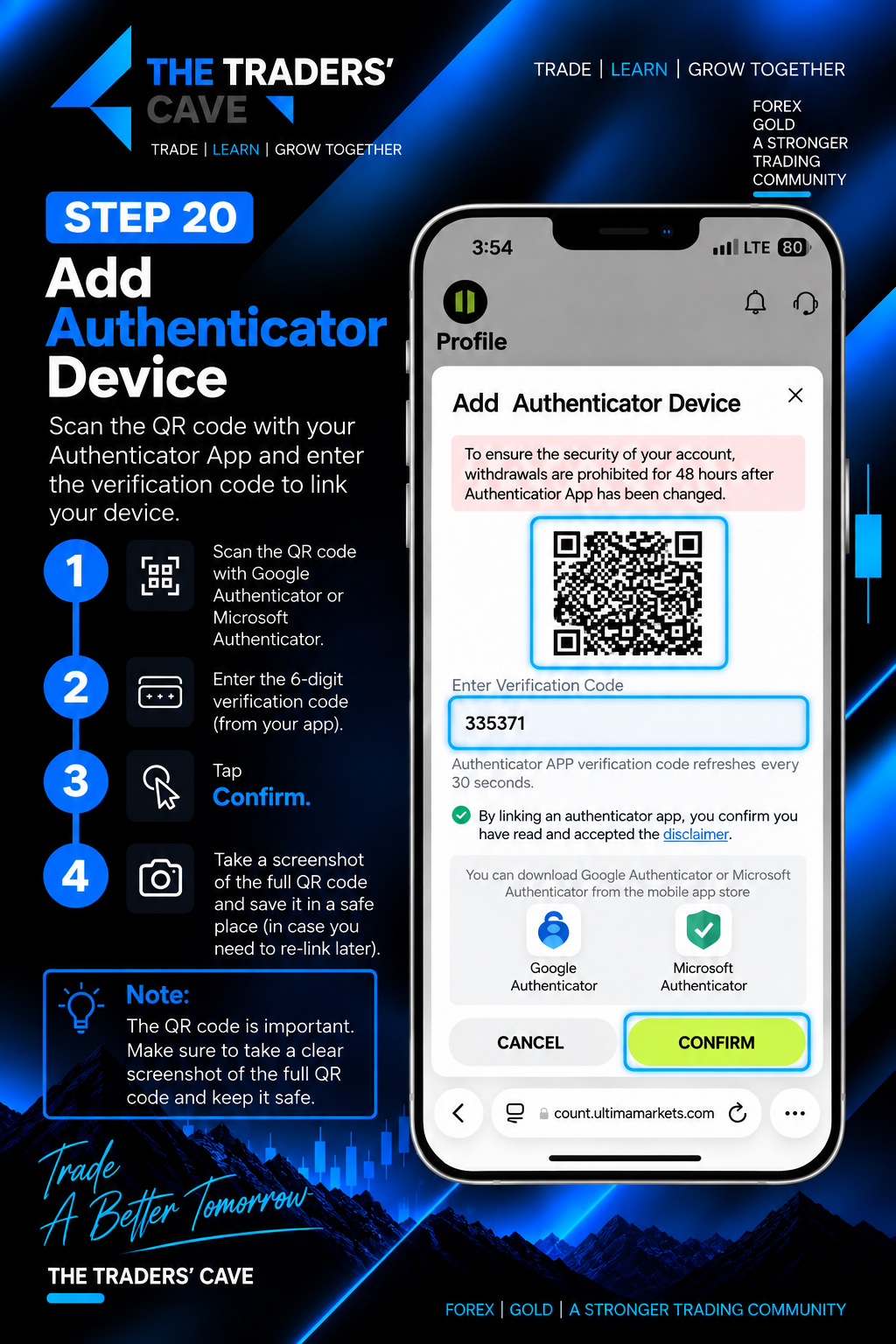
Scan the QR code using Google Authenticator or Microsoft Authenticator, enter the 6-digit verification code, and tap Confirm. Keep your authentication setup information secure.
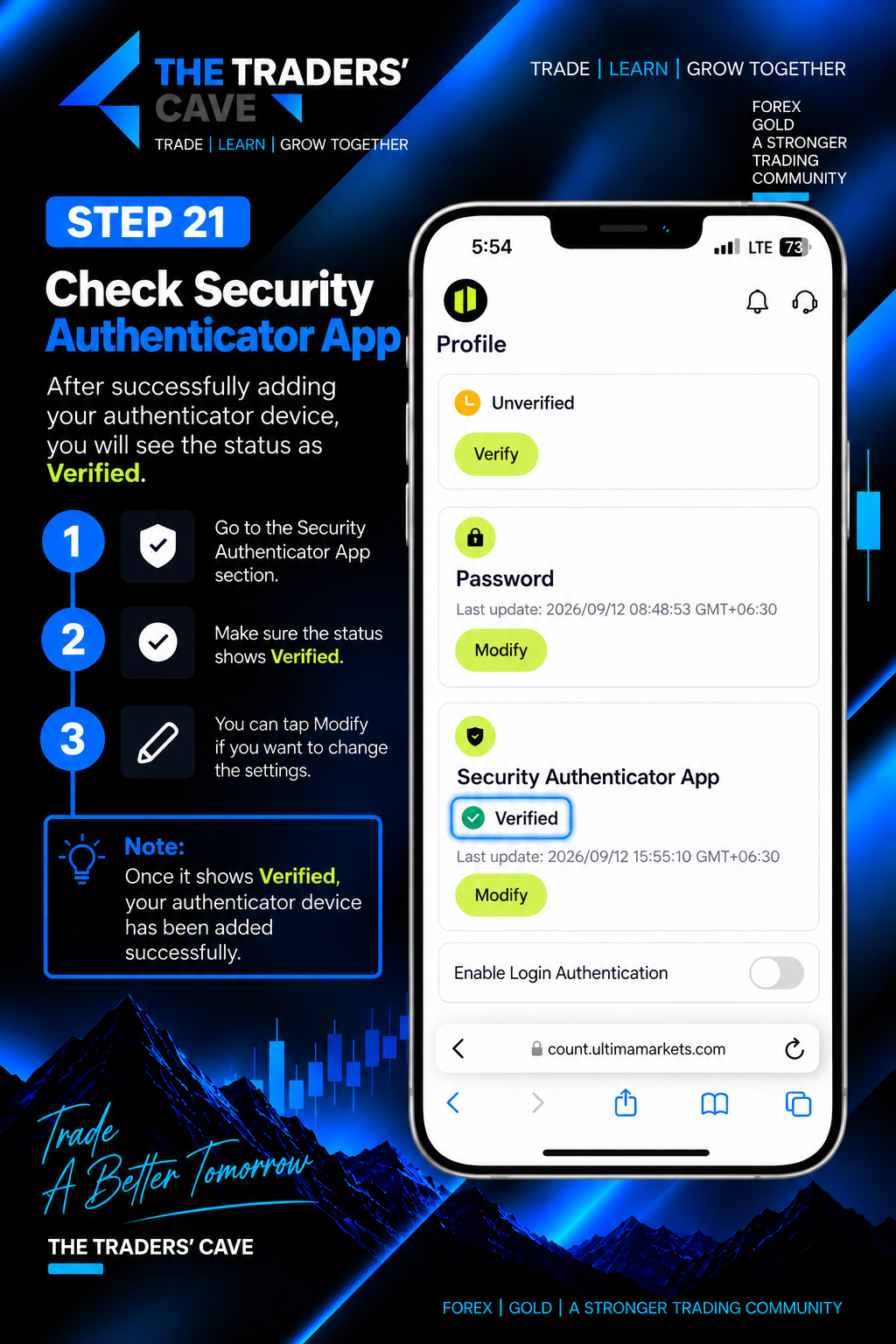
Check the Security Authenticator App section and make sure the status shows Verified. Your authenticator device has now been added successfully.
How to Deposit Funds into Your Ultima Markets Account?
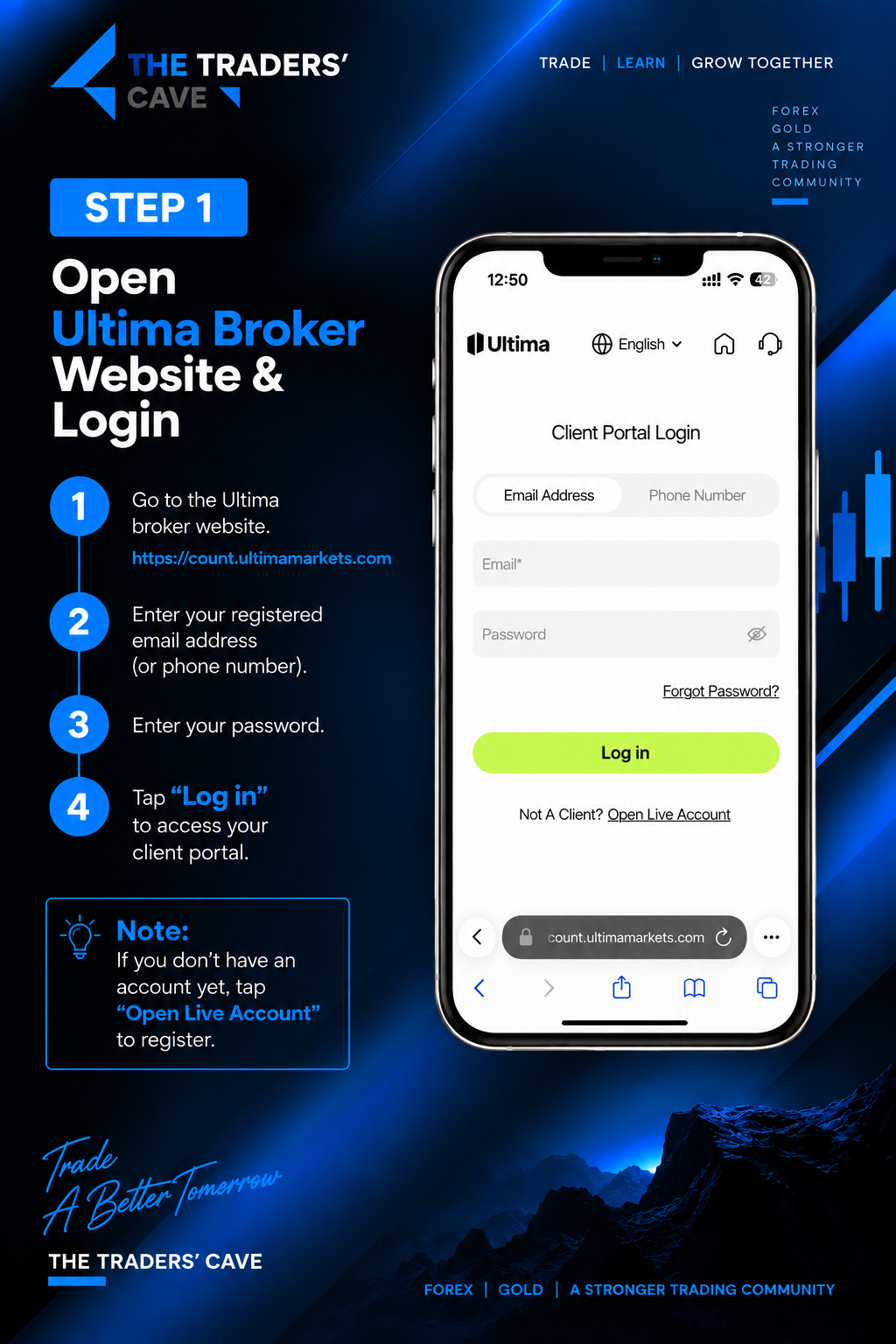
Log in to your Ultima Markets Client Portal using your registered email address or phone number and password.
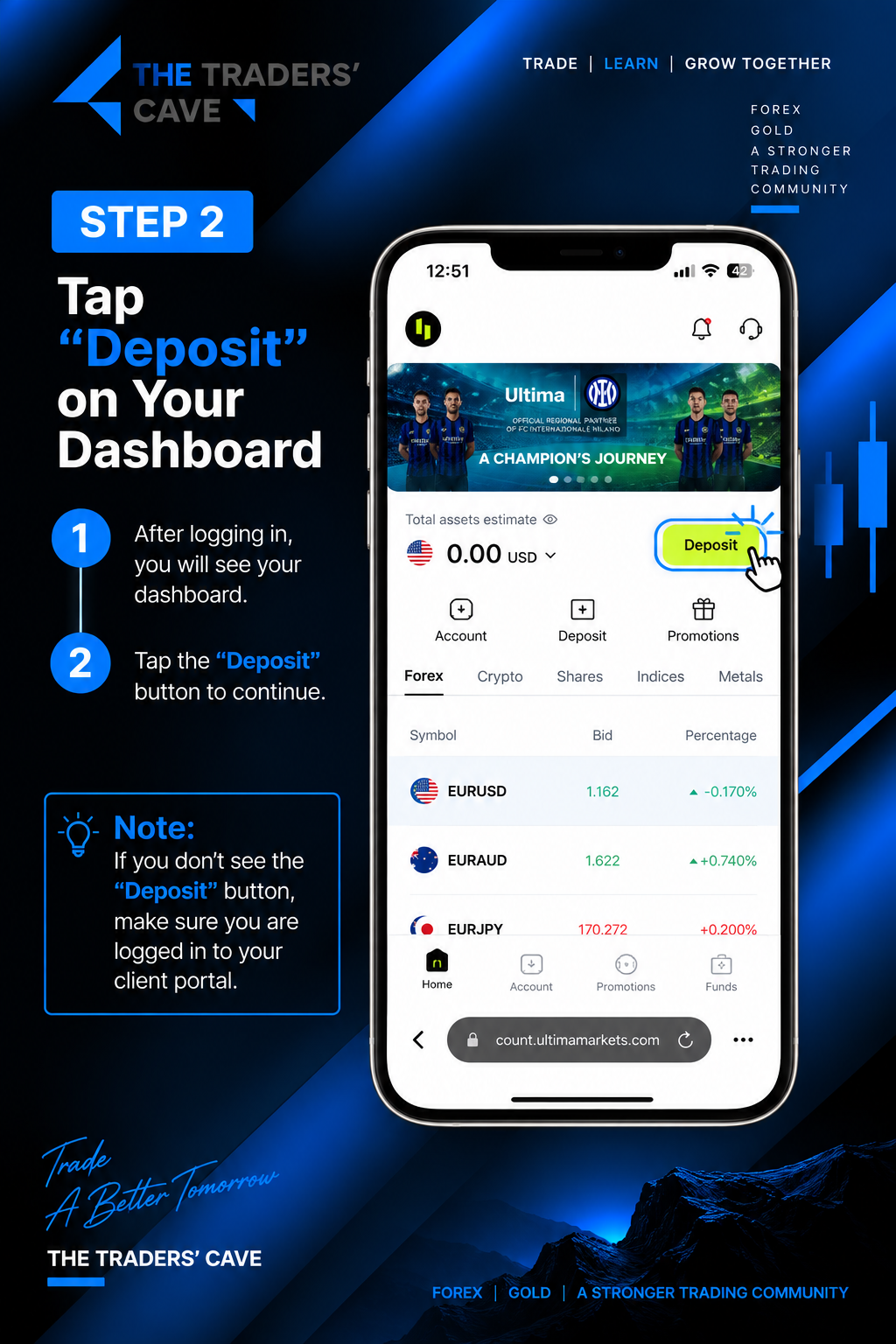
After logging in, tap “Deposit” on your dashboard to start the deposit process.
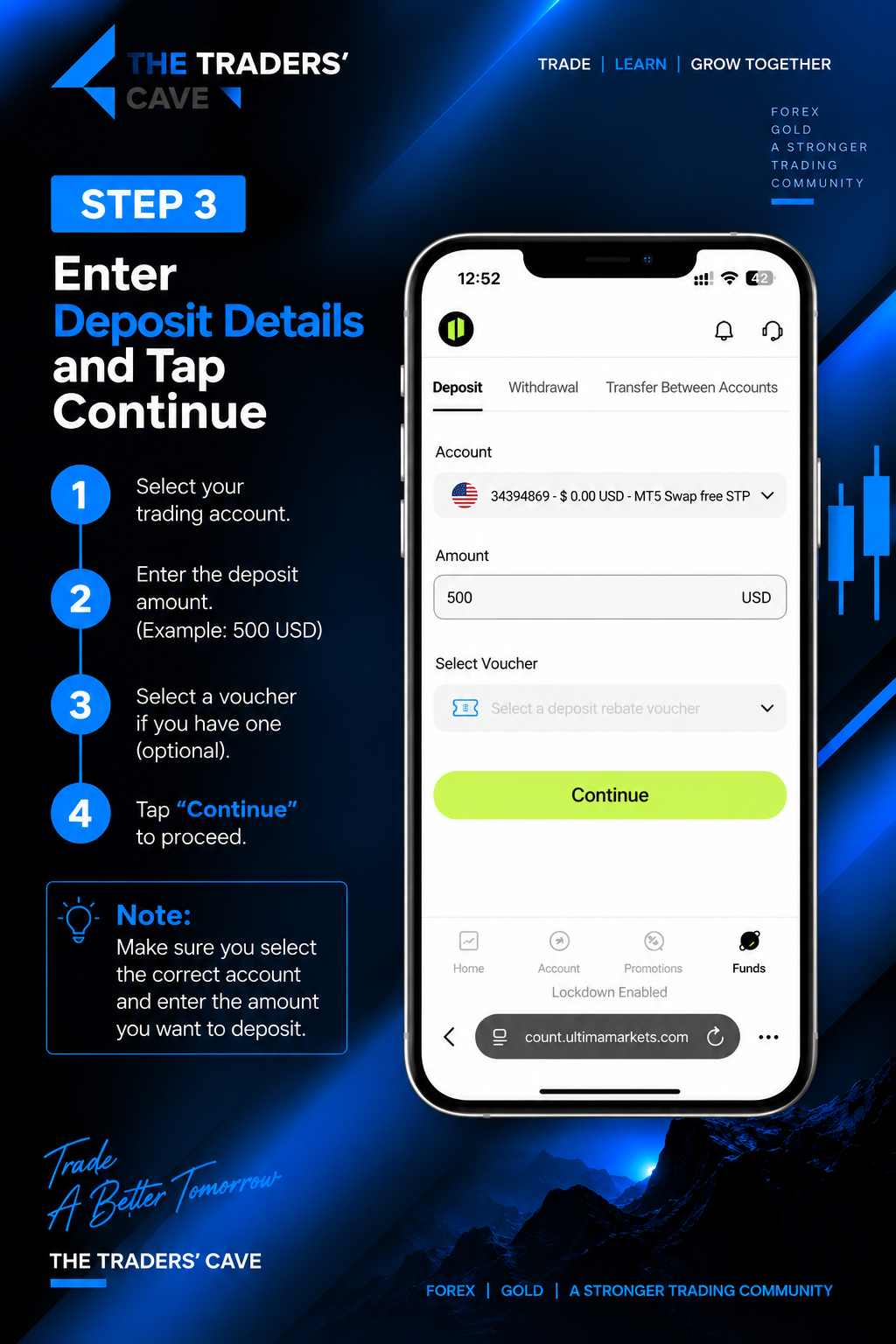
Select the trading account you want to fund, enter the deposit amount, and tap “Continue”.
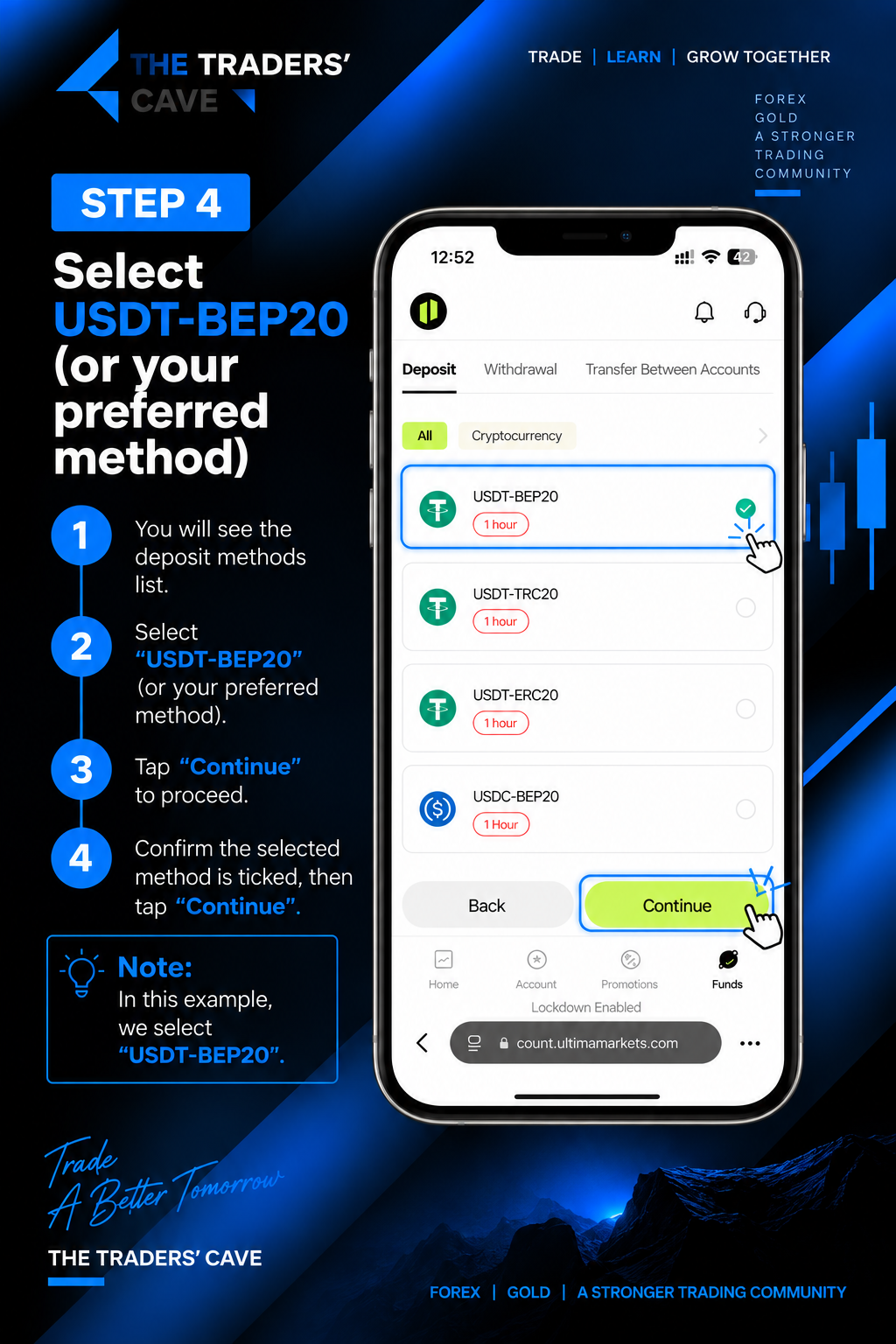
Select “USDT-BEP20” as the deposit method and tap “Continue”.
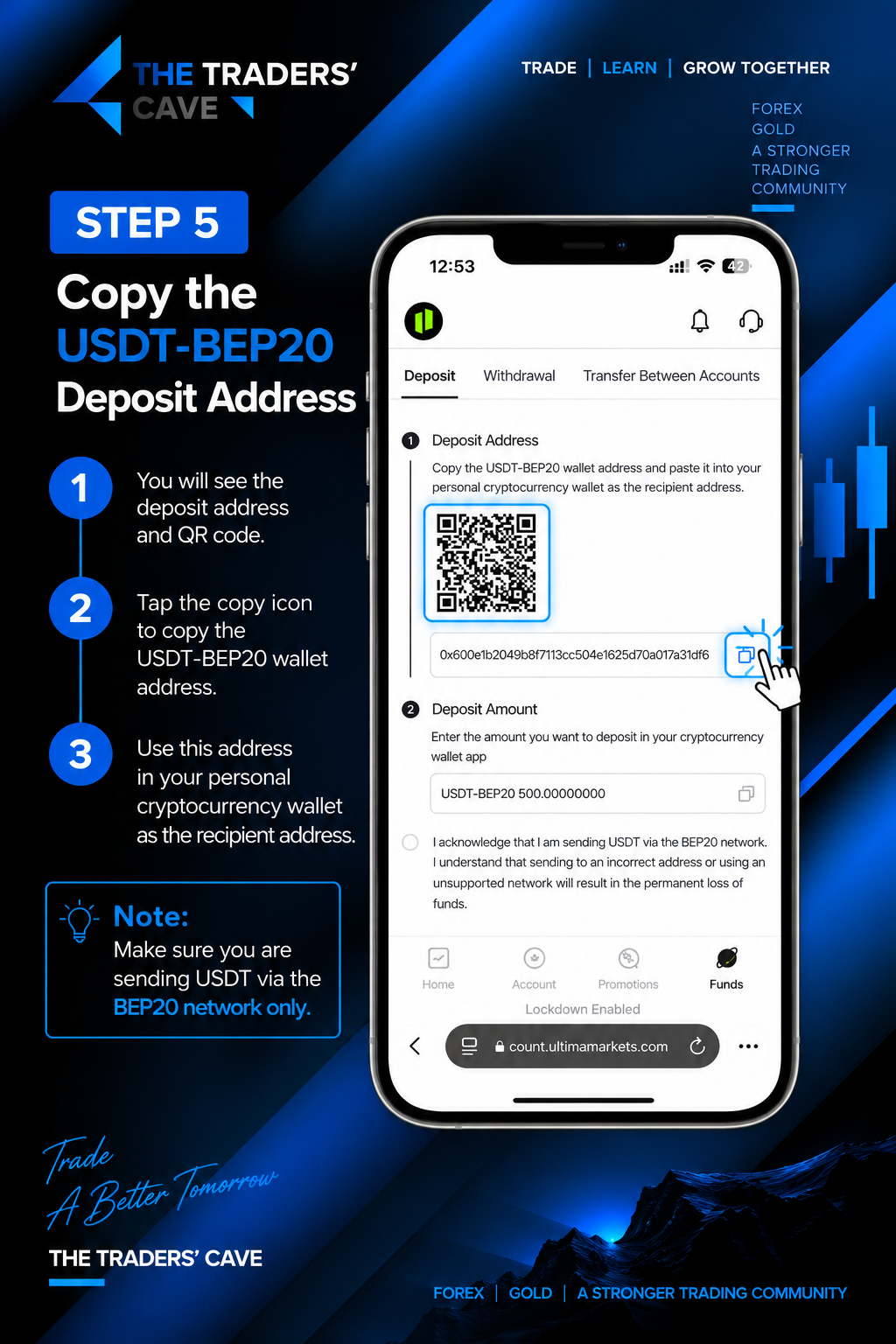
Copy the USDT-BEP20 deposit address or scan the QR code. Make sure you send USDT using the BEP20 network only.
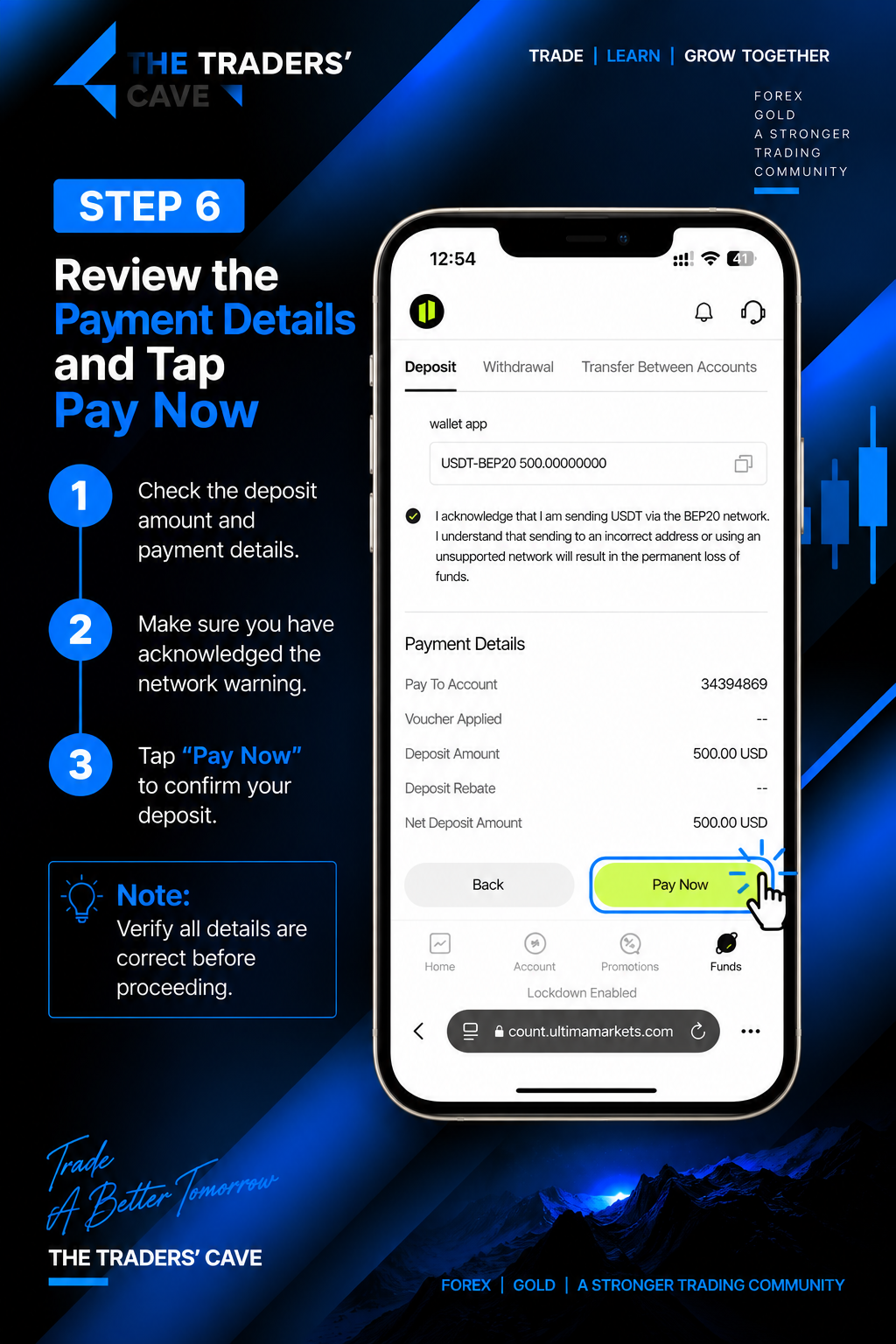
Review the deposit amount, wallet network, and payment details carefully. Acknowledge the network warning and tap “Pay Now” to confirm your deposit.
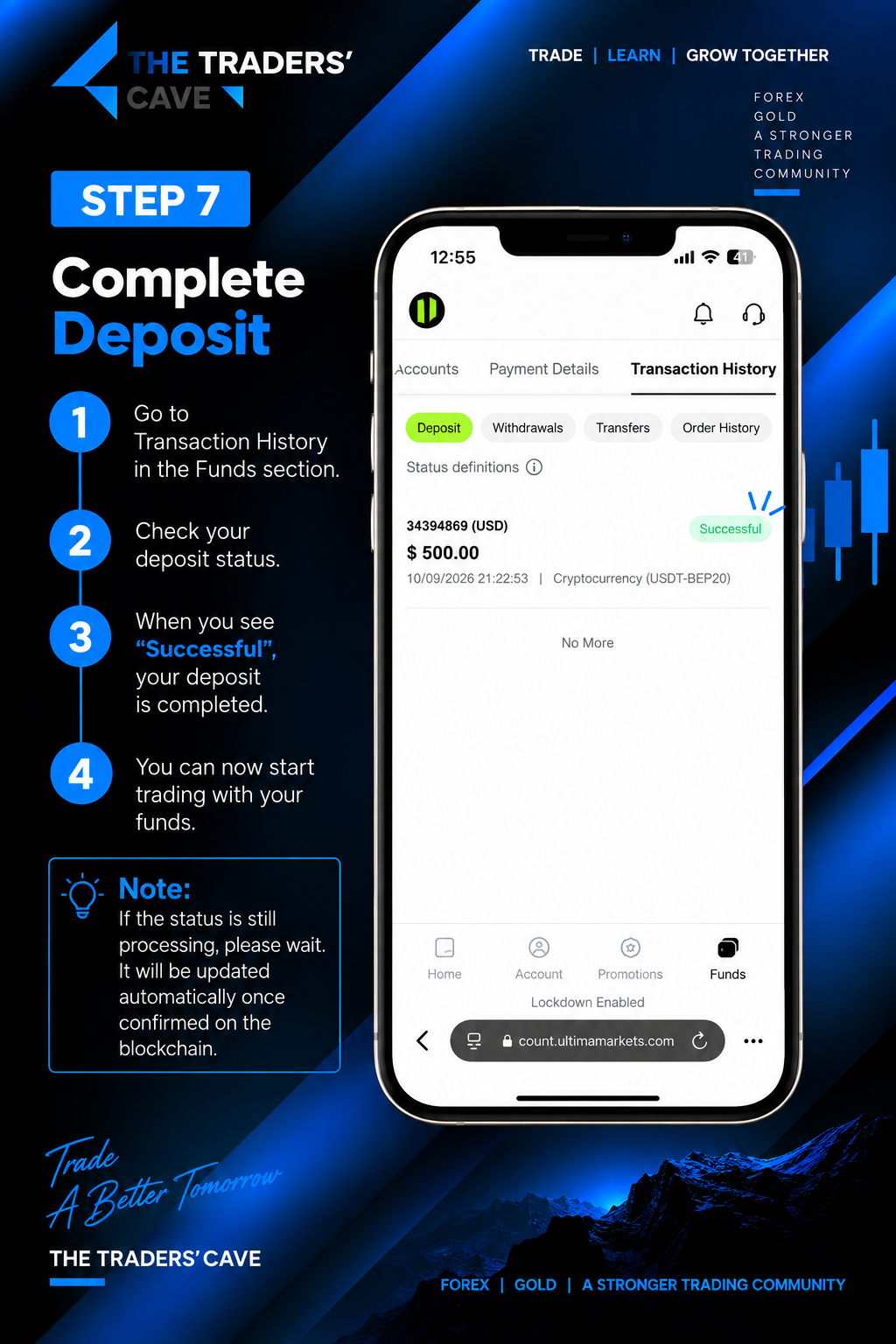
Go to Transaction History and check your deposit status. When the status shows “Successful”, your deposit has been completed.
How to Withdraw Funds from Your Ultima Markets Account
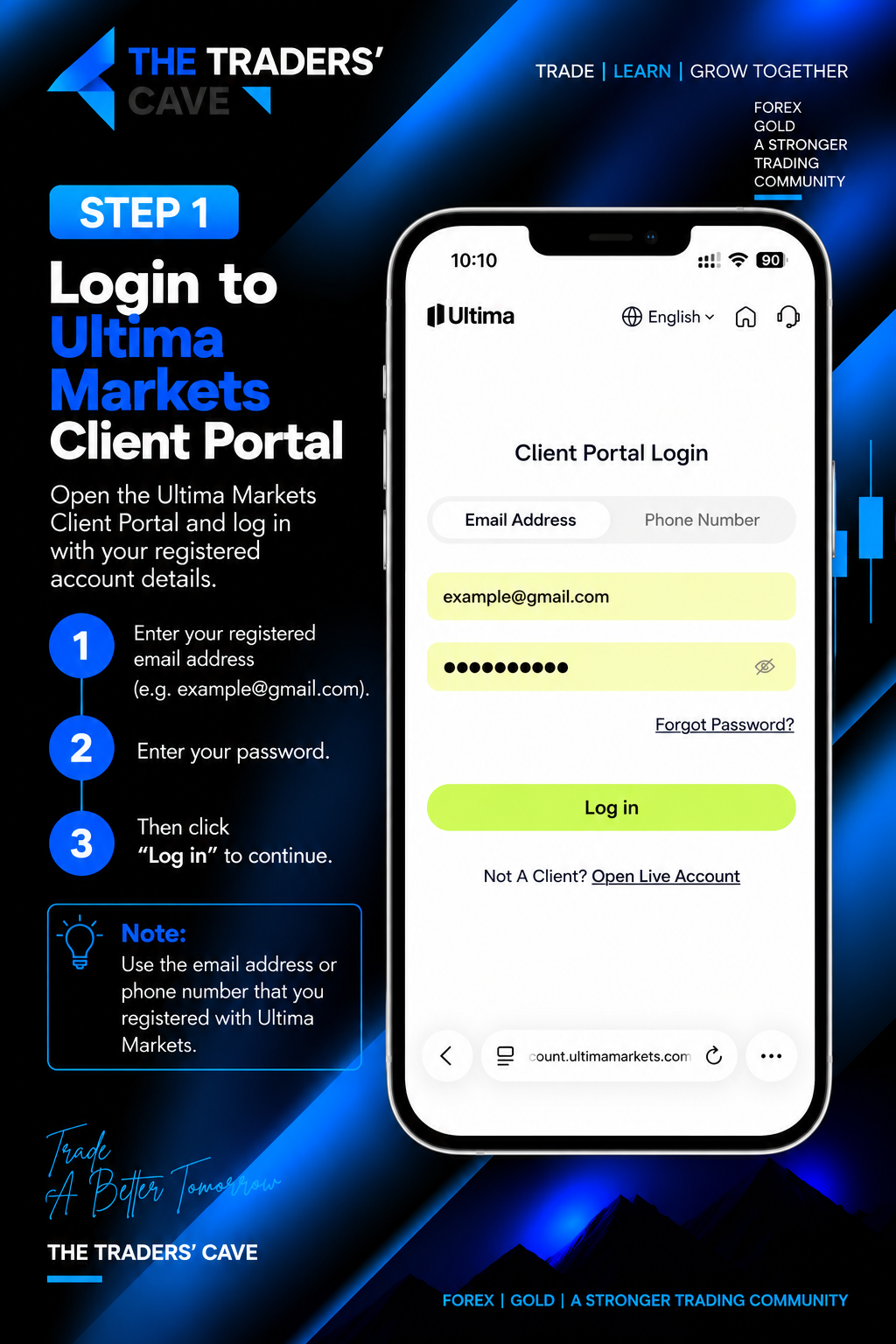
Log in to your Ultima Markets Client Portal using your registered account details.
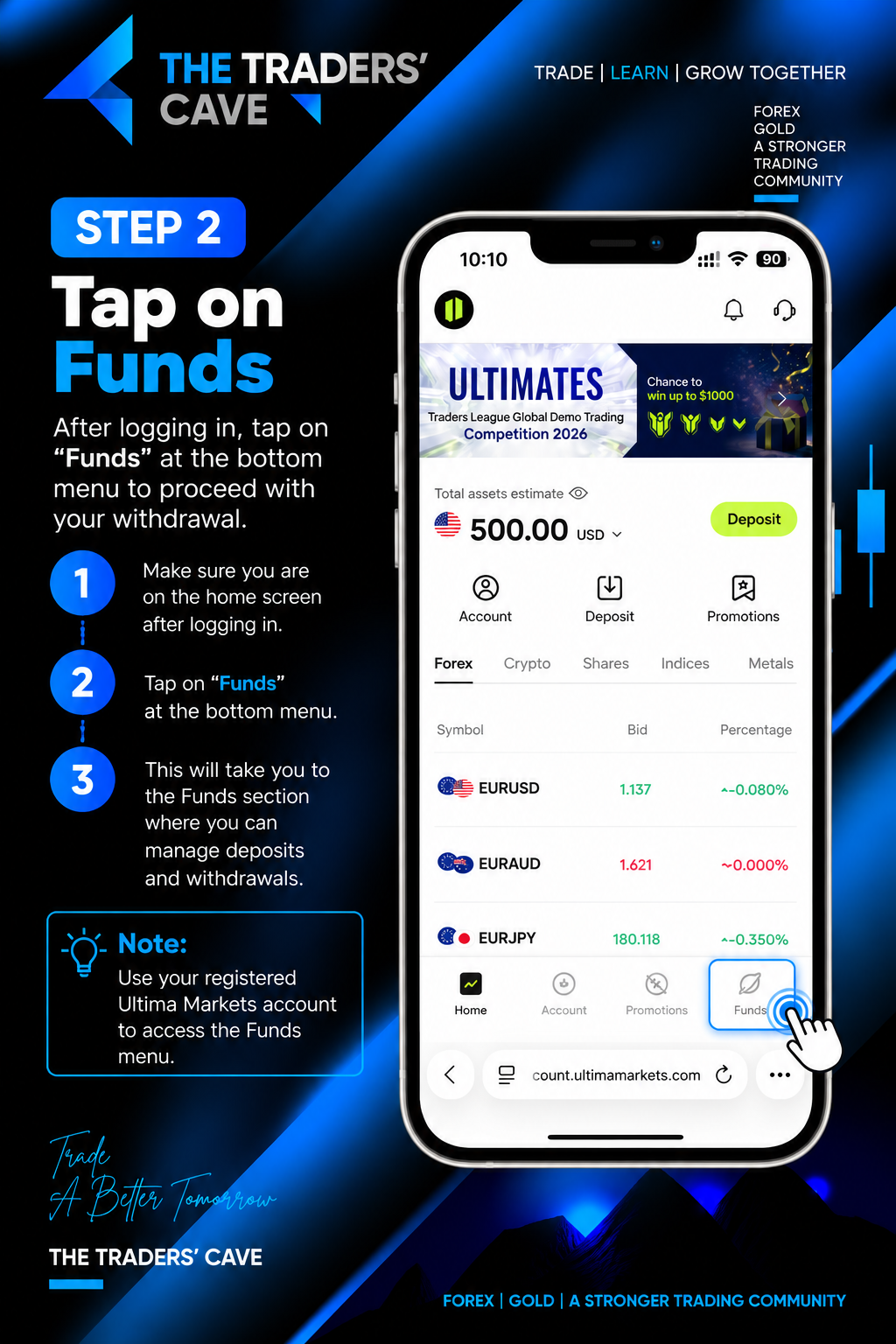
After logging in, tap “Funds” to access the deposit and withdrawal section.
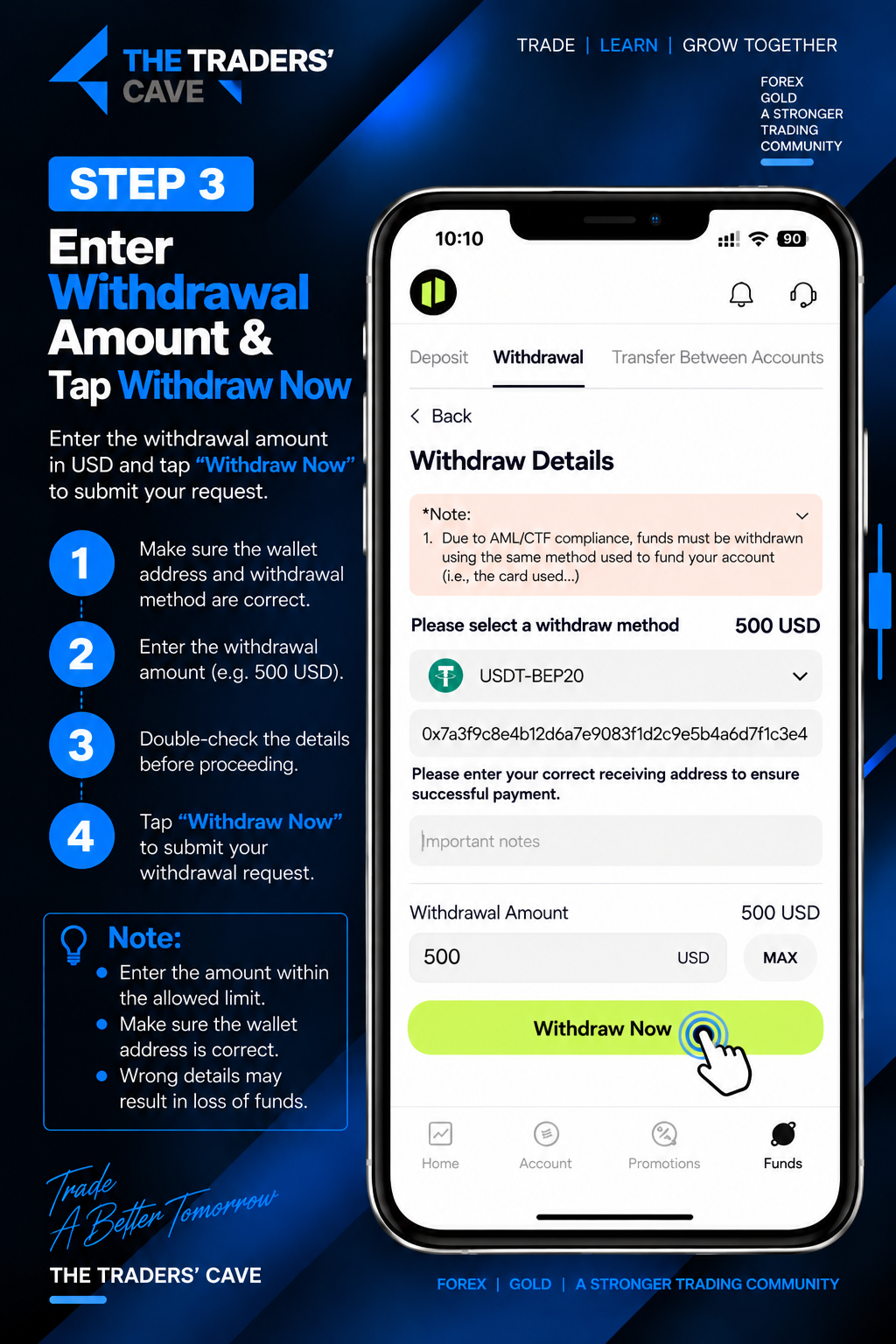
Select your withdrawal method, enter the correct receiving address and withdrawal amount, then tap “Withdraw Now”.
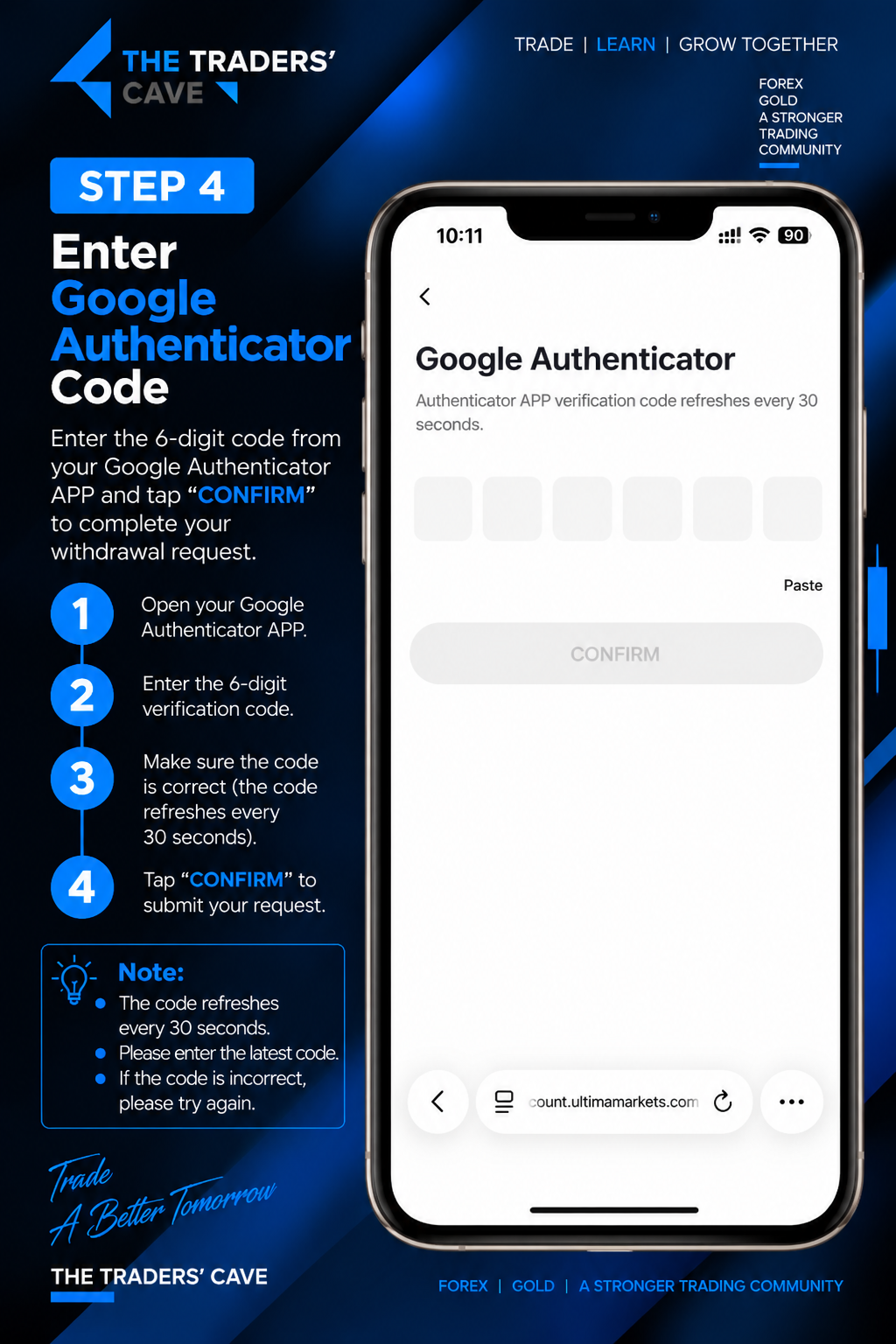
Enter the 6-digit verification code from your Google Authenticator app and tap “CONFIRM”.
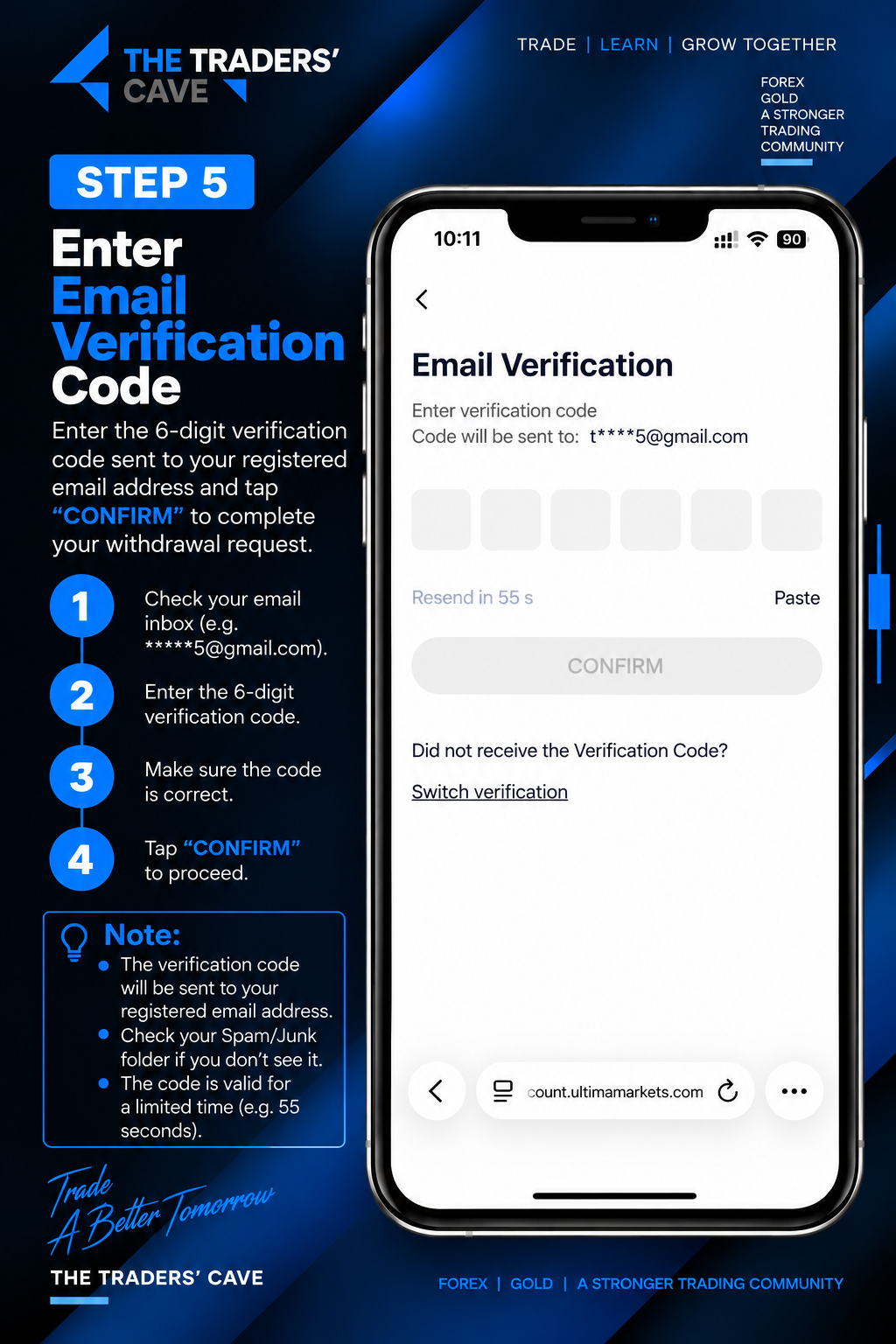
Enter the 6-digit verification code sent to your registered email address and tap “CONFIRM”.
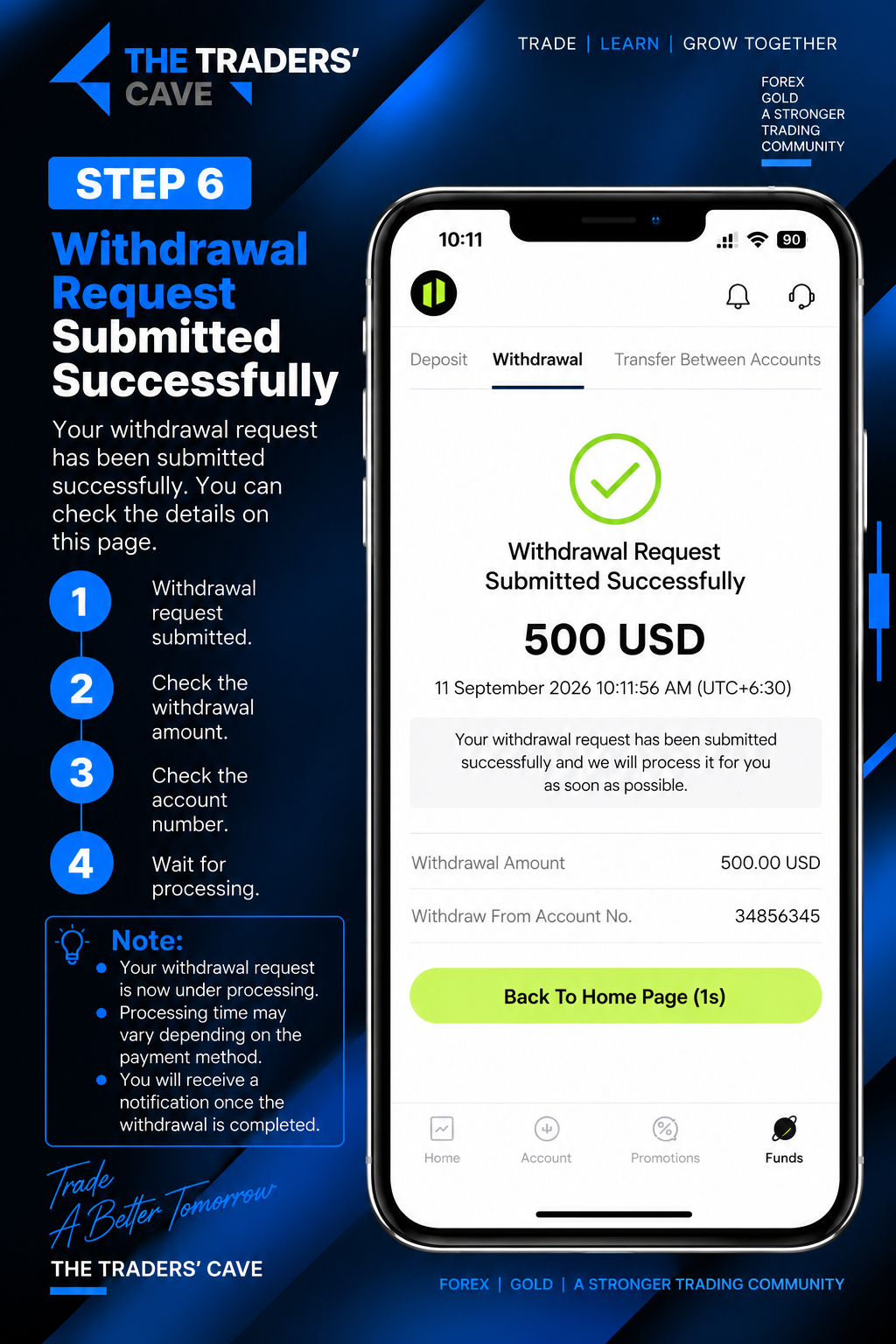
Your withdrawal request has been submitted successfully. Check the withdrawal amount and account details, then wait for processing.
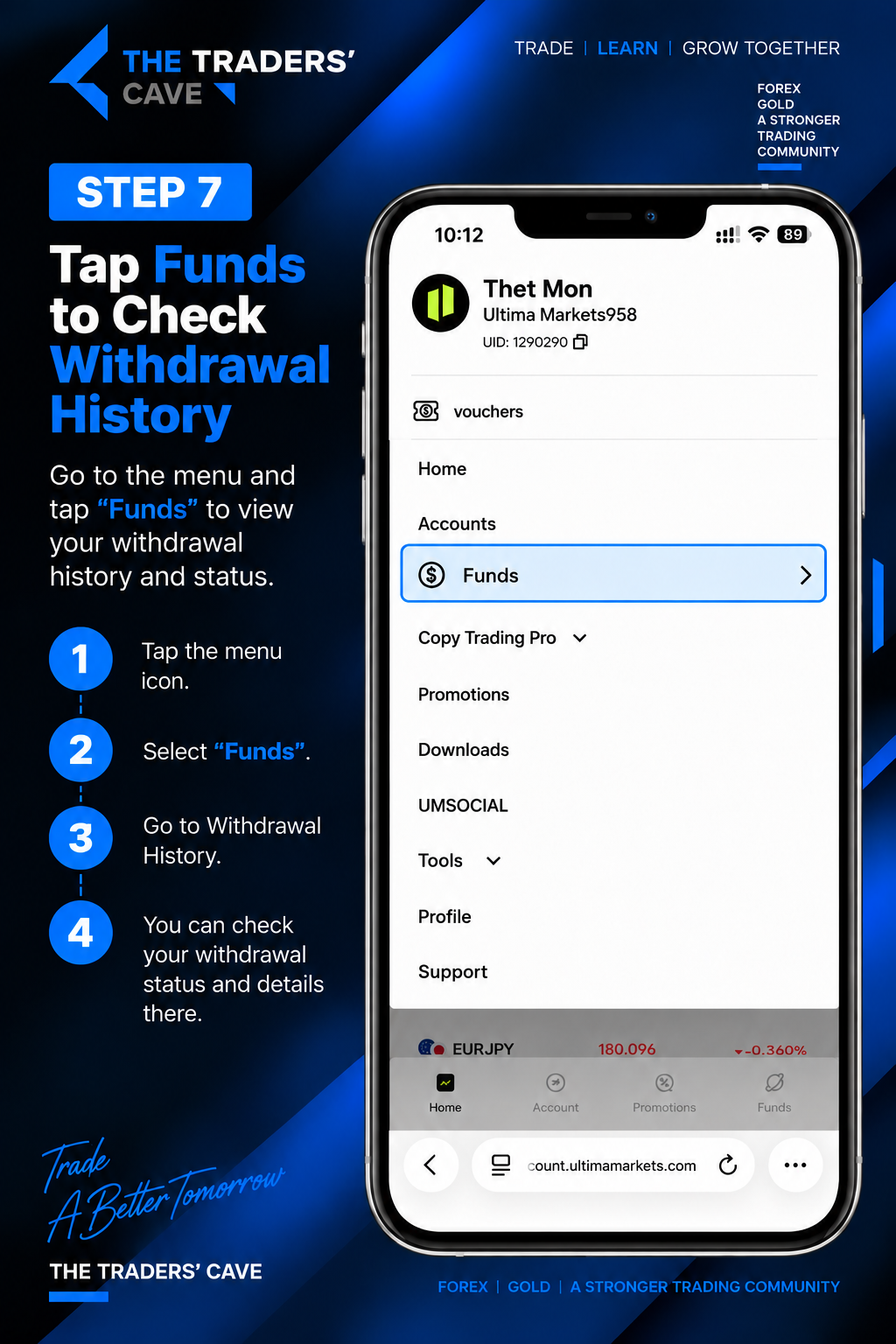
Open the menu and tap “Funds” to check your withdrawal history and status.
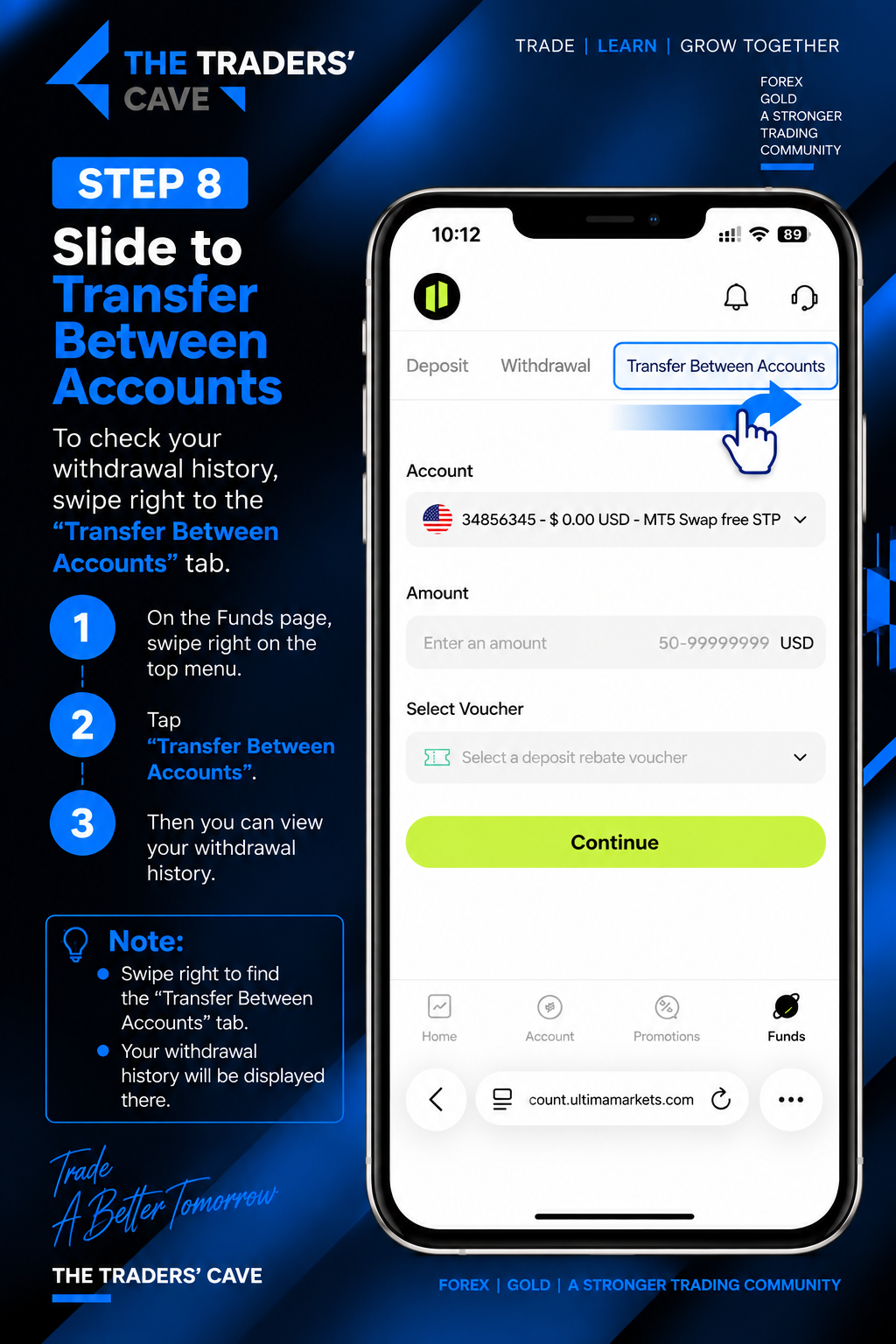
On the Funds page, slide across the top menu to access the transaction history section.
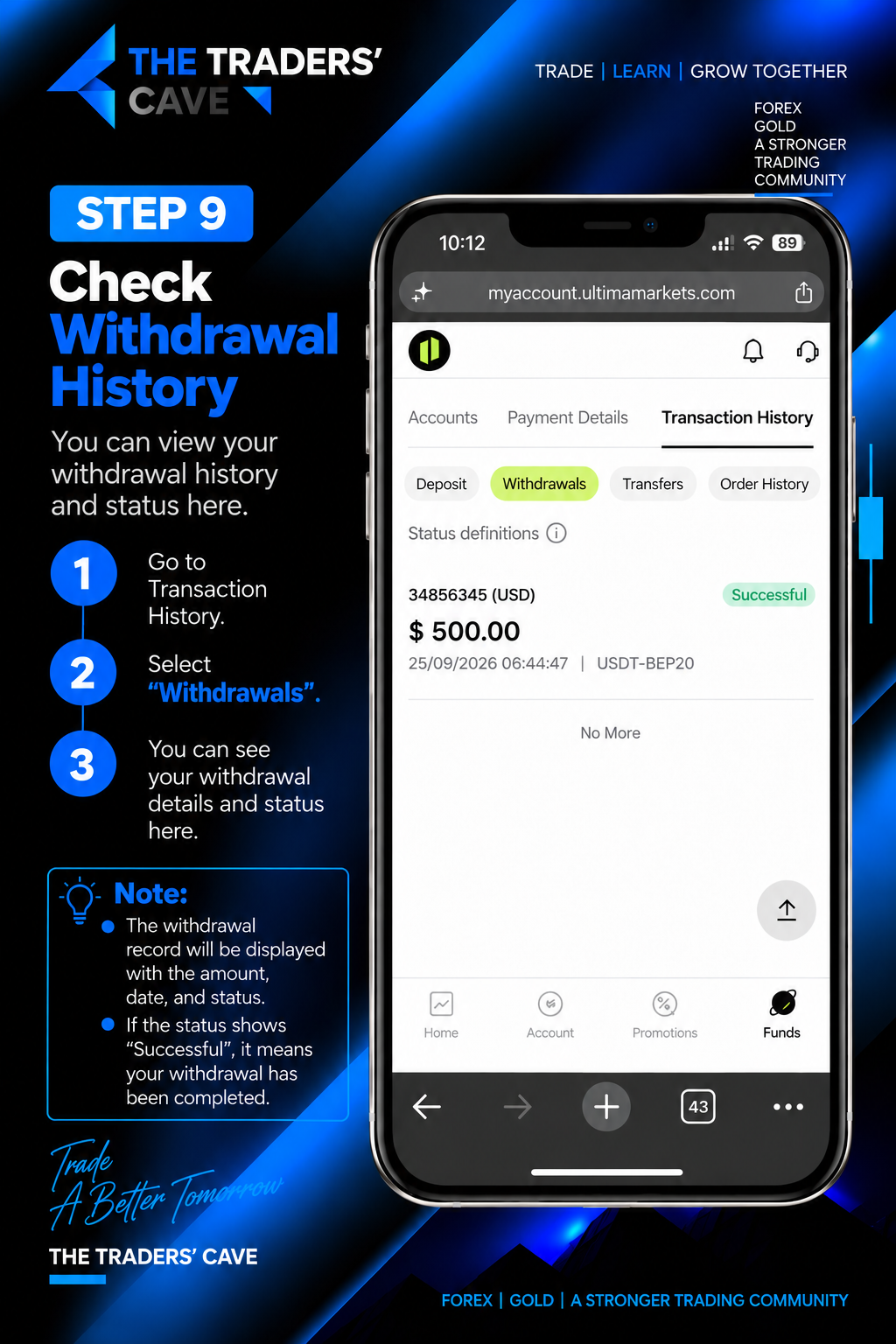
Go to “Transaction History” and select “Withdrawals” to check your withdrawal details and status.
How to Login to Your Ultima Markets Account on MetaTrader 5?
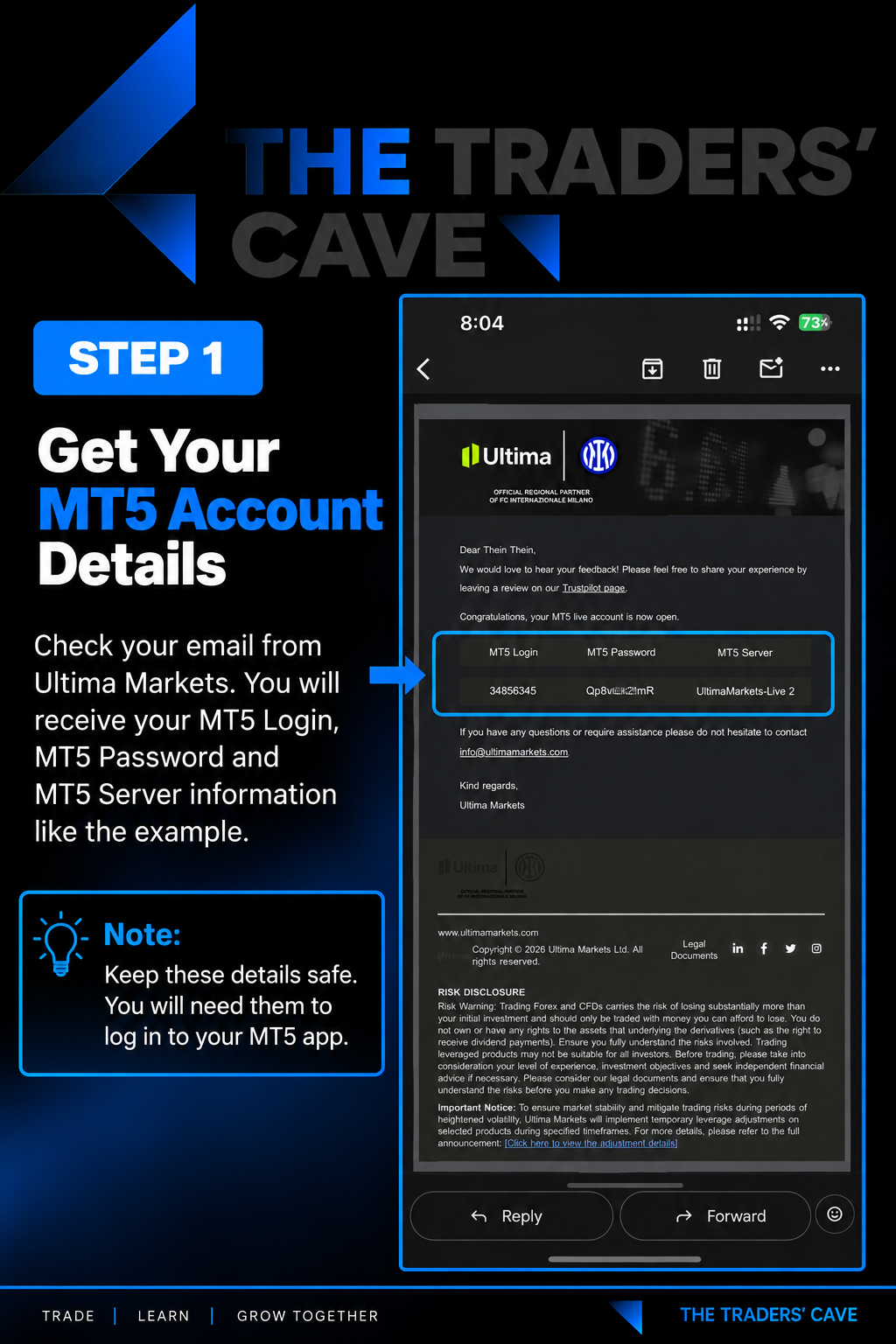
Check your email from Ultima Markets and find your MT5 Login, MT5 Password, and MT5 Server details.
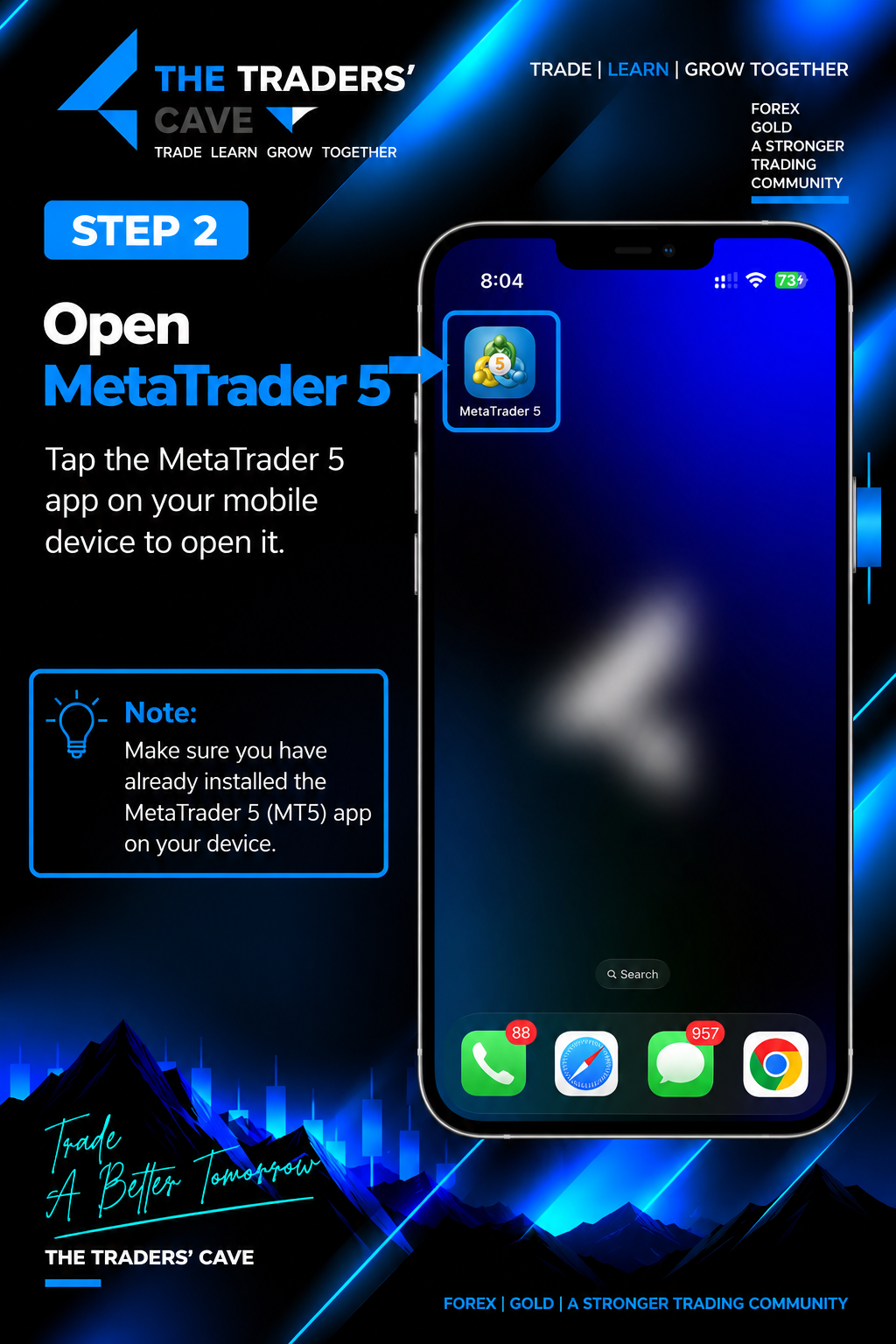
Open the MetaTrader 5 (MT5) app on your mobile device.
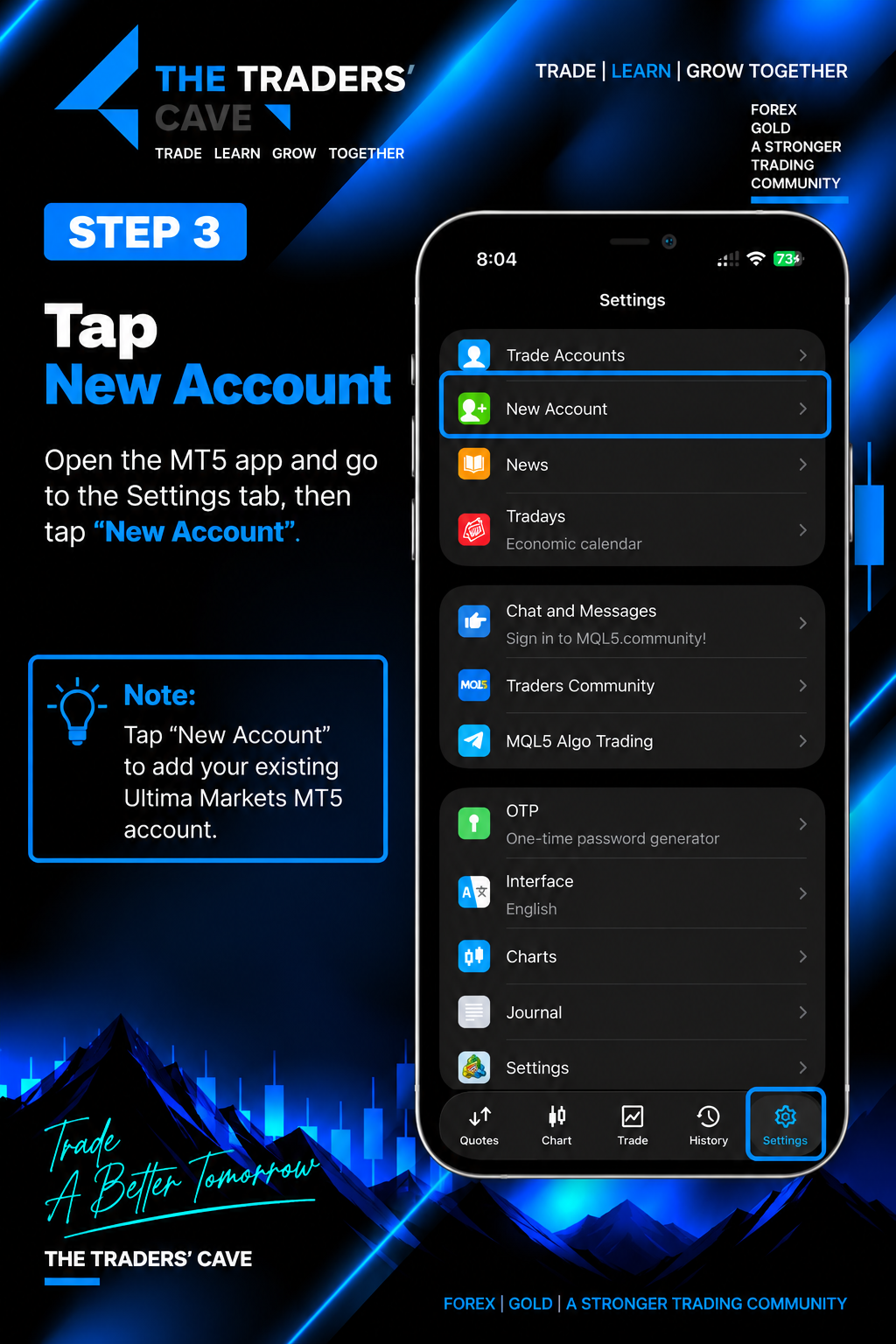
Go to the Settings tab and tap “New Account” to add your existing Ultima Markets MT5 account.
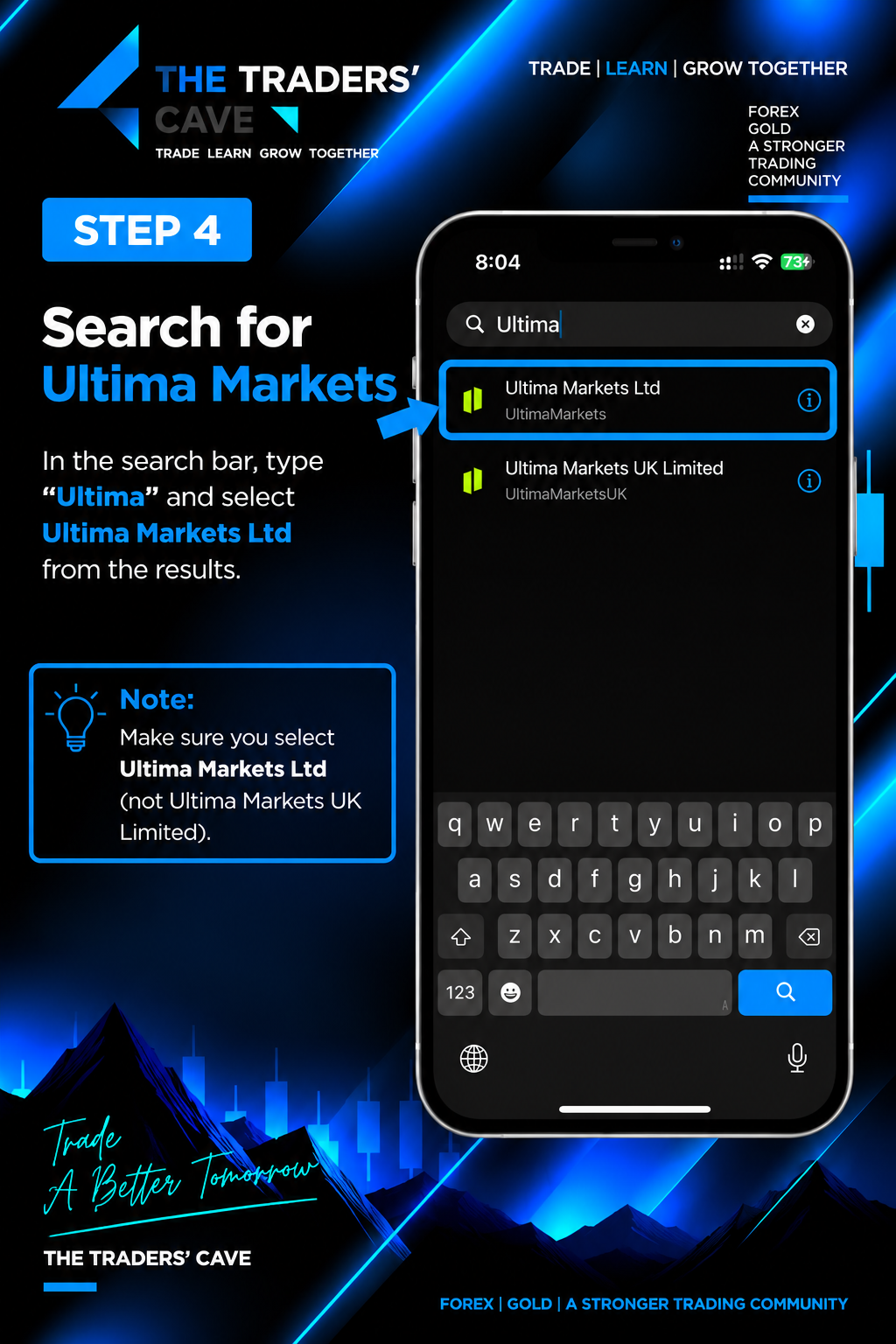
Search for “Ultima” and select “Ultima Markets Ltd” from the results.
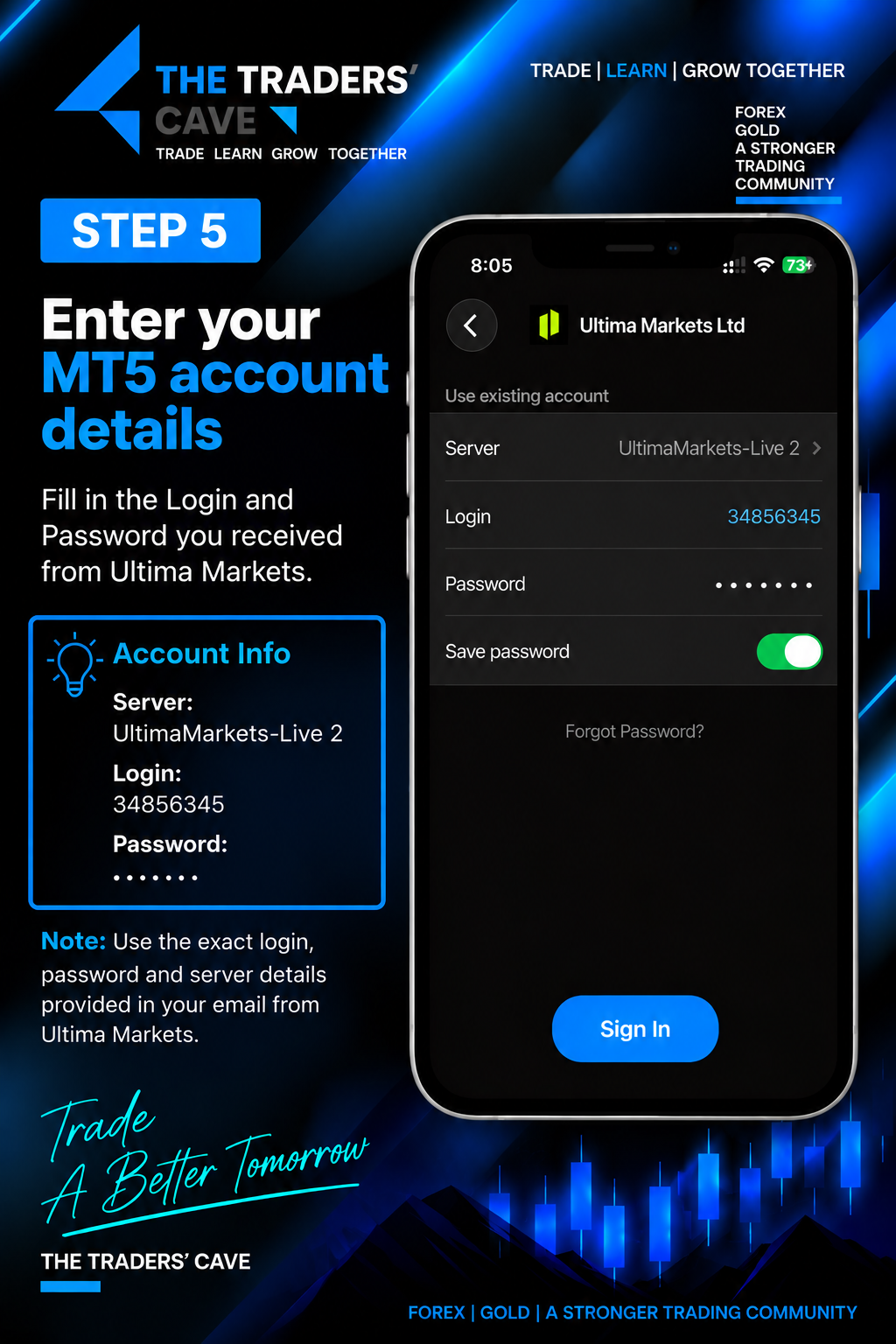
Select the MT5 Server provided in your email, enter your MT5 Login and Password, then tap “Sign In”.
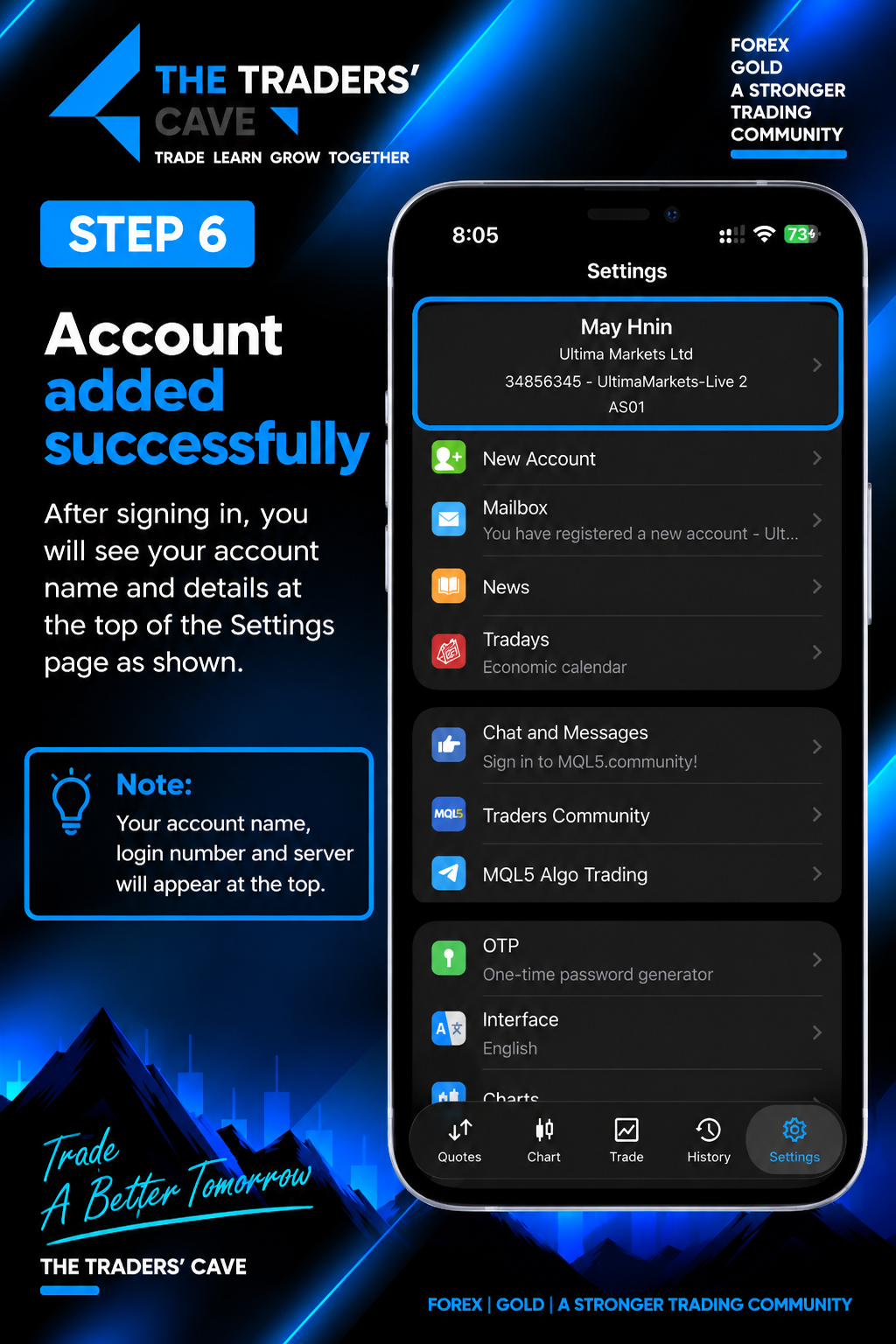
After signing in successfully, your Ultima Markets account name, login number, and server will appear in the MT5 Settings page.