





MH Markets
MH Markets is an online trading broker providing access to global financial markets through professional trading platforms.
About MH Markets
MH Markets provides online trading services across a range of global financial markets. Traders can access products such as Forex, precious metals, indices, commodities and CFDs through supported trading platforms. The broker offers multiple account options and trading tools designed for different trading needs. The Traders' Cave provides broker information and support to help traders understand the available services before opening an account.
Available Services
Key Highlights
How to Register with MH Markets?
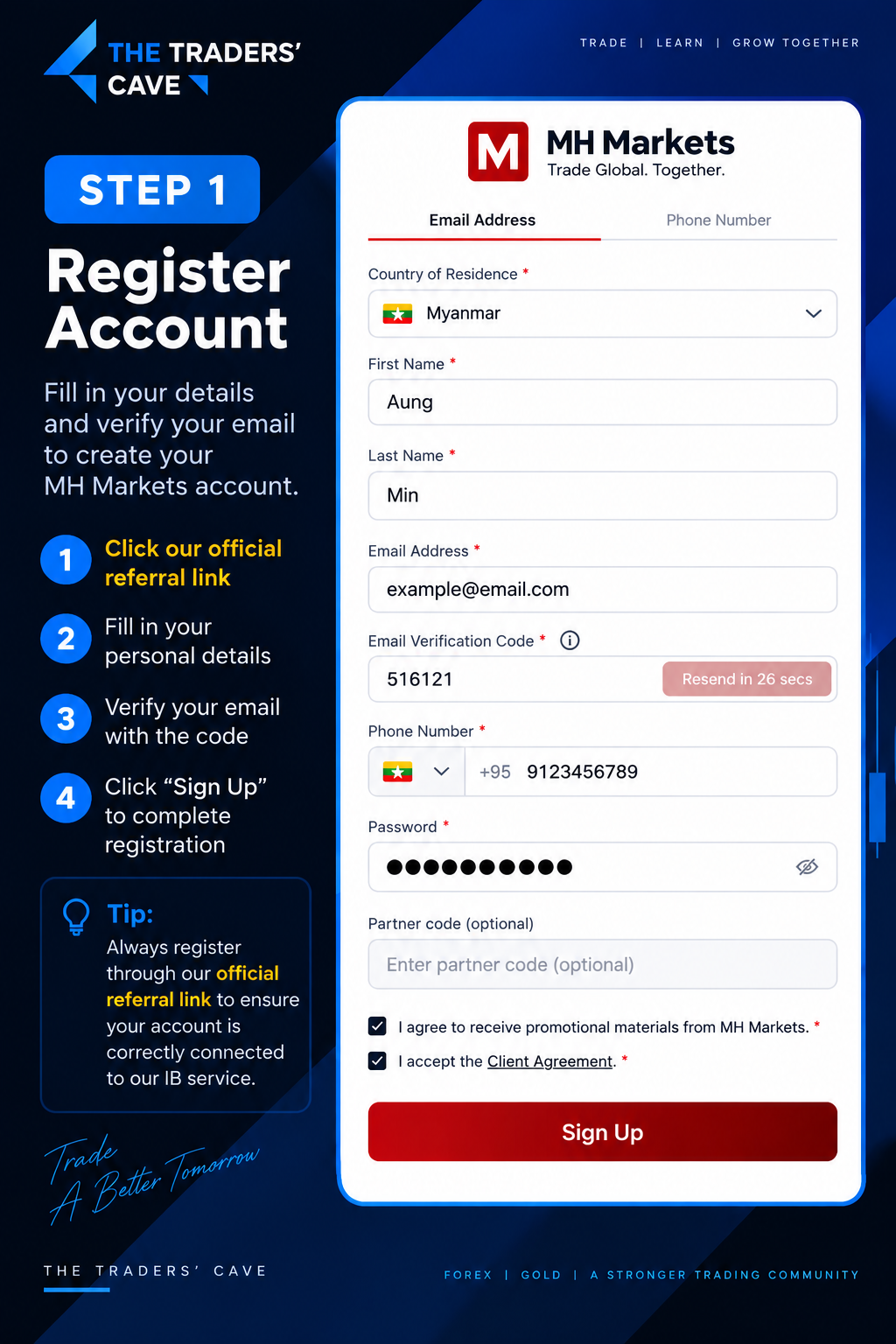
Click our official referral link, fill in your personal details, verify your email with the verification code, and click “Sign Up” to create your MH Markets account.
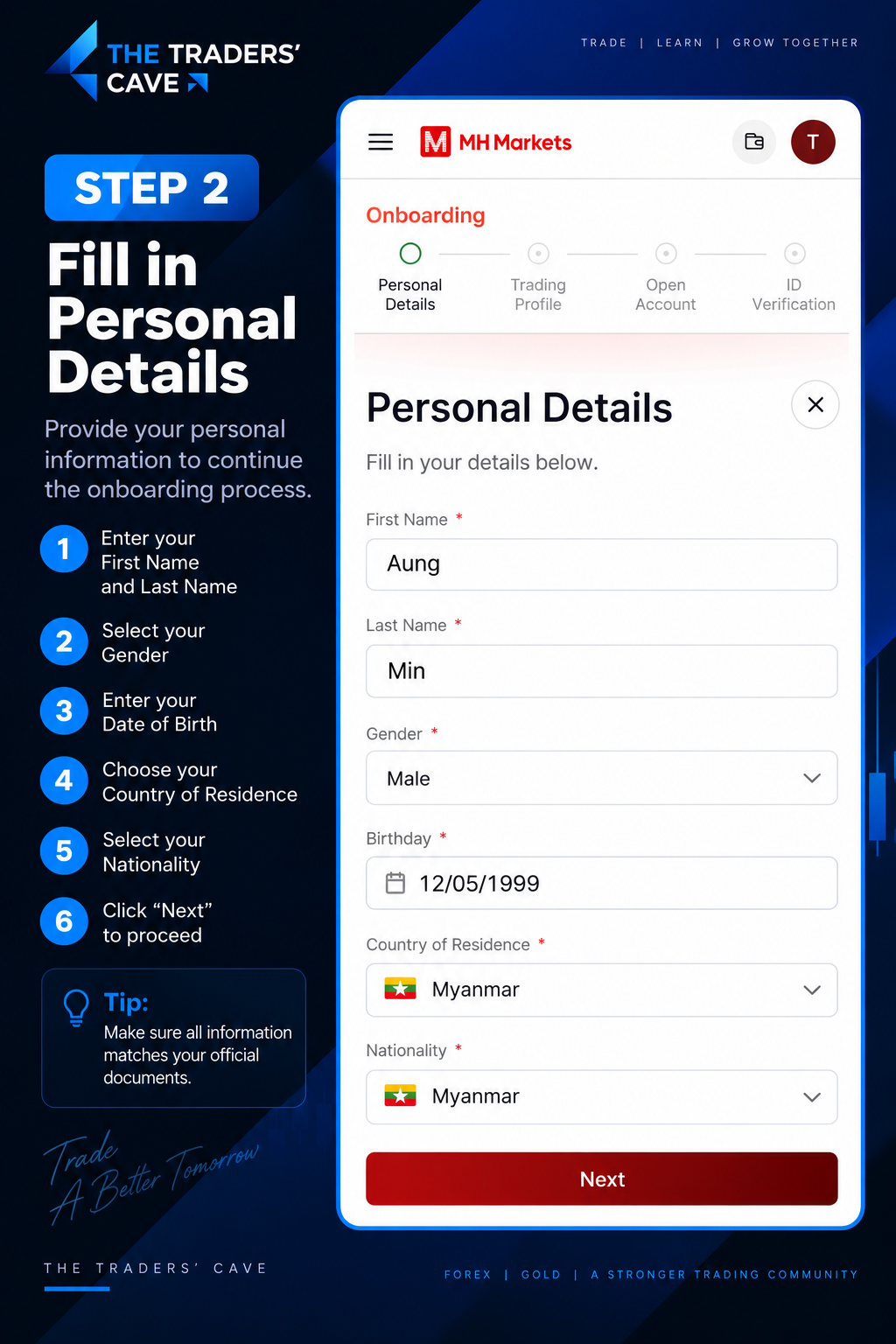
Enter your personal details including your First Name, Last Name, Gender, Date of Birth, Country of Residence and Nationality, then click “Next”.
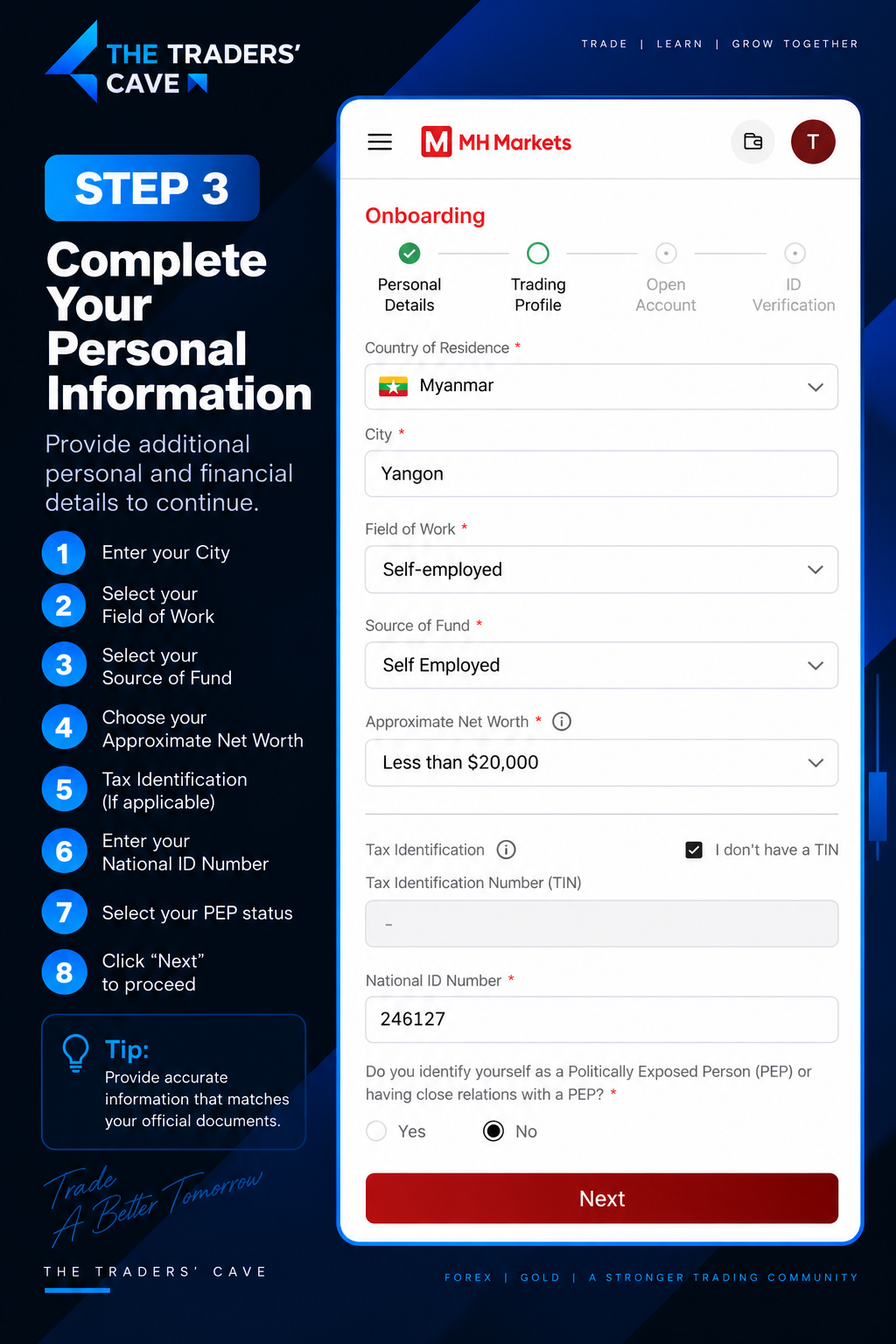
Complete the required personal and financial information, including your City, Field of Work, Source of Fund, Approximate Net Worth, Tax Information (if applicable), National ID Number and PEP status. Then click “Next”.
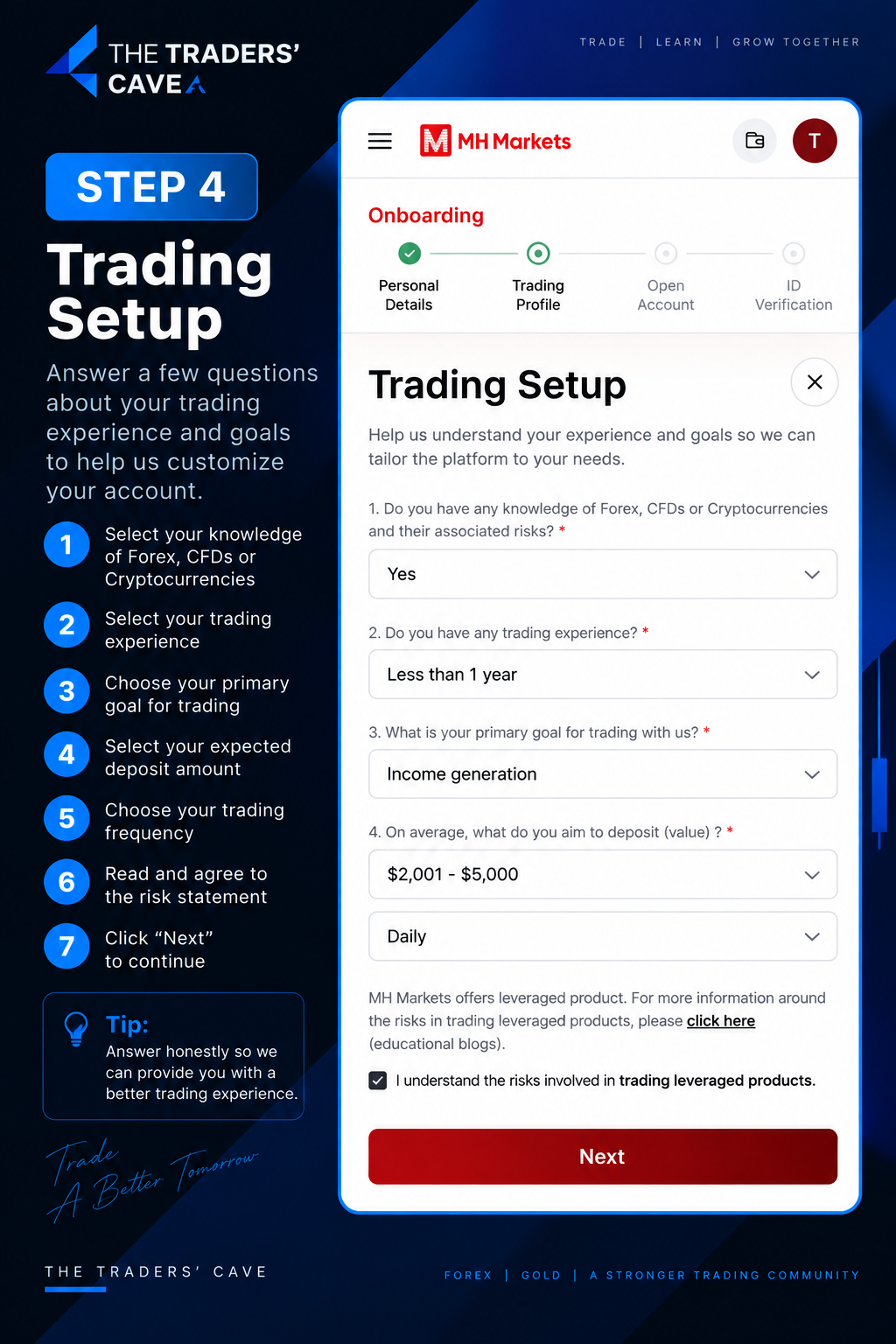
Complete the Trading Setup questions based on your actual trading knowledge, experience, goals, expected deposit amount and trading frequency. Read and accept the risk statement, then click “Next”.
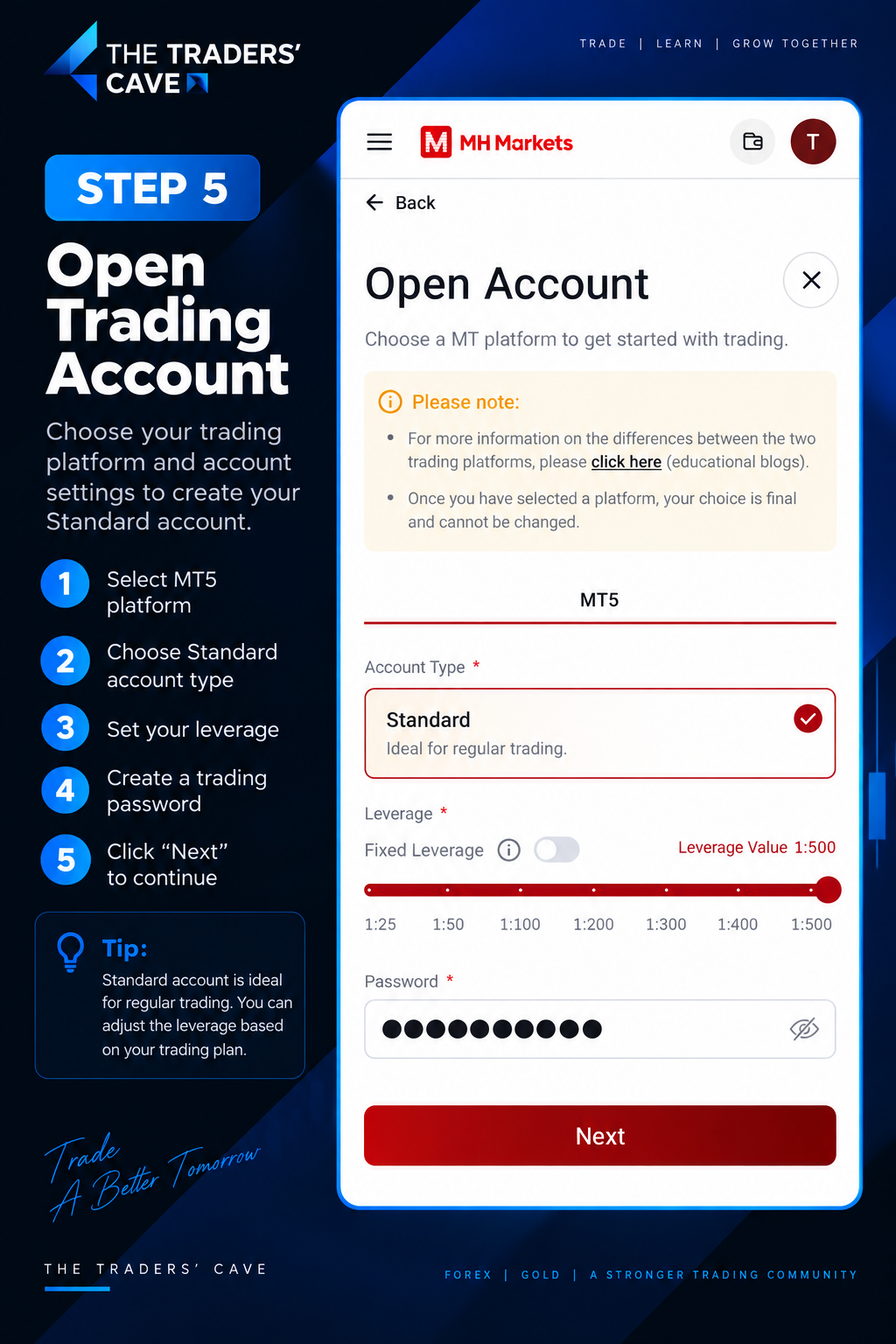
Select your preferred trading account type and configure the available account settings.
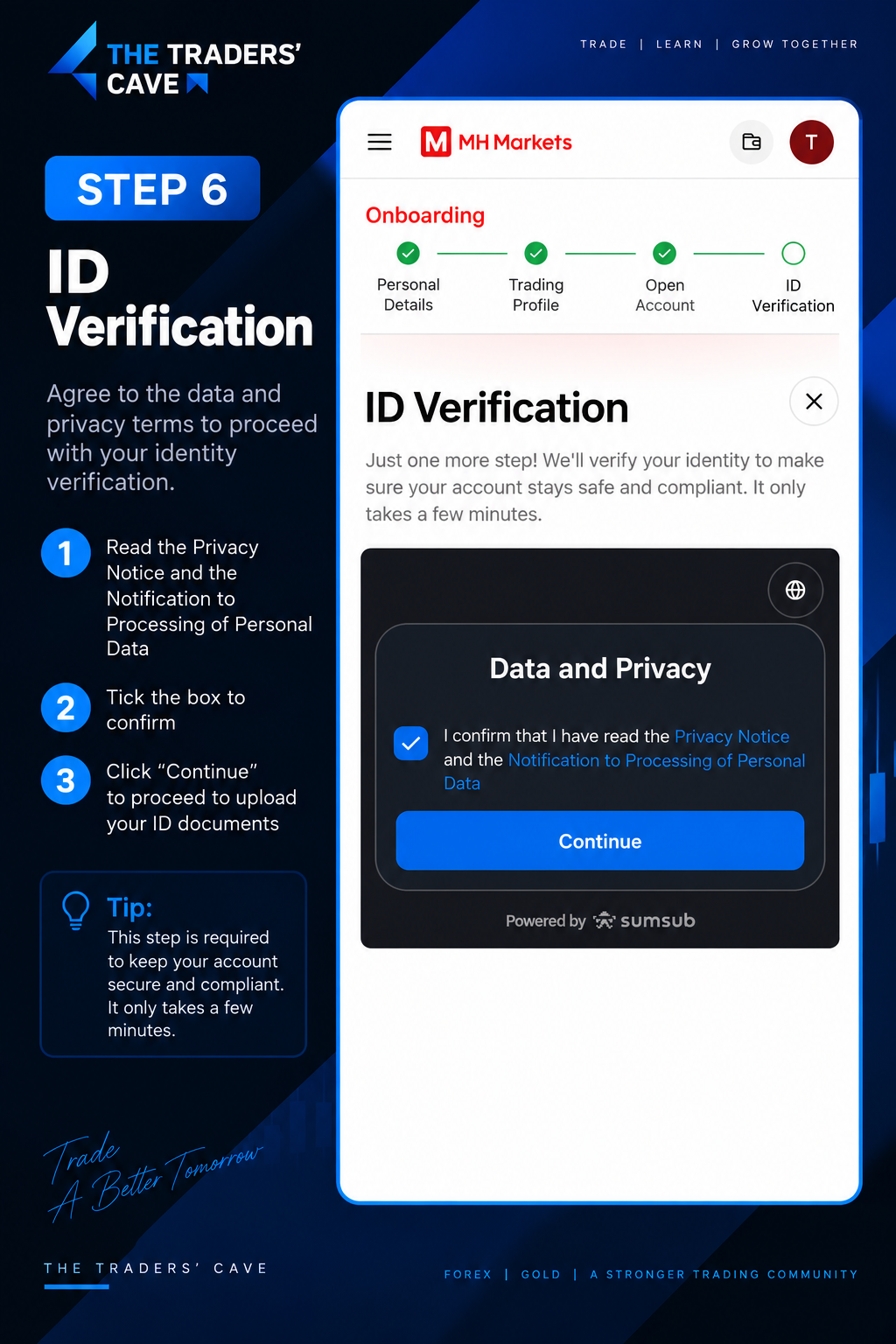
Read the Privacy Notice and Notification to Processing of Personal Data. Tick the confirmation box and click “Continue” to begin identity verification.
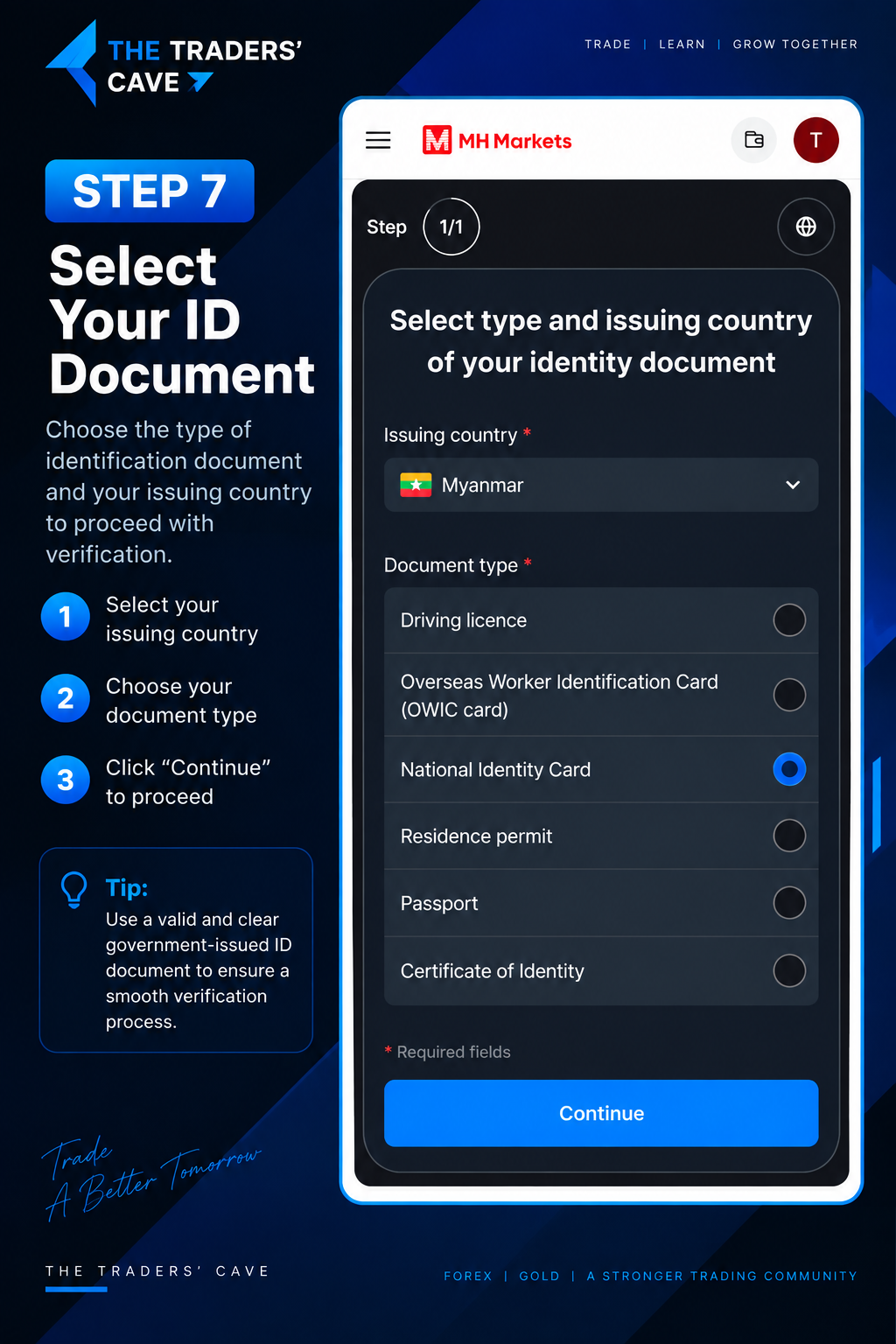
Select your ID document’s issuing country and choose the appropriate document type, such as a National Identity Card or Passport. Then click “Continue”.
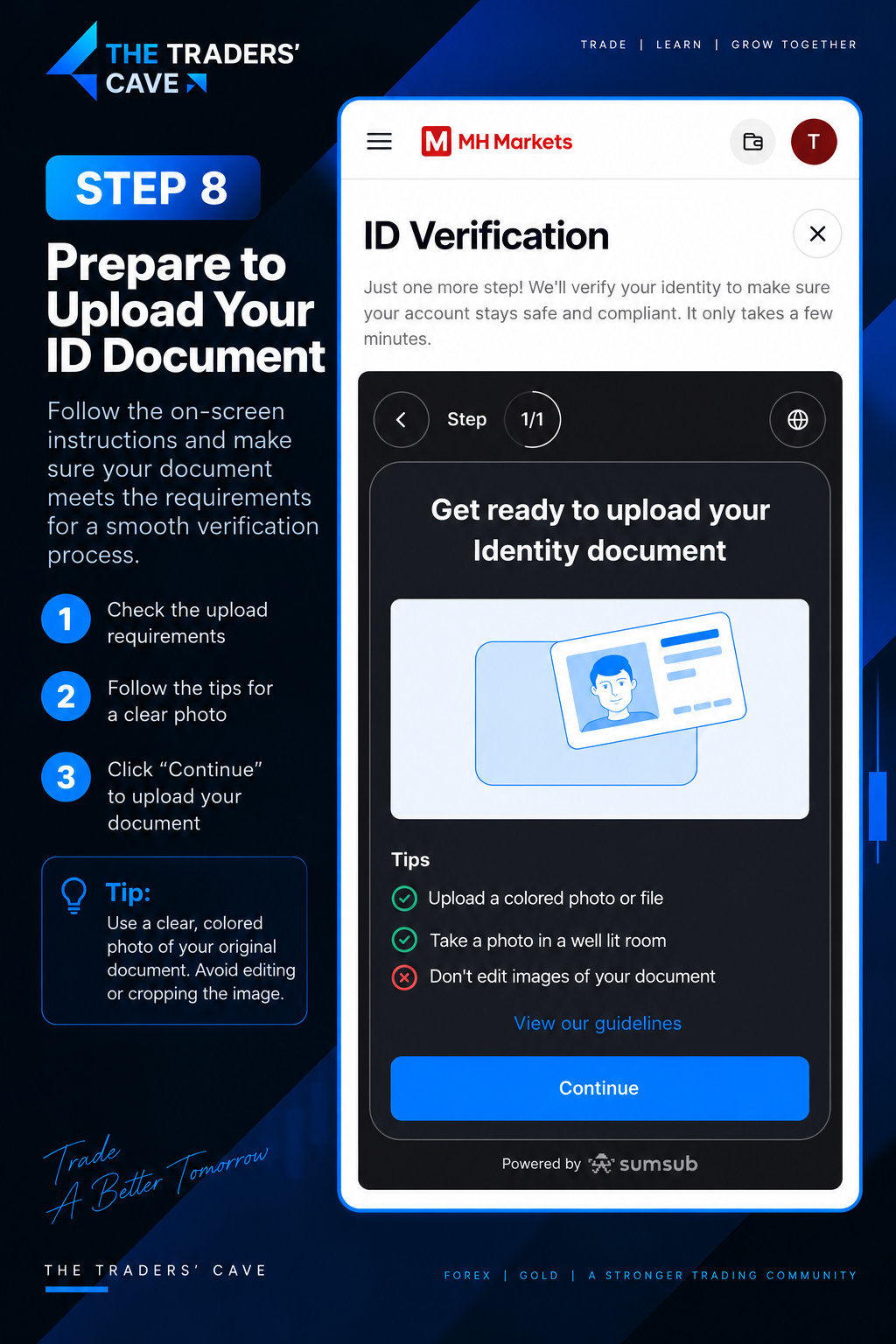
Review the document upload requirements and prepare a clear, colored image of your original identity document. Make sure the document is clearly visible and not edited or cropped, then click “Continue”.
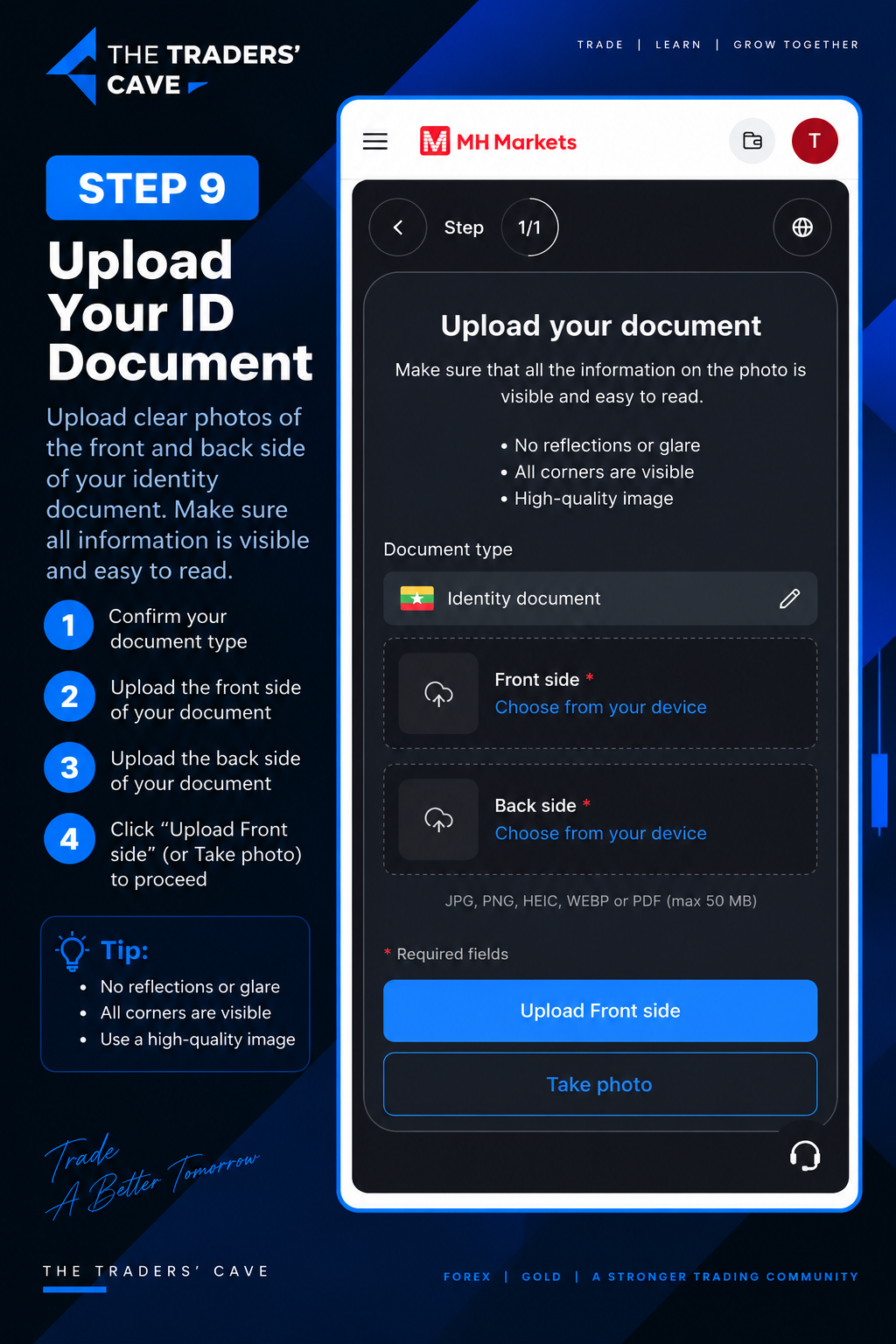
ID Document Upload လုပ်ရန် လိုအပ်ချက်များကို စစ်ဆေးပါ။ မူရင်း ID Document ကို အလင်းရောင်ကောင်းကောင်းဖြင့် ကြည်လင်သော Color Photo ရိုက်ထားပြီး Edit သို့မဟုတ် Crop မလုပ်ထားကြောင်း သေချာစစ်ဆေးကာ “Continue” ကိုနှိပ်ပါ။
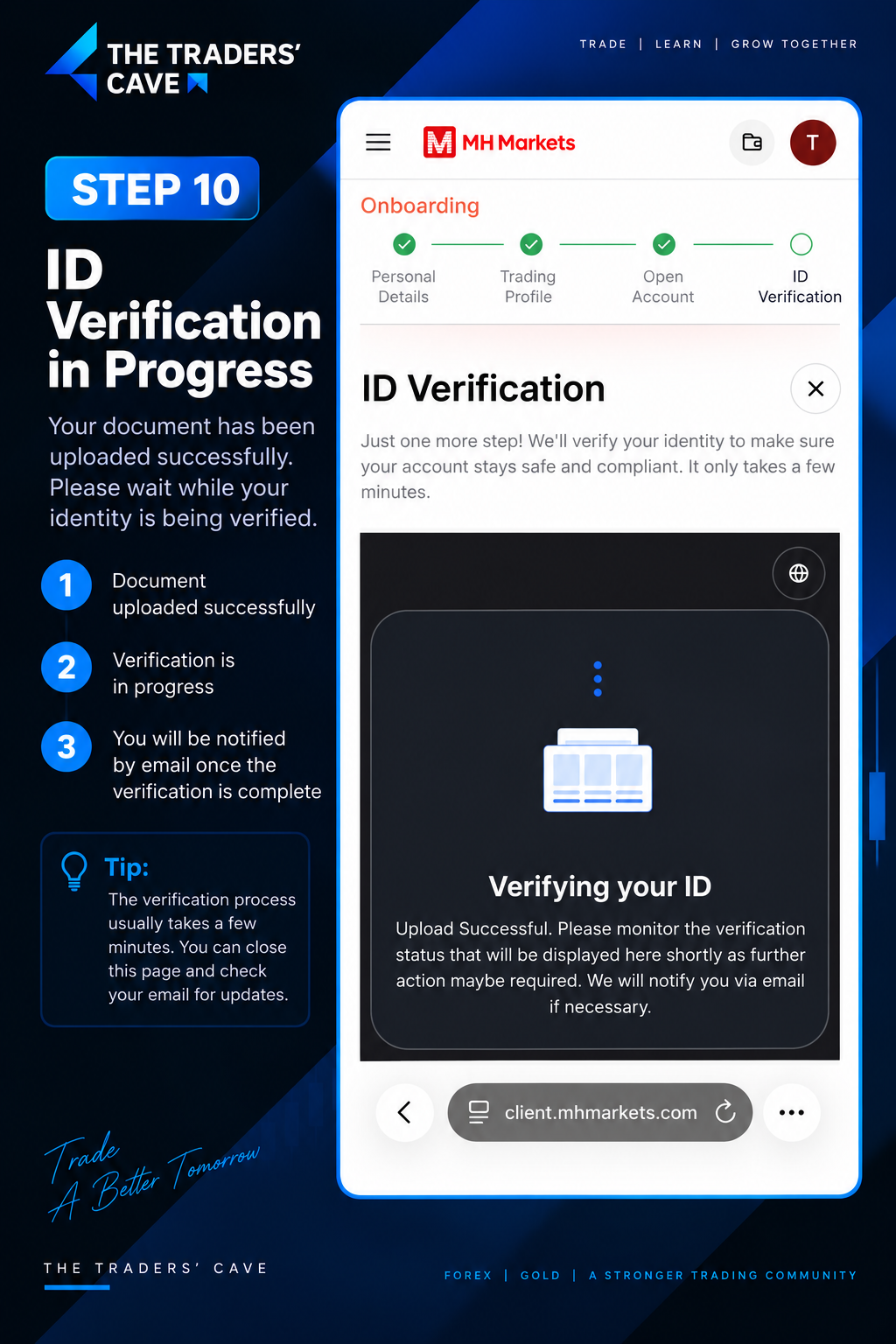
After your ID document has been uploaded successfully, wait while MH Markets verifies your identity. Monitor the verification status and check your email for any required updates or additional actions.
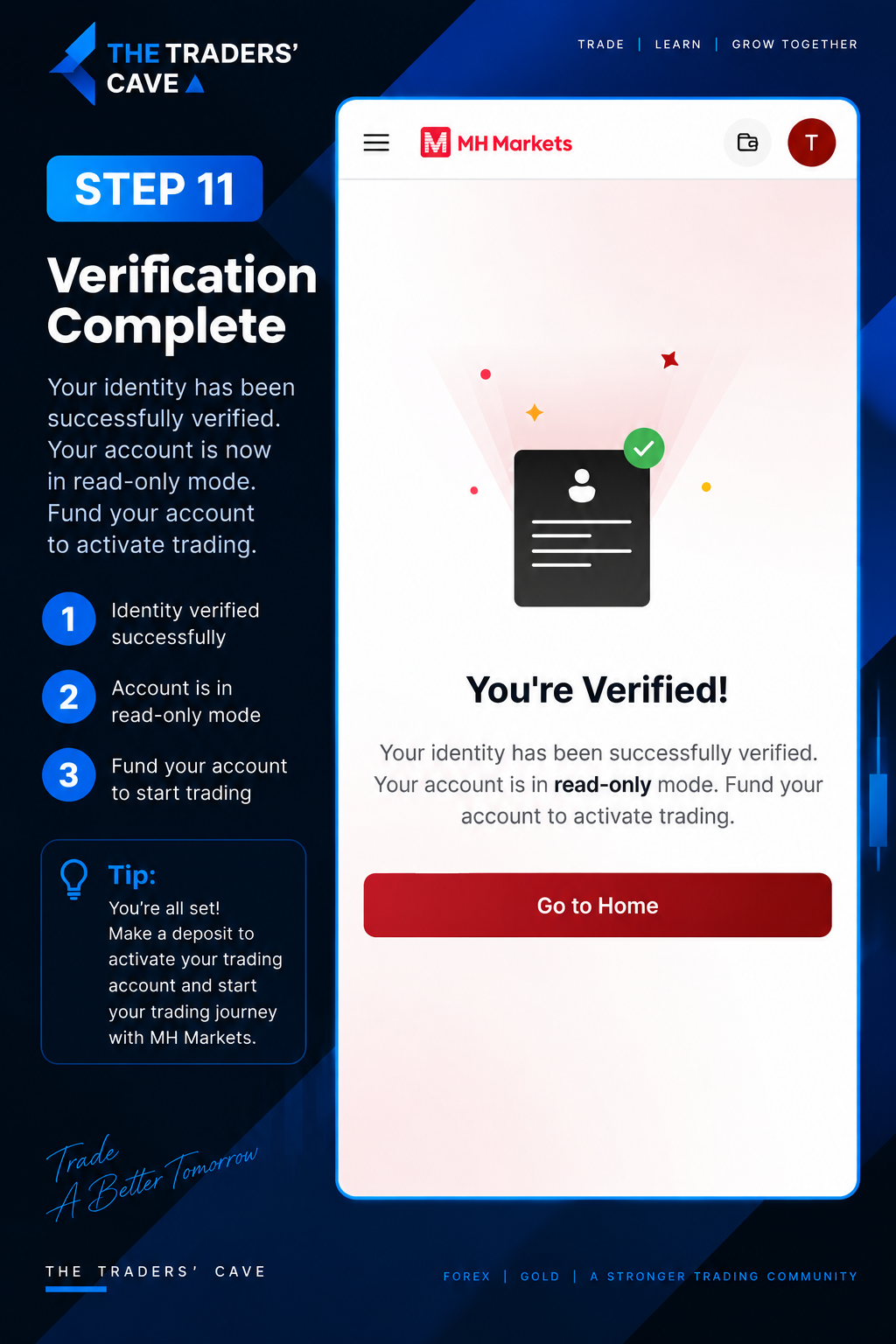
Once your identity verification is successfully completed, your account will be verified. Follow the account instructions shown in the Client Portal to proceed with funding and trading.
How to Deposit Funds into Your MH Markets Account
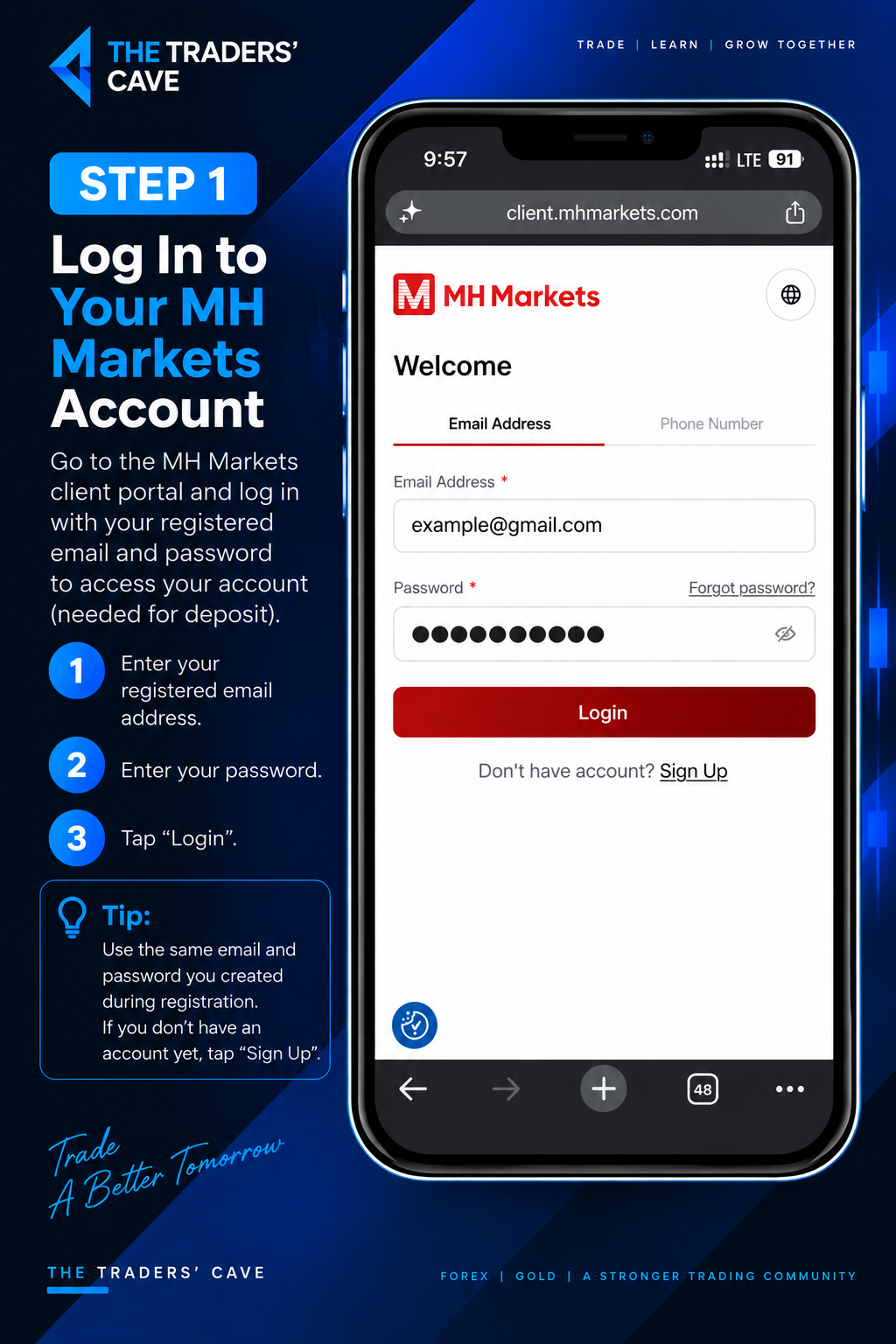
Log in to your MH Markets Client Portal using your registered email address and password.
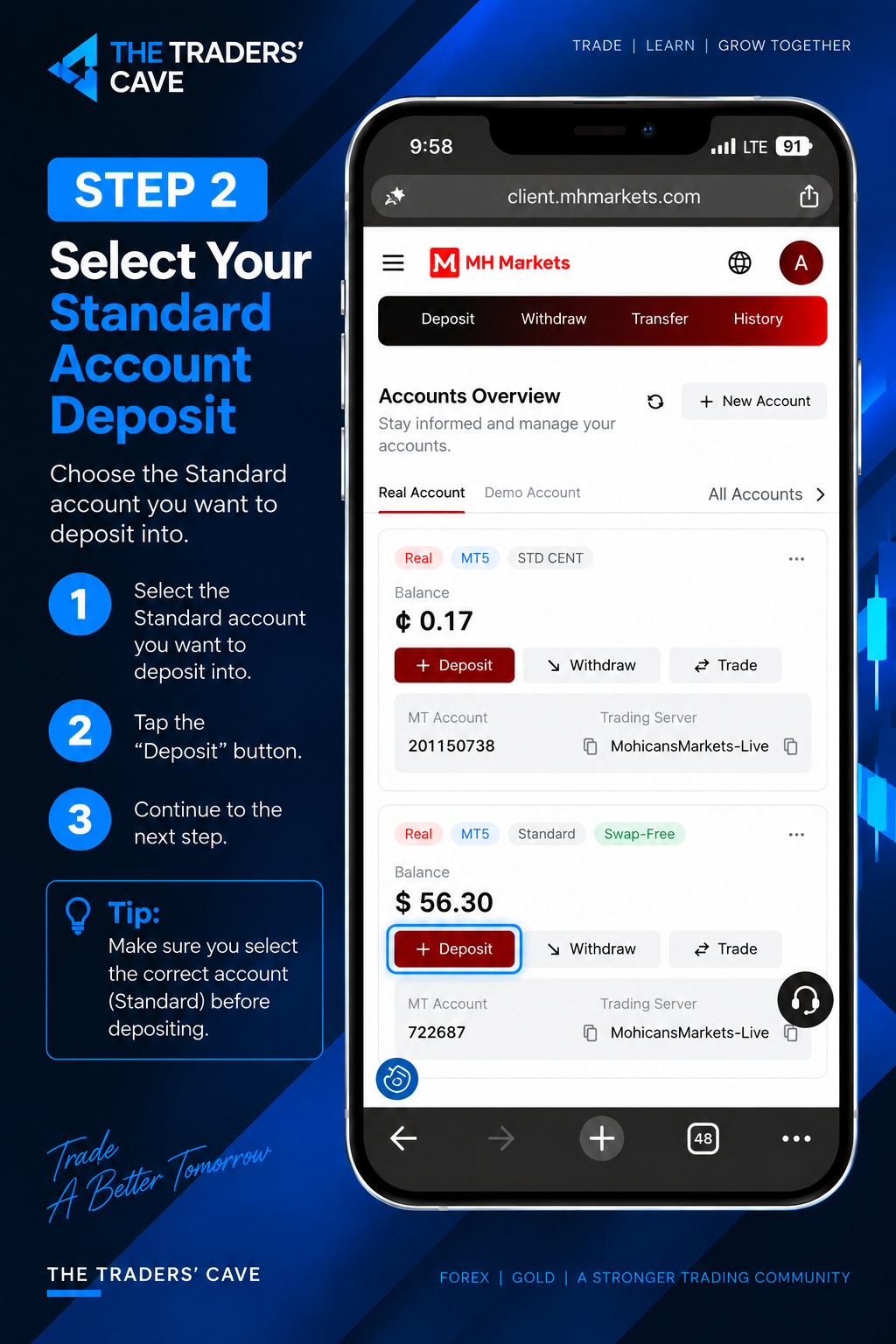
Select the Standard trading account you want to deposit into and tap the “Deposit” button.
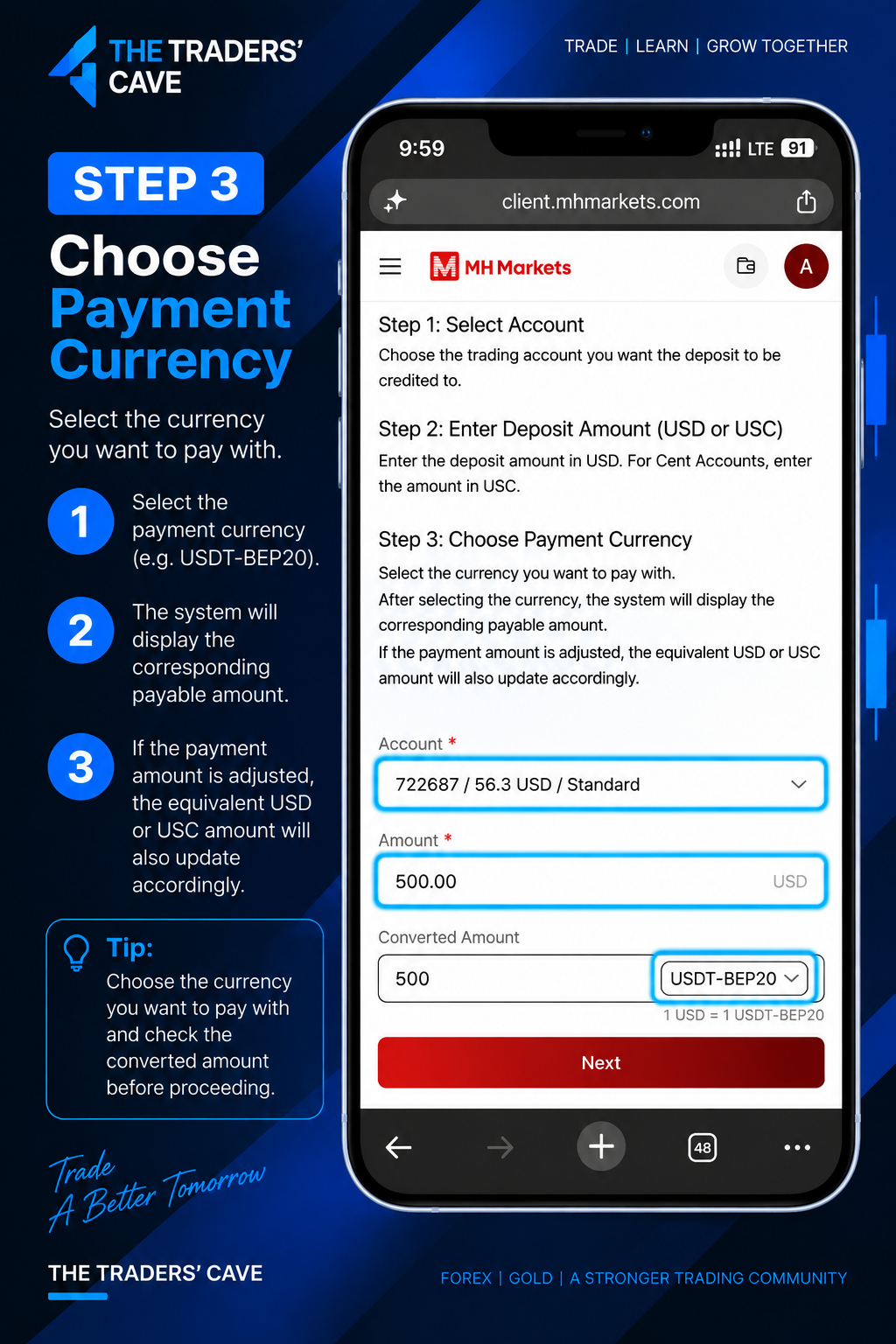
Enter your deposit amount and select the payment currency you want to use, such as USDT-BEP20. Check the converted amount before proceeding.
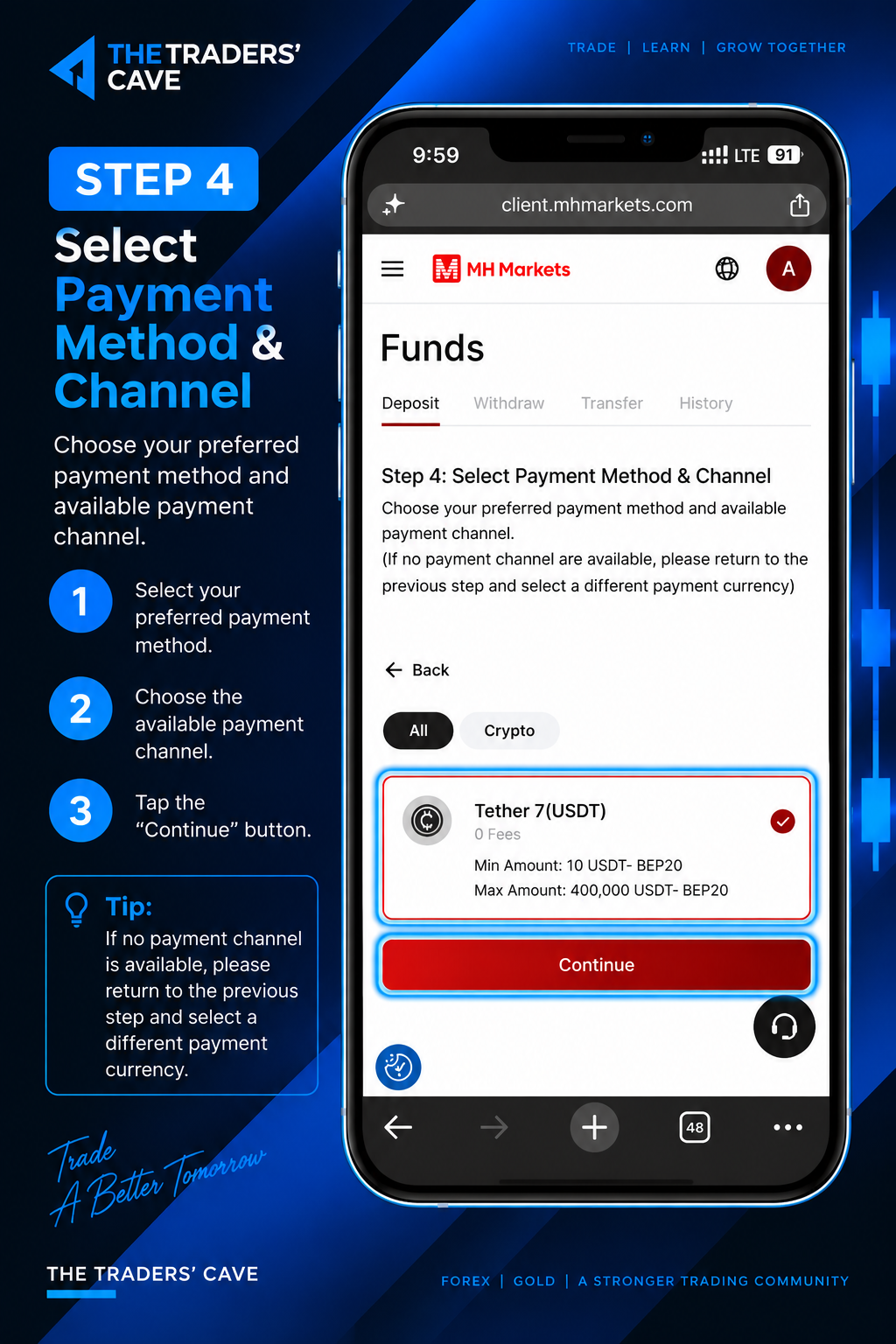
Select your preferred payment method and available payment channel, then tap “Continue”.
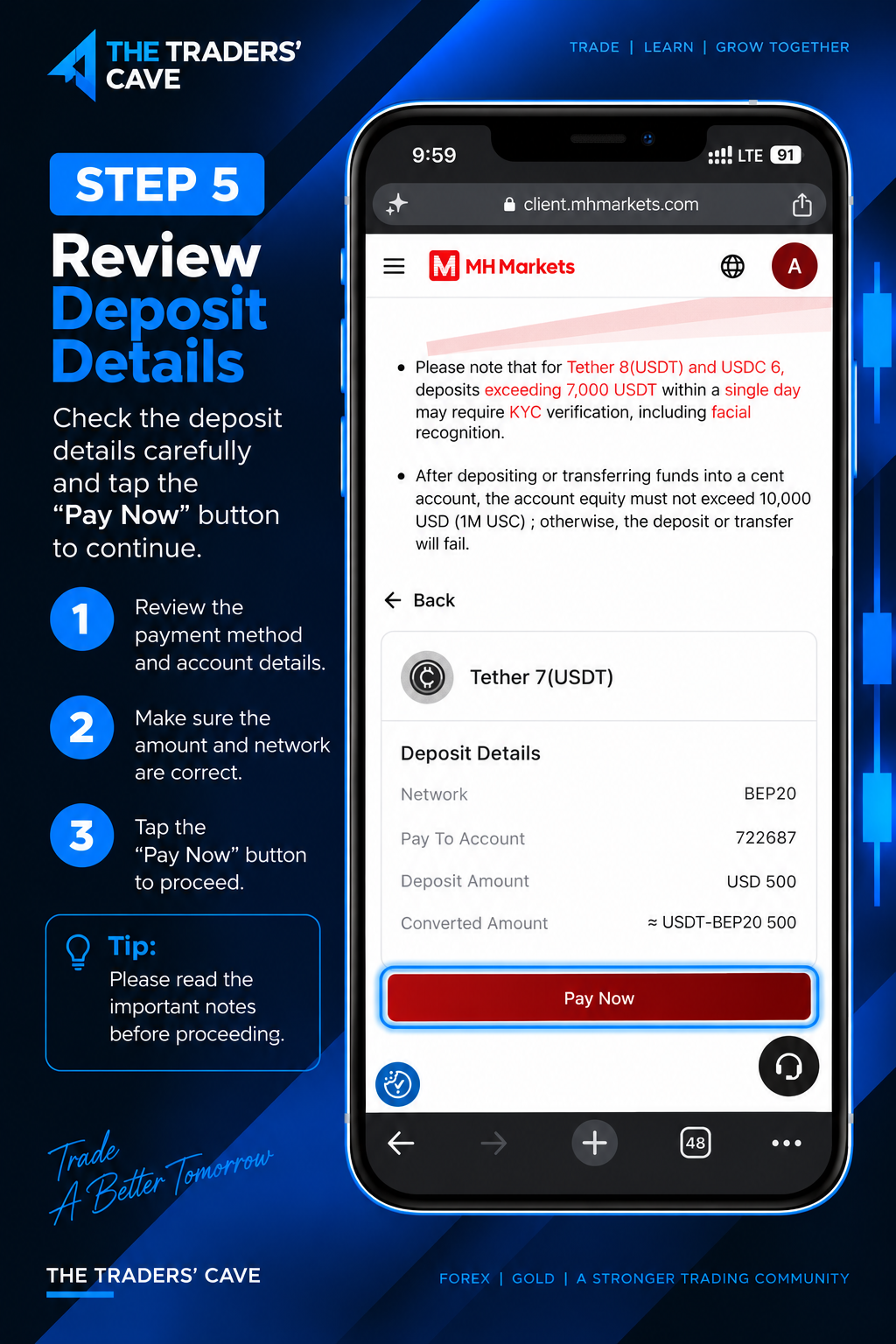
Review the deposit details carefully. Make sure the payment method, account, amount, and network are correct, then tap “Pay Now”.
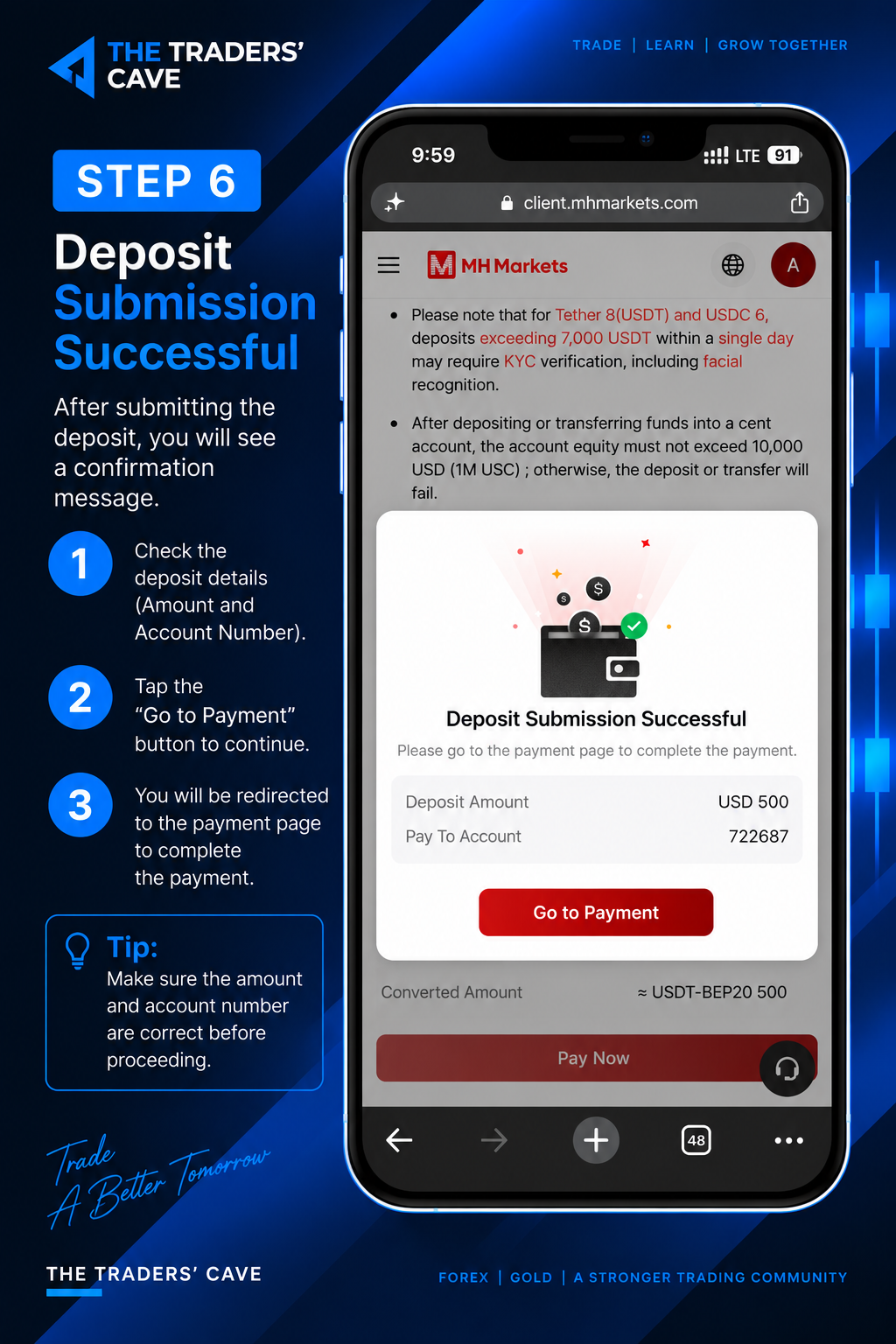
After submitting the deposit, check the deposit amount and account number, then tap “Go to Payment” to continue to the payment page.
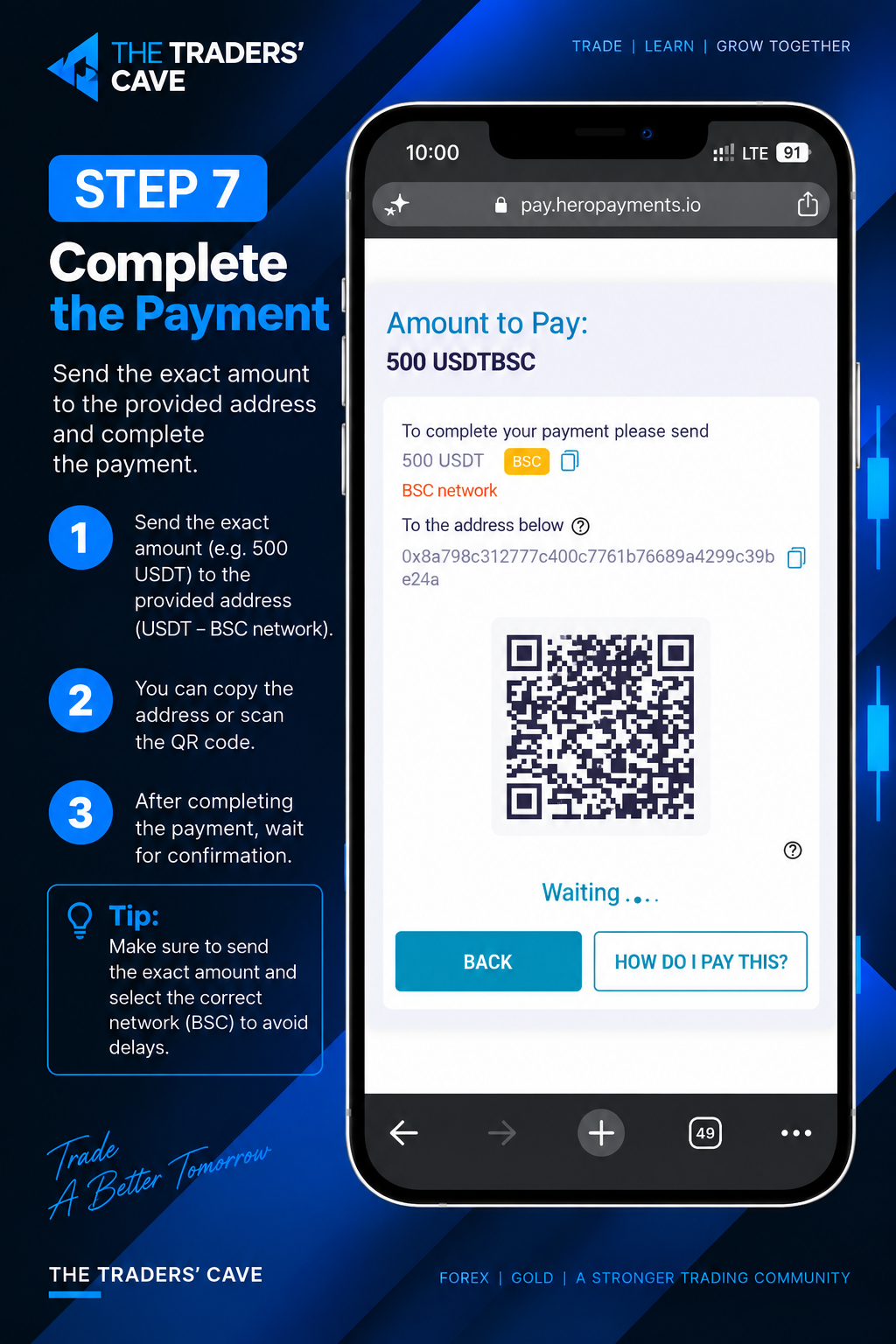
Send the exact USDT amount to the provided address using the correct network. You can copy the wallet address or scan the QR code. After completing the transfer, wait for payment confirmation.
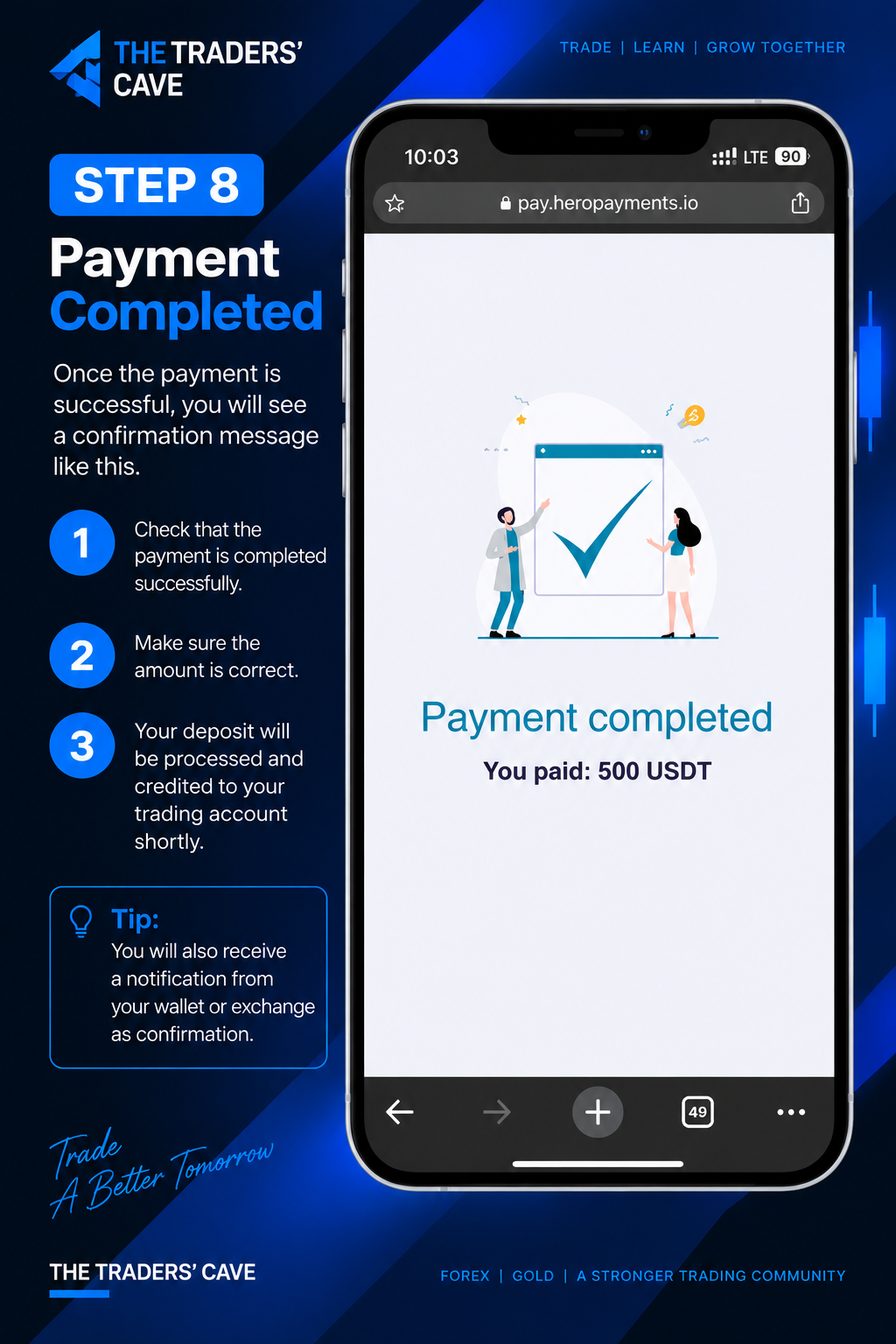
Once the payment is completed successfully, check that the payment amount is correct. Your deposit will then be processed and credited to your trading account.
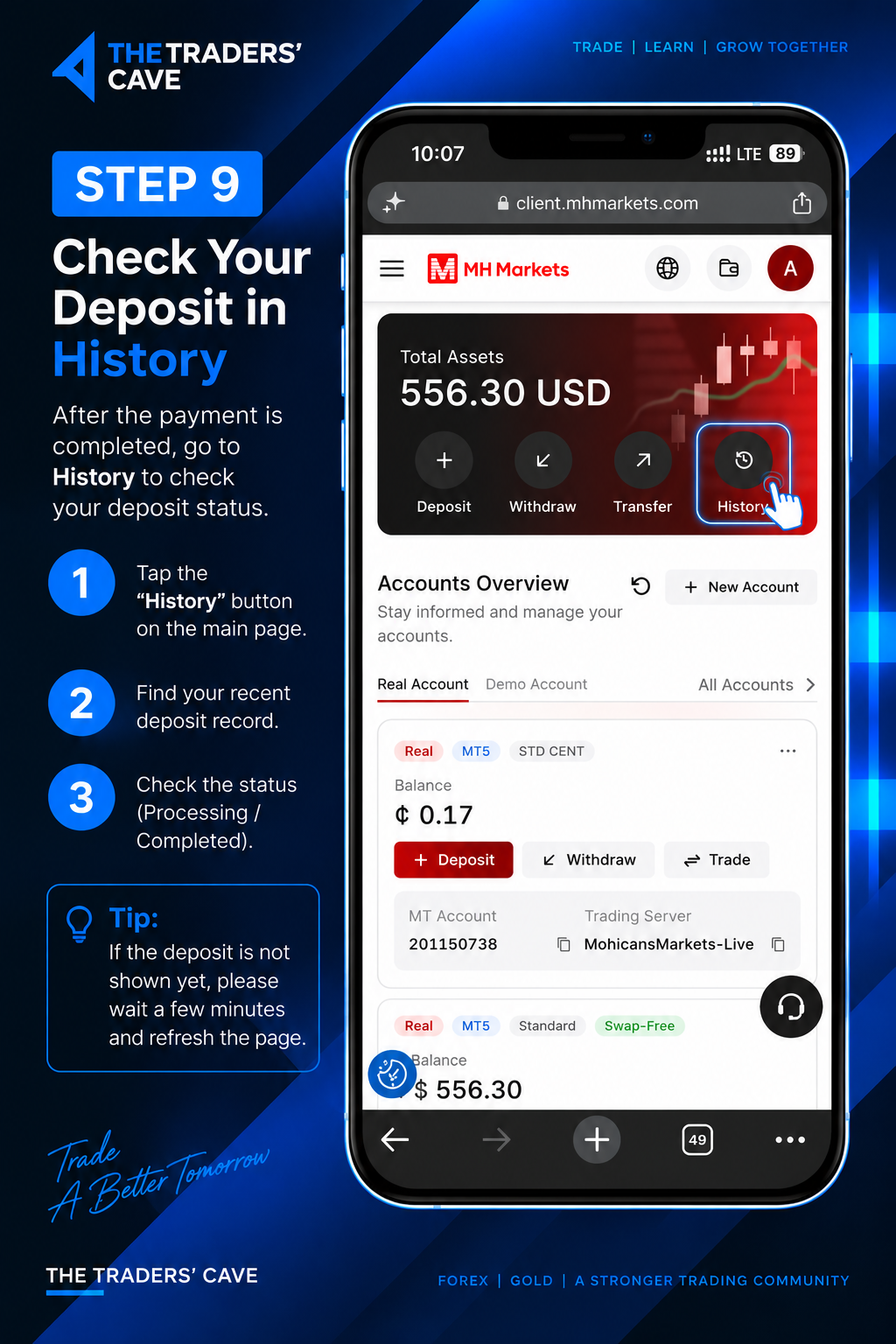
After completing the payment, return to the MH Markets Client Portal and tap “History” to check your deposit status.
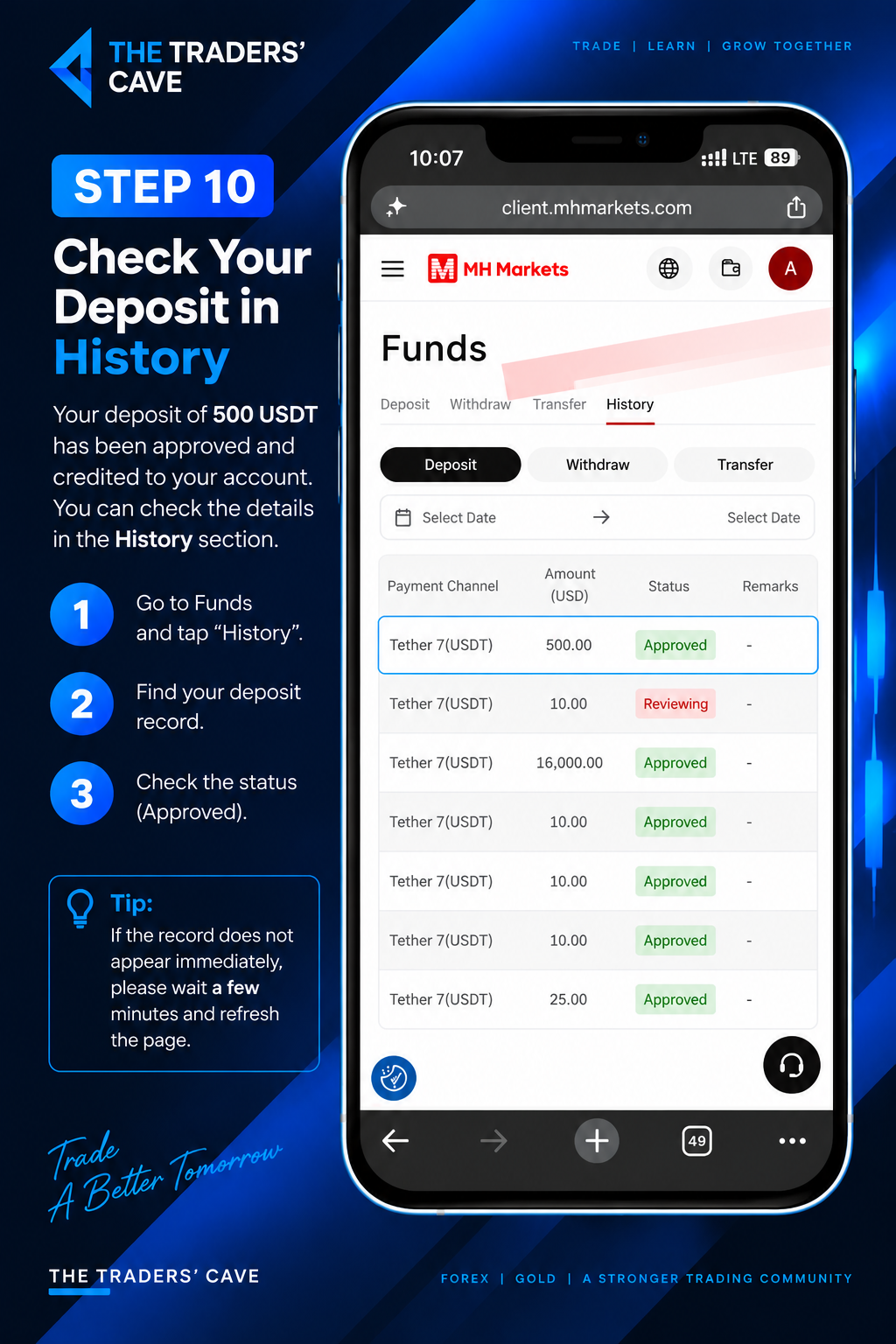
Go to “Funds” and open the “History” tab. Find your deposit record and confirm that the status shows “Approved”. If the record does not appear immediately, wait a few minutes and refresh the page.
How to Withdraw Funds from Your MH Markets Account
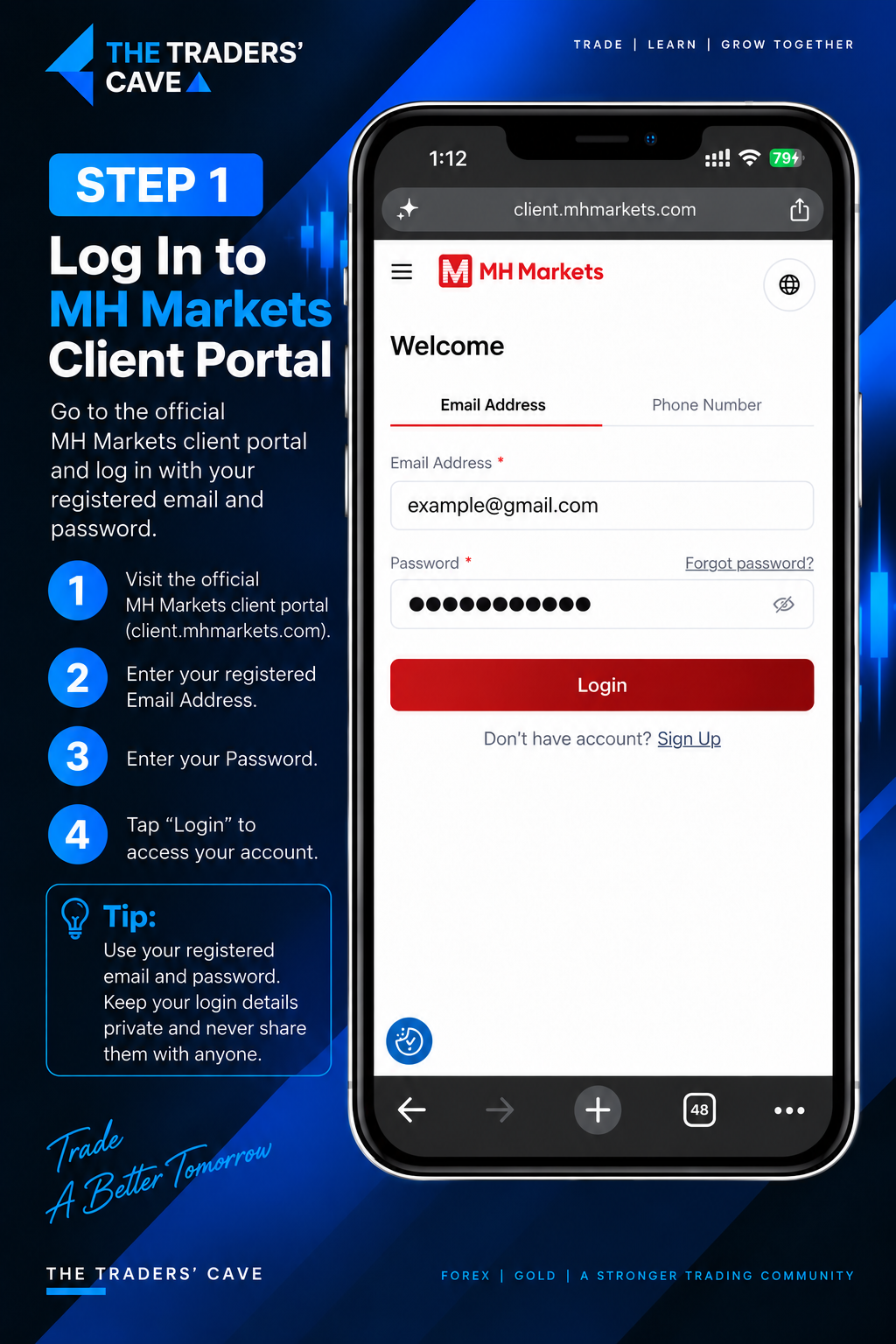
Log in to your MH Markets Client Portal using your registered email address and password.
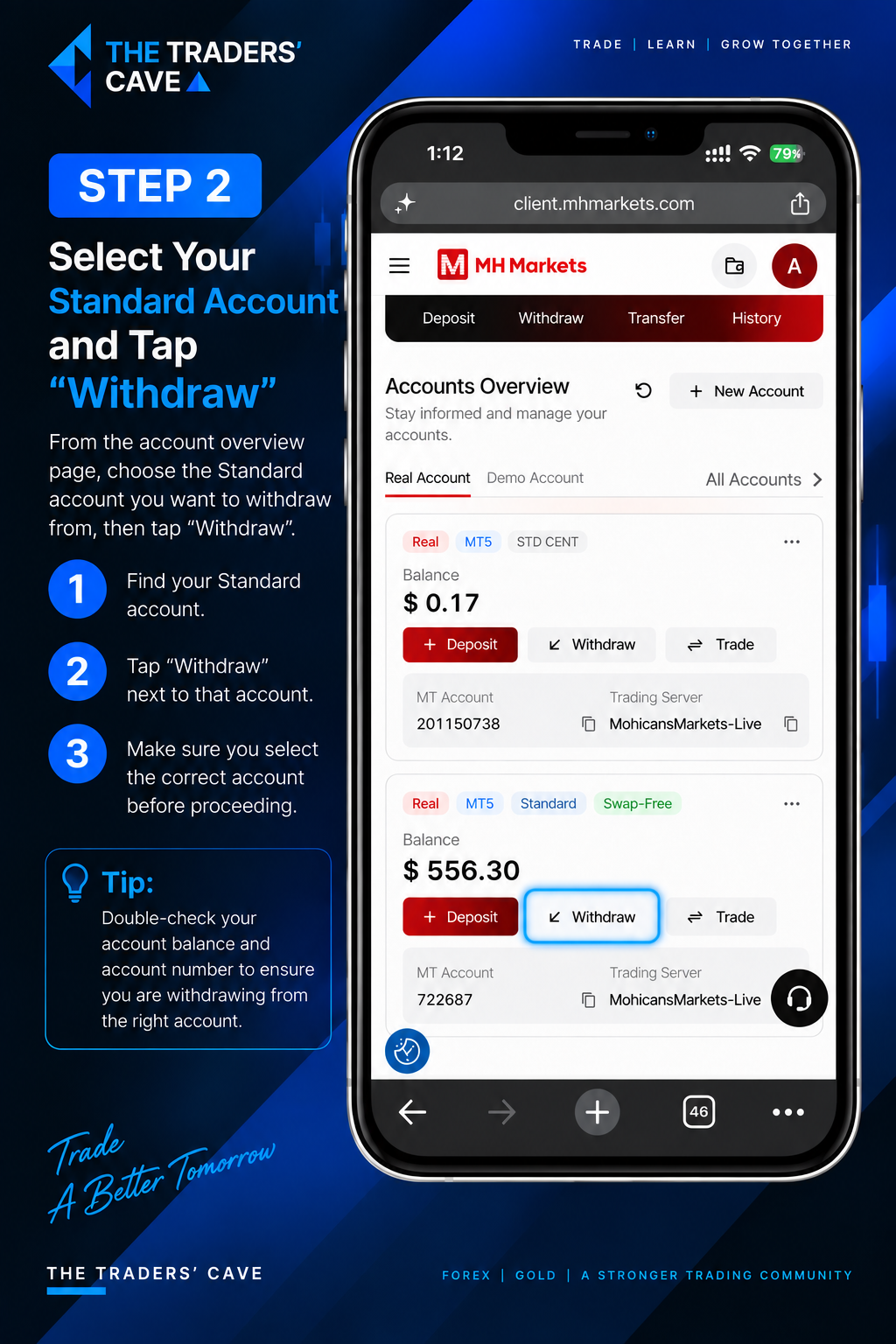
From the Accounts Overview, find the Standard Account you want to withdraw from and tap “Withdraw”.
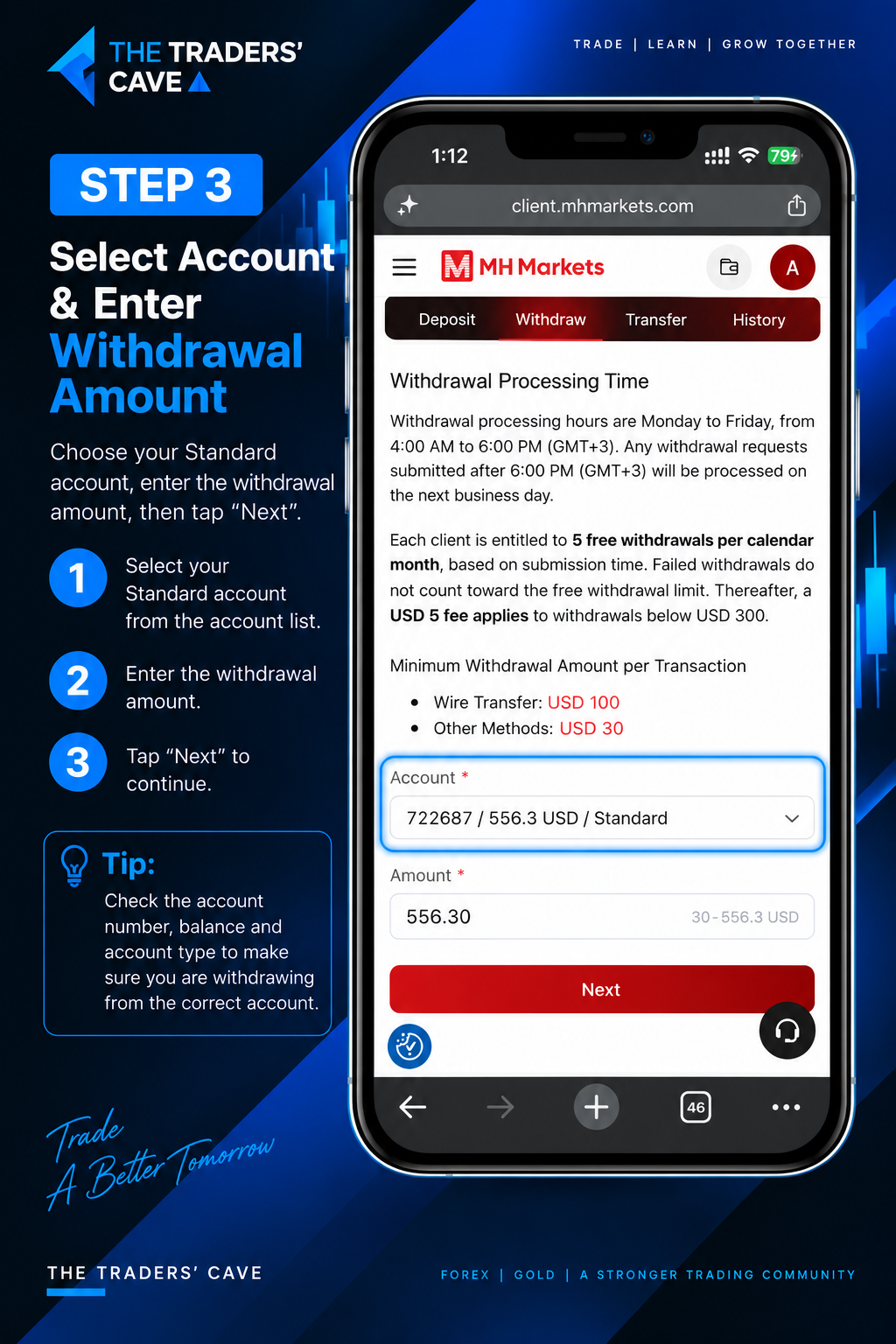
Select your Standard Account, enter the withdrawal amount, and tap “Next” to continue.
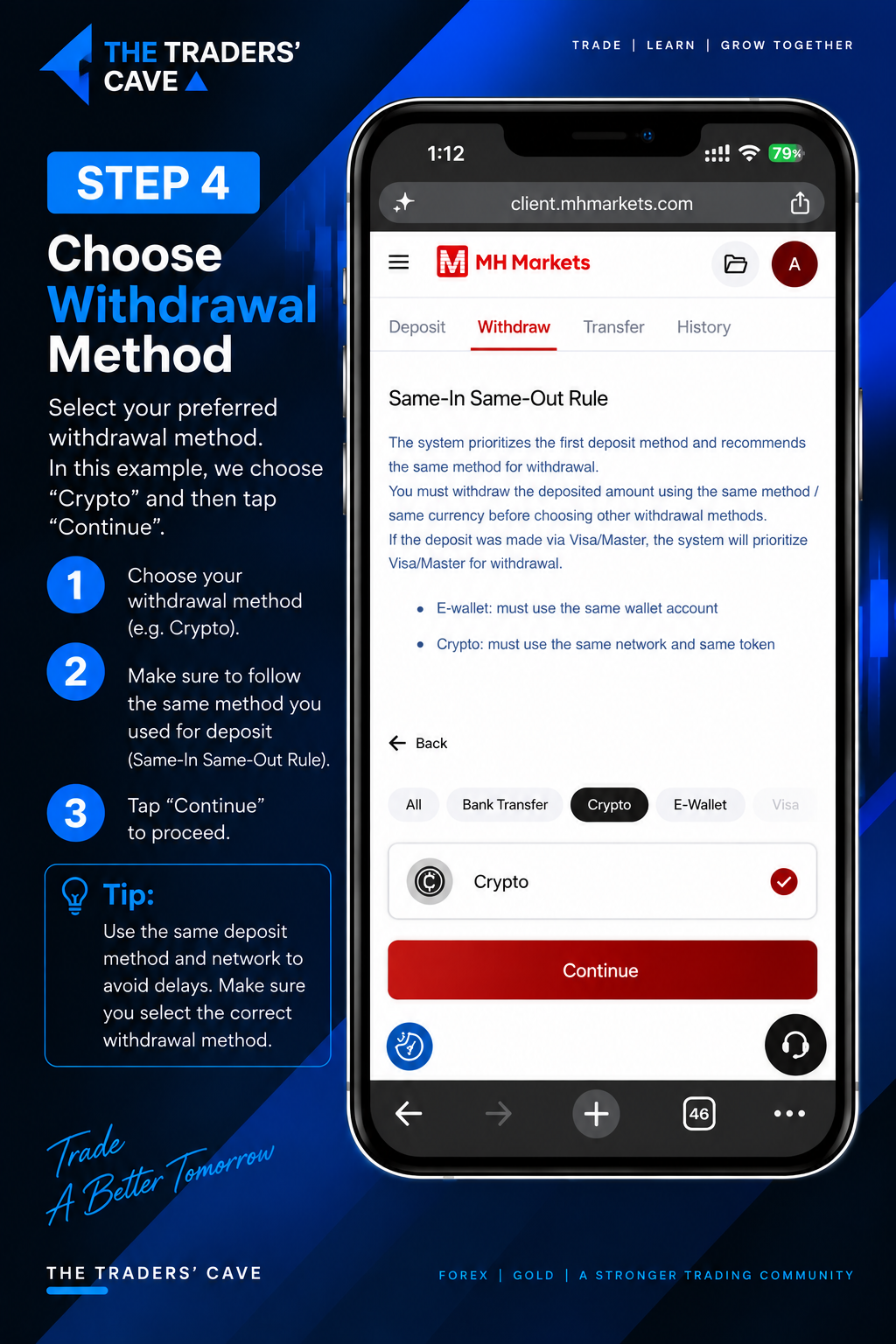
Choose your preferred withdrawal method. For Crypto withdrawal, select “Crypto” and tap “Continue”. Make sure to follow the Same-In Same-Out Rule when applicable.
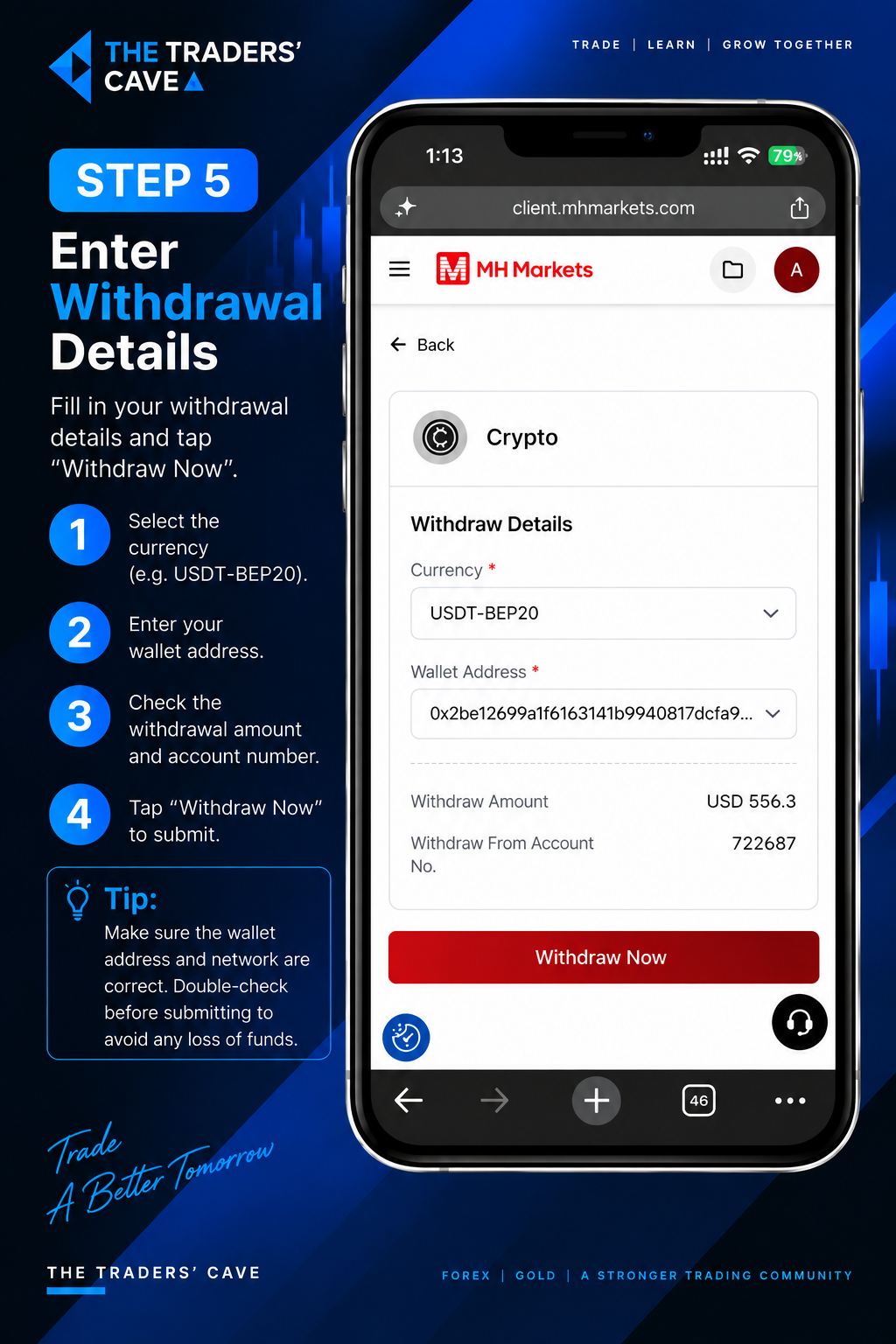
Select the correct currency and network, enter your wallet address, and carefully check the withdrawal amount and account number. Then tap “Withdraw Now”.
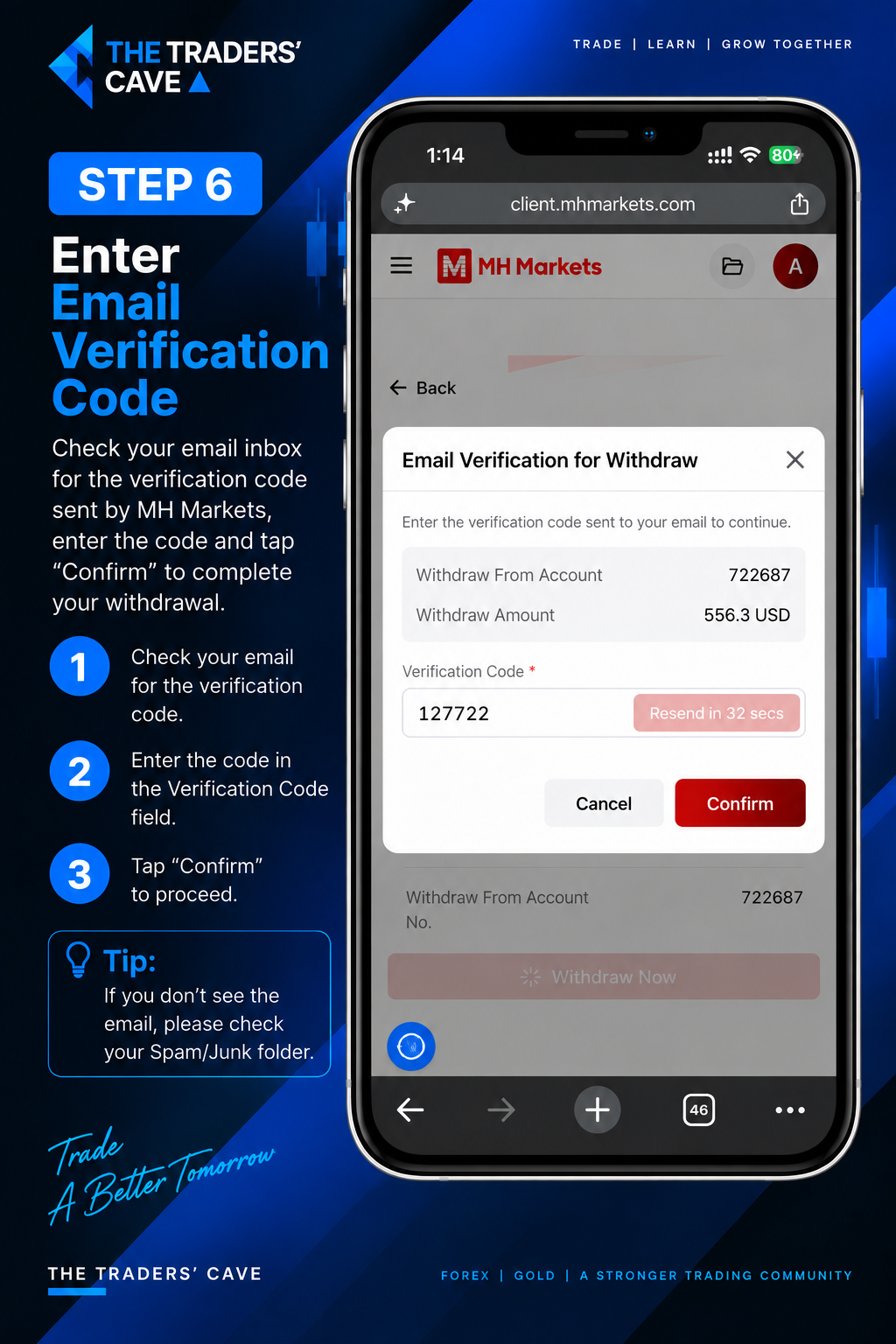
Check your email for the verification code sent by MH Markets. Enter the code in the Verification Code field and tap “Confirm”.
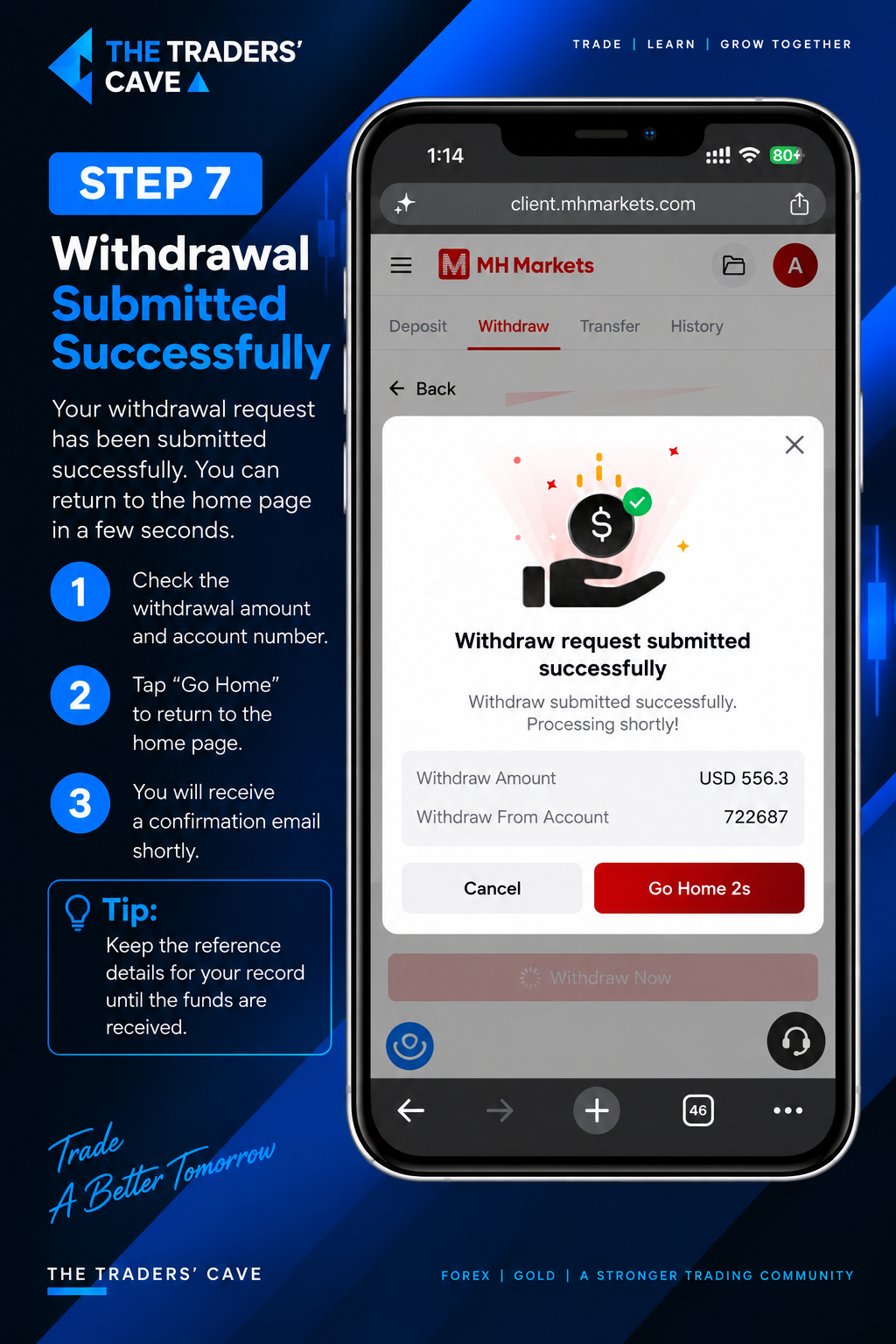
After successful verification, your withdrawal request will be submitted. Check the withdrawal amount and account number shown on the confirmation screen.
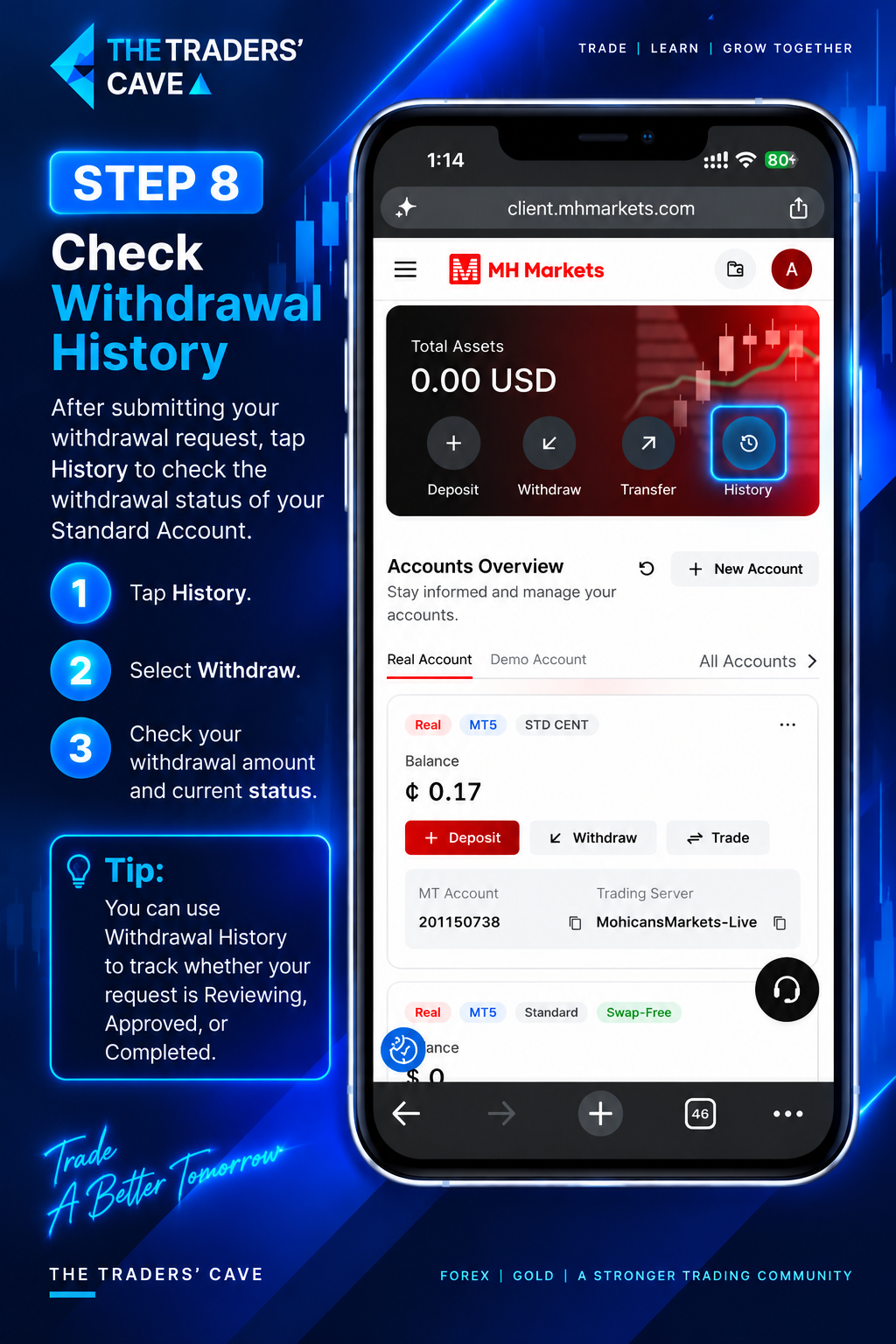
Return to the account page and tap “History” to check the status of your withdrawal request.
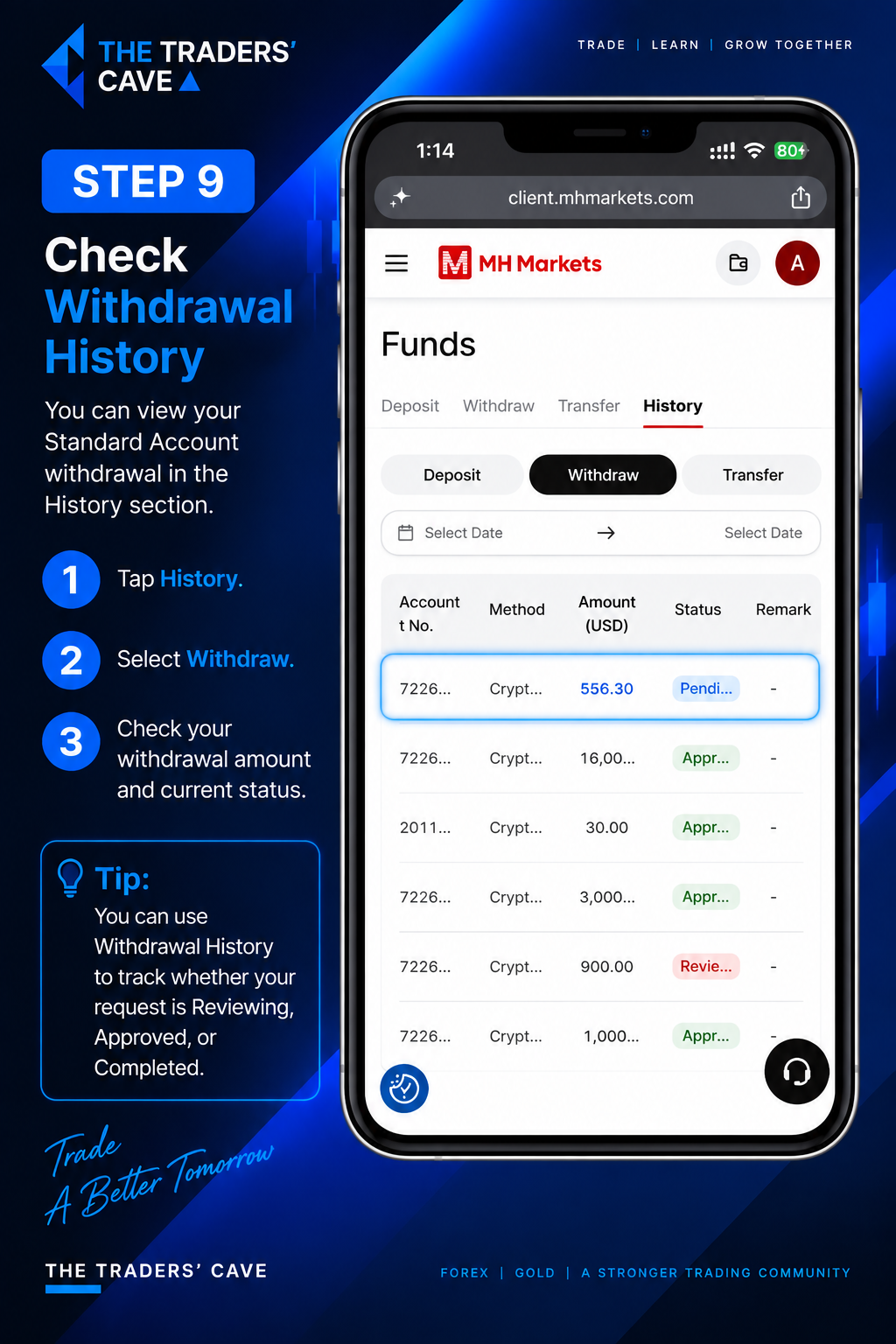
In the History section, select “Withdraw” and check your withdrawal amount and current status. The status may show Reviewing, Pending, Approved, or Completed depending on the processing stage.
How to Login to Your MH Markets Account on MetaTrader 5
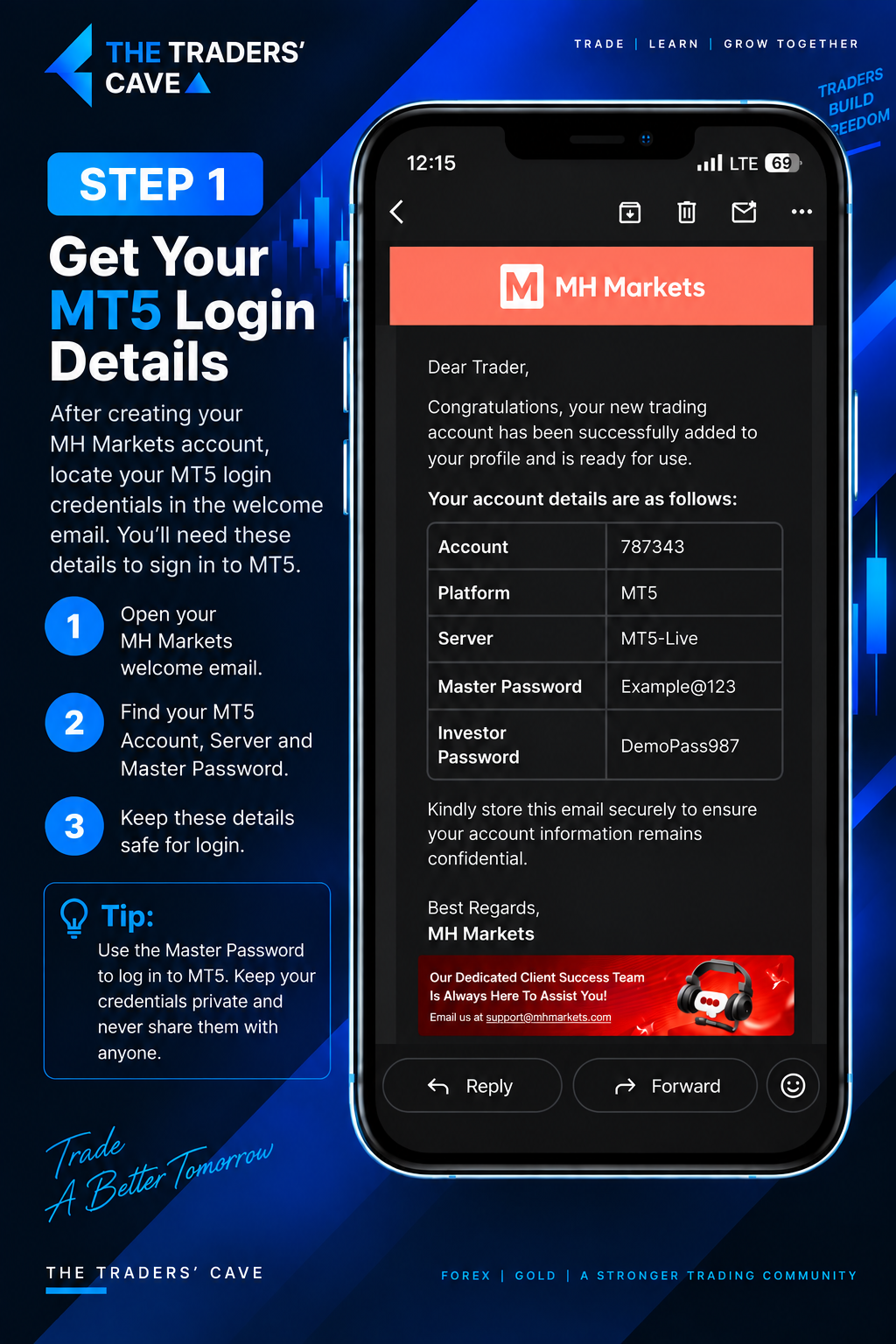
Open your MH Markets welcome email and find your MT5 Account Number, Server, and Master Password. Keep these login details secure.
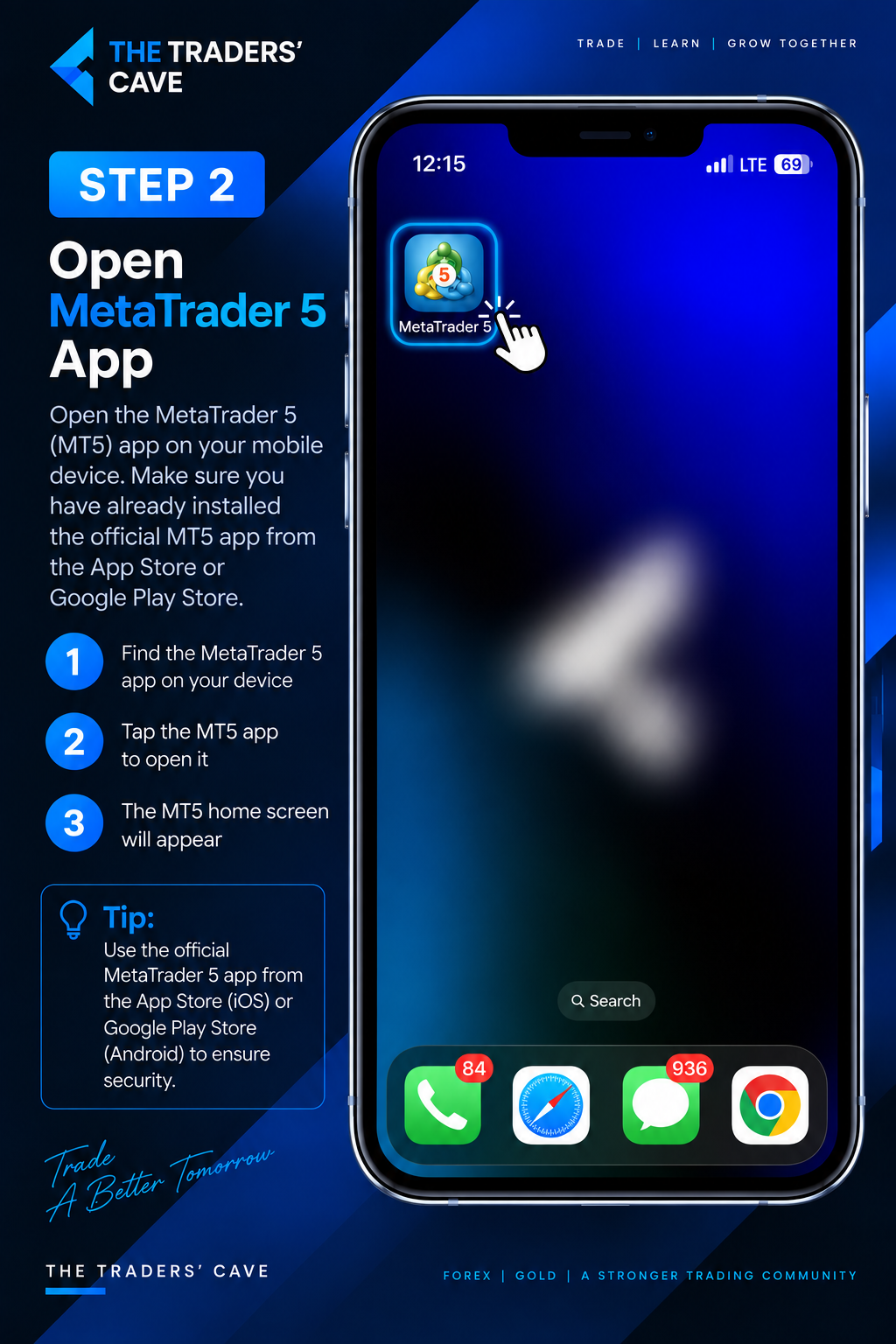
Open the MetaTrader 5 (MT5) app on your device. If you have not installed it yet, download the official MT5 app from the App Store or Google Play Store.
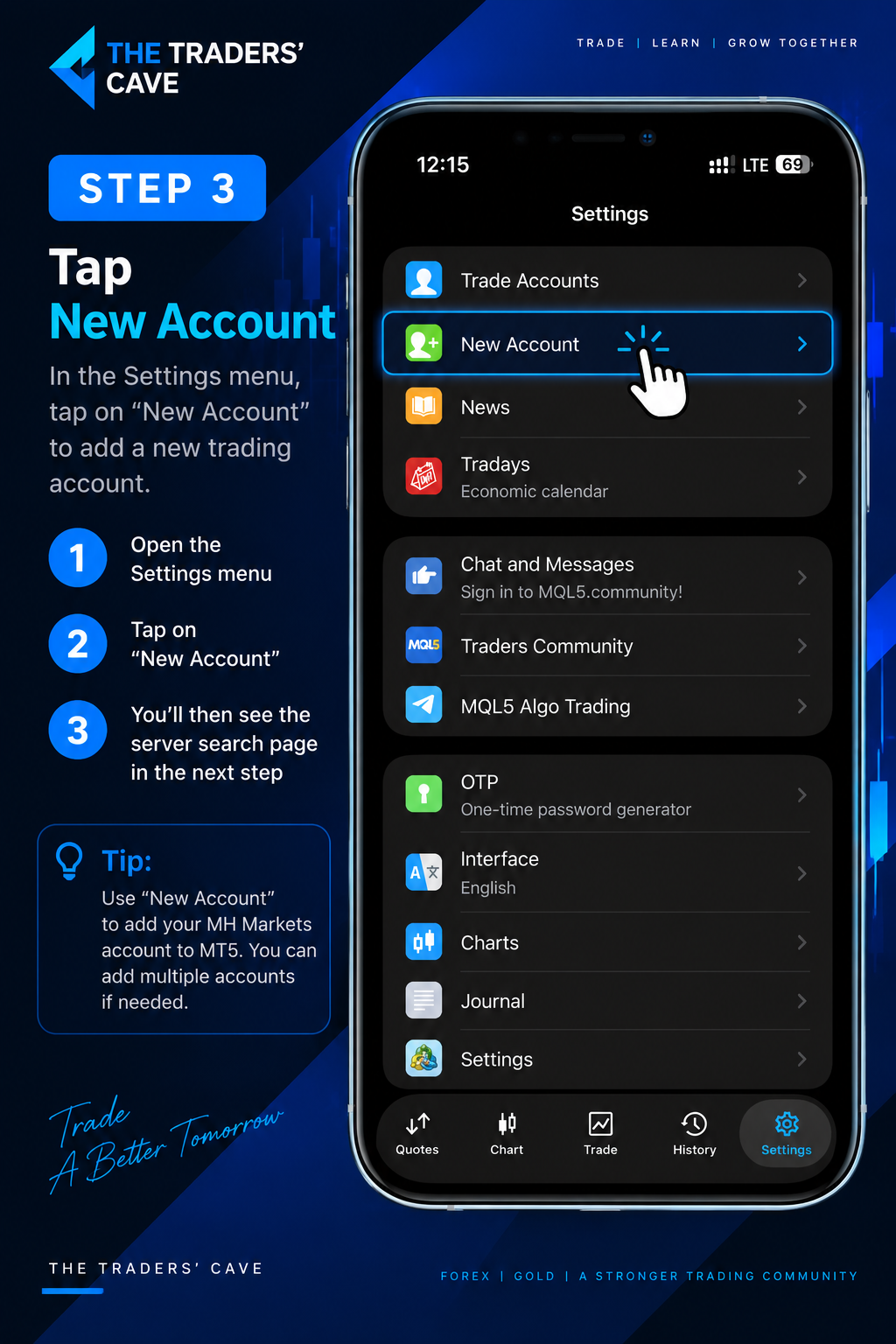
Open the “Settings” menu in MetaTrader 5 and tap “New Account” to add your MH Markets trading account.
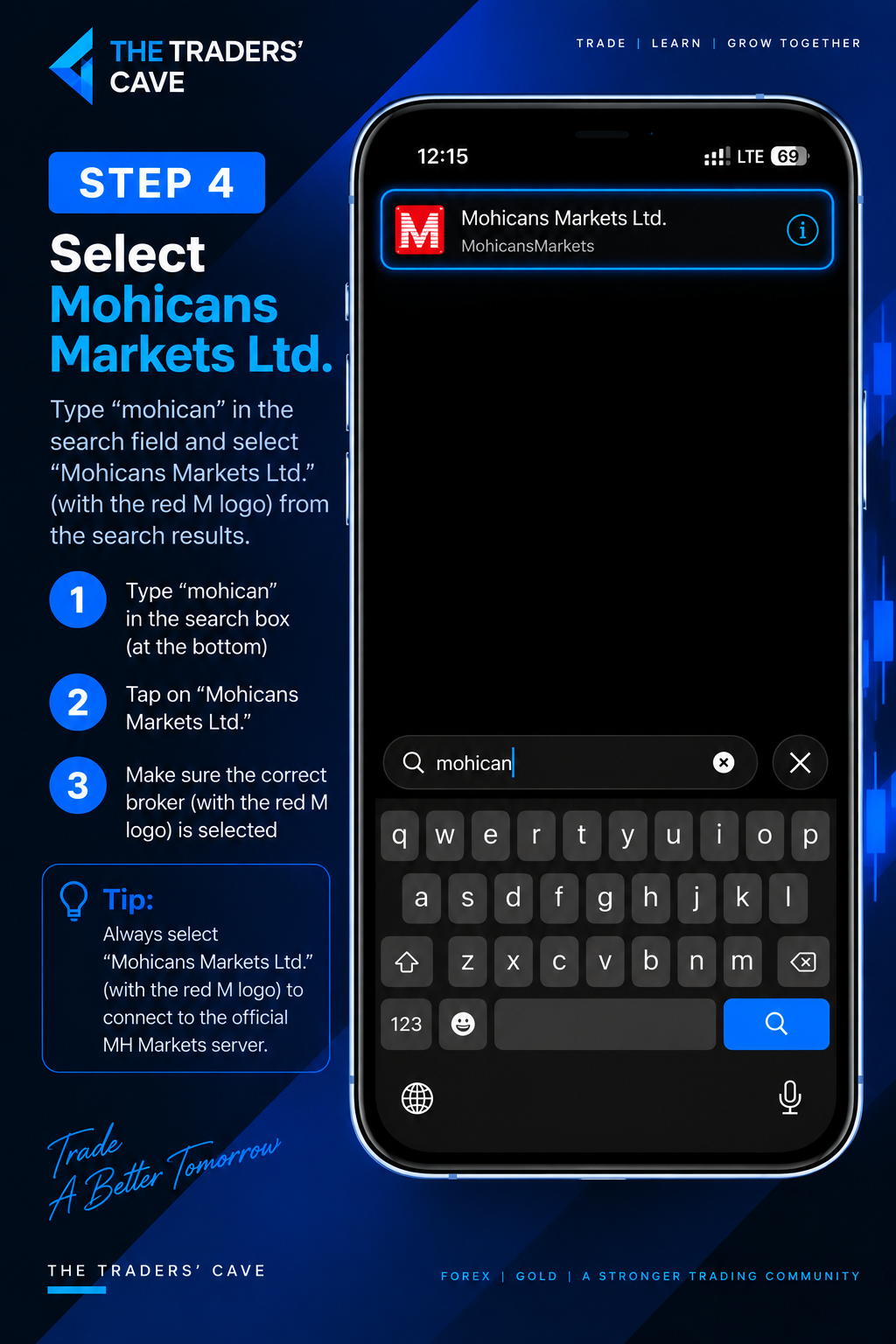
Search for “mohican” and select “Mohicans Markets Ltd.” from the search results.
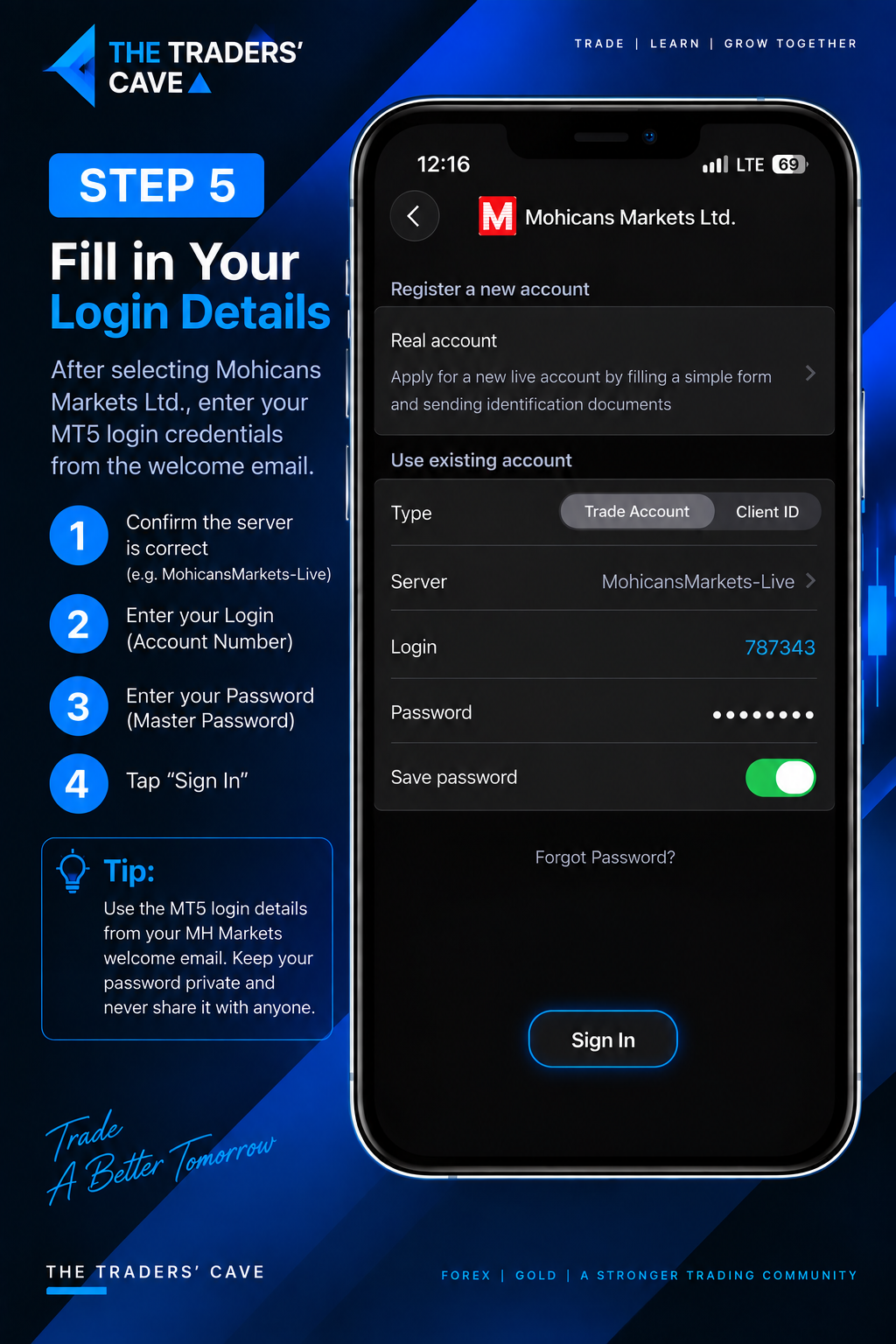
Select “Trade Account” and confirm the correct server. Enter your MT5 Login (Account Number) and Master Password, then tap “Sign In”.
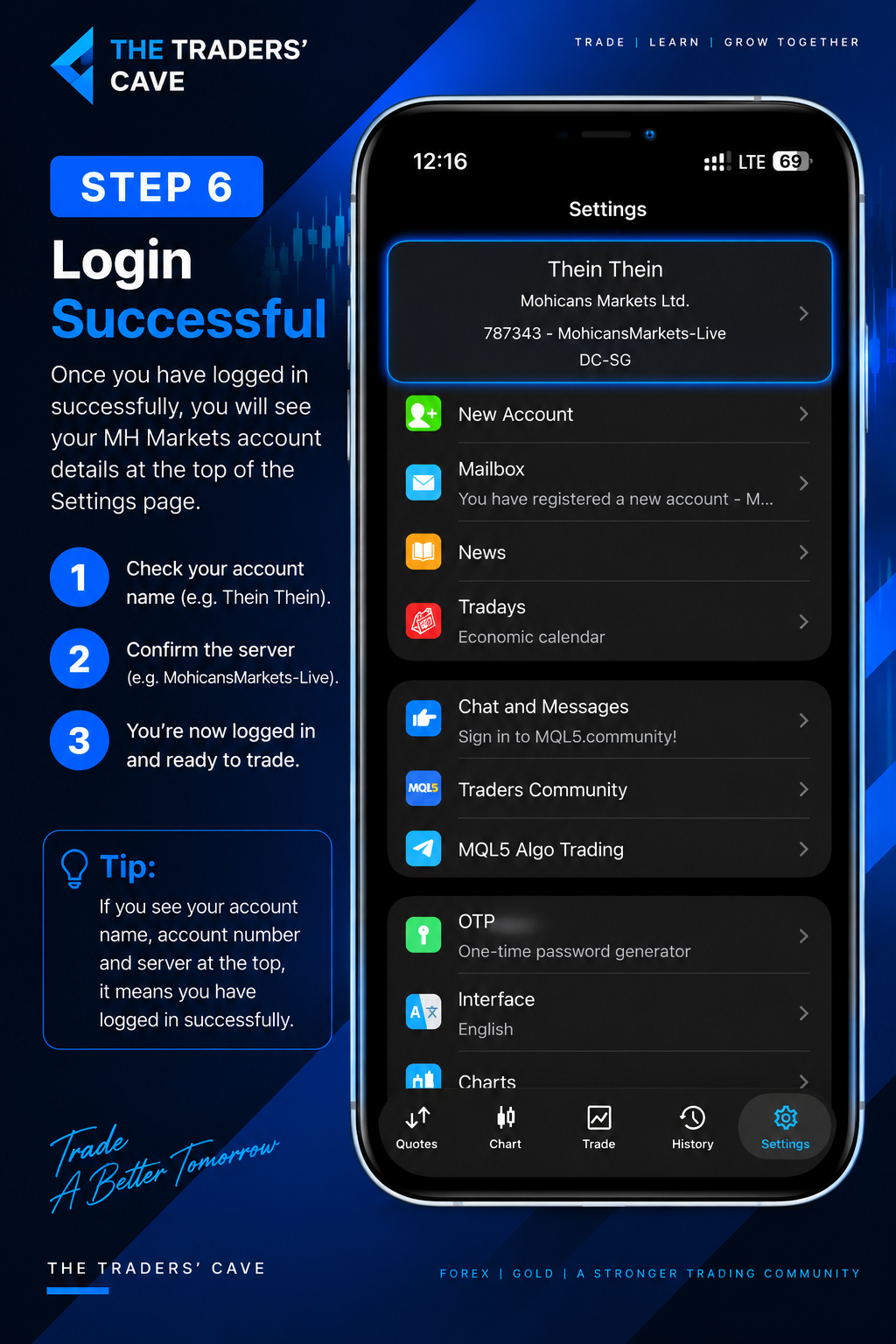
After signing in successfully, check your account name, account number, and server in MetaTrader 5. Your MH Markets trading account is now connected and ready to use.