





KVB
KVB is an online broker providing access to global financial markets through professional trading platforms and a range of trading products.
About KVB
KVB provides online trading services with access to a range of global financial markets. Traders can access products such as Forex, precious metals, indices, commodities, and CFDs through supported trading platforms. The broker offers trading tools, account options, and customer support designed to serve both new and experienced traders.
Available Services
Key Highlights
How to Register and Open a KVB Trading Account
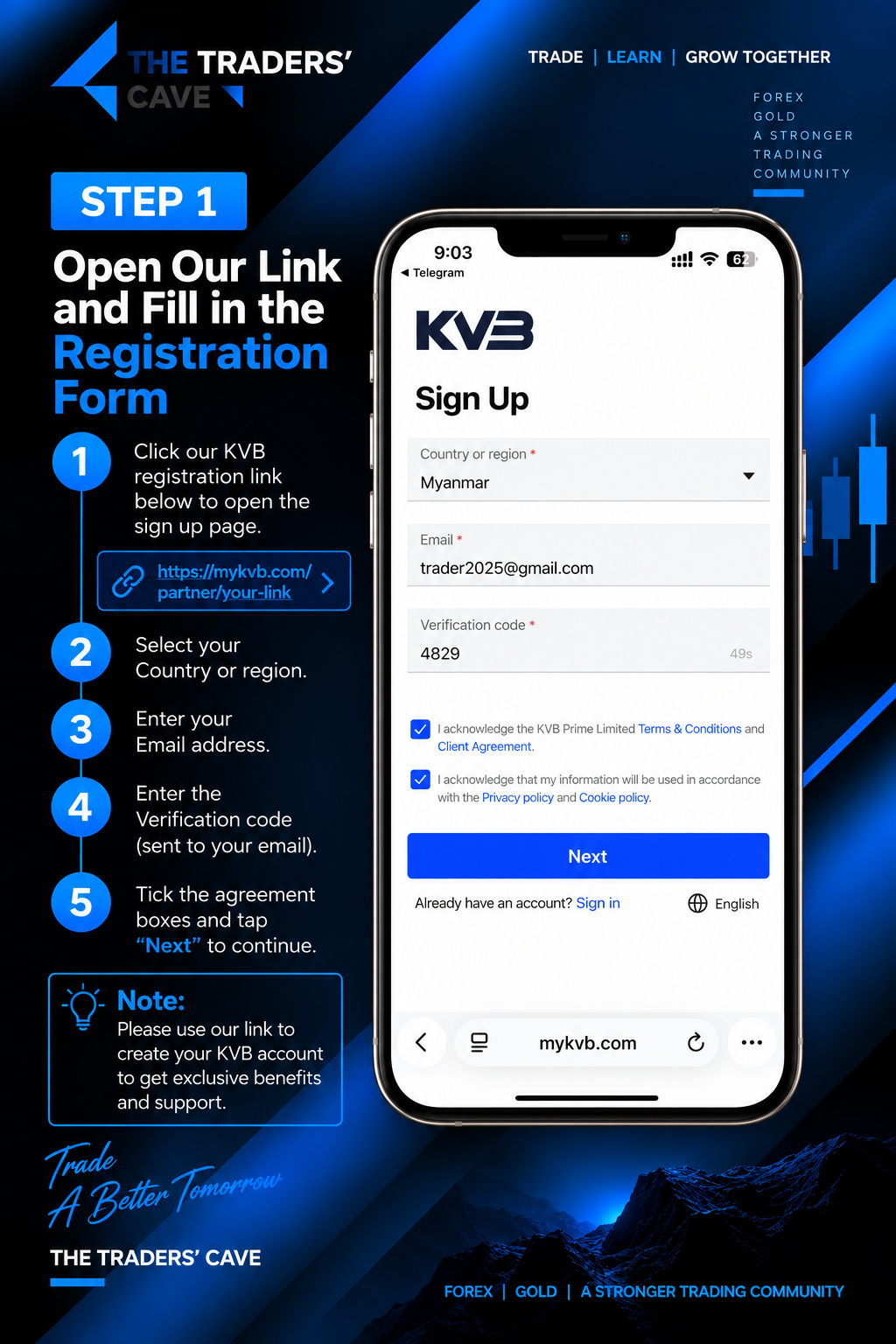
Open our KVB registration link, select your country or region, enter your email address and verification code, accept the required agreements, then tap “Next” to continue.
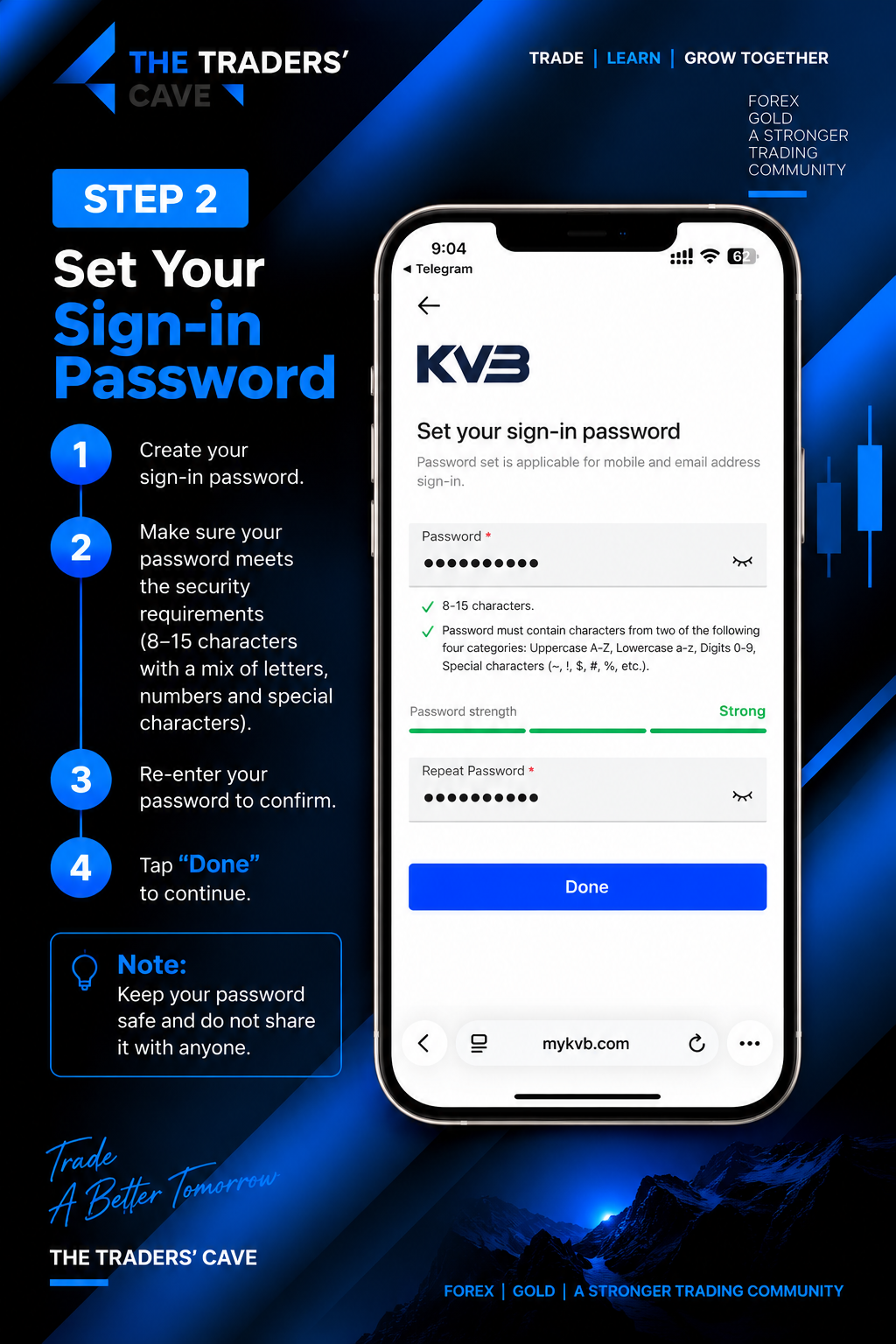
Create your sign-in password according to the password requirements, re-enter it to confirm, then tap “Done” to continue.
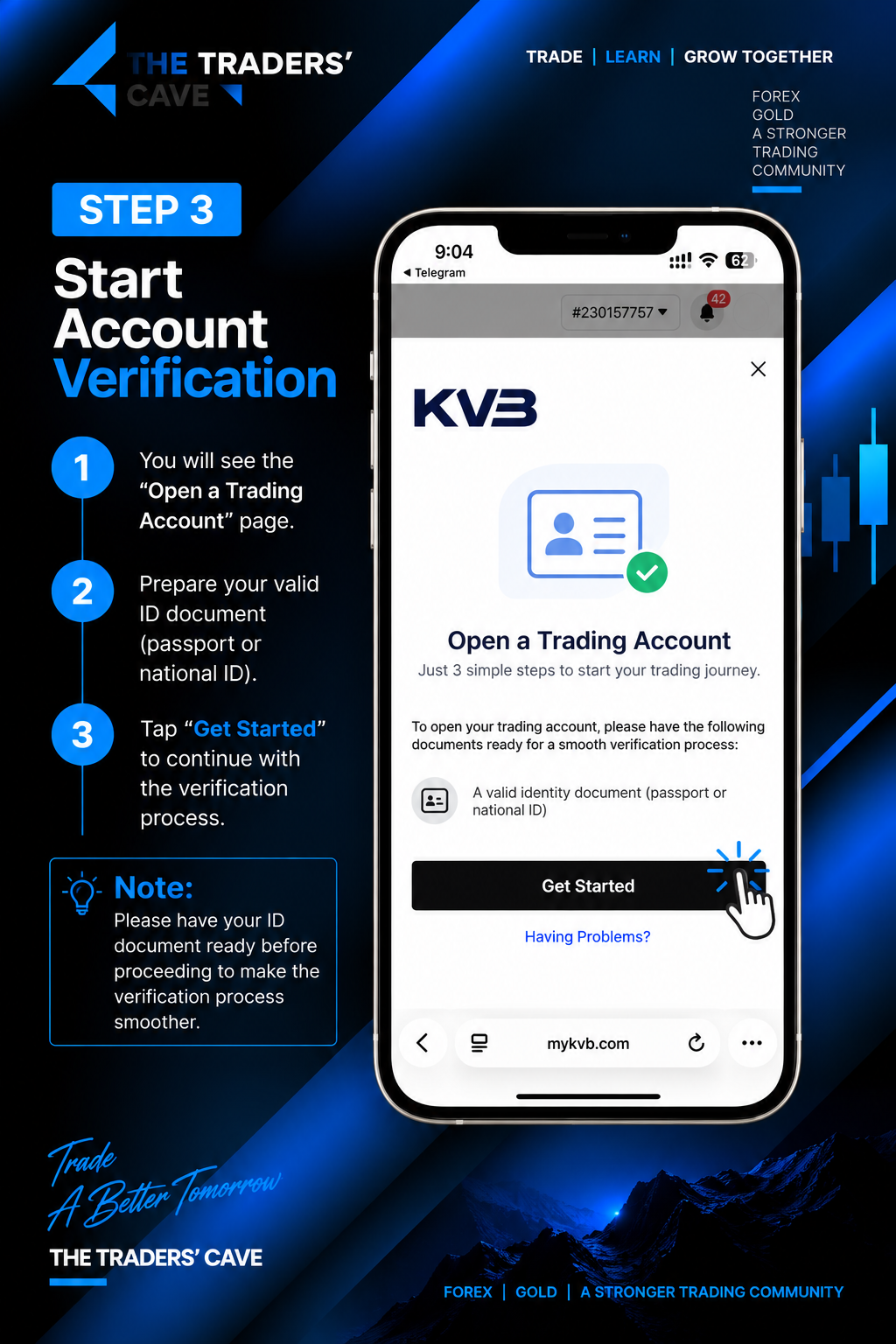
Prepare your valid identity document, such as a passport or national ID, then tap “Get Started” to begin the account verification process.
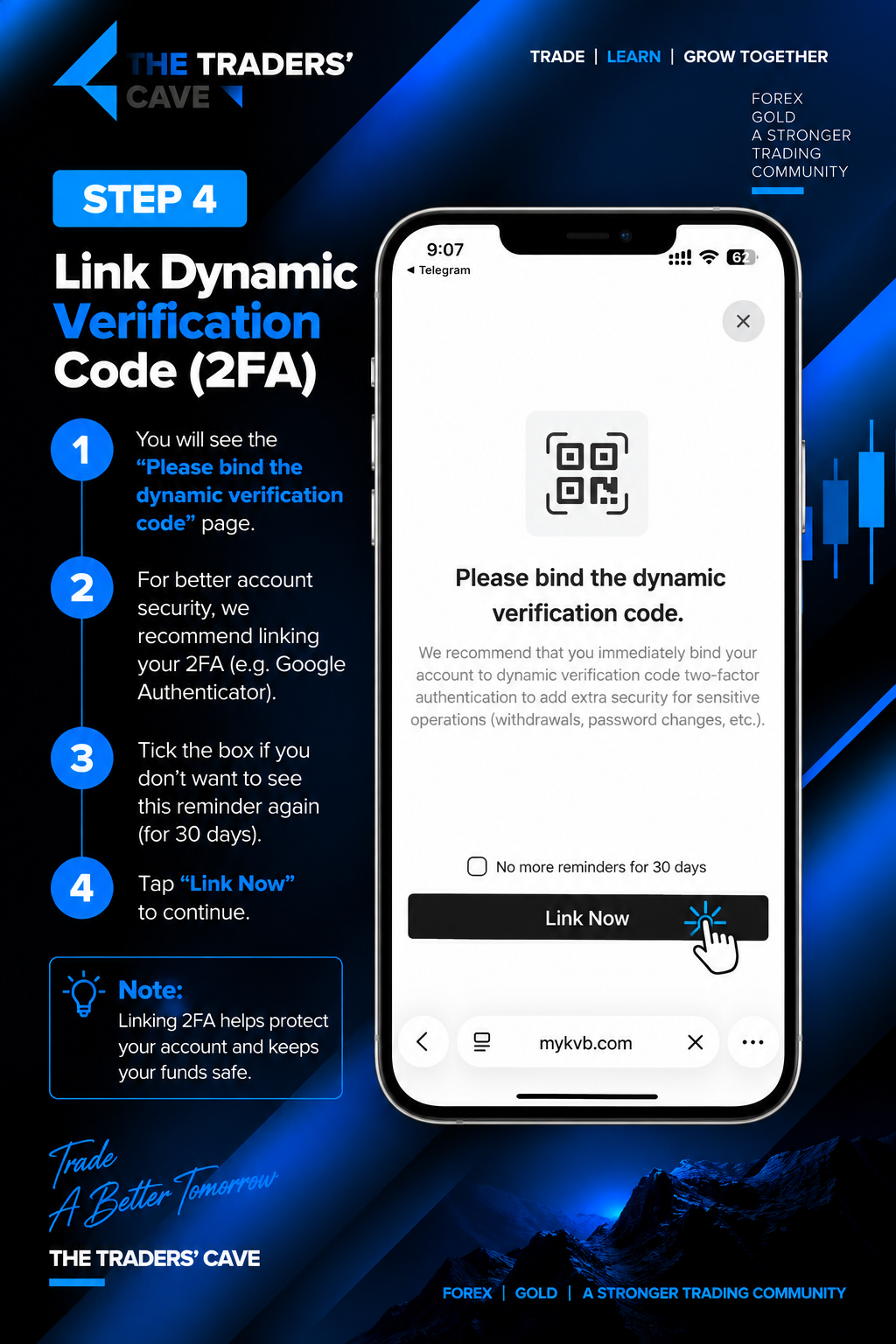
For additional account security, link a dynamic verification code (2FA) using an authenticator app. Tap “Link Now” to continue.
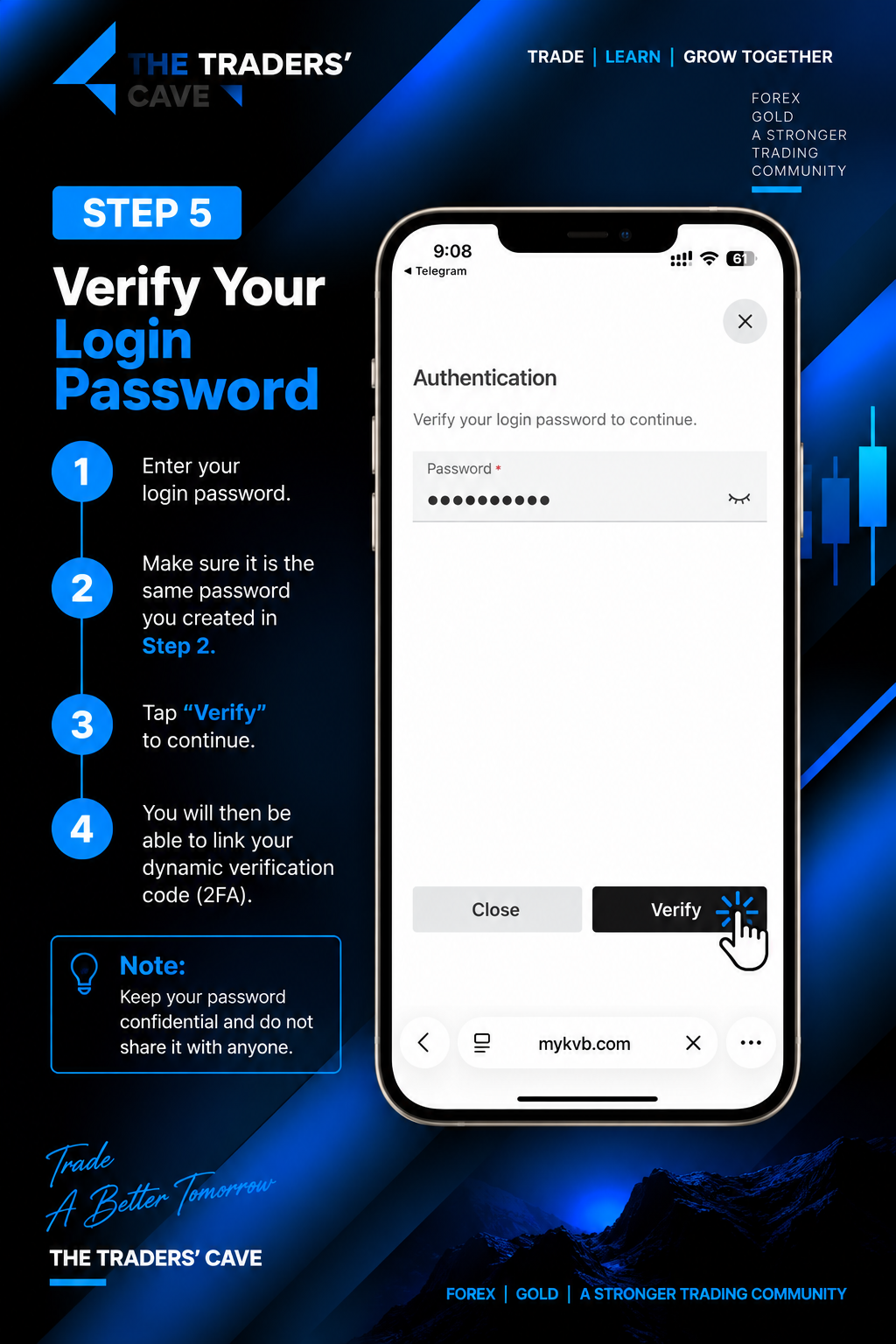
Enter the login password you created earlier and tap “Verify” to confirm your identity and continue with the 2FA setup.
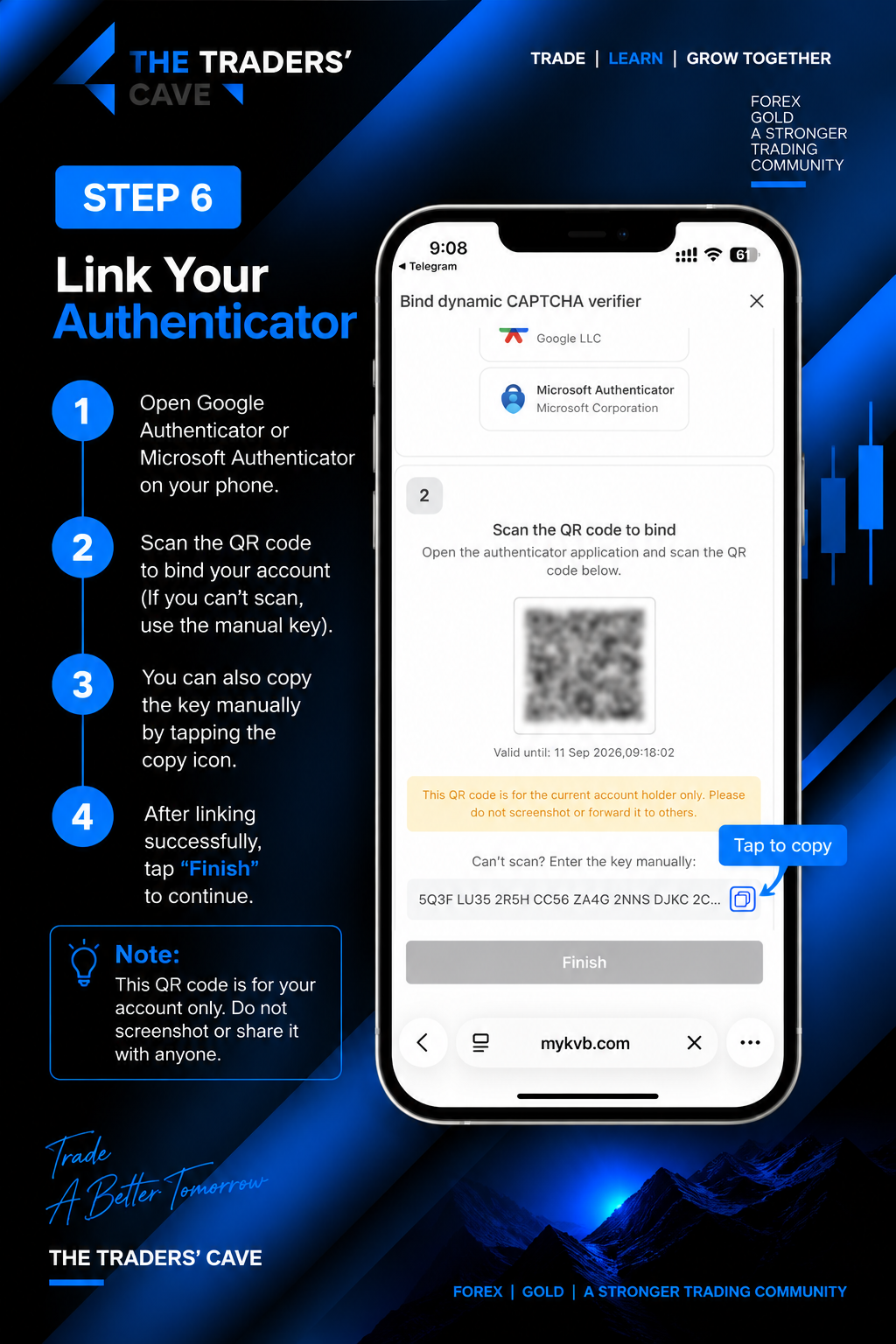
Open Google Authenticator or Microsoft Authenticator and scan the QR code to link your account. If you cannot scan the QR code, copy and use the manual key provided.
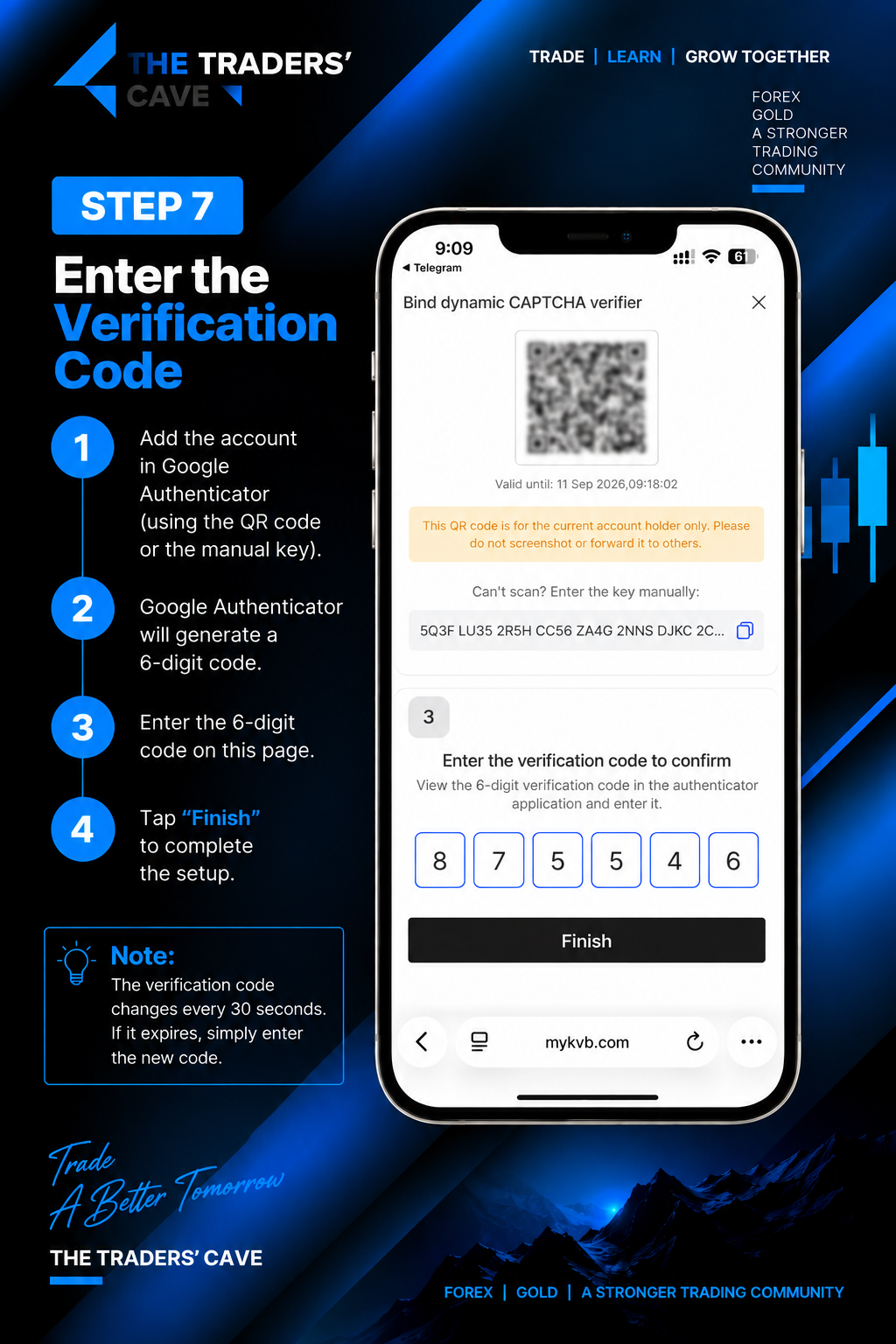
After adding the account to your authenticator app, enter the generated 6-digit verification code and tap “Finish” to complete the setup.
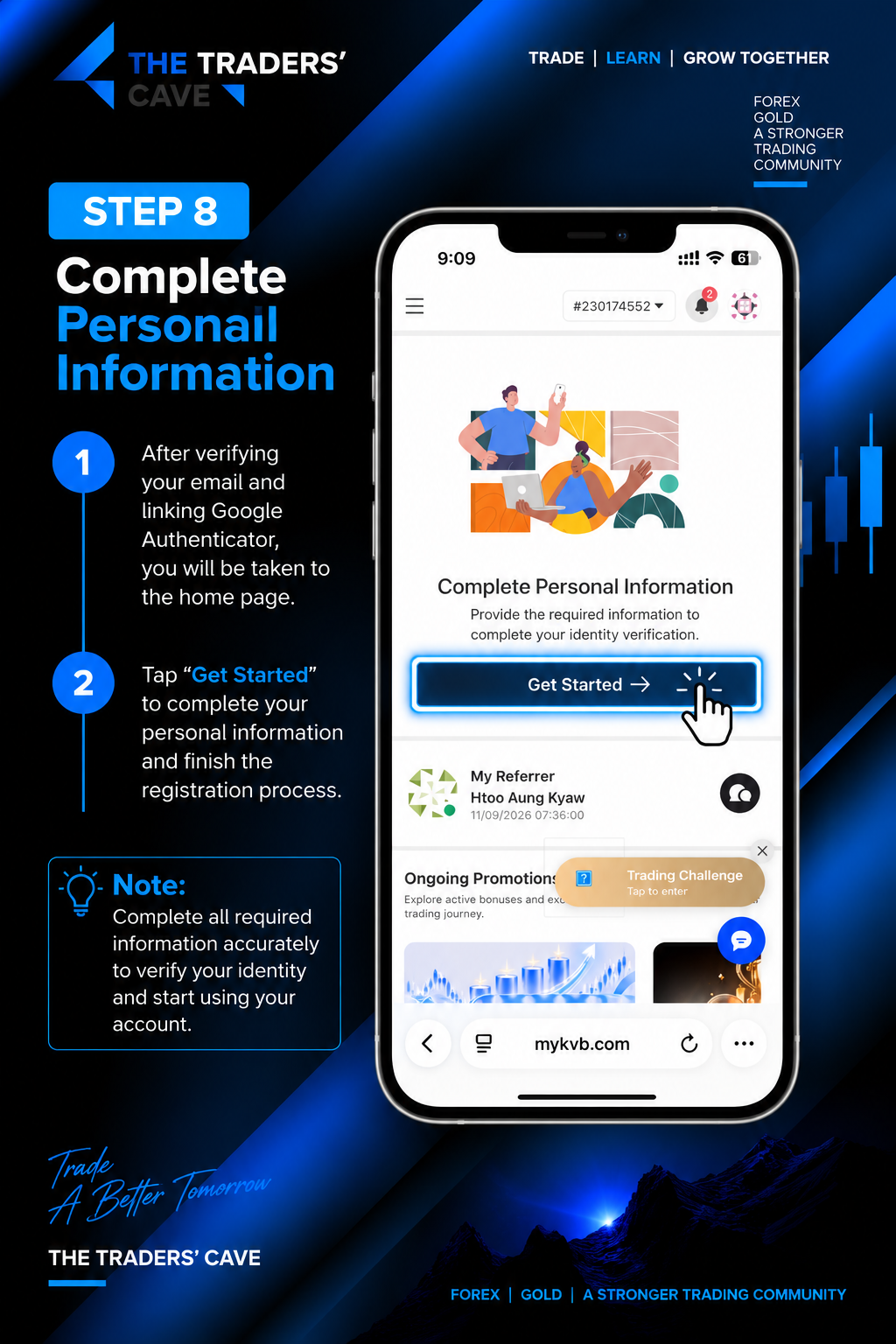
After completing the security setup, tap “Get Started” under Complete Personal Information to continue your identity verification.
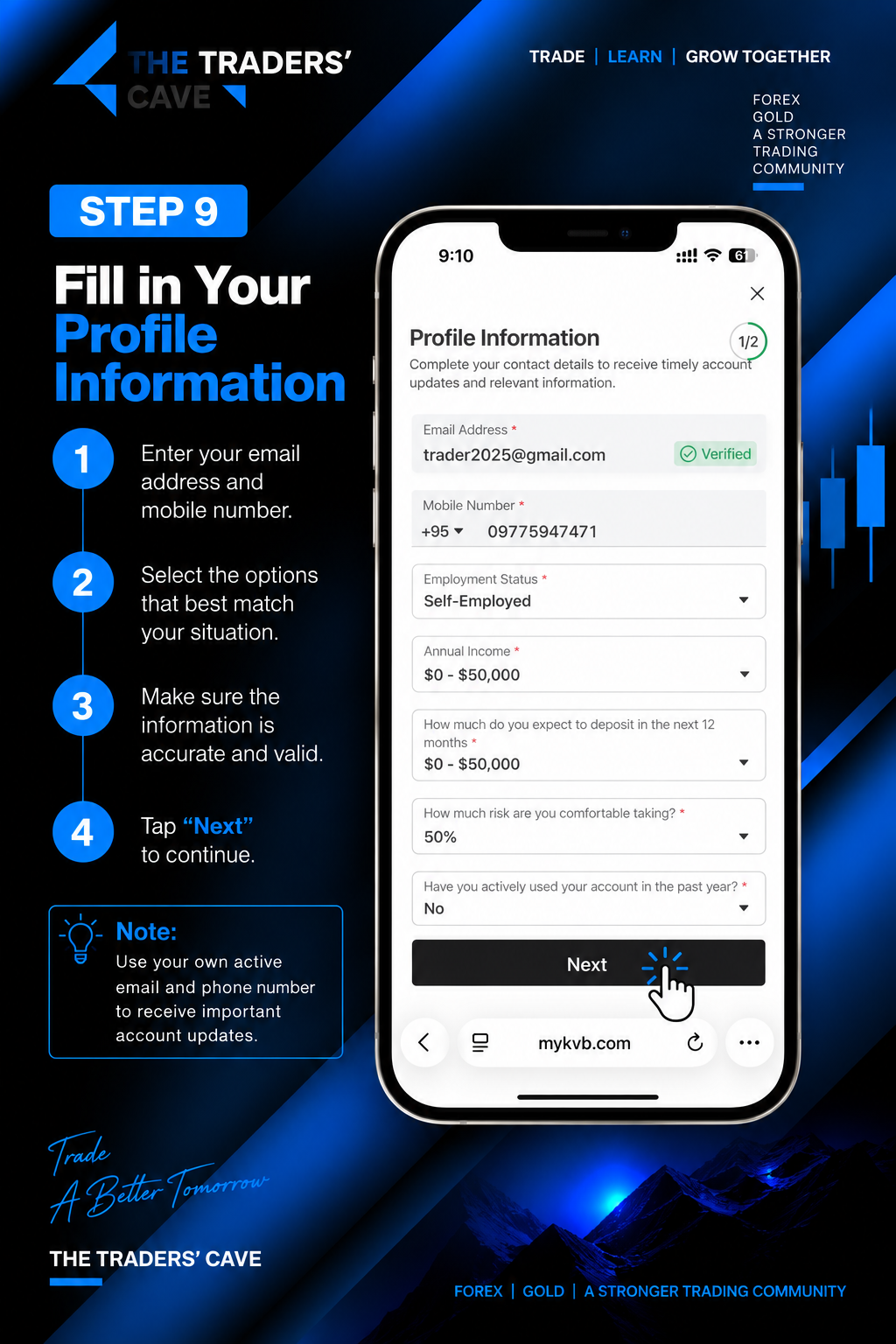
Enter your contact and profile information accurately, including your active email address and mobile number. Complete the required fields and tap “Next”.
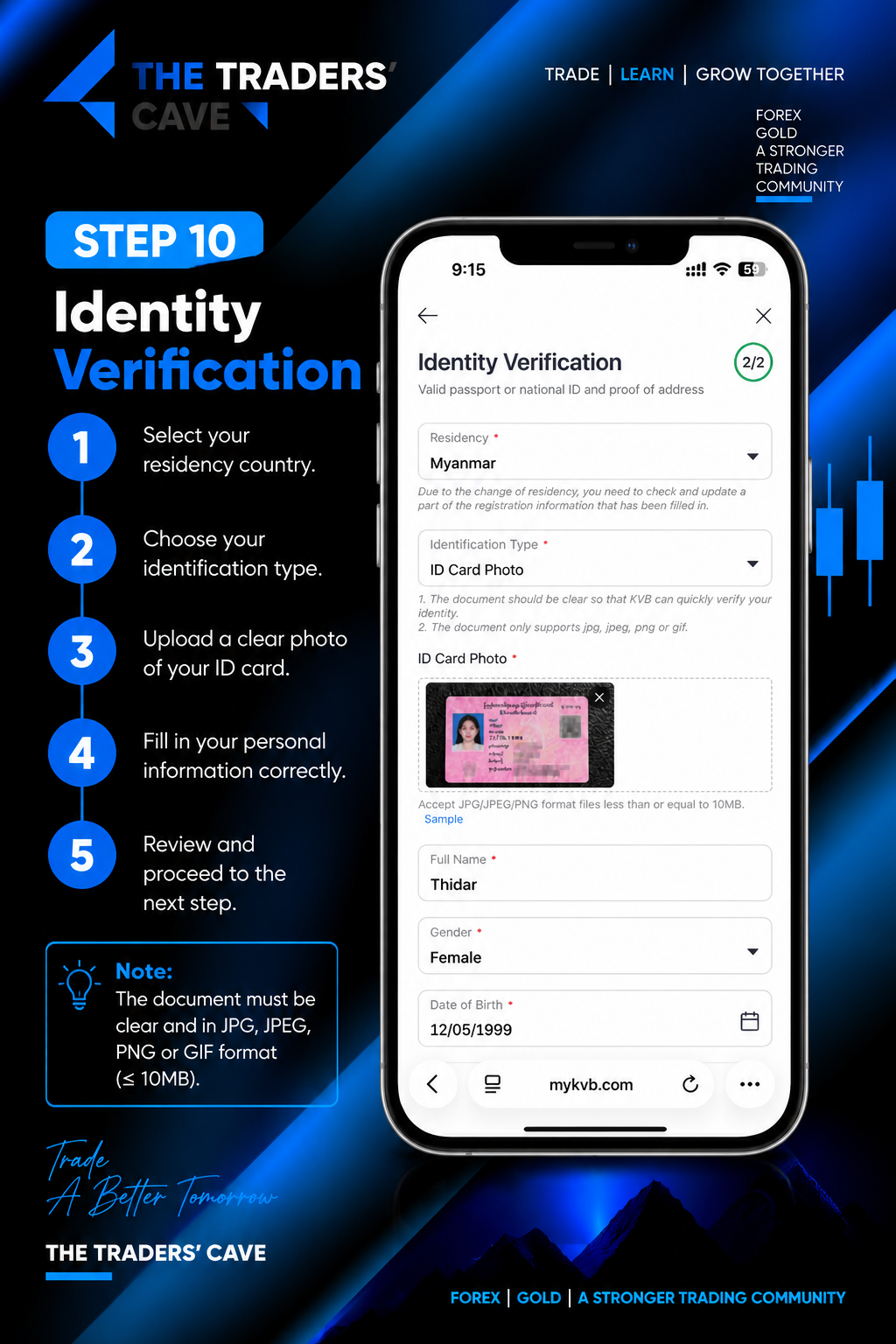
Select your residency country and identification type, then upload a clear image of your valid identification document. Complete the required personal information accurately.
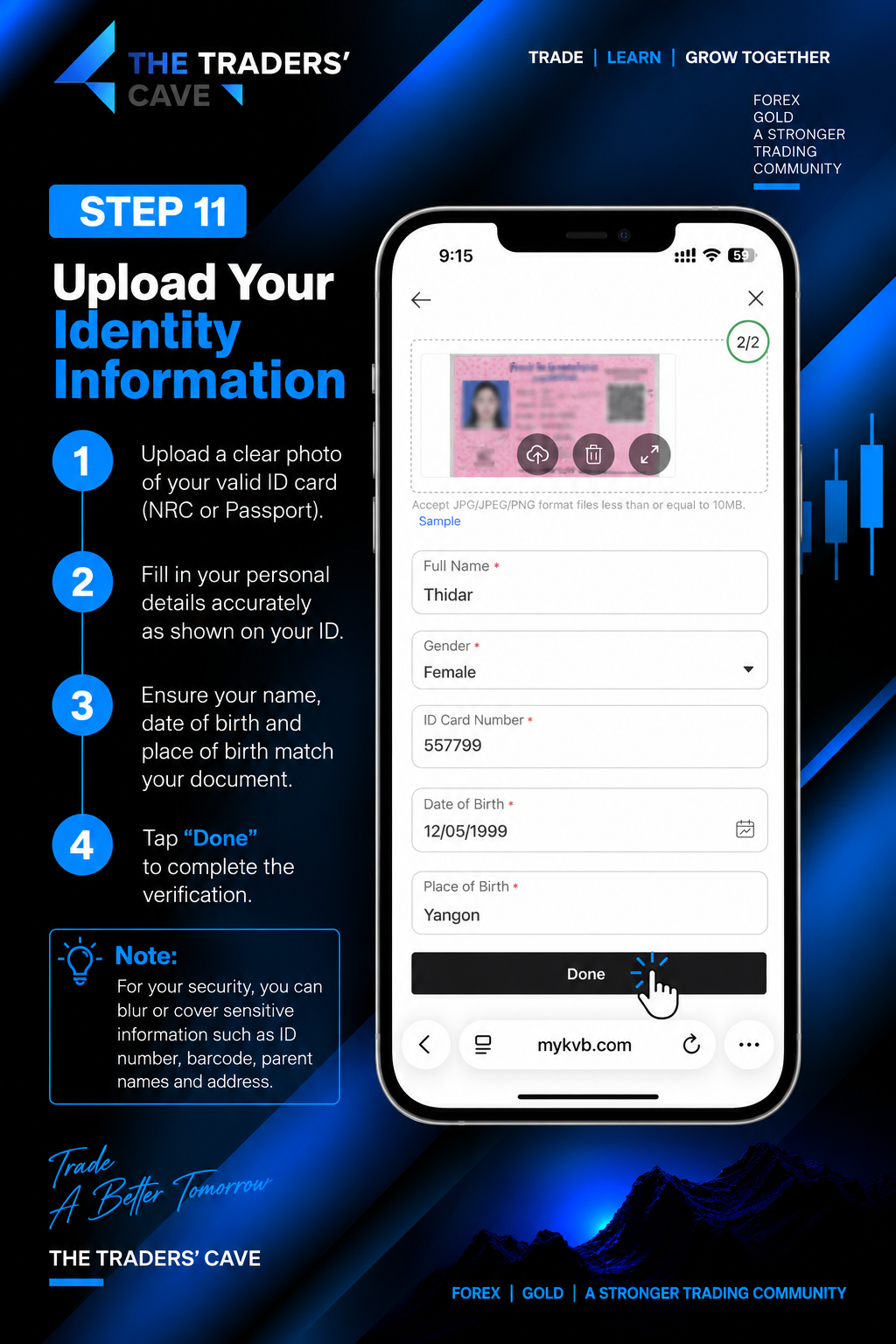
Review your uploaded identity document and personal details. Make sure your name, gender, ID information, date of birth and place of birth match your document, then tap “Done”.
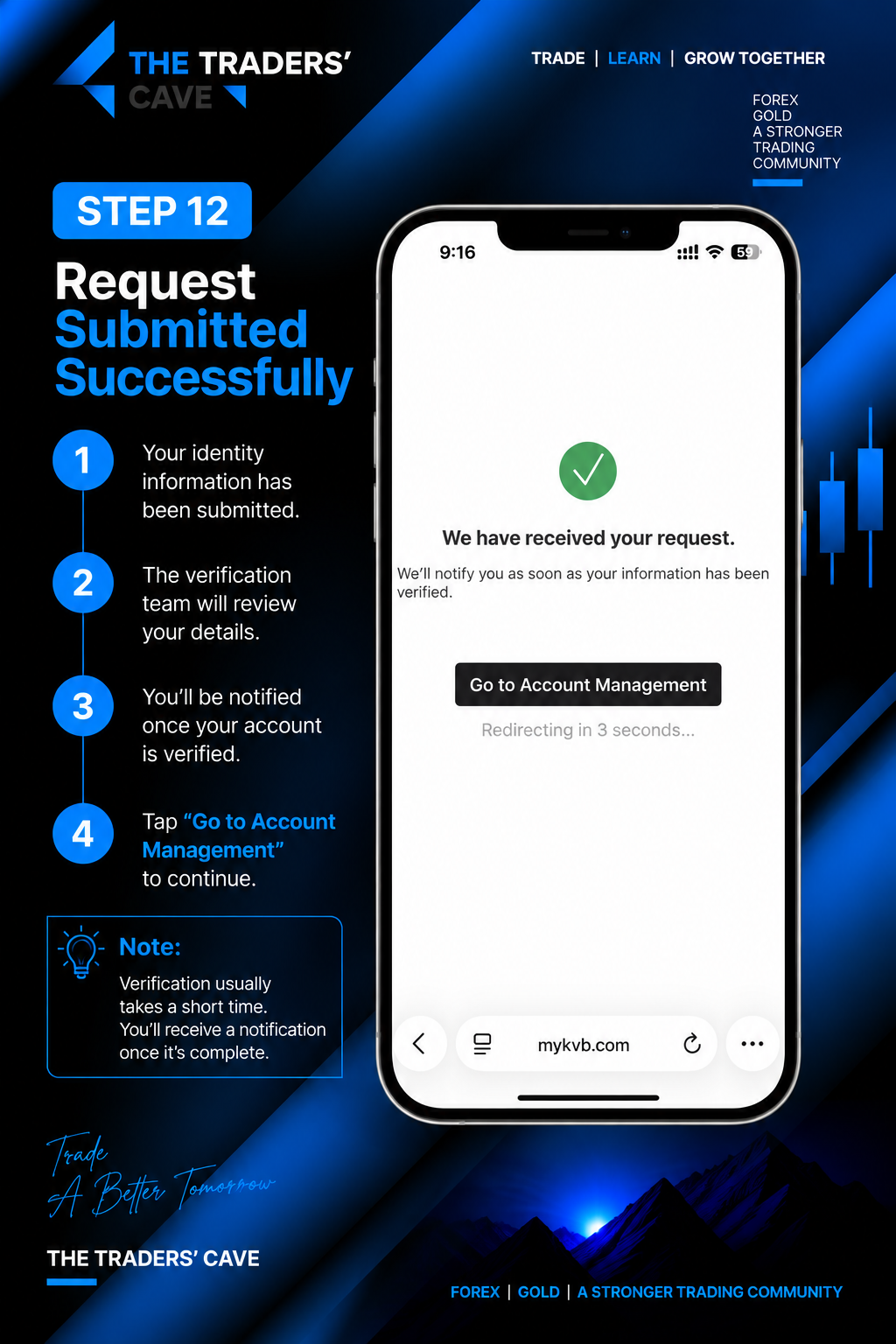
Your identity verification request has been submitted successfully. The verification team will review your information. Tap “Go to Account Management” to continue.
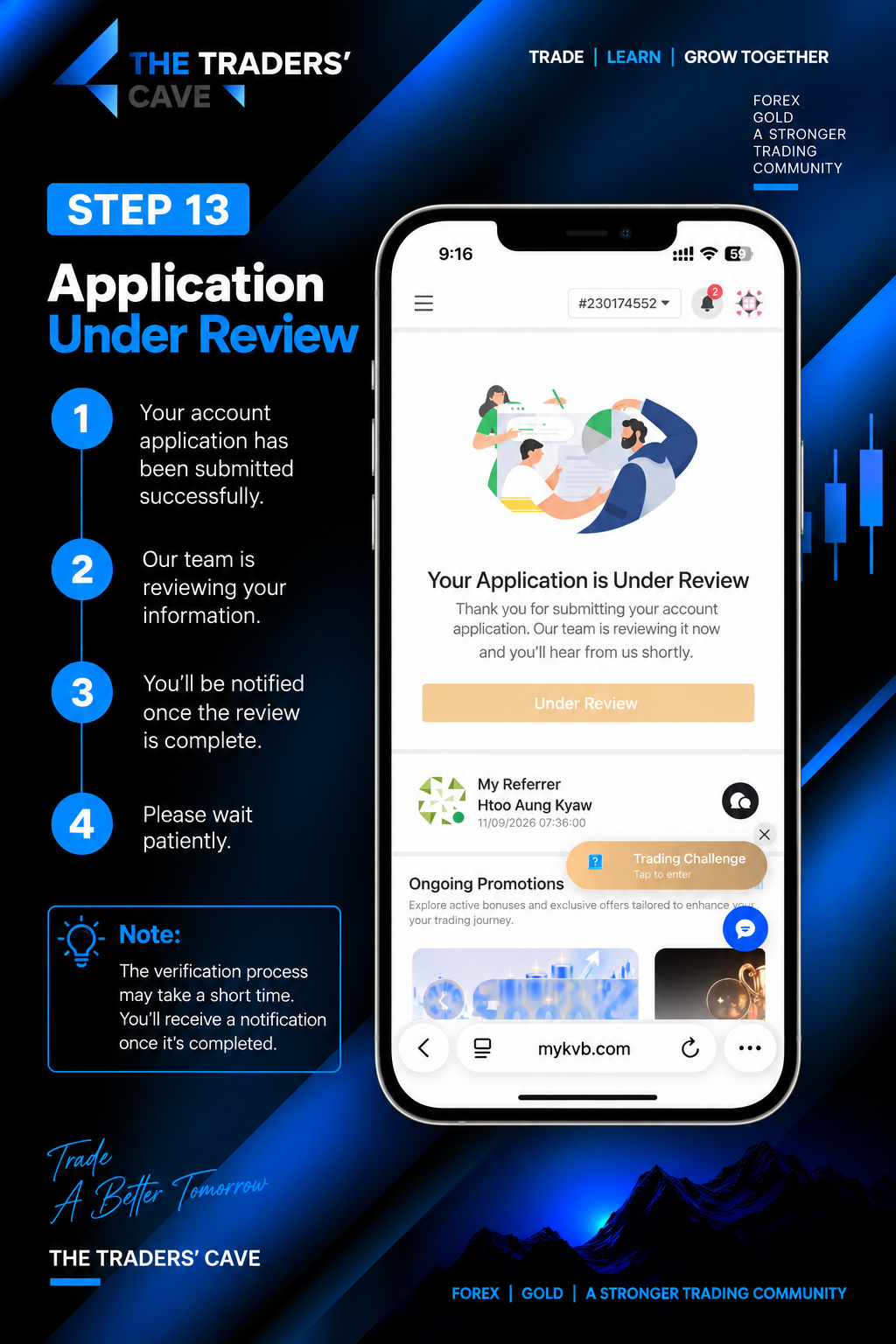
Your account application is under review. Please wait for the verification process to be completed. You will be notified when the review is finished.
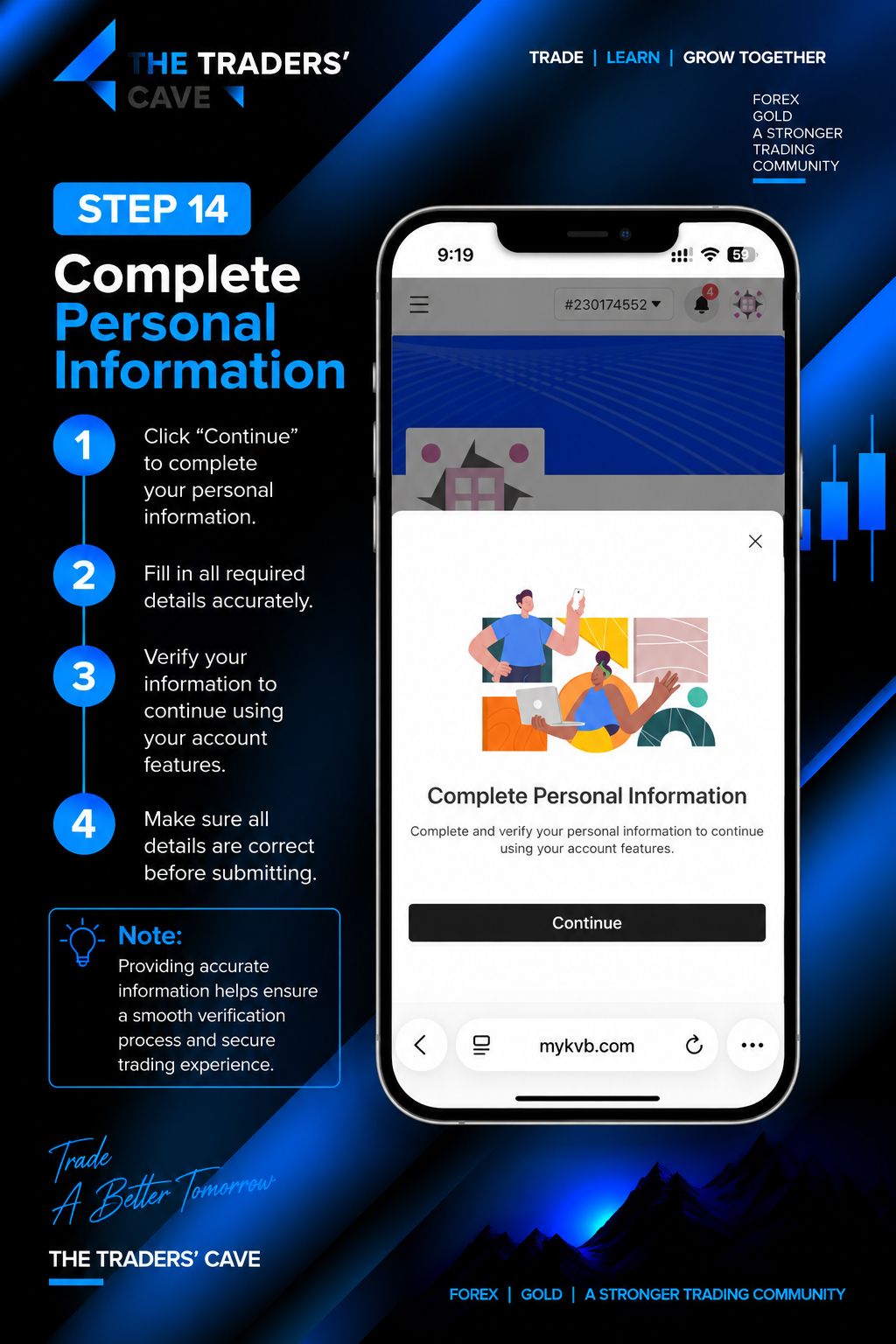
When prompted to complete your personal information, tap “Continue” and complete all required information accurately.
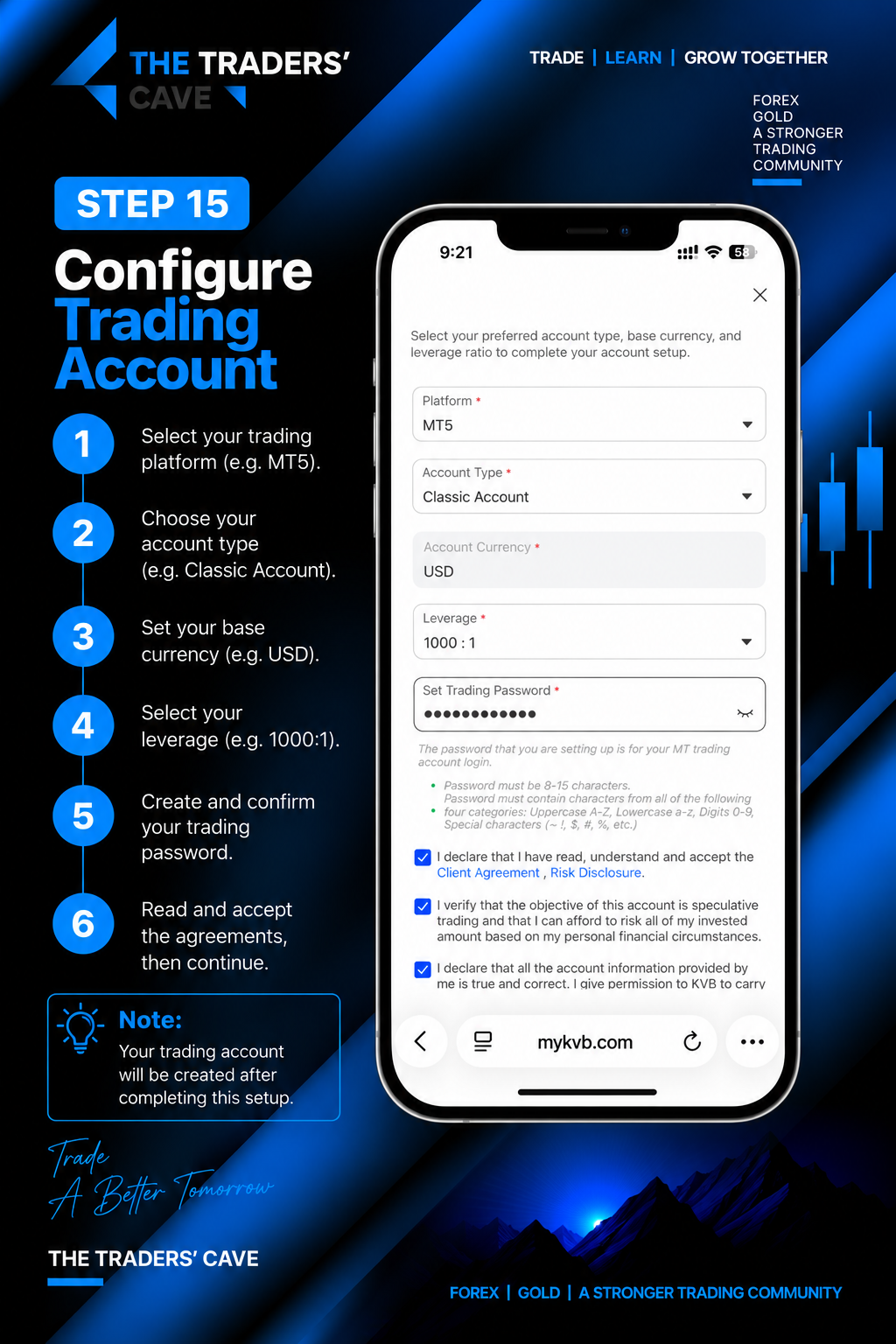
Configure your trading account by selecting your preferred trading platform, account type, account currency and leverage. Create your trading password, review the agreements and continue.
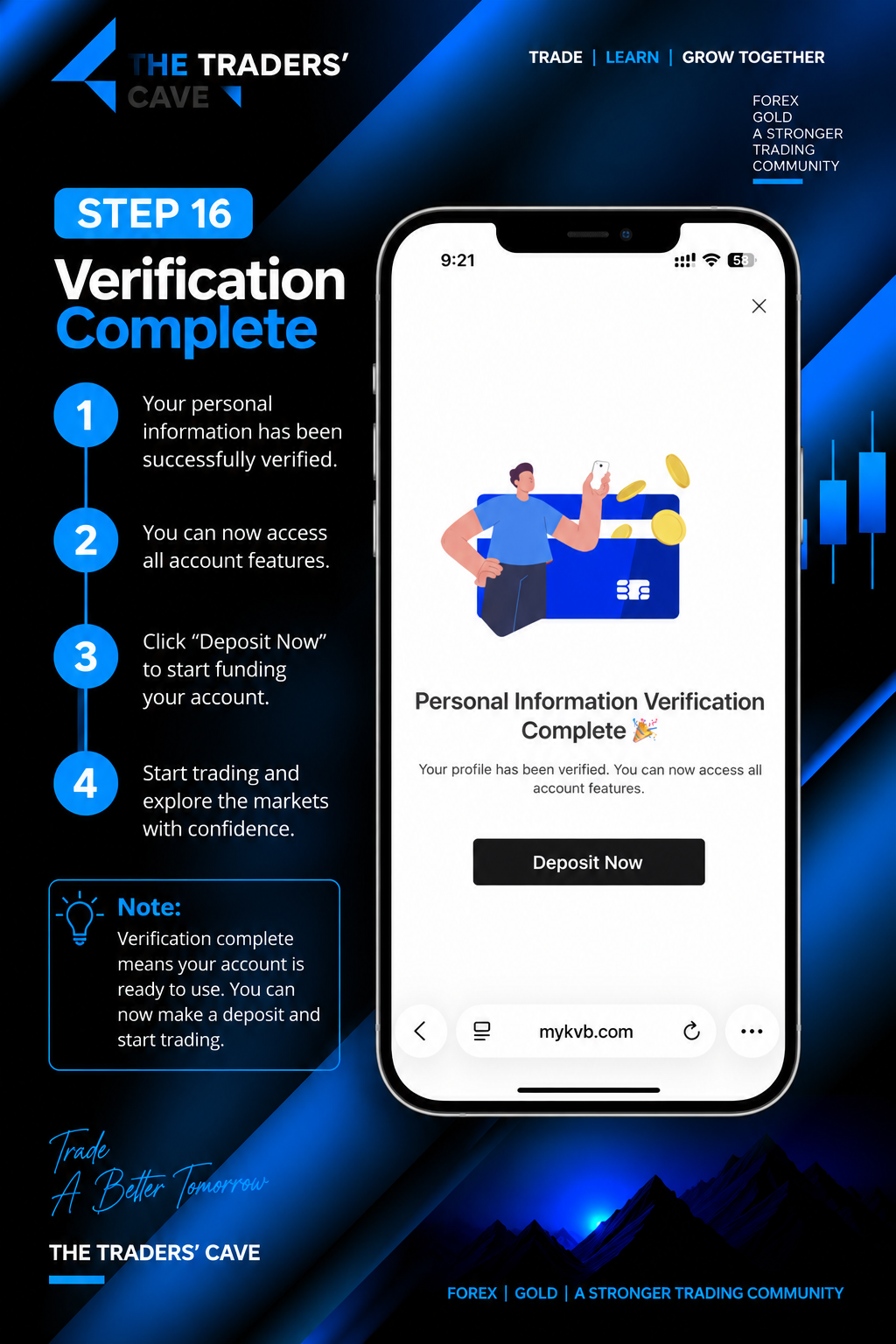
Once your personal information verification is complete, your profile will be verified and the available account features can be accessed.
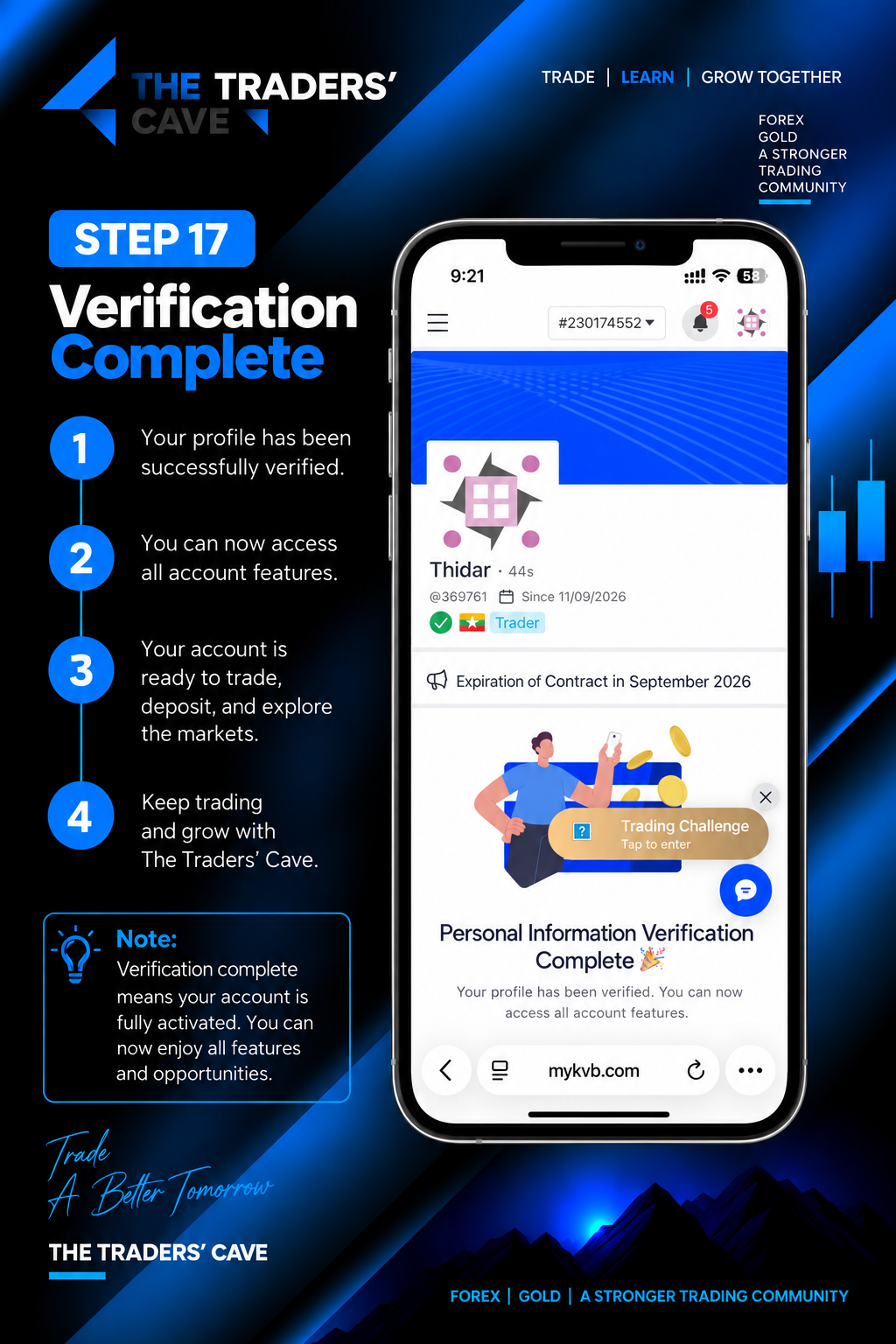
Check your profile to confirm that the verification process has been completed successfully and your account features are available.
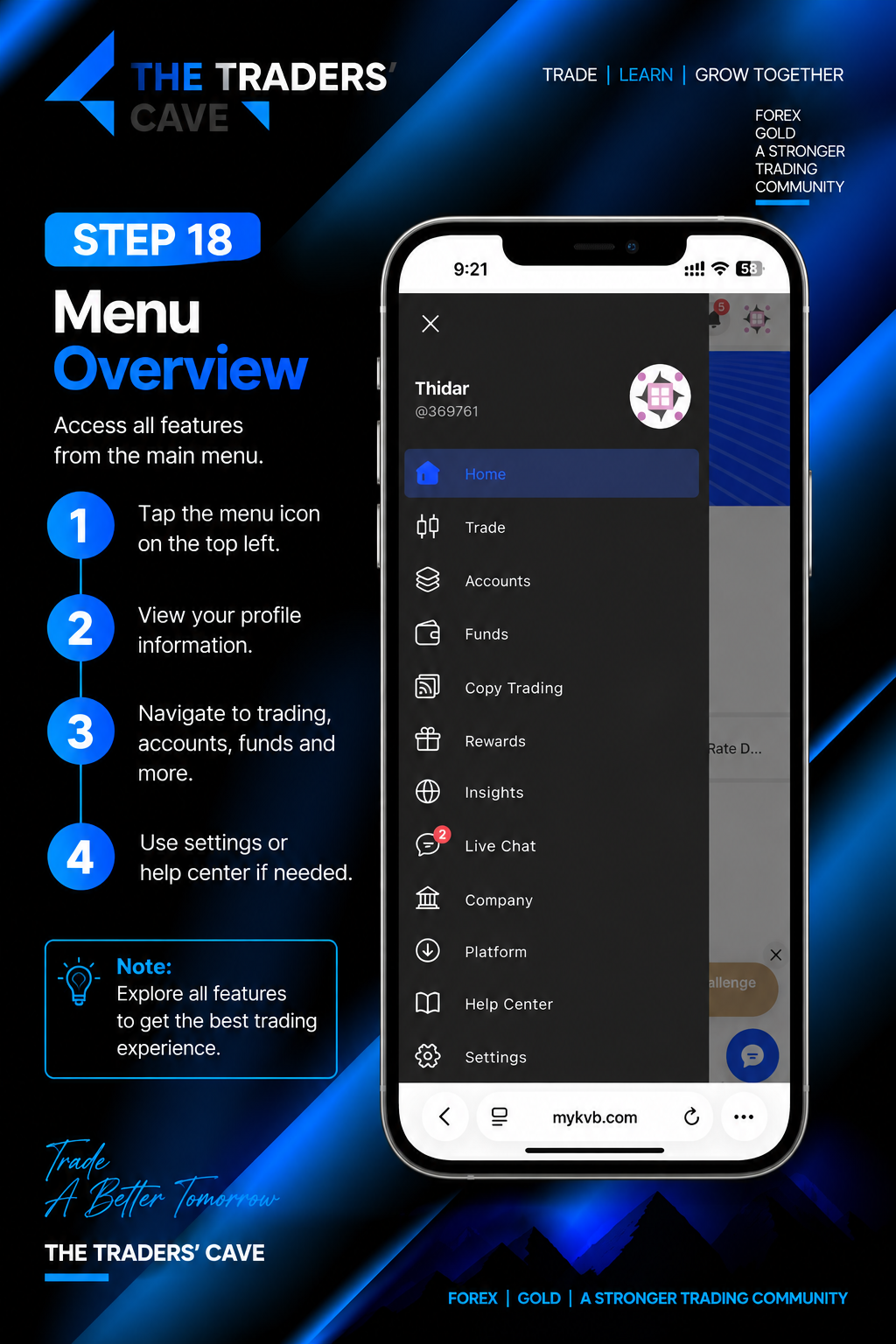
Open the main menu to access your profile, Trade, Accounts, Funds, Platform, Help Center, Settings and other available features.
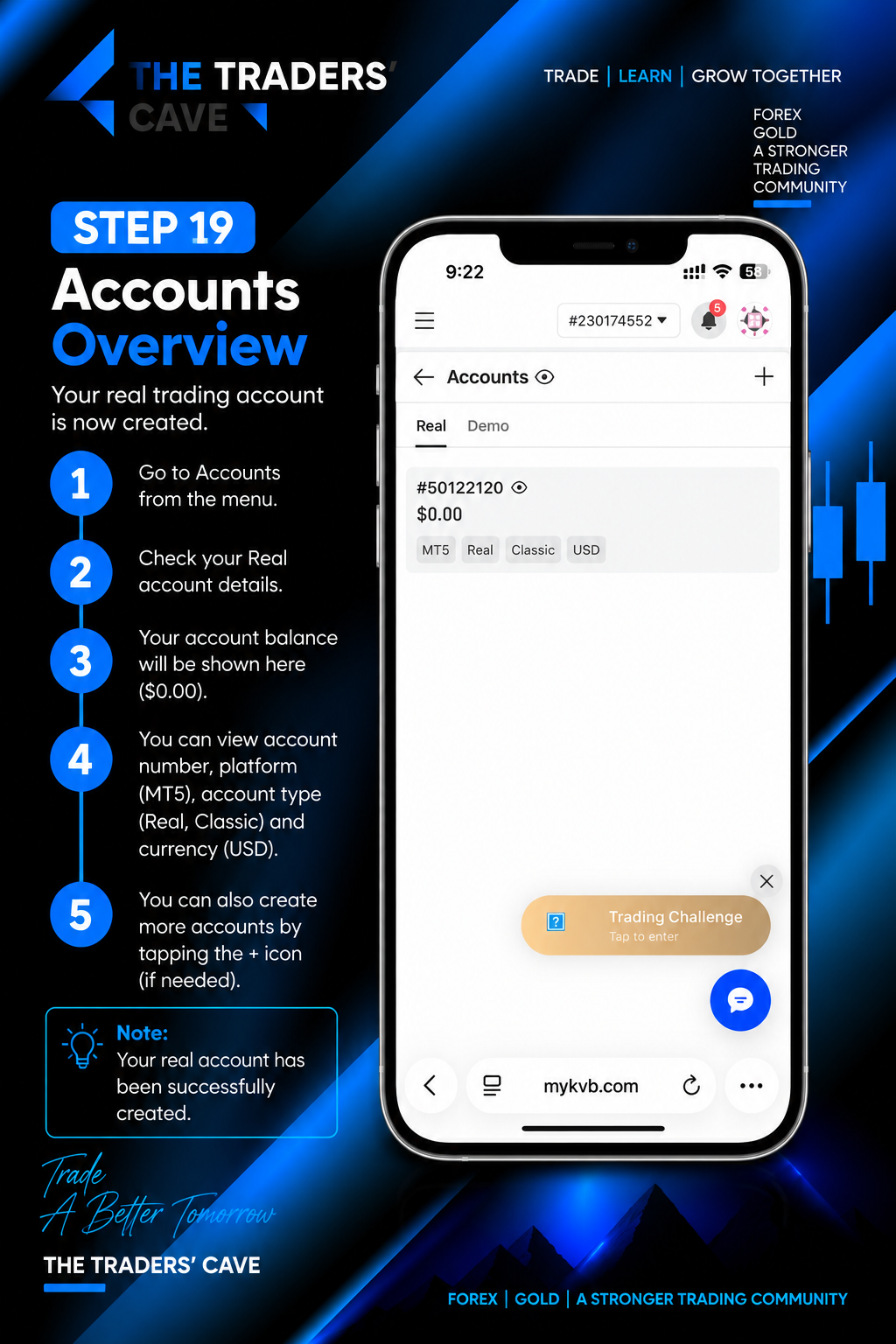
Go to “Accounts” from the main menu and check your newly created Real Trading Account. Review your account number, platform, account type, currency and other account details.
How to Deposit Funds into Your KVB Trading Account
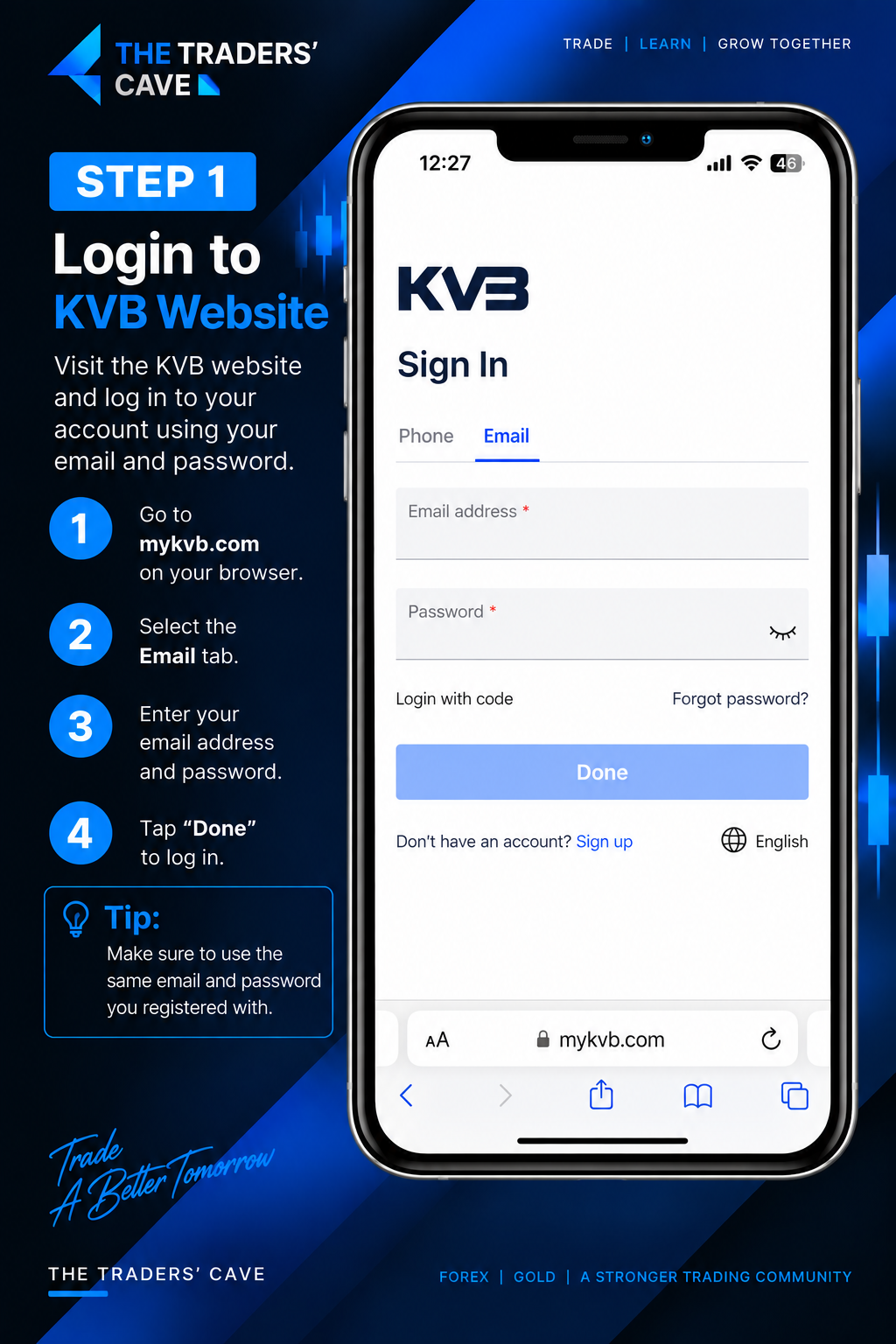
Go to the KVB website and log in to your account using your registered email address and password.
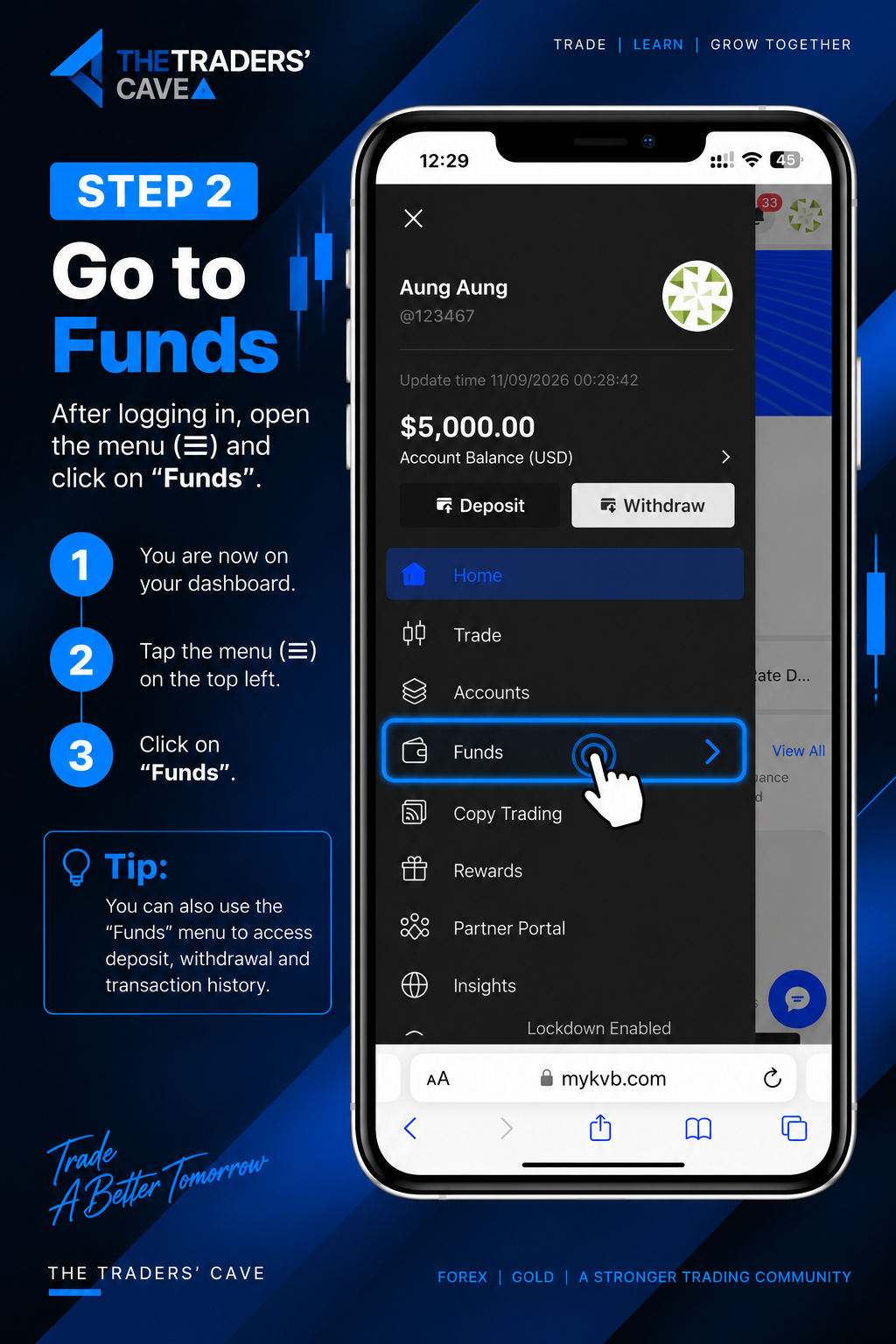
After logging in, open the menu and select “Funds”.
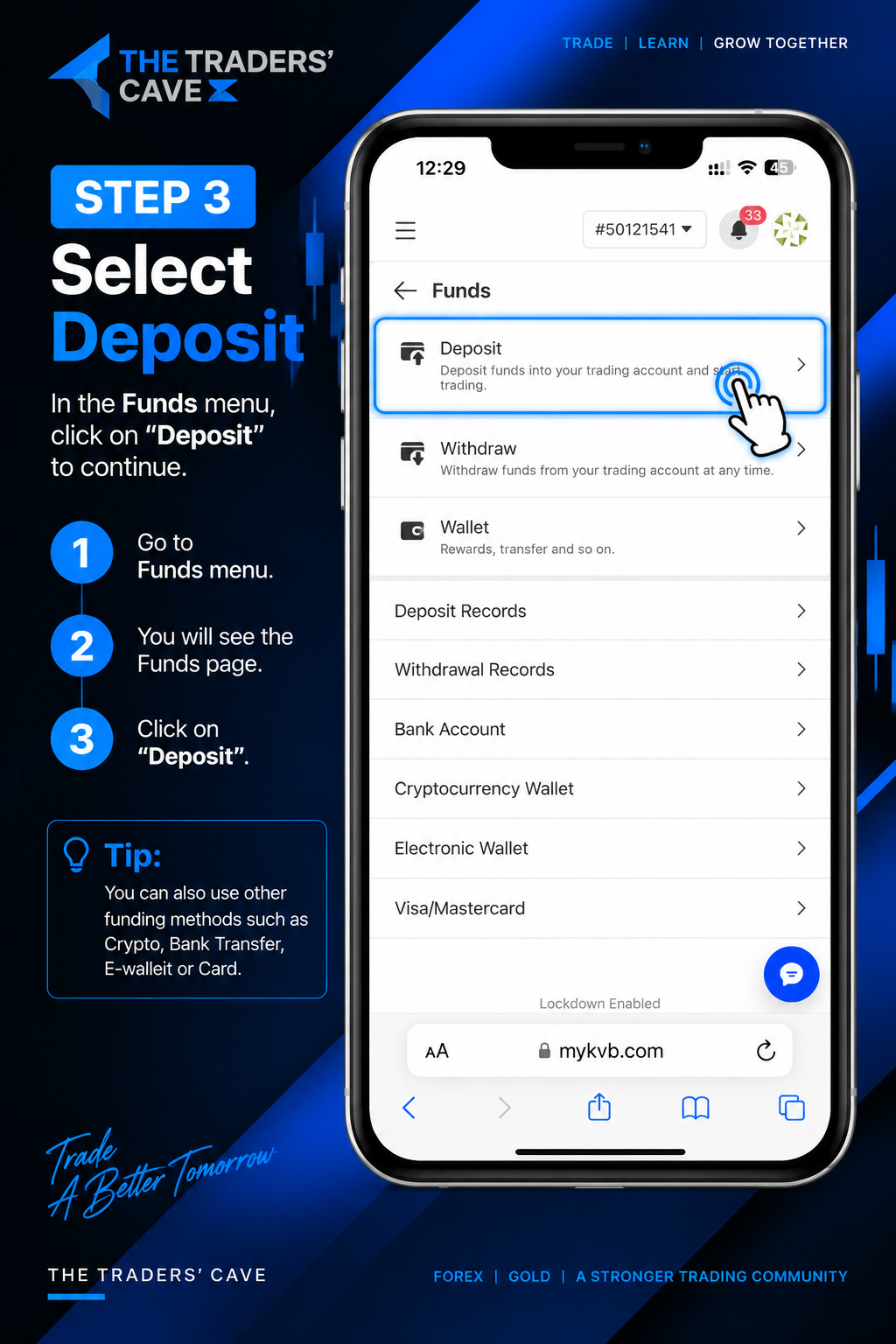
n the Funds menu, select “Deposit” to continue.
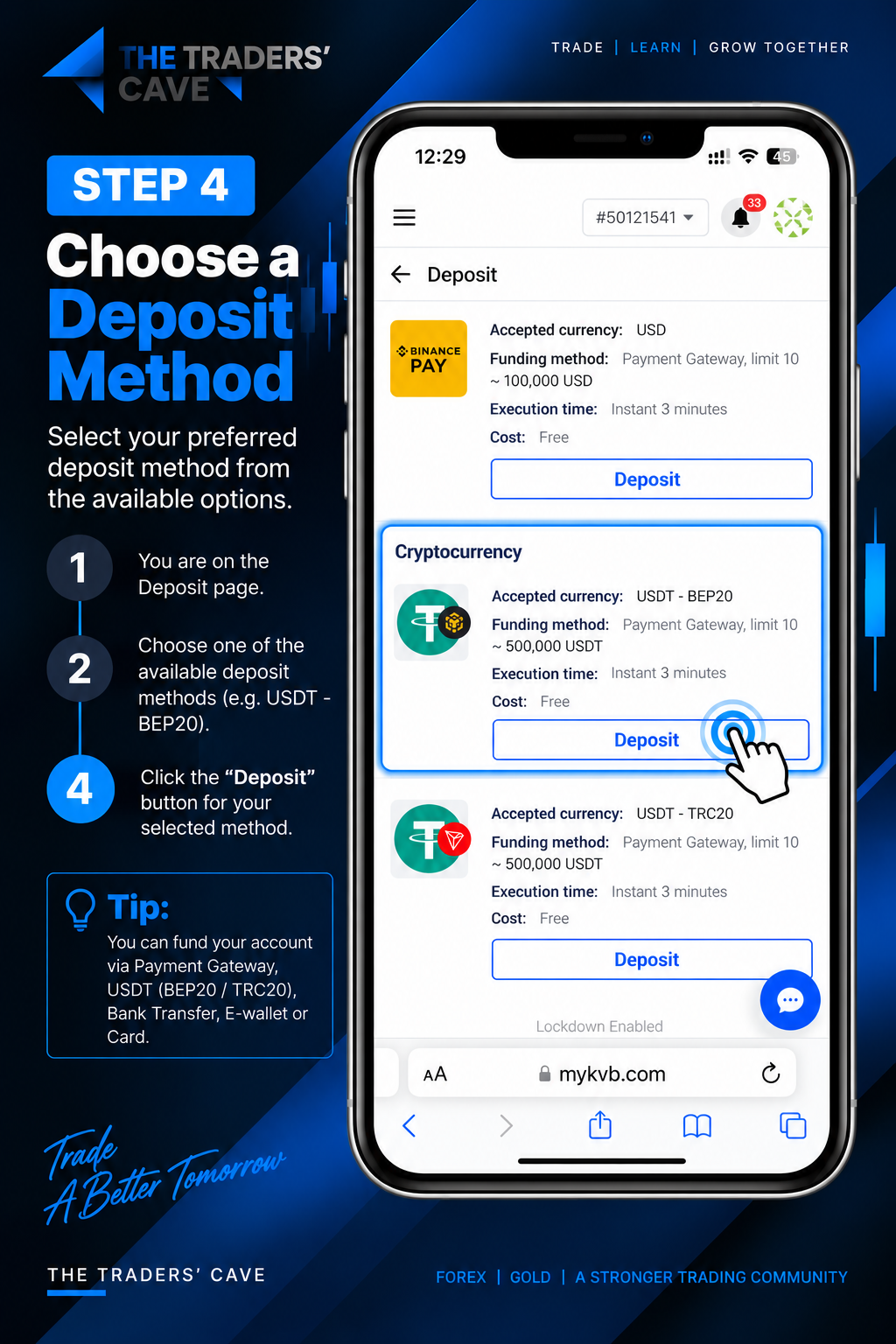
Choose your preferred deposit method from the available options. For a USDT-BEP20 deposit, select the USDT-BEP20 option and tap “Deposit”.
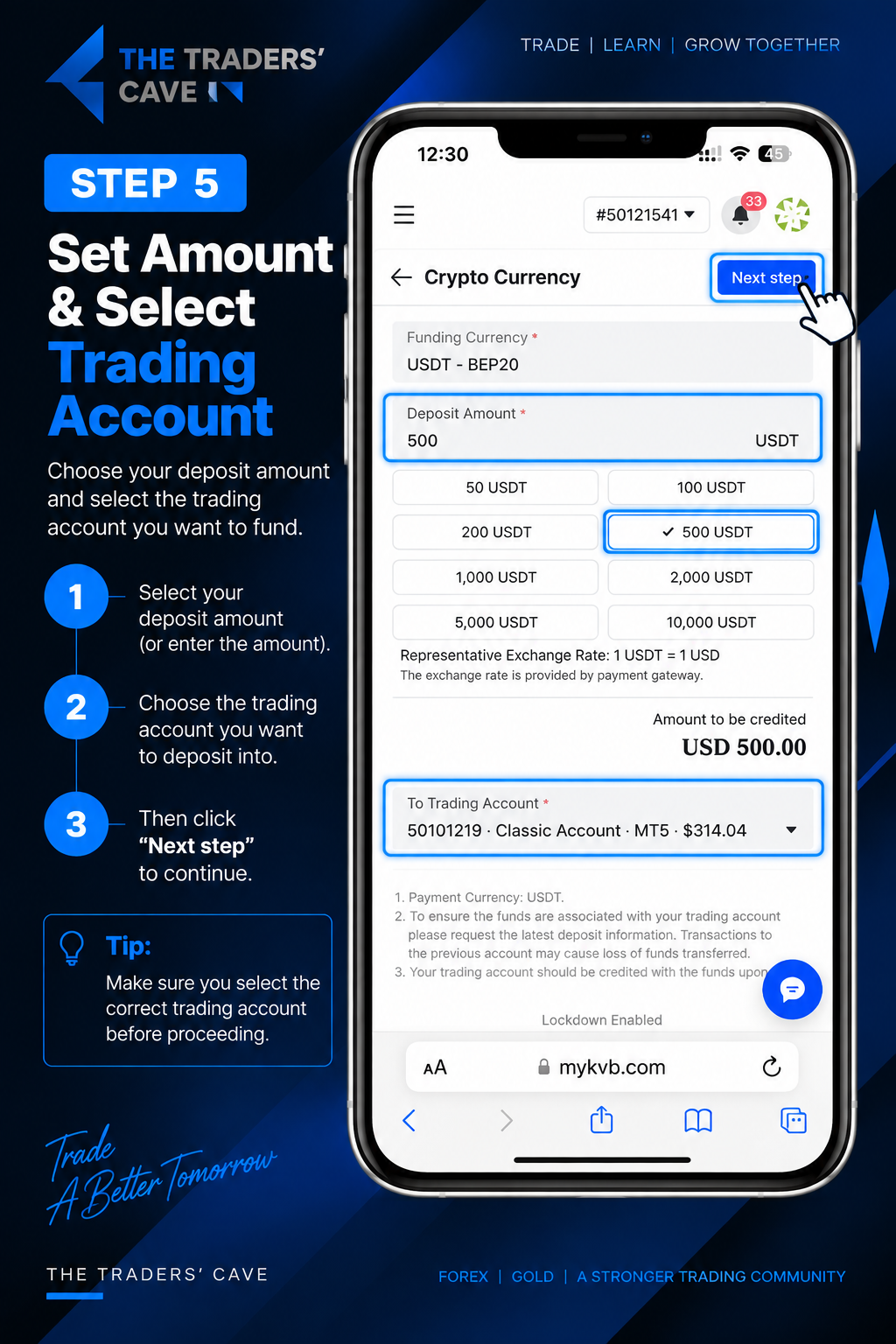
Enter your deposit amount, select the trading account you want to fund, and tap “Next step” to continue.
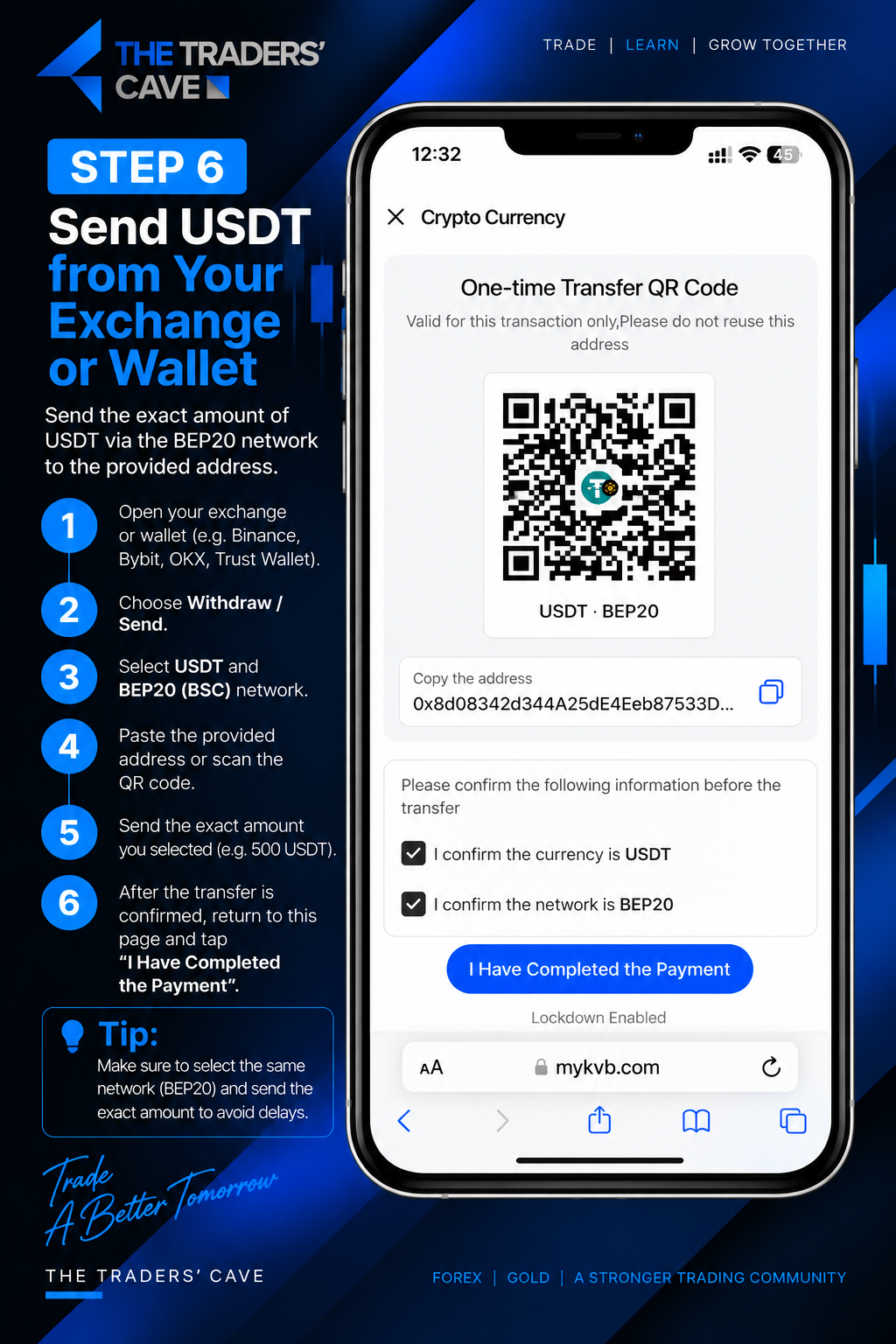
Send the exact amount of USDT from your exchange or wallet using the BEP20 network. Copy the provided address or scan the QR code. After completing the transfer, tap “I Have Completed the Payment”.
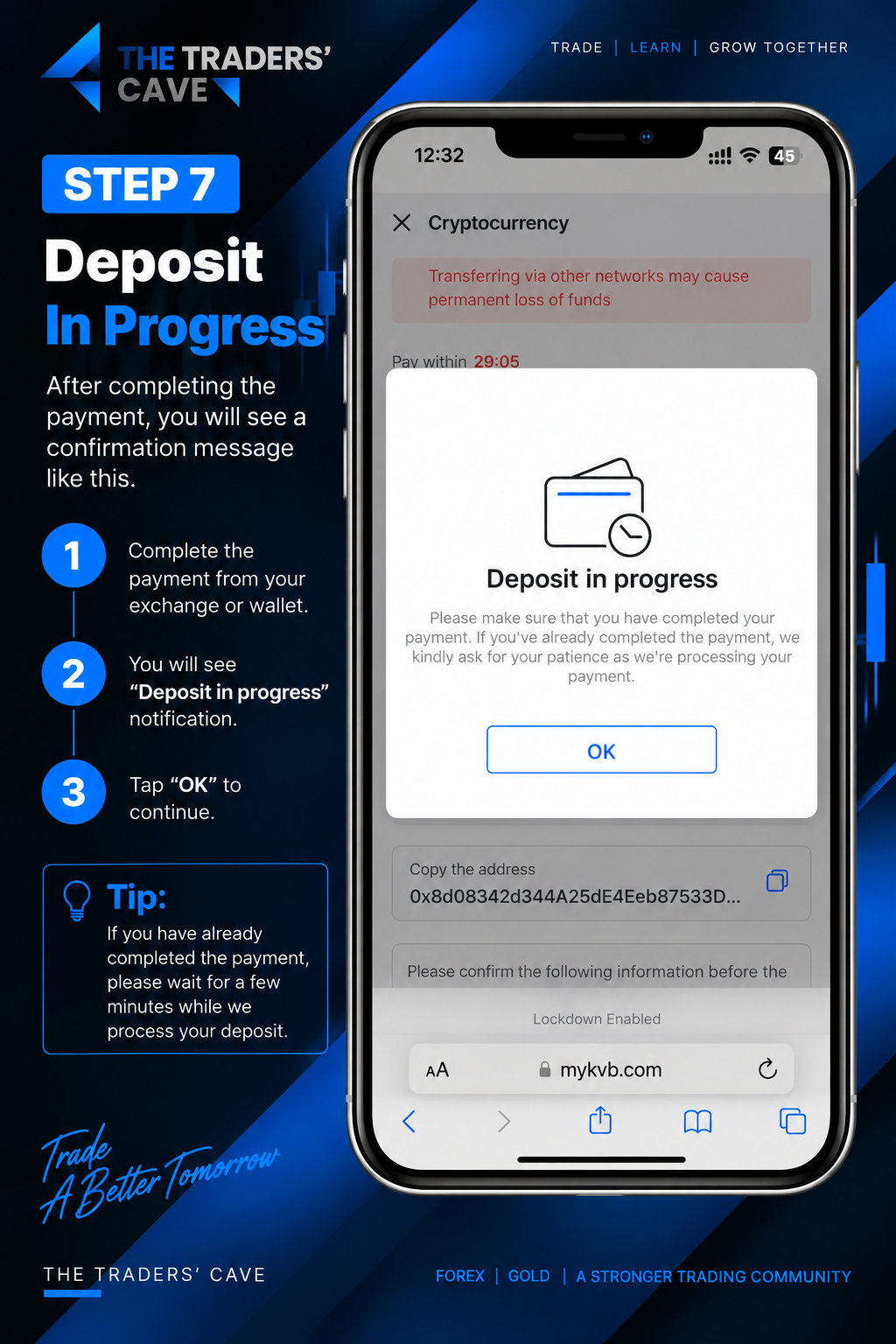
After completing the payment, a “Deposit in progress” message will appear. Tap “OK” and wait while your deposit is being processed.
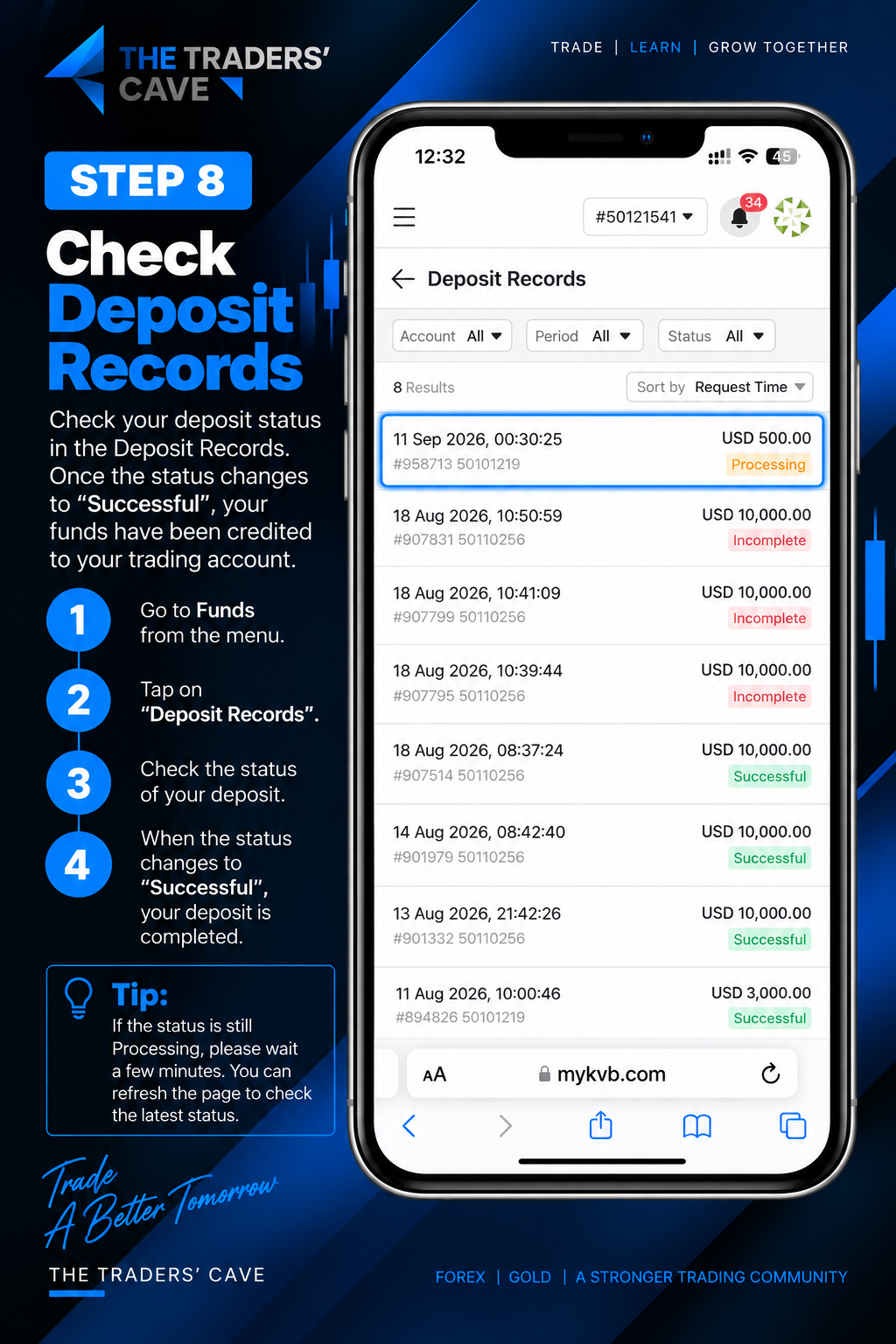
Go to Funds > Deposit Records and check the status of your deposit. If the status is still “Processing”, wait a few minutes and check again.
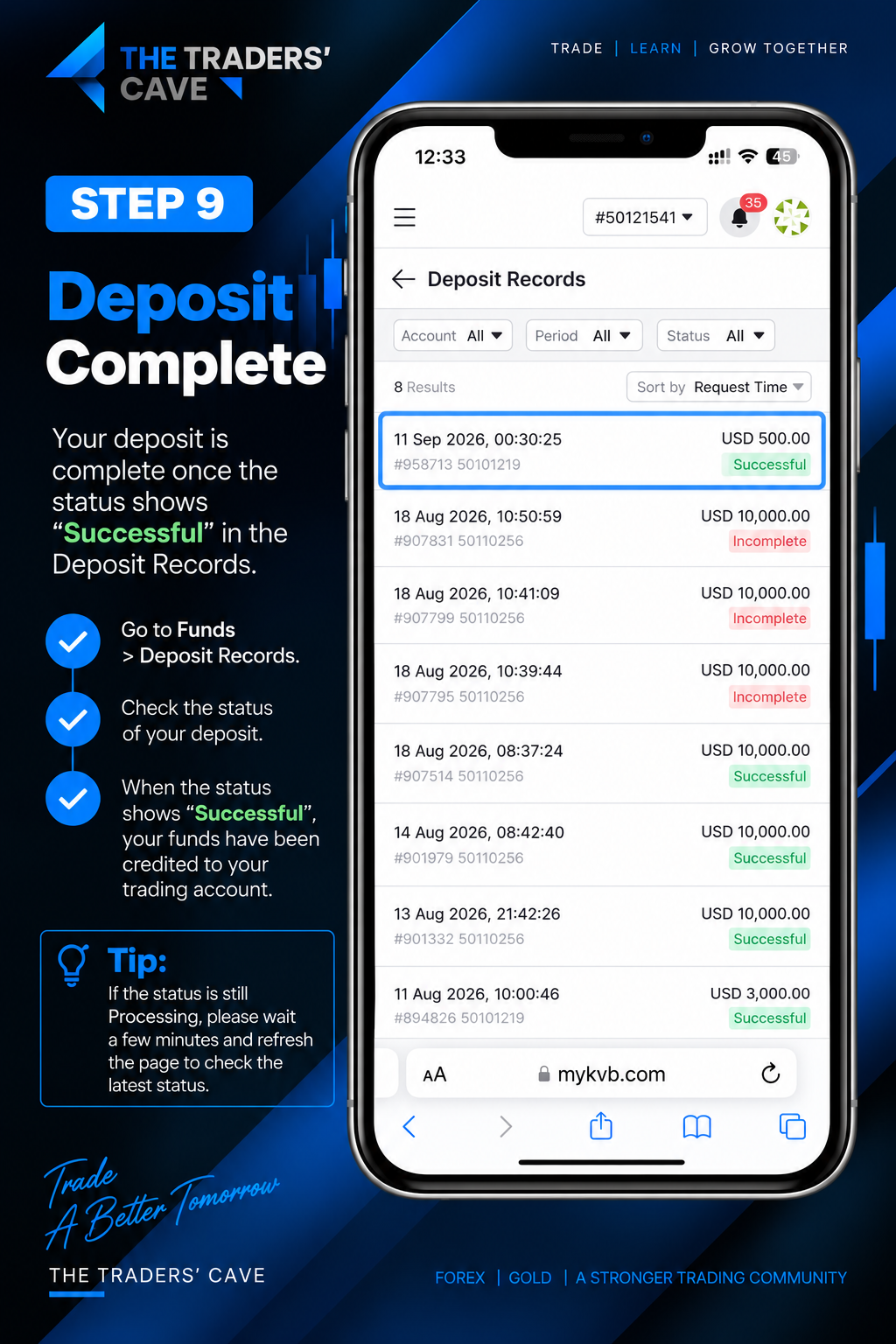
Your deposit is complete when the status changes to “Successful”. The deposited funds will then be credited to your selected trading account.
How to Withdraw Funds from Your KVB Trading Account
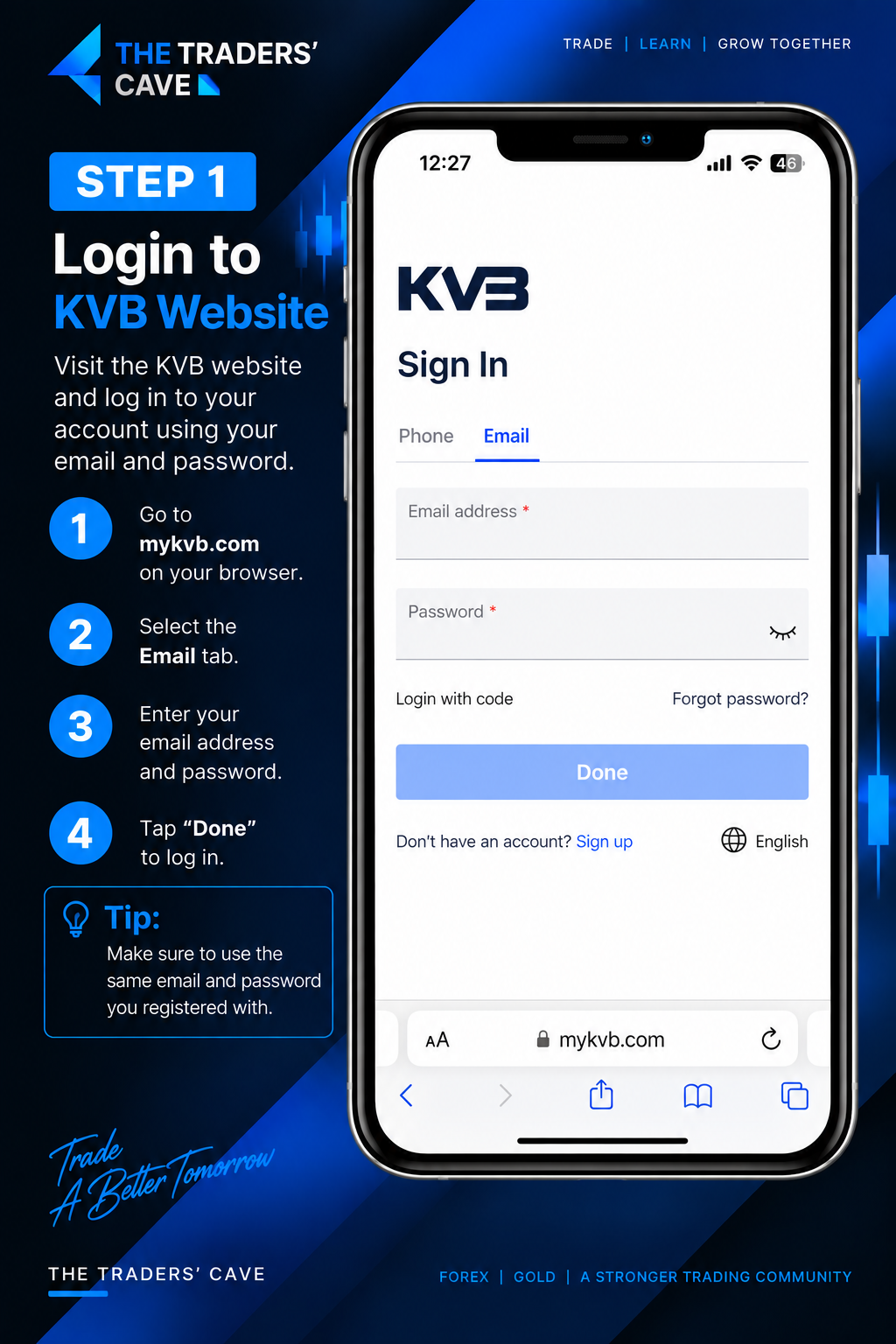
Log in to the KVB website using your registered email address and password.
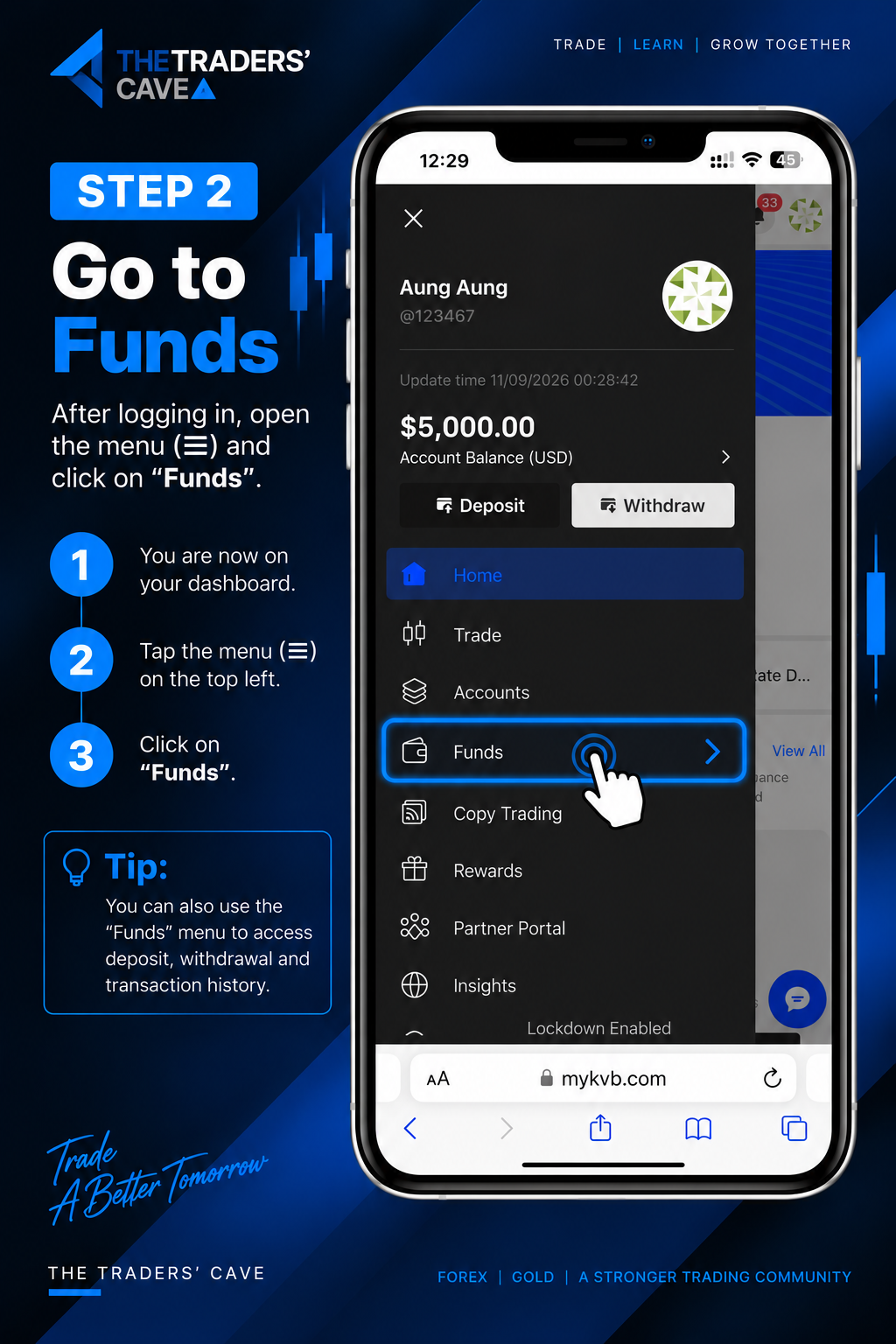
Open the menu and select “Funds”.
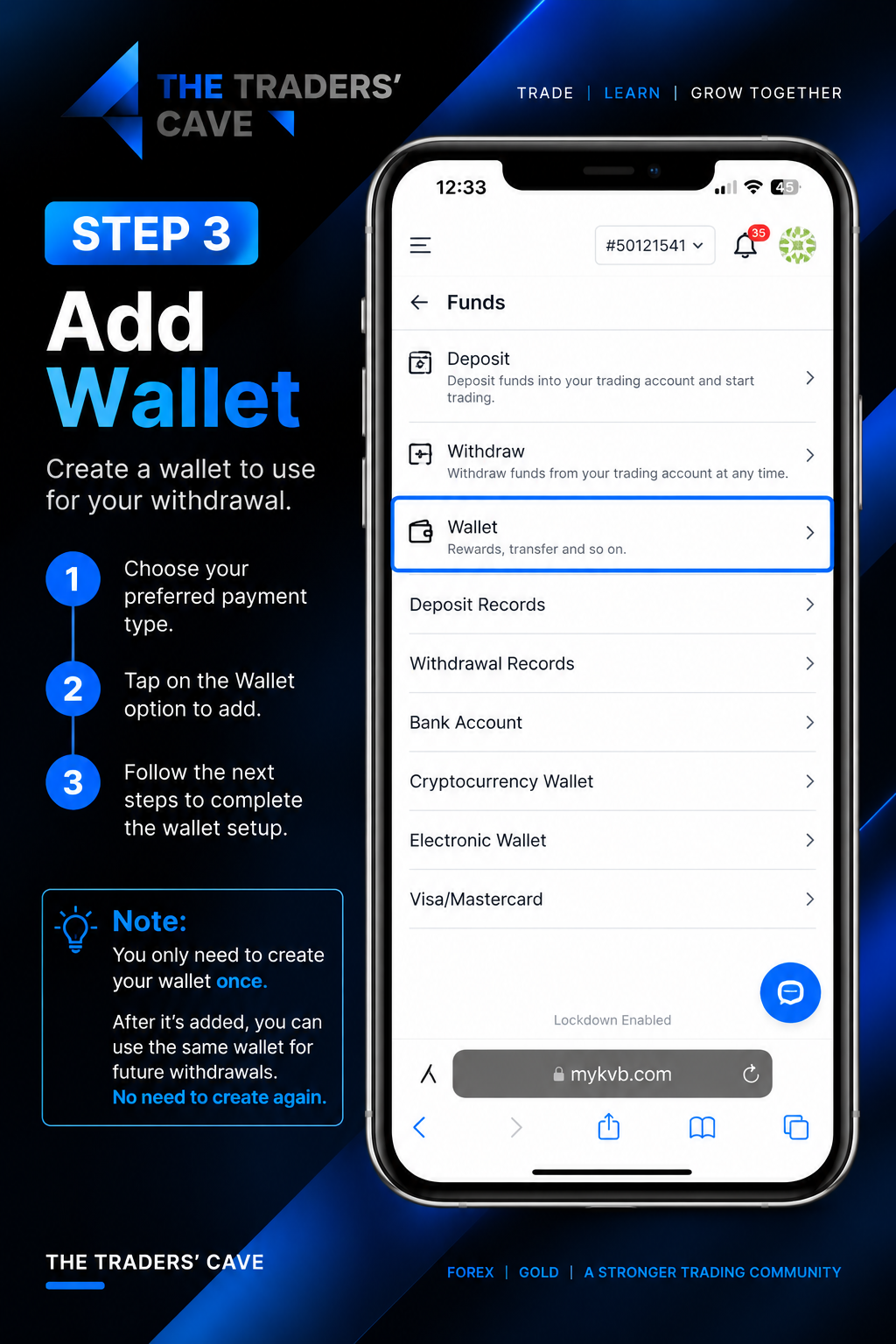
Go to “Wallet” to add a withdrawal wallet. You only need to create the wallet once.
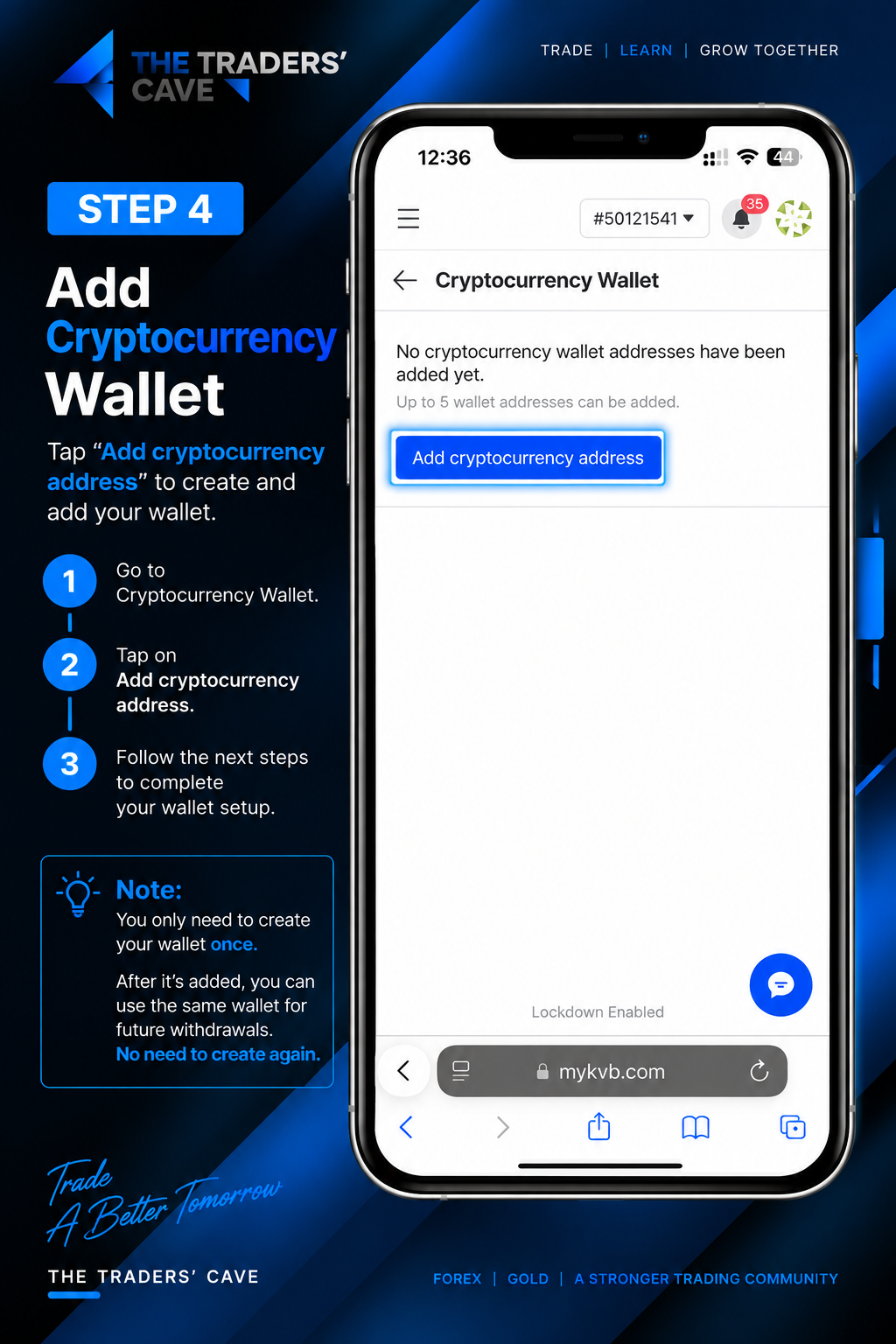
Select “Cryptocurrency Wallet” and tap “Add cryptocurrency address”.
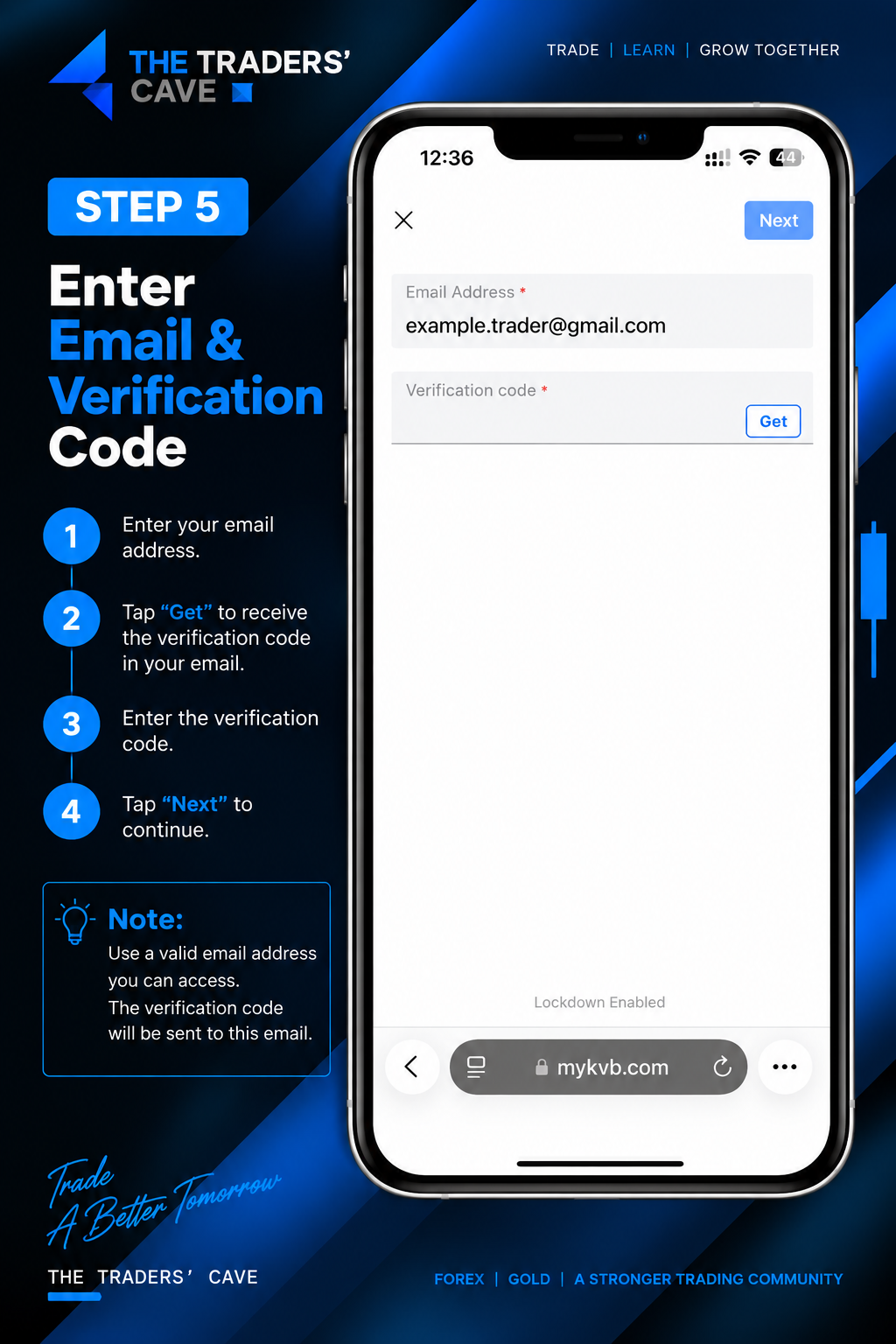
Enter your email address, tap “Get” to receive the verification code, enter the code, and tap “Next”.
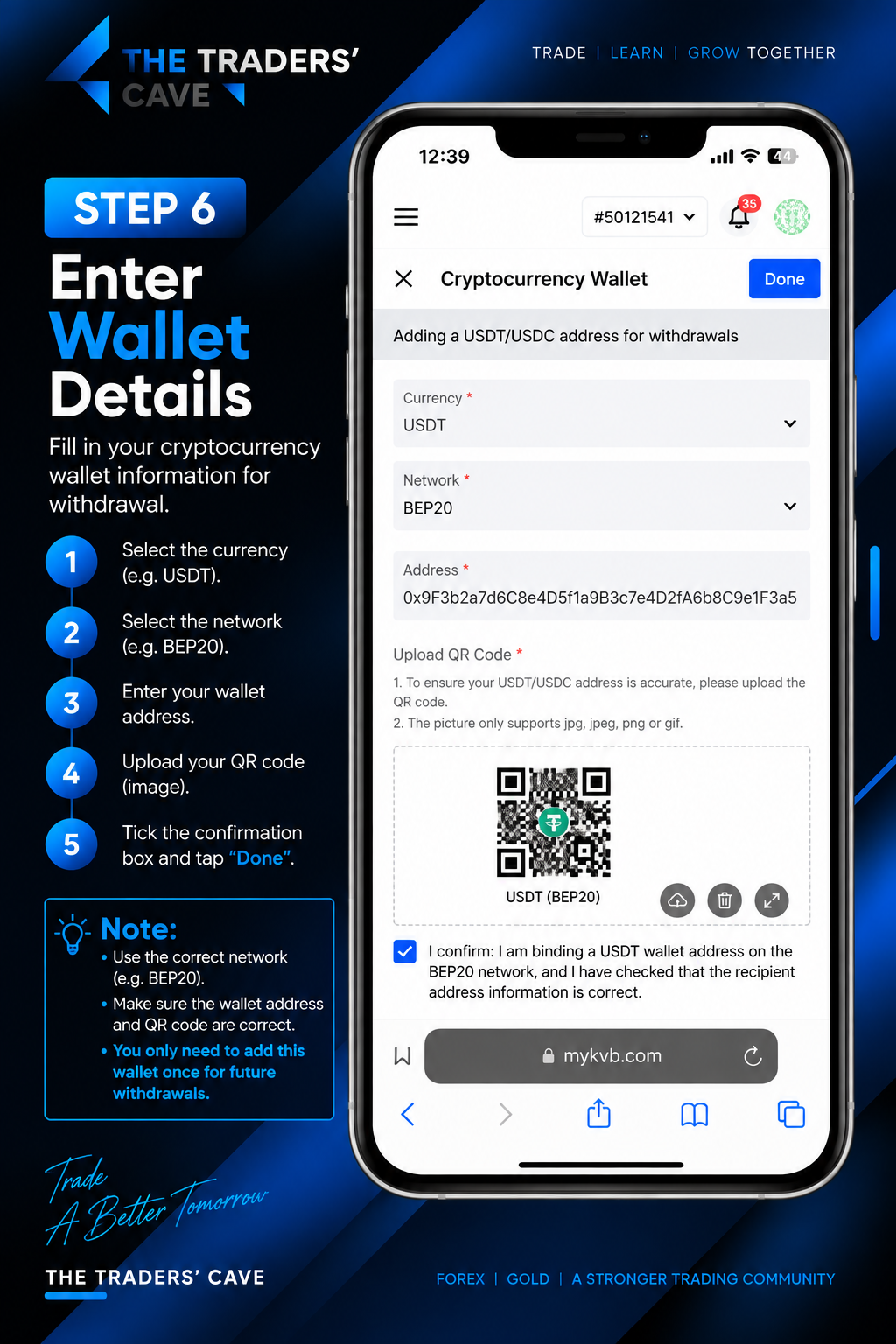
Select the currency and network, enter your wallet address, upload the wallet QR code, confirm the information, and tap “Done”.
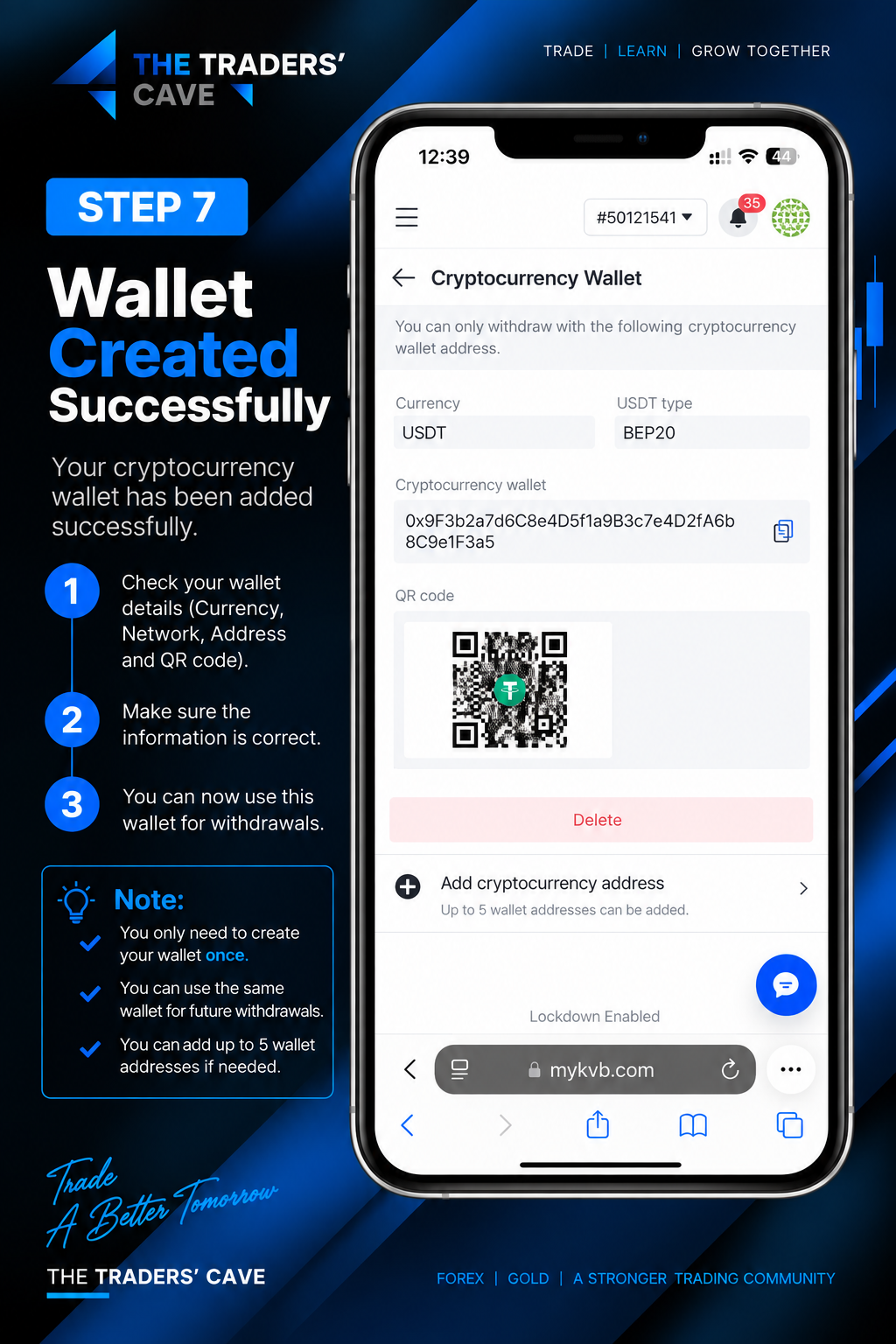
Check that your cryptocurrency wallet has been added successfully and verify the currency, network, wallet address, and QR code.
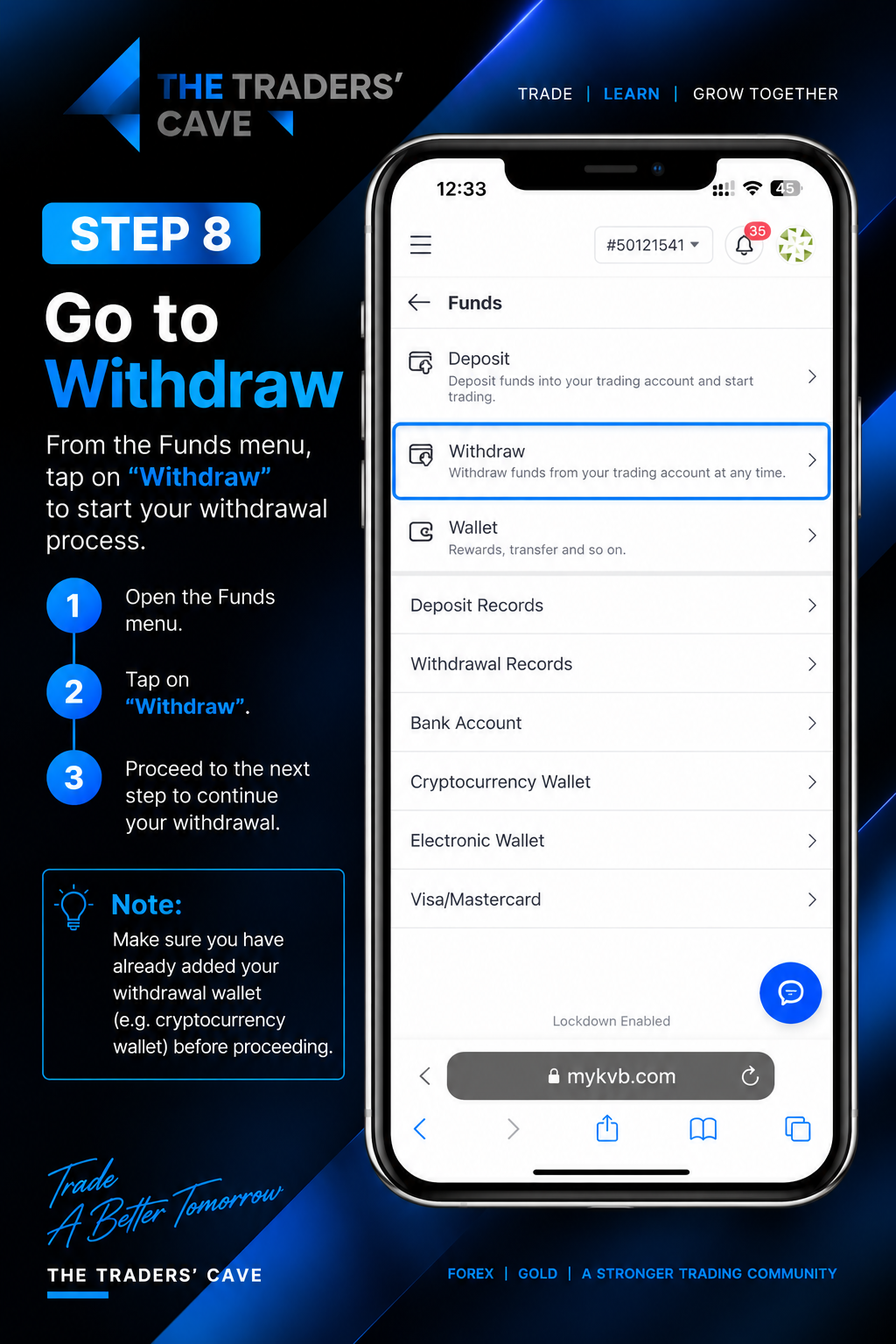
Return to the “Funds” menu and select “Withdraw” to start your withdrawal.
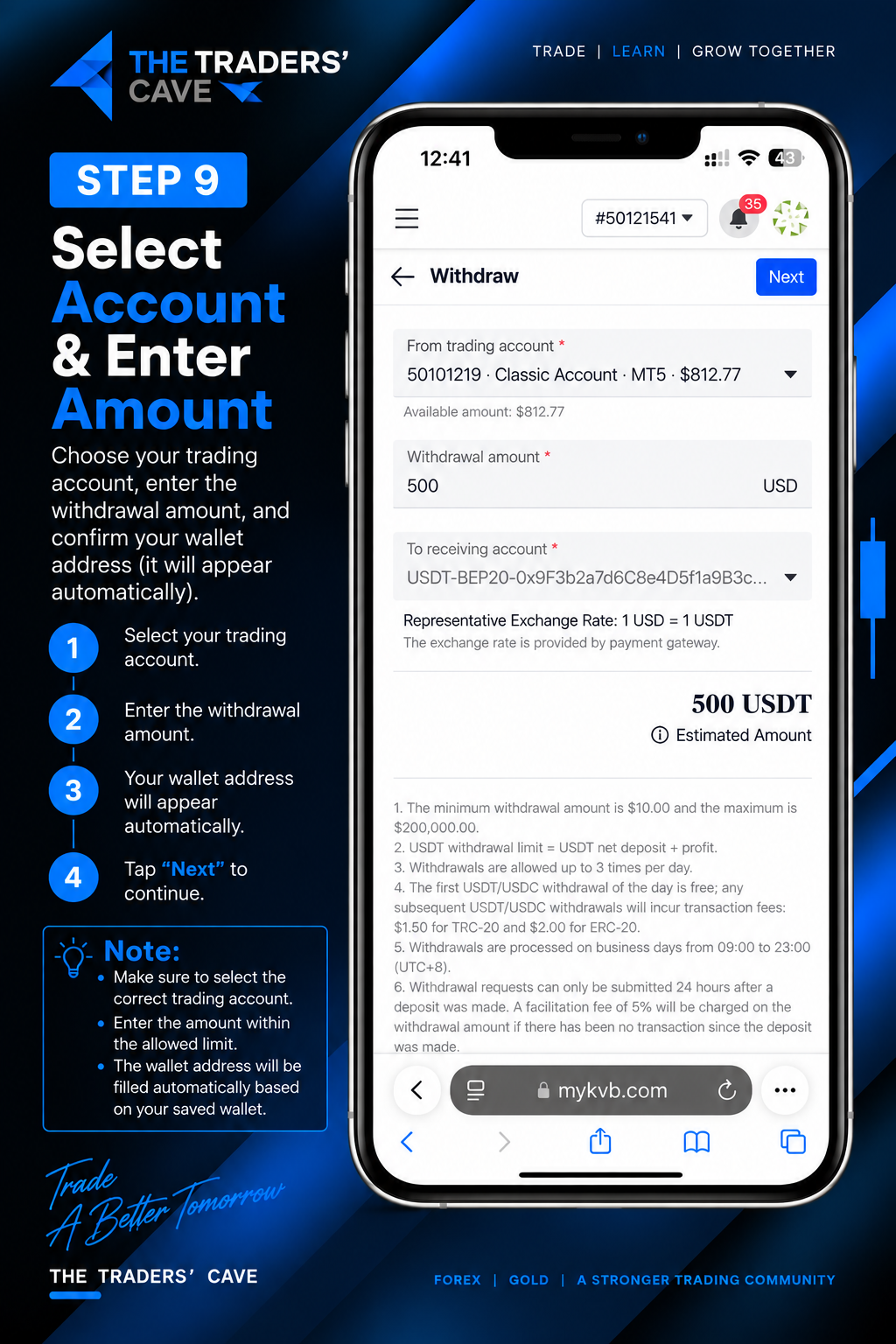
Select your trading account, enter the withdrawal amount, confirm the saved receiving wallet, and tap “Next”.
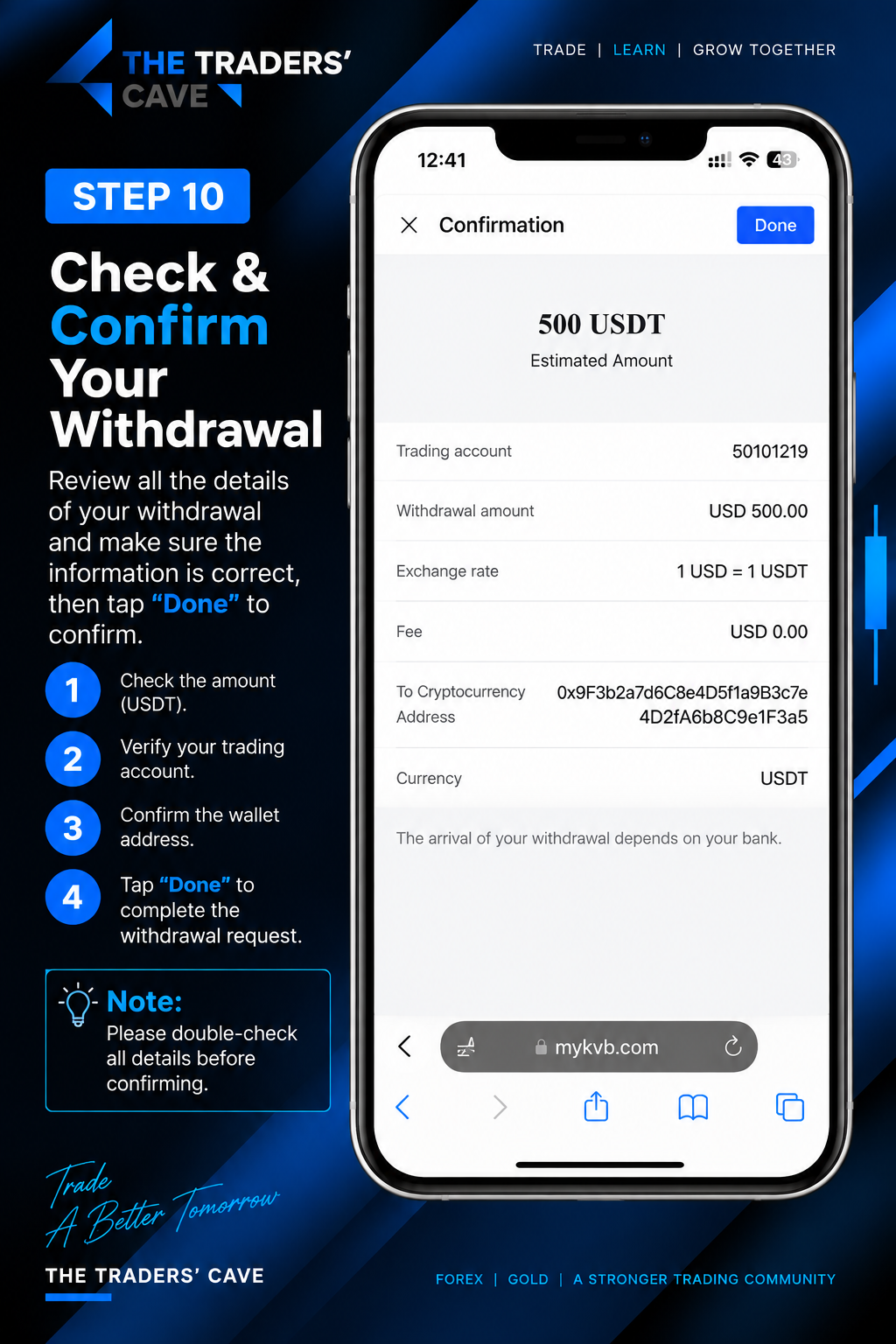
Review your withdrawal details carefully, including the amount, trading account, currency, and wallet address. Tap “Done” to confirm.
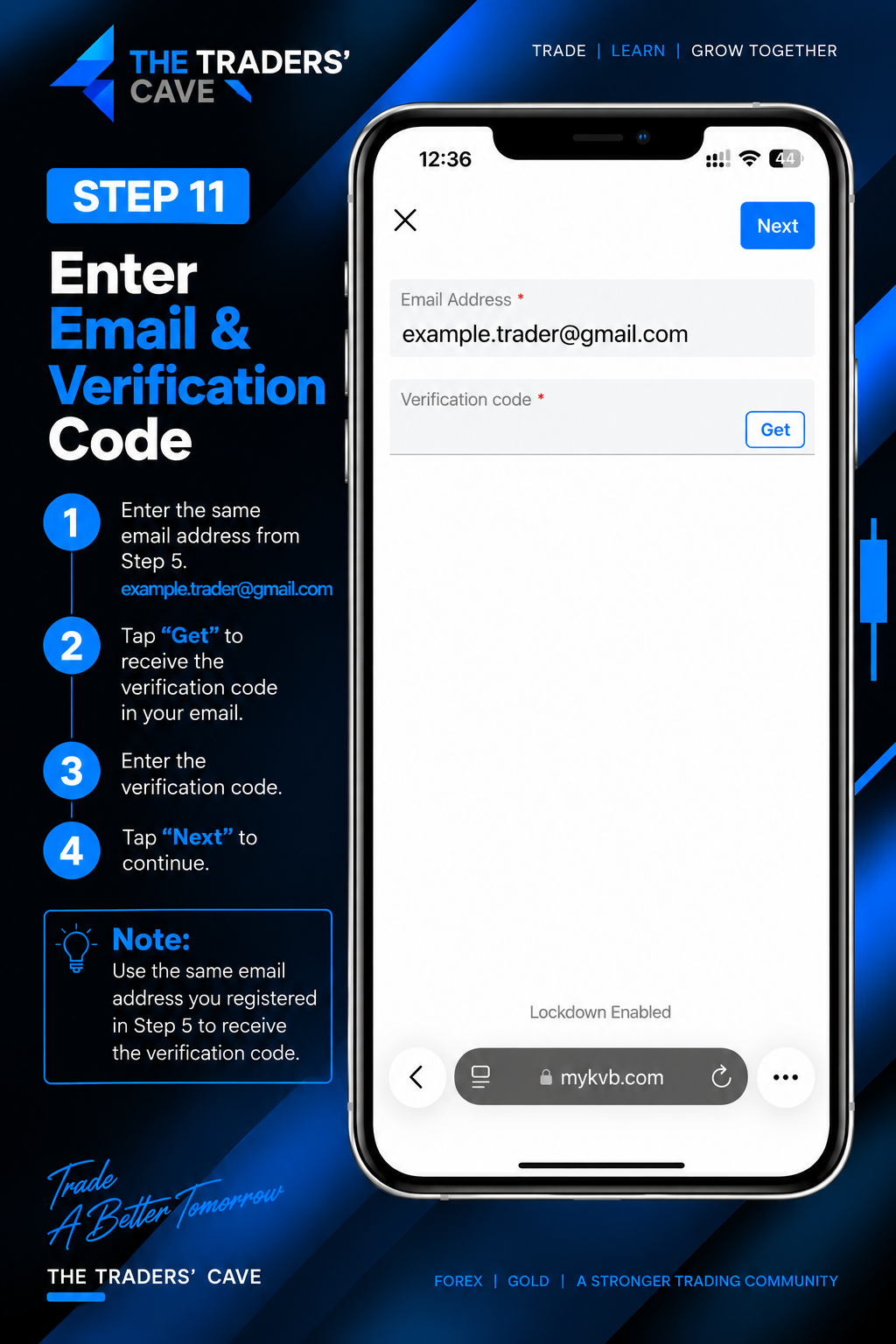
Enter the same registered email address, tap “Get” to receive the verification code, enter the code, and tap “Next”.
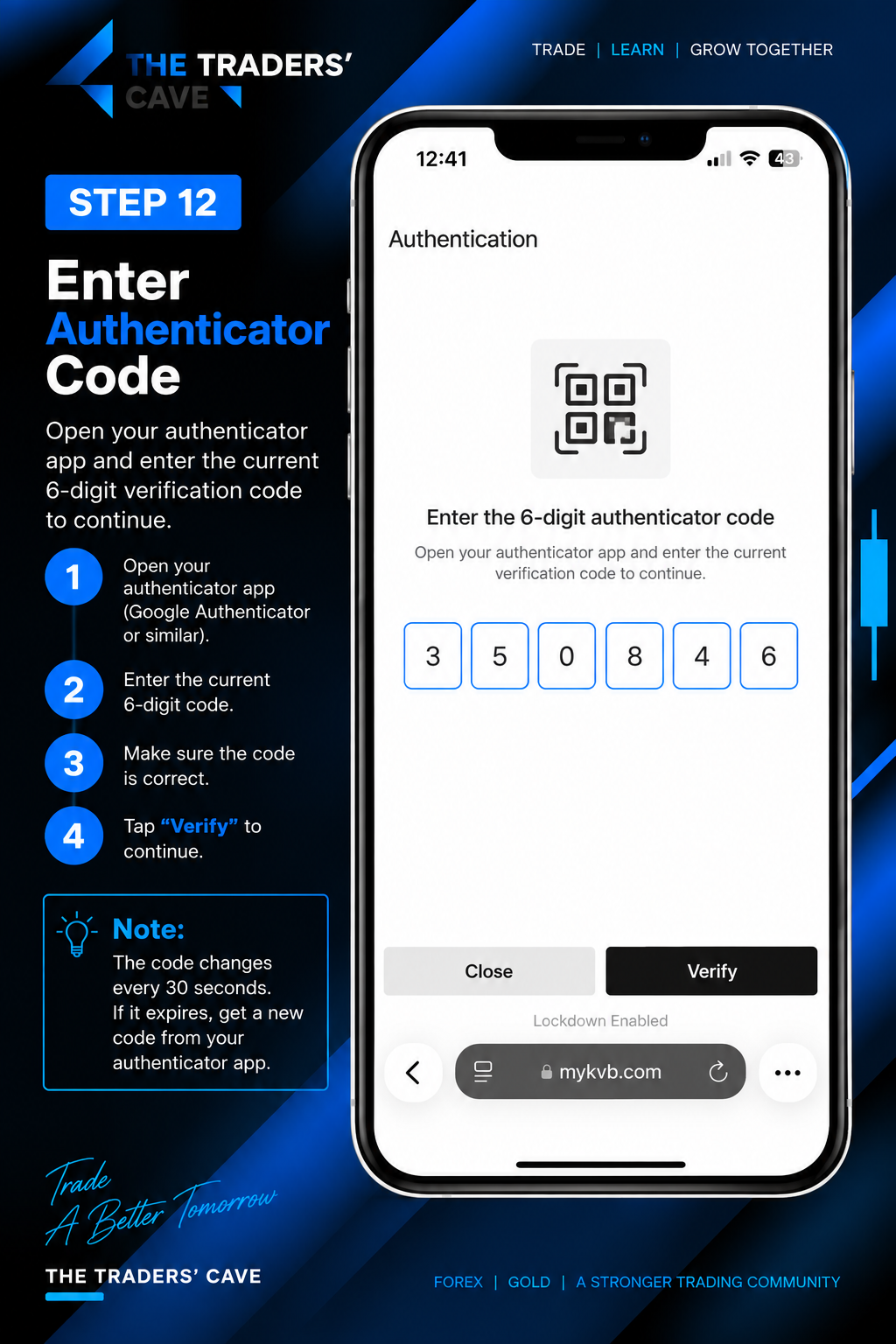
Open your authenticator app, enter the current 6-digit authenticator code, and tap “Verify”.
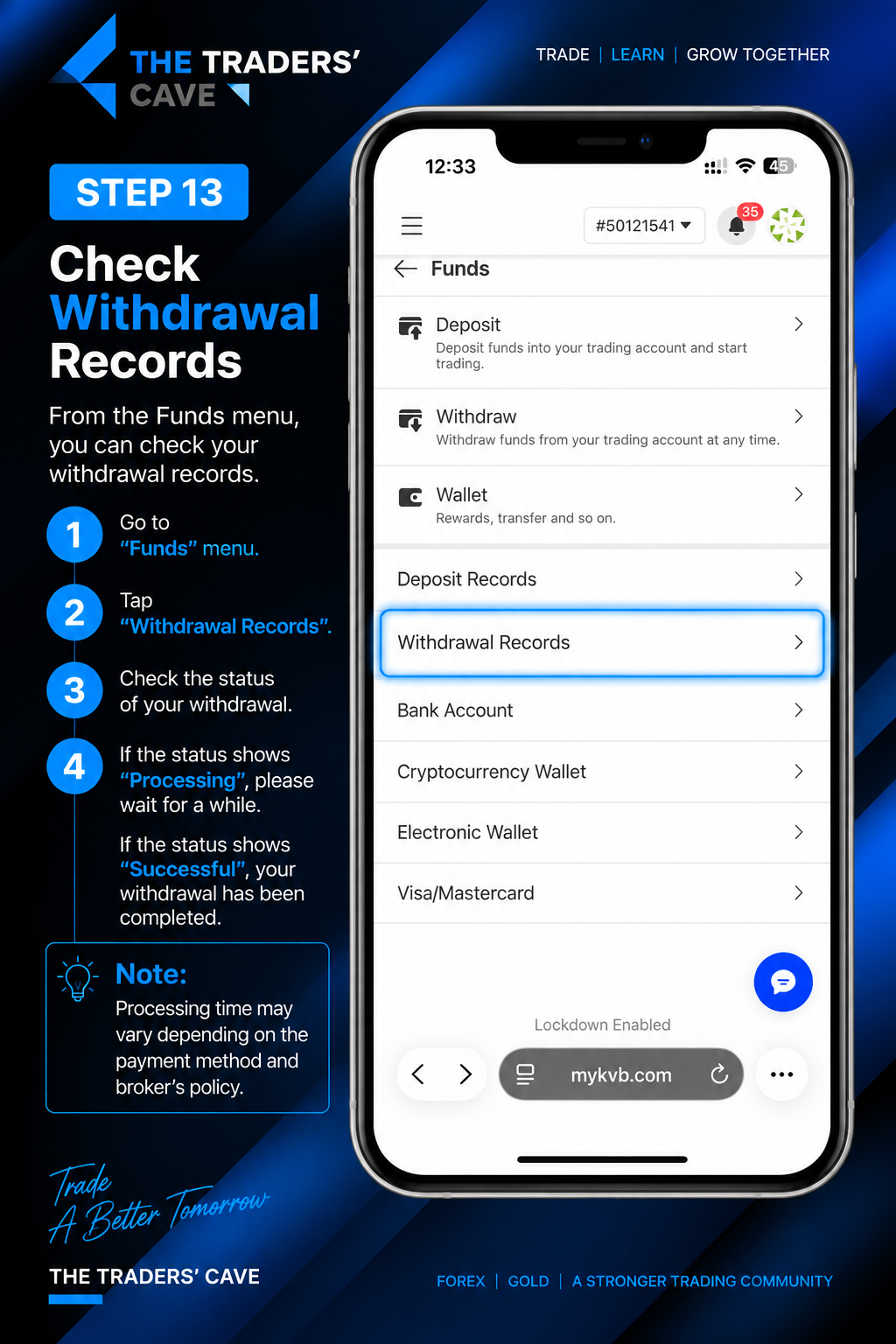
Go to “Funds” and select “Withdrawal Records” to check the status of your withdrawal.
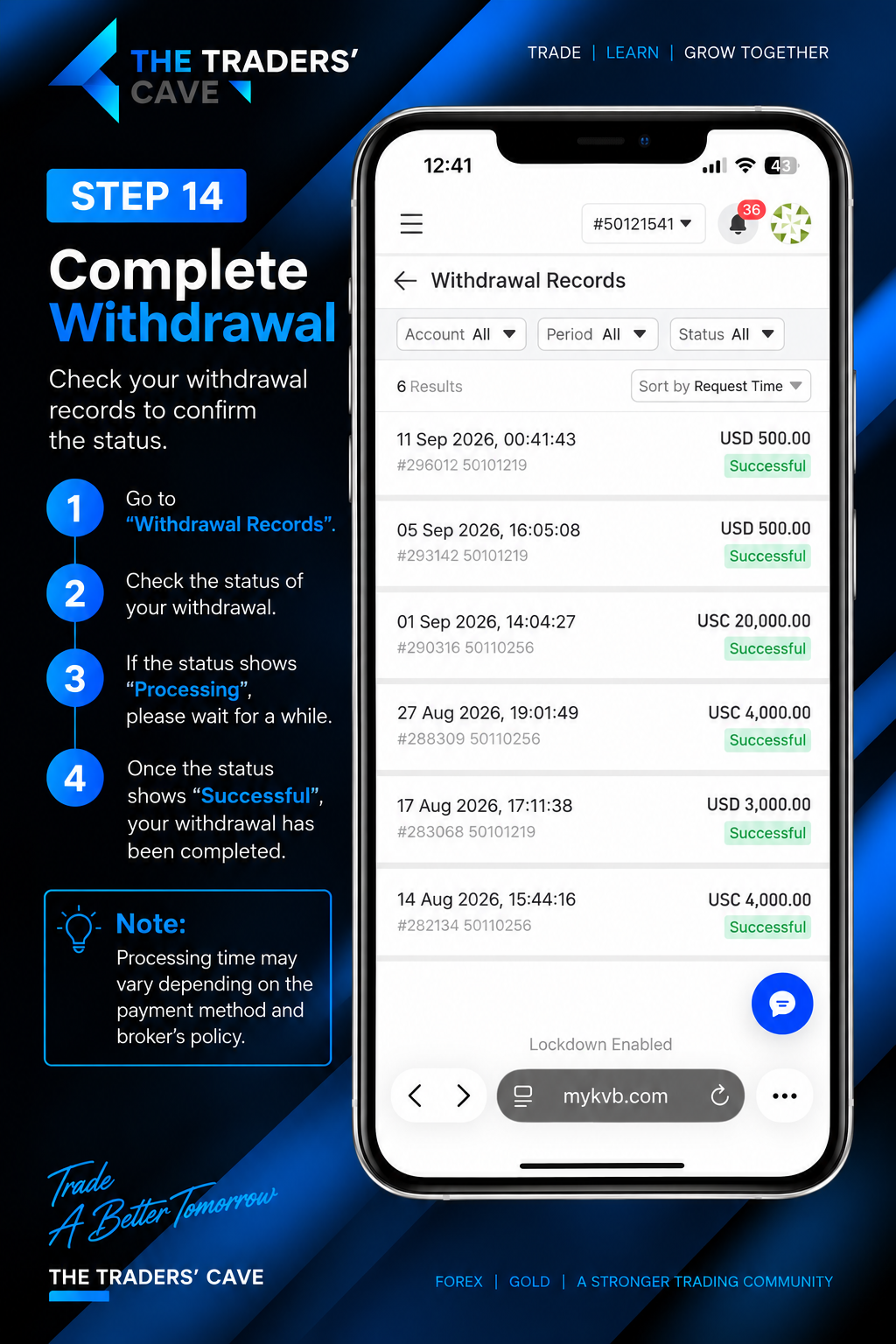
Check your withdrawal status. If it shows “Processing”, wait for the transaction to be processed. Once it shows “Successful”, the withdrawal has been completed.
How to Login to Your KVB Trading Account on MetaTrader 5
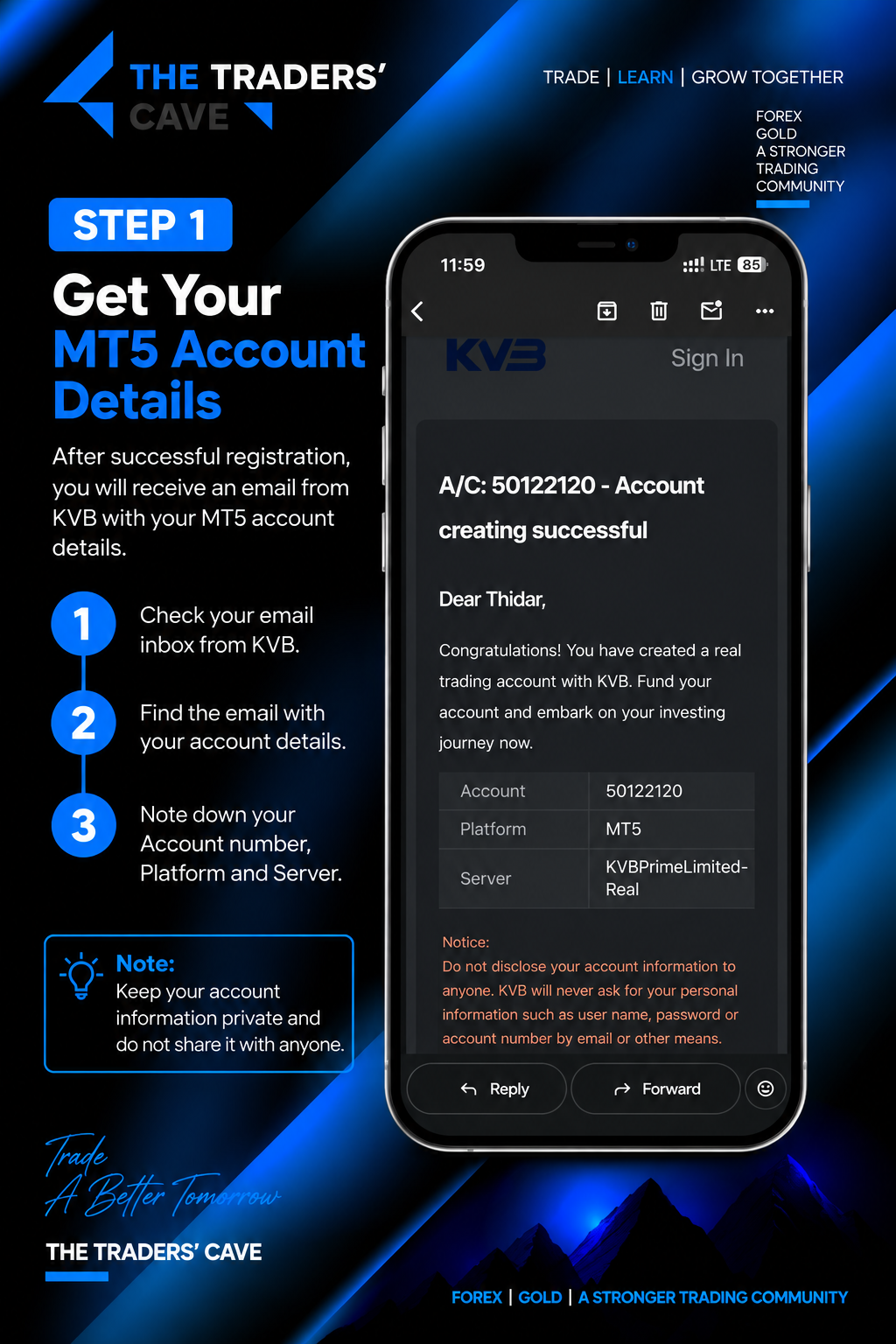
After your KVB trading account has been created successfully, check the email from KVB and note your MT5 Account Number, Platform, and Server.
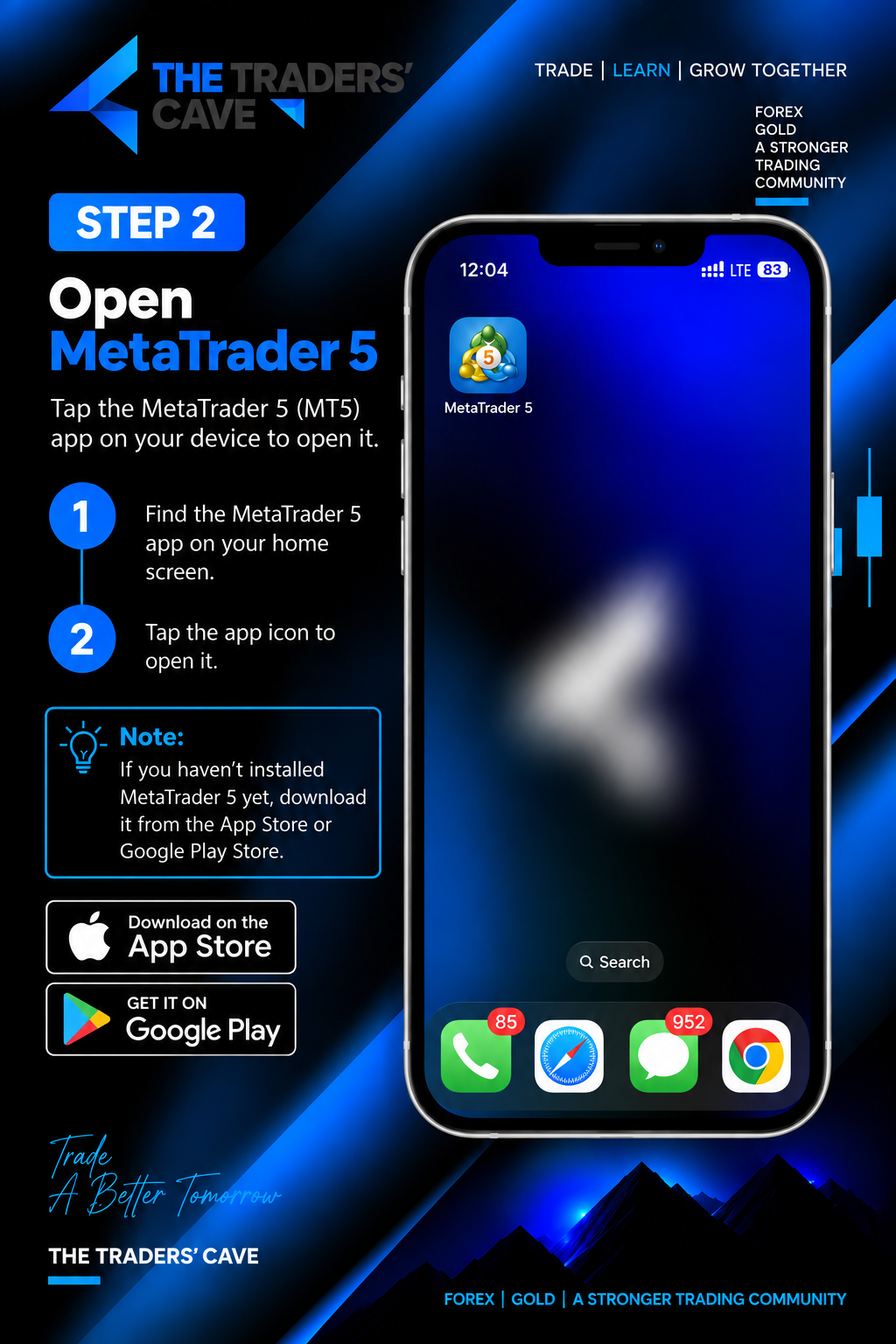
Open the MetaTrader 5 (MT5) application on your device. If you have not installed MT5 yet, download and install it from the App Store or Google Play Store.
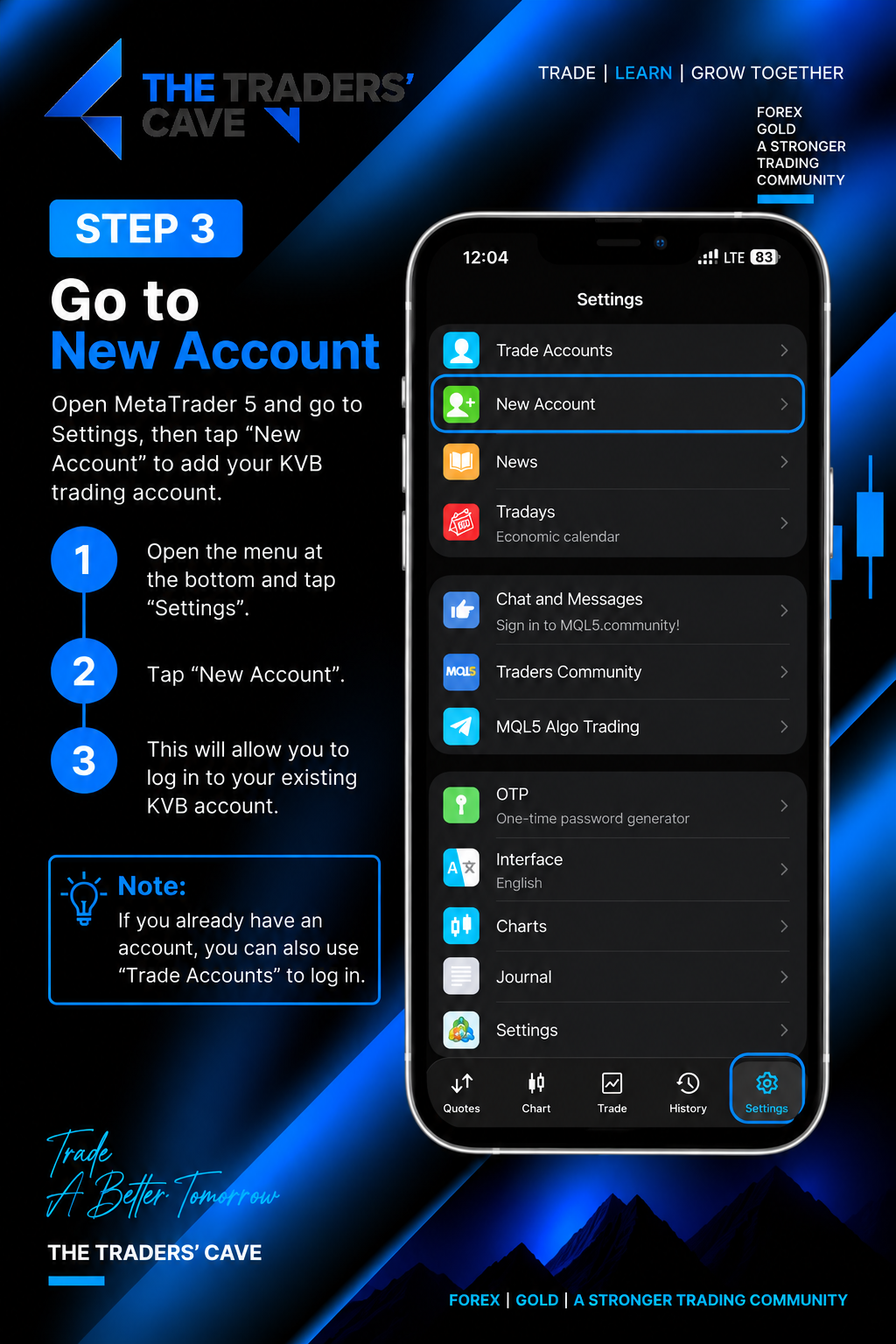
Open MetaTrader 5, go to “Settings”, and tap “New Account” to add your existing KVB trading account.
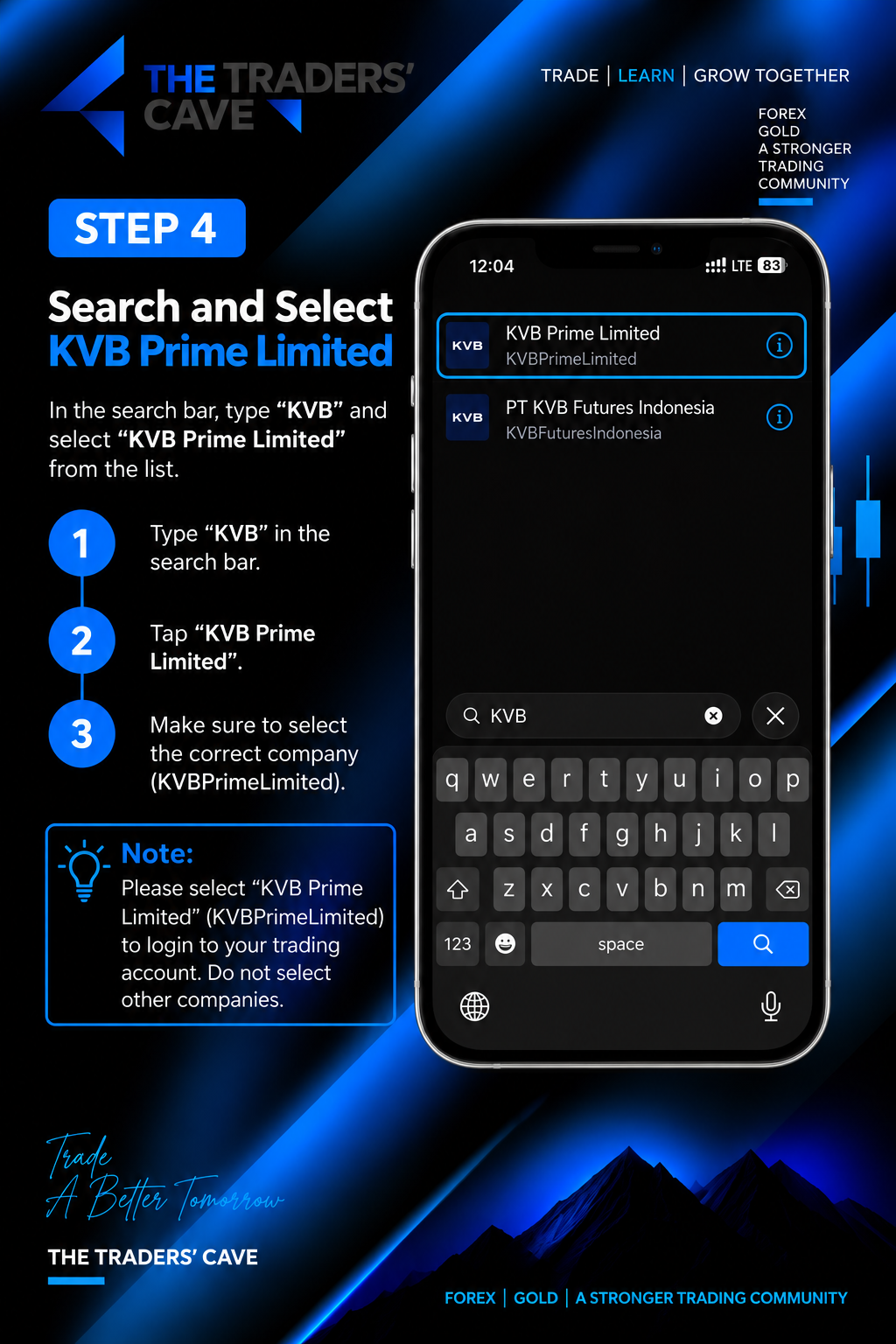
Search for “KVB” and select “KVB Prime Limited” (KVBPrimeLimited) from the list. Make sure you select the correct company.
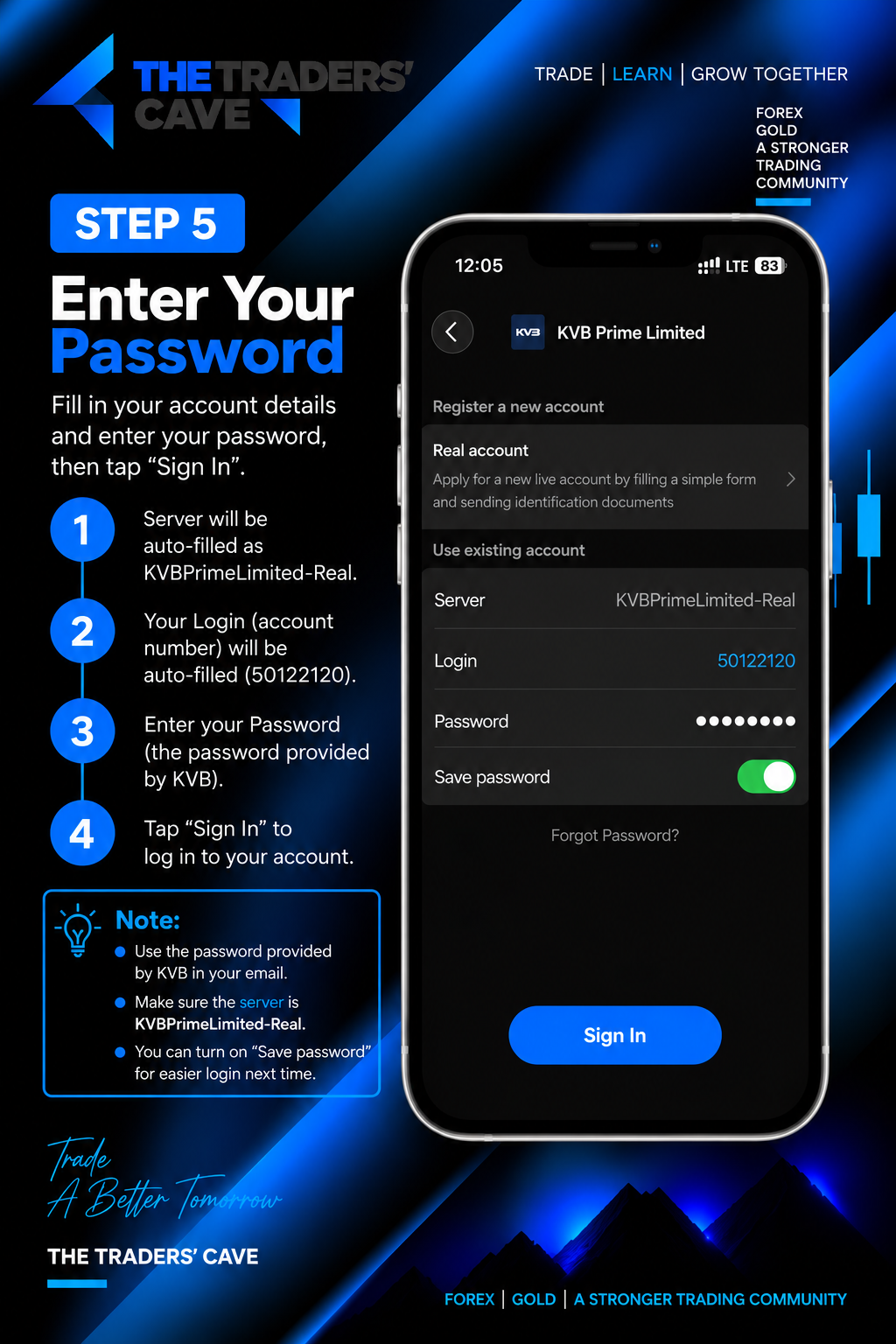
Select the server shown in your KVB account details, enter your MT5 Login (Account Number) and Trading Password, then tap “Sign In”.
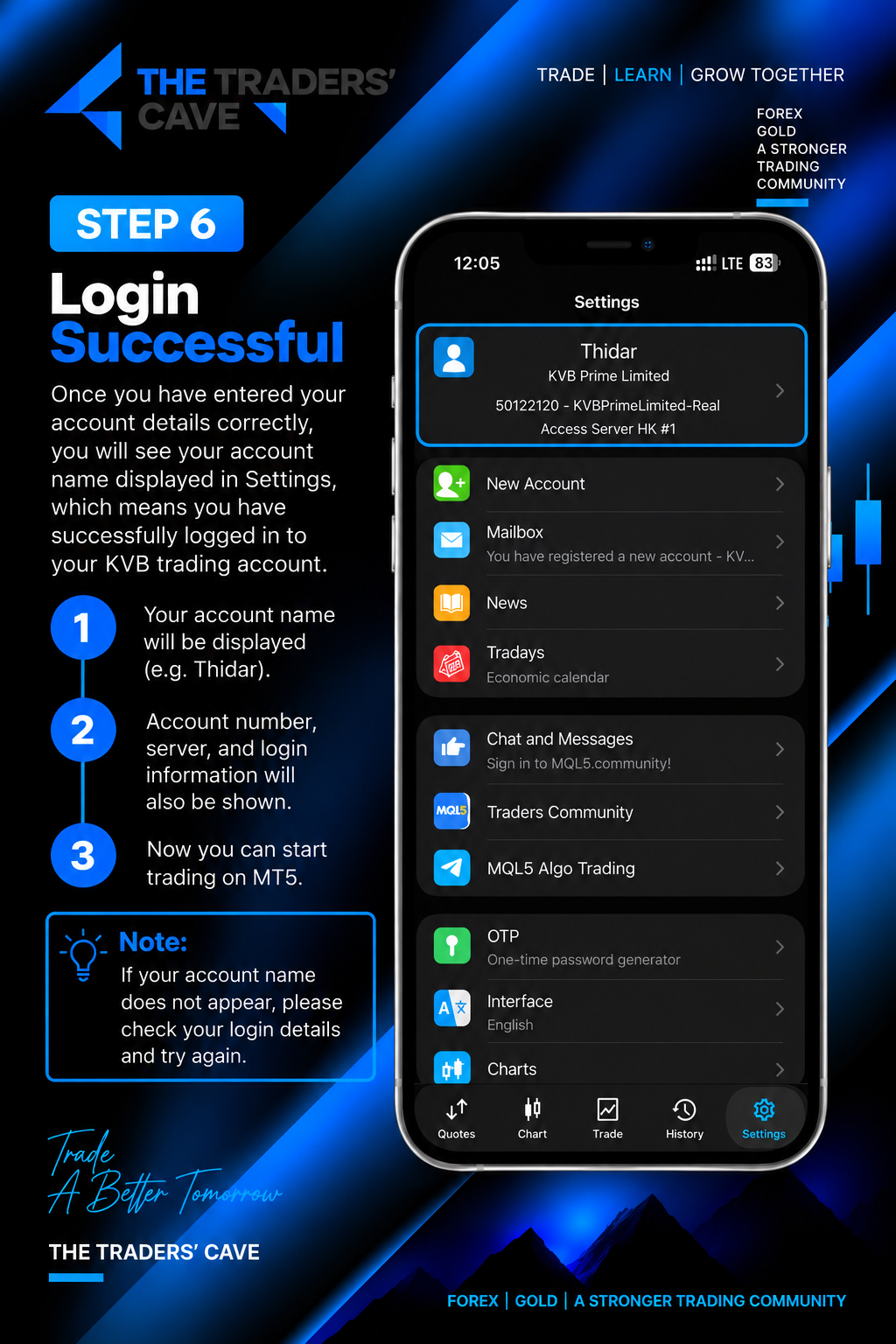
After logging in successfully, your KVB trading account will appear in MetaTrader 5. Check your Account Number and Server to confirm that the correct account is connected.